
Your iPad can feel warmer during normal tasks such as setup, restoring from a backup, a software update, high-quality video streaming, or graphics-intensive or processor-intensive apps and games. If it gets uncomfortably hot, move it out of direct sunlight, stop heavy use for a while, and let it cool before continuing.
If the iPad is frozen or not responding, force restart it: press and quickly release the volume button closest to the Top button, press and quickly release the volume button farthest from the Top button, then press and hold the Top button until the Apple logo appears.
Close Demanding Apps and Games
If the iPad gets warm while you are using a graphics-heavy game, video editor, or AR app, stop that activity and let the iPad cool. Only force-close an app when it is not responding: swipe up from the bottom of the screen, find the app, and swipe up on its preview to close it. Apple warns that force-closing apps unnecessarily can slow down the device when you reopen them.
Some apps, especially newer ones designed for the iPad Air's powerful chip, might not be perfectly optimized yet. If you notice one specific app always causes the iPad to heat up, check the App Store for an update. Developers frequently release patches to improve efficiency and fix bugs that cause excessive battery drain or processor load.
Check for an iPadOS Update
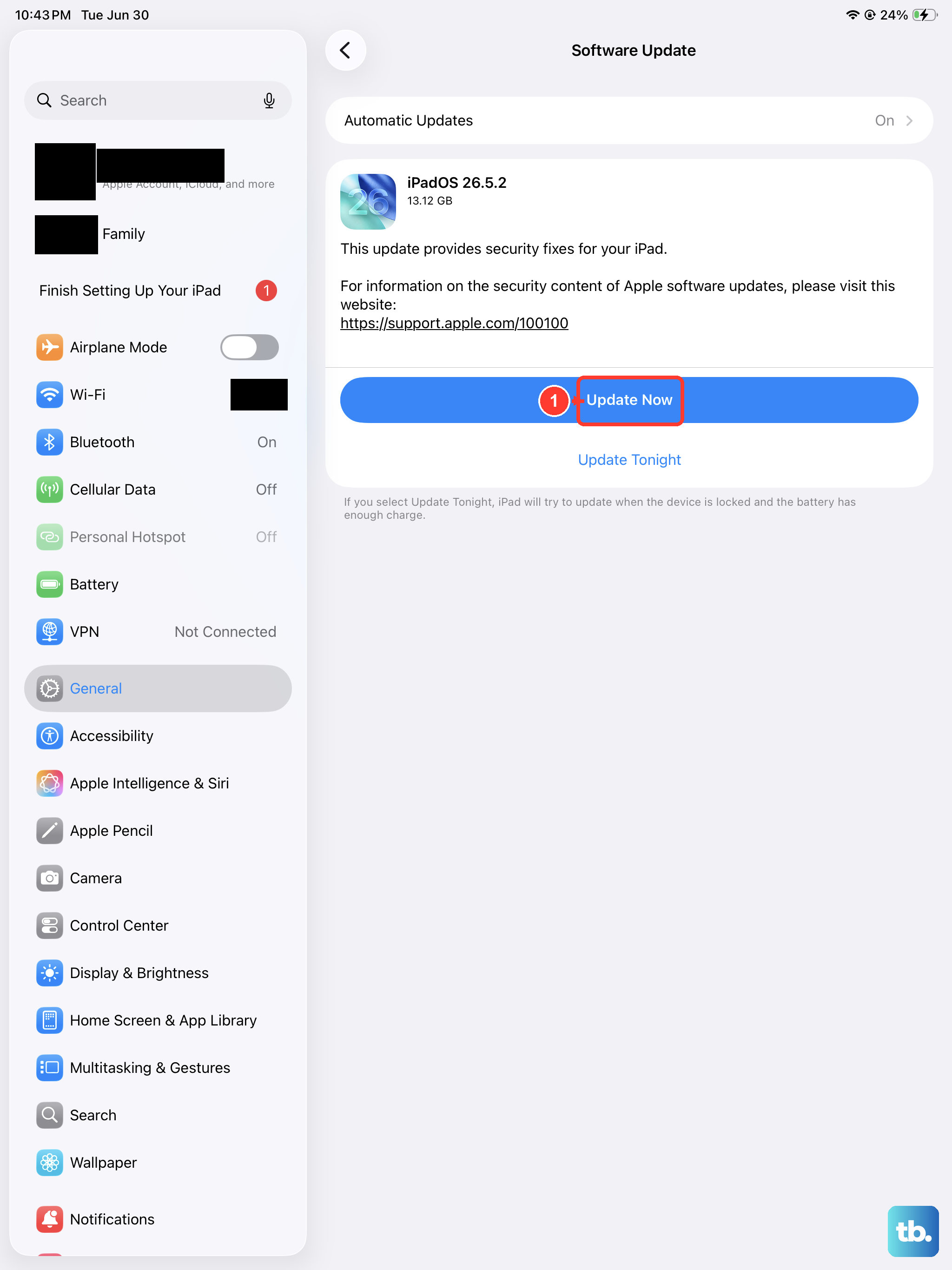
Apple releases software updates that often include performance optimizations and thermal management improvements. Go to Settings > General > Software Update. If an update is available, I'd recommend installing it. It's a good idea to plug your iPad into power and connect to Wi-Fi before starting the update.
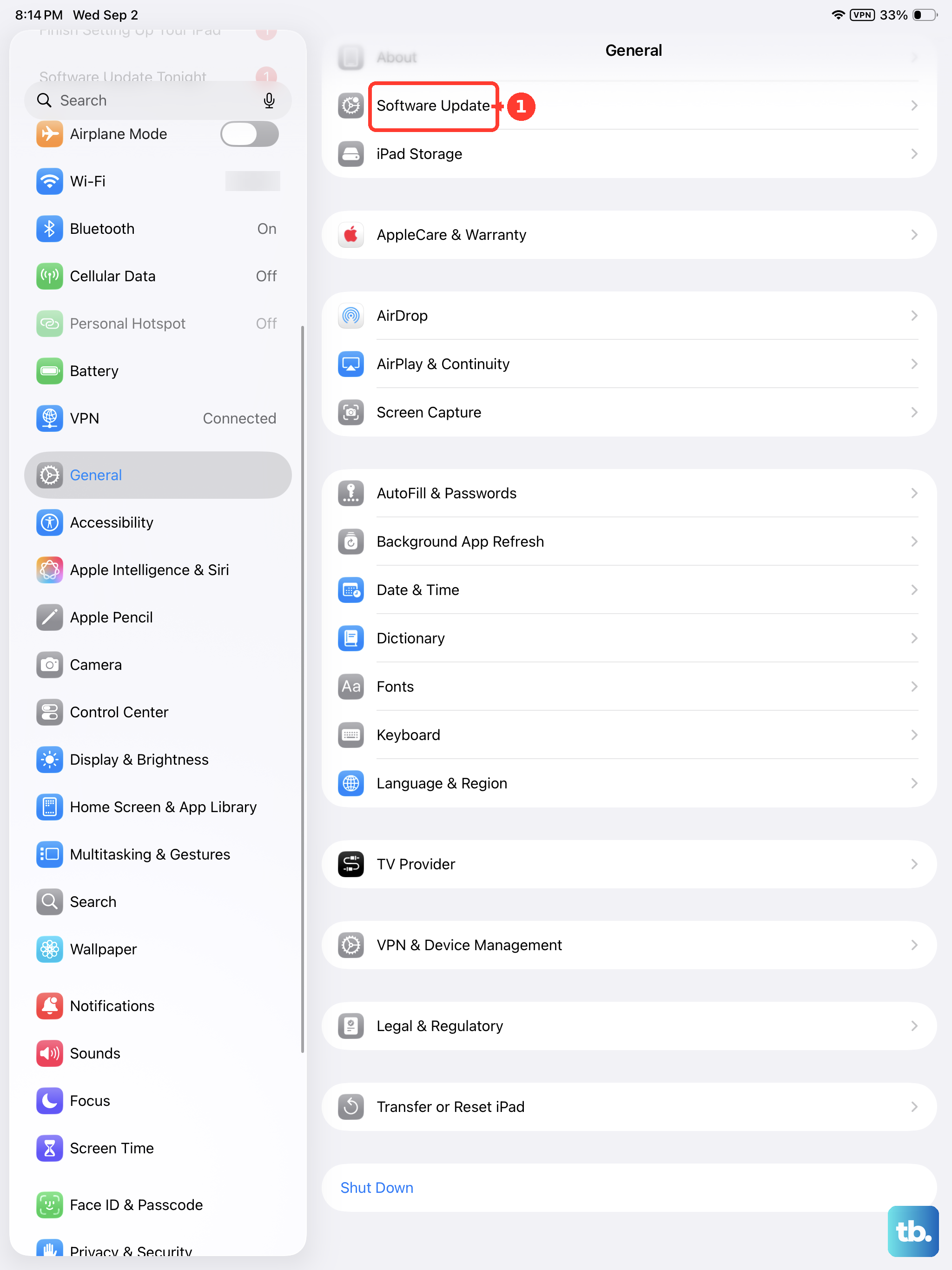
These updates can address underlying system processes that might be causing the chip to work harder than necessary. Since the 2026 model runs iPadOS 26, ensuring you're on the latest version is a key step for both security and smooth performance.
Review Your Charging Setup
Use the Apple USB-C charge cable with a compatible USB-C power adapter. Apple lists a 20W USB-C Power Adapter in the box for the current iPad Air, so a 30W-or-higher adapter is not an Apple-stated requirement.
Charge in an environment between 32° and 95° F (0° and 35° C), keep the iPad out of direct sunlight or hot spaces, and remove the case if it tends to heat up while charging. If the iPad gets too warm, iPadOS may slow or pause charging until the temperature lowers.
Adjust Display and Location Settings
A super-bright screen is a major source of heat. Swipe down from the top-right corner to open Control Center and drag the brightness slider down to a more comfortable level. Also, consider turning on Auto-Brightness in Settings > Accessibility > Display & Text Size.
Location Services can use Wi-Fi and Bluetooth to determine your iPad's location, while GPS and cellular location are available on iPad Wi-Fi + Cellular models. Go to Settings > Privacy & Security > Location Services, tap individual apps, and change access where appropriate, such as from "Always" to "While Using the App" when the app does not need background location.
Remove the Case Temporarily
If you're using a thick, insulating case, it might be trapping heat around the iPad's aluminum body, which is designed to help dissipate warmth. Try taking the iPad out of its case for a little while, especially if you're doing something demanding like gaming or video calls. See if the temperature improves.
This doesn't mean you need to go caseless forever. Just be aware that during periods of heavy use, the case can contribute to the heat buildup. Some cases are marketed as having better airflow or heat dissipation if this becomes a frequent issue.
Reset All Settings
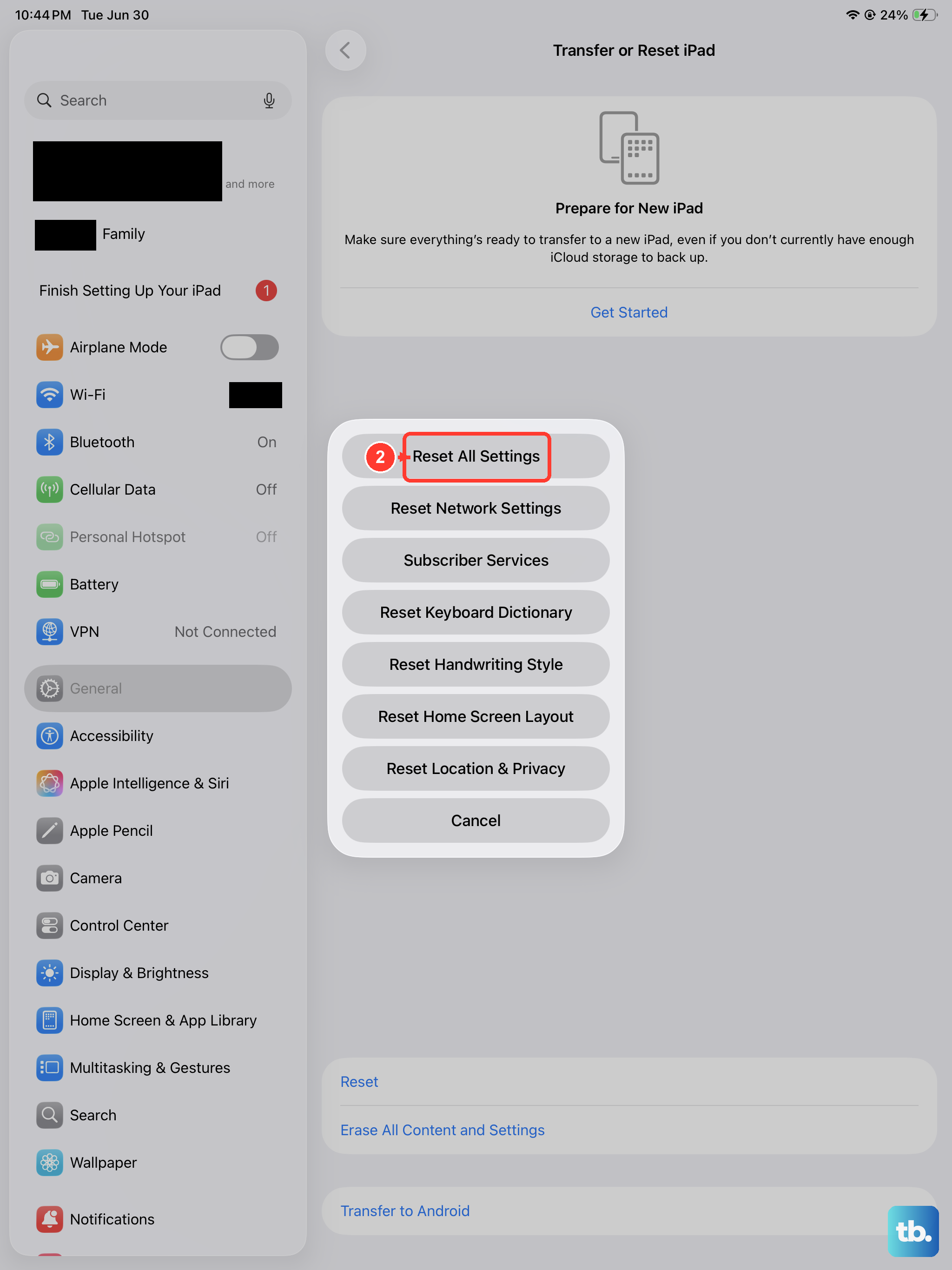
Reset All Settings returns iPad settings to their defaults without erasing your content. Go to Settings > General > Transfer or Reset iPad > Reset > Reset All Settings.
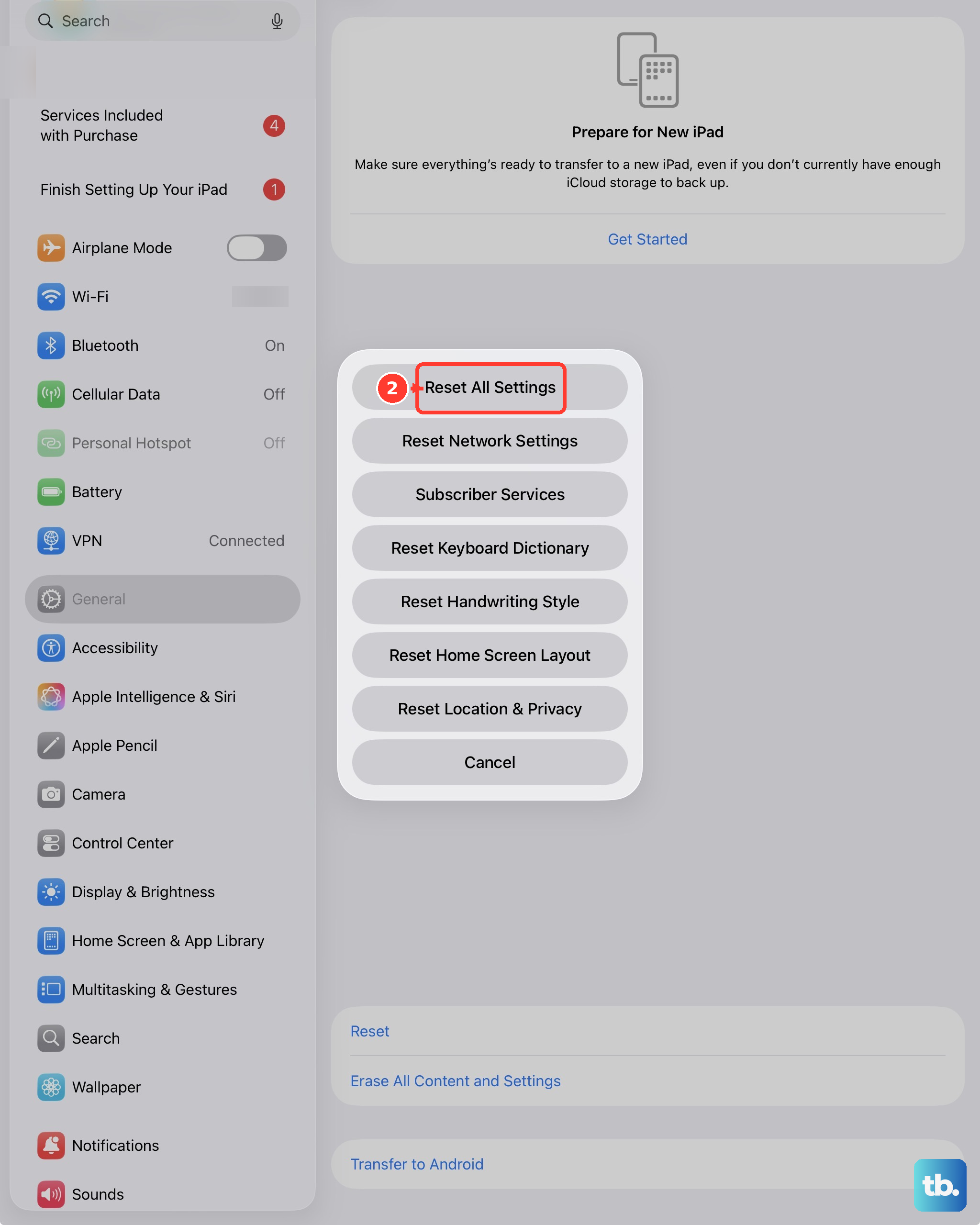
Apple says this removes or resets settings including network settings, the keyboard dictionary, location settings, privacy settings, and Apple Pay cards, while no data or media are deleted. Back up first if you may want to restore your previous settings.
Check Battery Health
On supported iPad models, including iPad Air (M2, M3, and M4), Battery Health is available in Settings > Battery > Battery Health. Use it to check battery health and history, including manufacturing date, first use, cycle count, and maximum capacity.
All rechargeable batteries have a limited lifespan, and Apple says their capacity and performance eventually decline and they need to be replaced. If Battery Health looks abnormal or the iPad continues getting unusually hot during normal use, use Apple Support or an Apple Authorized Service Provider rather than assuming a settings reset will fix it.
Be Mindful of Your Environment
Finally, remember that your iPad is affected by the air around it. Using it in direct sunlight, in a hot car, or on a plush blanket that covers the back can prevent it from cooling itself effectively. Always try to use it on a hard, flat surface in a reasonably cool room for the best thermal performance.
The iPad Air is a powerful device, and some warmth during heavy, sustained workloads is normal. But if it's getting hot during everyday tasks like browsing or watching videos, one of these steps should help identify and solve the problem.