
If your iPad Air (2026) is suddenly quiet, with no banners, sounds, or badges from your apps, you're not alone. This is a common but fixable glitch in iPadOS. The good news is, it's almost always a software hiccup you can resolve yourself.
I'd start with the simplest fix first, which often does the trick. Give your iPad a quick restart. Press and hold the top button and either volume button until the power slider appears, then slide to power off. Wait about 30 seconds, then press the top button again to turn it back on. This clears the iPad's temporary memory and can reset any stuck notification processes.
Check Focus Modes and Do Not Disturb
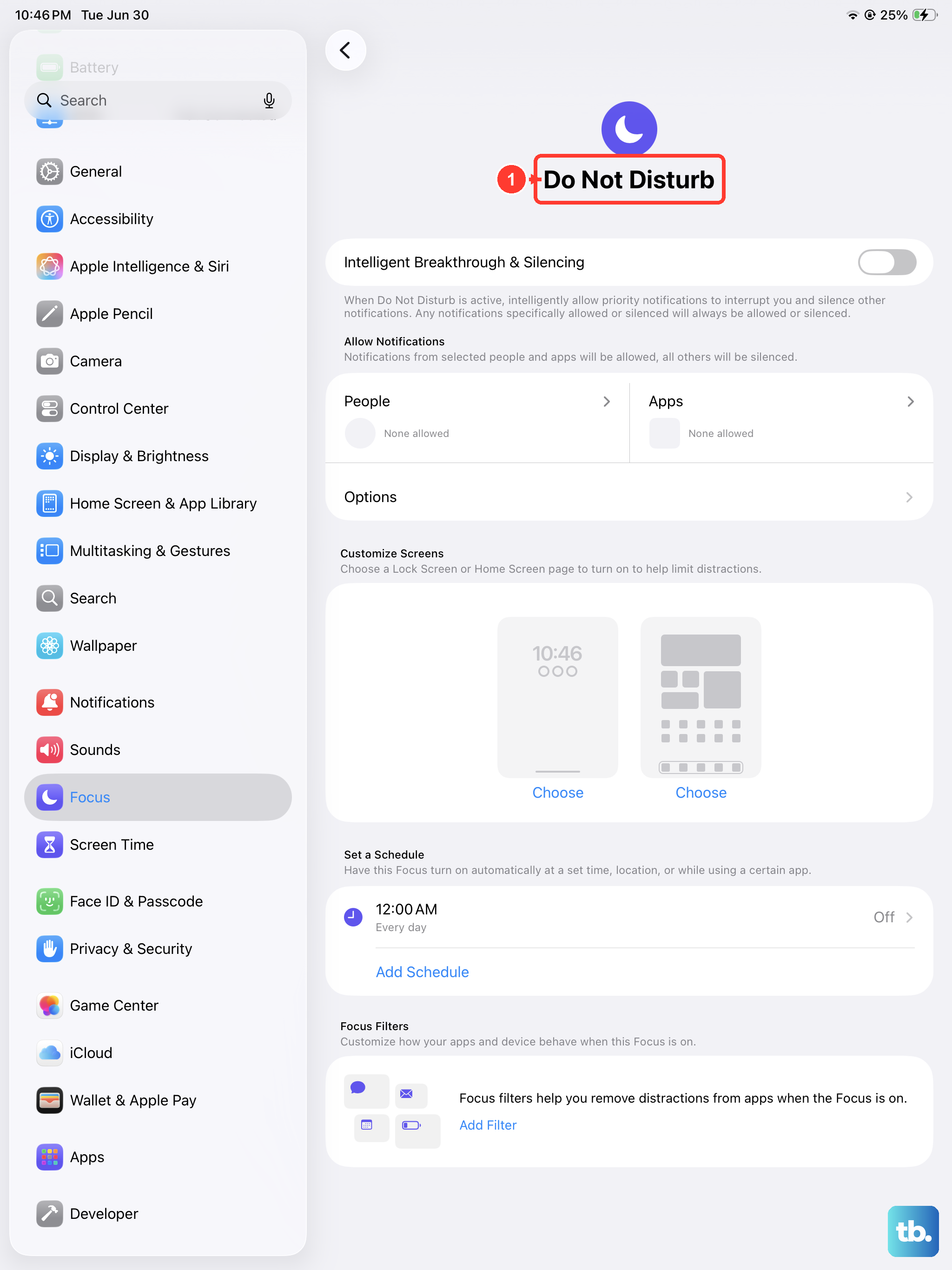
Focus modes are incredibly useful, but they can sometimes be too good at their job. Swipe down from the top-right corner of your screen to open Control Center. Look at the Focus tile, if it shows anything other than the moon icon for Do Not Disturb, tap it to see which Focus is active.
You might have a Focus like Work or Sleep enabled that's silencing notifications from specific apps. Tap the active Focus to see its settings and make sure your essential apps are allowed to notify you. Also, check that Do Not Disturb isn't scheduled for a time you forgot about in Settings > Focus.
Review Notification Settings for the Problem App
Sometimes, an app's notification permissions get turned off, either by accident or after an update. Open the Settings app and scroll down to find the app that's not alerting you. Tap on it, then select Notifications.
Make sure "Allow Notifications" is toggled on at the very top. Below that, you can customize the alert style. For critical apps, I usually enable Lock Screen, Notification Center, and Banners, and set the banner style to "Persistent" so it stays until I dismiss it.
Update iPadOS and Your Apps
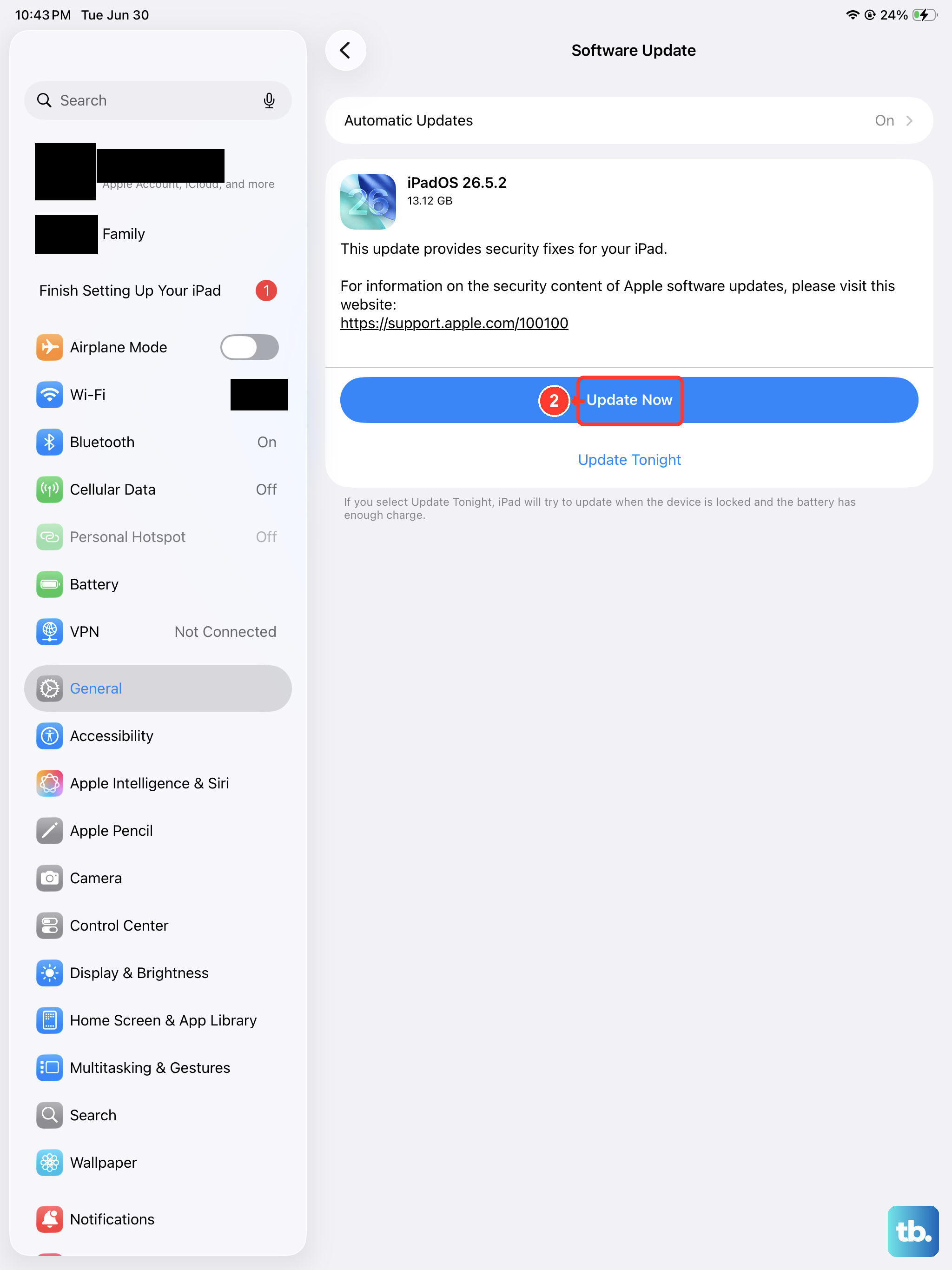
Software bugs are a frequent cause of notification failures, and Apple regularly patches these issues. Go to Settings > General > Software Update to see if a newer version of iPadOS 26 is available. Installing it can resolve known glitches.
Don't forget the apps themselves. Open the App Store, tap your profile icon in the top right, and scroll down to see pending updates. Update the specific app that's having issues, as developers often release fixes for notification problems.
Force Restart Your iPad Air
If a normal restart didn't help, a force restart goes a step deeper. This doesn't erase any data, it just gives the system a hard reset. On your iPad Air (2026), quickly press and release the Volume Up button, then quickly press and release the Volume Down button.
Immediately after that, press and hold the Top button. Keep holding it until you see the Apple logo appear on the screen, then you can let go. This can clear more stubborn software states that a standard shutdown might miss.
Reset All Settings
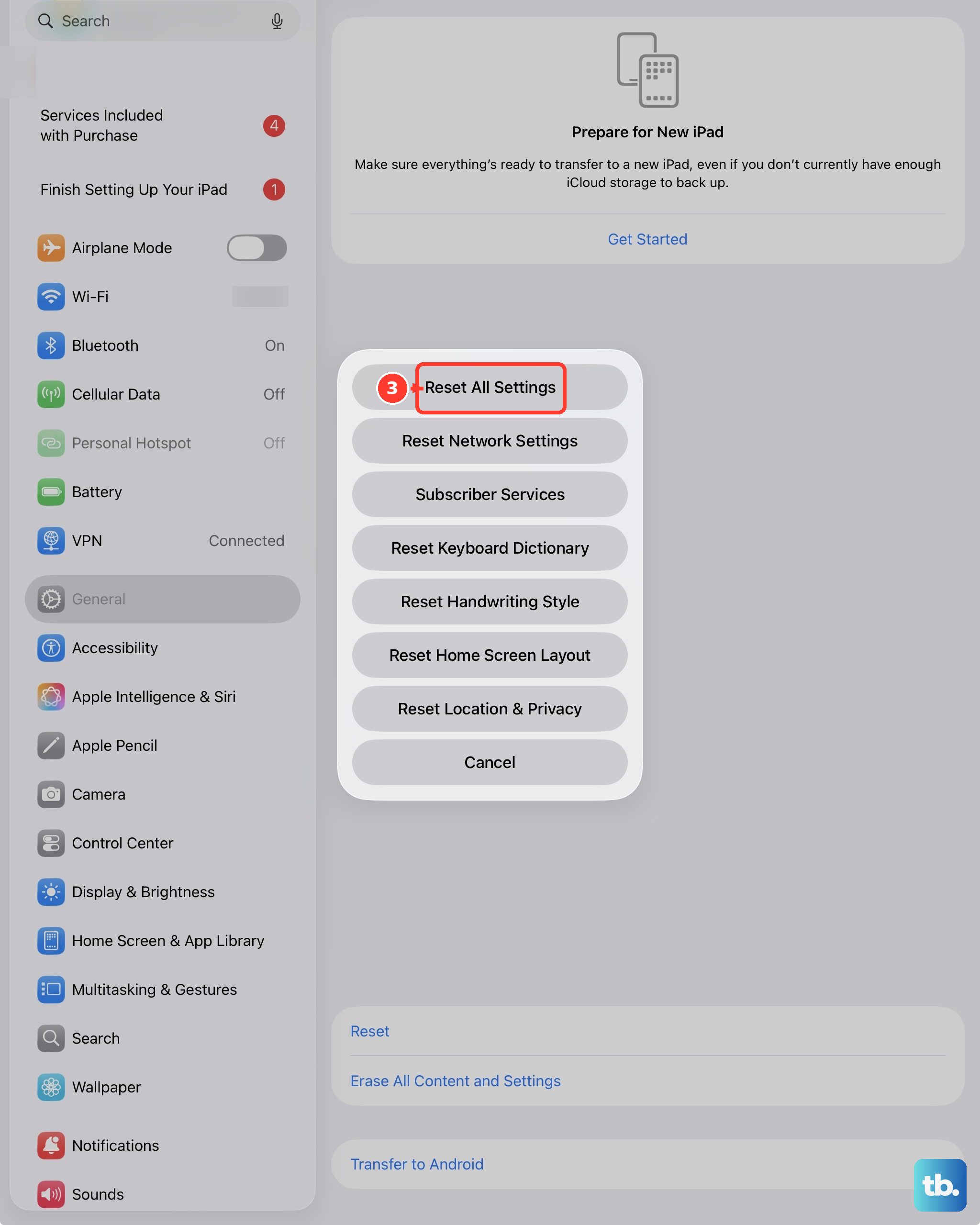
This is a more comprehensive step if the problem persists. It will reset every system setting on your iPad, like your Wi-Fi passwords, wallpaper, and privacy permissions, back to factory defaults, but it won't touch your personal data, photos, or apps.
To do this, go to Settings > General > Transfer or Reset iPad. Tap Reset at the bottom, then choose Reset All Settings. You'll need to enter your passcode. After the iPad restarts, you'll have to reconnect to Wi-Fi and re-customize some preferences, but it often resolves deep-seated notification conflicts.
Check Date & Time Settings
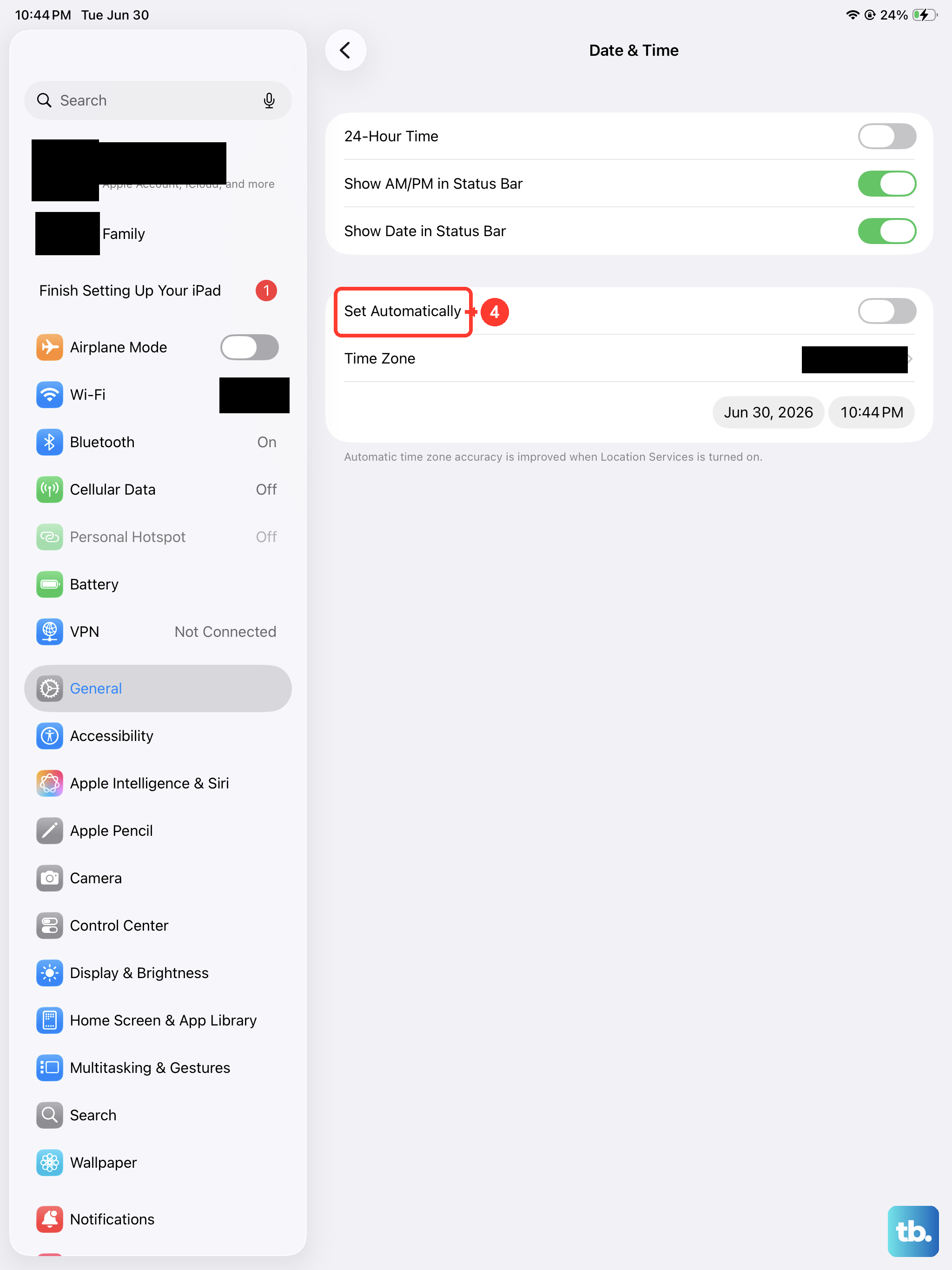
It sounds minor, but an incorrect date or time can wreak havoc on notification delivery, as they are often time-stamped by the server. Go to Settings > General > Date & Time.
Make sure "Set Automatically" is turned on. This allows your iPad to get the correct time from the network. If it's already on, try turning it off for a moment, then turn it back on to refresh the connection.
Sign Out and Back Into Your Apple ID
Notifications for Apple services like iMessage, Mail, and Calendar are tied to your Apple ID. A glitch in this connection can silence them. Go to Settings and tap your name at the top. Scroll all the way down and tap Sign Out.
You'll be asked if you want to keep a copy of your keychain, contacts, and calendars on the iPad, you can say yes. After signing out, restart your iPad. Then, go back to Settings, sign in with your Apple ID again, and check if notifications return.
Check for Notification Summary and Scheduled Delivery
iPadOS has features designed to reduce interruptions, which can sometimes work too well. Go to Settings > Notifications. Look for "Scheduled Summary" near the top. If this is on, notifications from selected apps are held and delivered in batches at times you set.
You can turn it off entirely or edit the app list and schedule. Also, within each app's notification settings, check for a "Deliver Quietly" option or a specific scheduling setting that might be delaying your alerts.
Ensure the App Has Background App Refresh Enabled
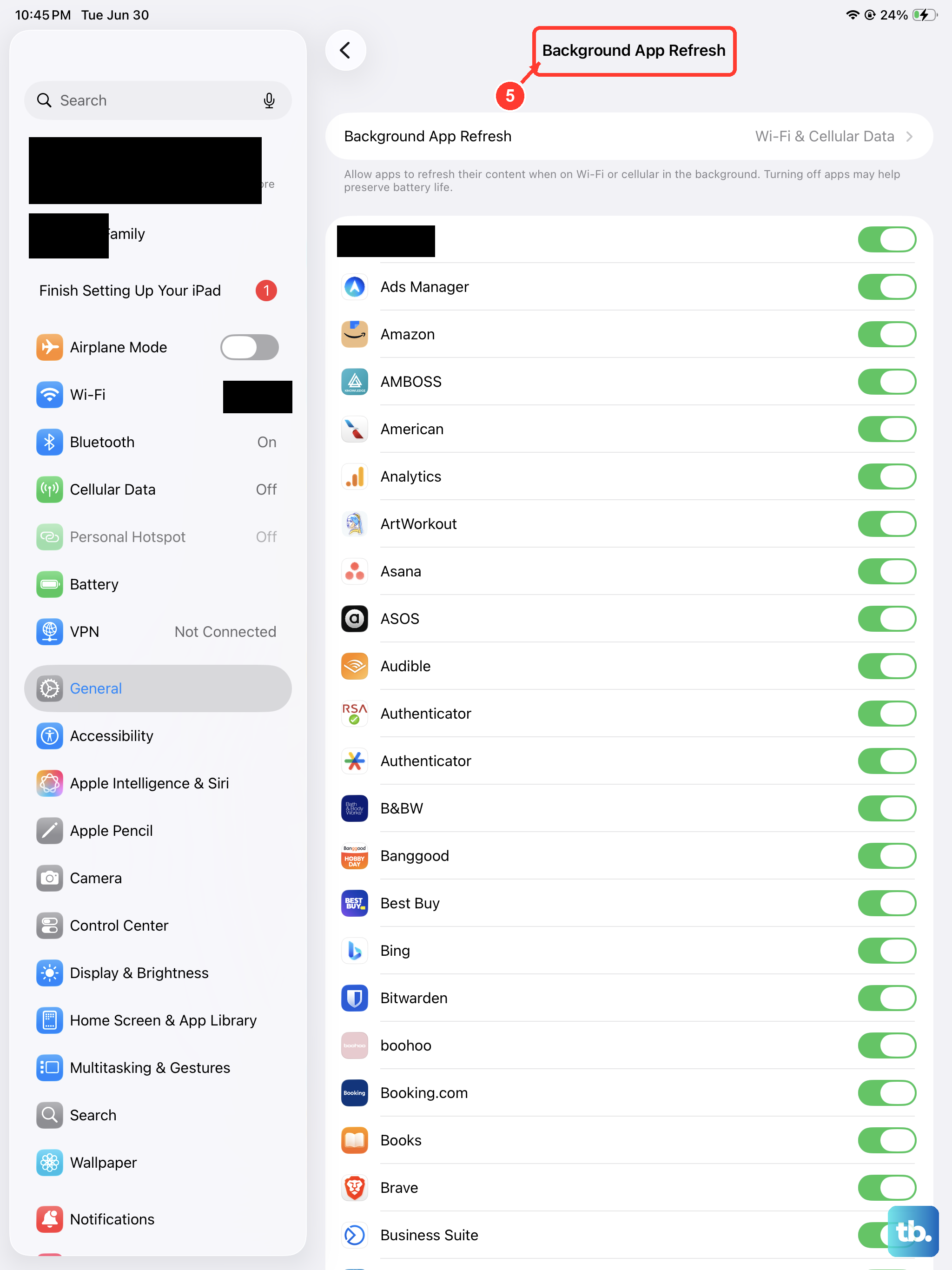
For an app to check for new information and send you a notification, it often needs permission to refresh in the background. Go to Settings > General > Background App Refresh.
Make sure Background App Refresh is turned on at the top (using Wi-Fi & Cellular Data is best). Then, scroll through the list and ensure the toggle is enabled for the app in question. Without this, some apps may only check for new content when you open them.
Review Screen Time and Communication Limits
If you use Screen Time, particularly for a child's iPad or to limit your own usage, certain restrictions can block notifications. Go to Settings > Screen Time. Tap See All Activity, then look at the "Most Notifications" section to see if any apps are listed there.
More importantly, tap Communication Limits. If limits are set, they can restrict who can notify you and when, which might be silencing app alerts you still want to receive.