
If your iPad Air (2026) is starting to feel sluggish, you're not alone. Even a brand new tablet can bog down when too many apps are fighting for resources or storage gets tight. The good news is you can almost always fix it yourself with a few simple steps.
I'd start with a force restart. It's the quickest way to clear out any temporary software glitches that might be causing the lag. On your iPad Air, press and quickly release the Volume Up button, then quickly press and release the Volume Down button. Finally, press and hold the Top button until you see the Apple logo appear on the screen.
This forces a clean reboot without deleting any of your data. It's surprising how often this simple trick gets things running smoothly again.
Check Your Available Storage
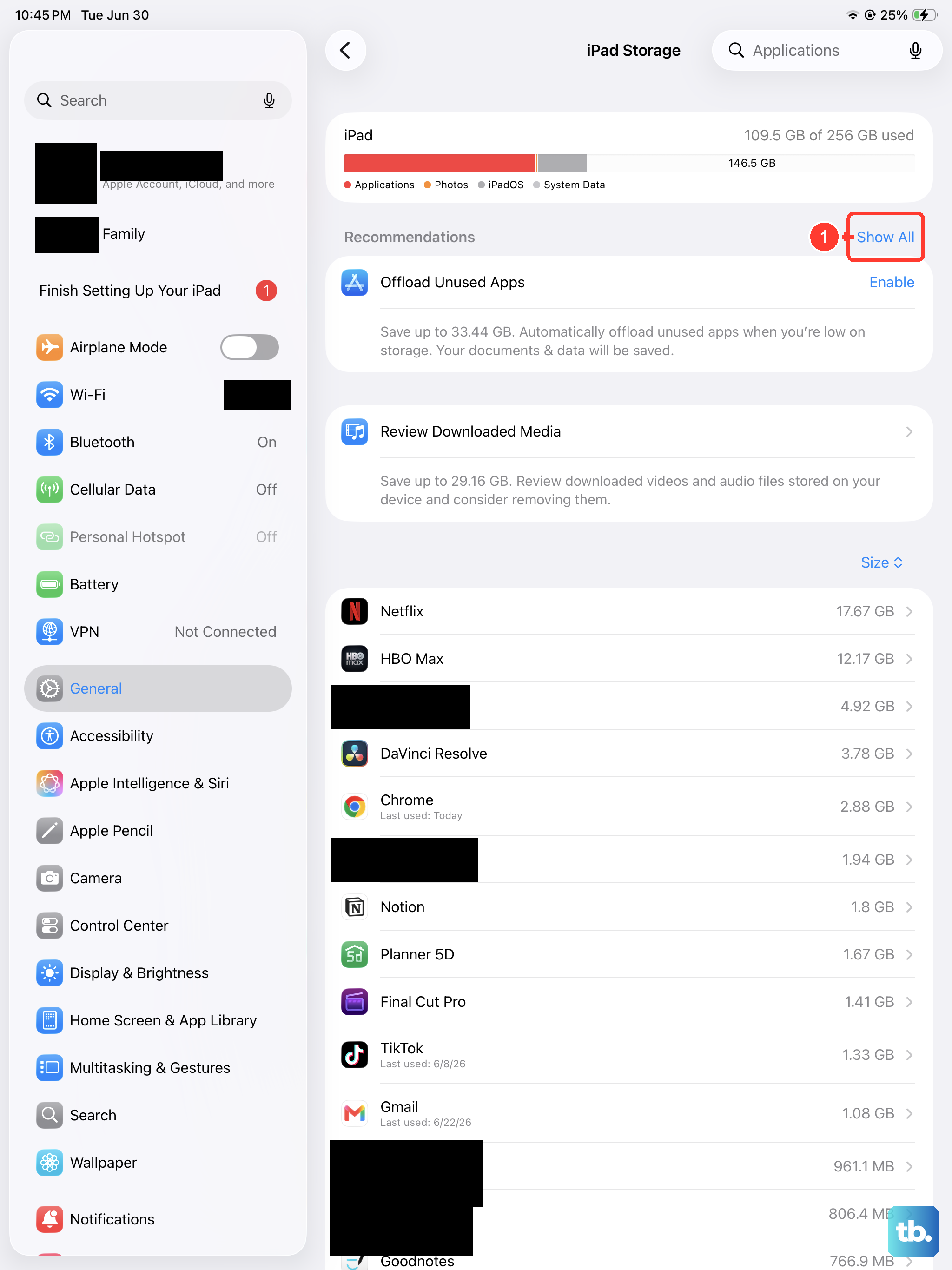
When your iPad's storage is nearly full, performance takes a major hit. The system needs free space to operate properly. Head to Settings > General > iPad Storage to see what's using up all that room.
Look for the largest offenders, which are often photo libraries, video files, or large game apps you don't use anymore. You can offload unused apps to free up space while keeping their documents and data. This setting is right there in the iPad Storage menu.
For photos, consider enabling iCloud Photos with the "Optimize iPad Storage" option turned on. This keeps smaller versions on your device while the full-resolution originals live safely in the cloud.
Update to the Latest iPadOS
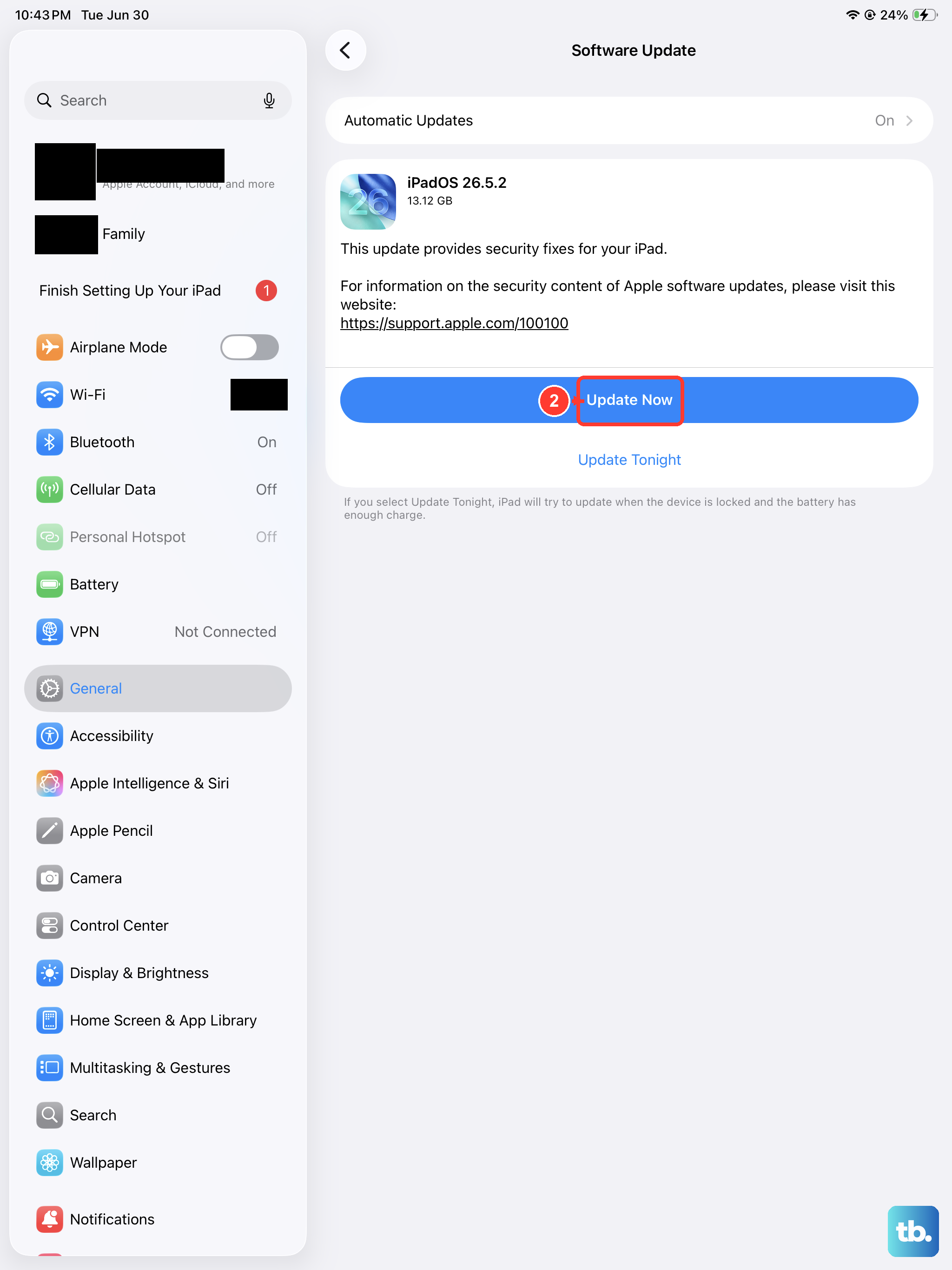
Apple regularly releases iPadOS updates that include performance improvements and bug fixes. An outdated system can be a common source of slowdowns. Go to Settings > General > Software Update.
If an update is available, tap to download and install it. Make sure your iPad is connected to power and Wi-Fi first, as this process can take a little while. I've seen updates specifically target animation stutters and app launch times on previous models.
Manage Your Background App Refresh
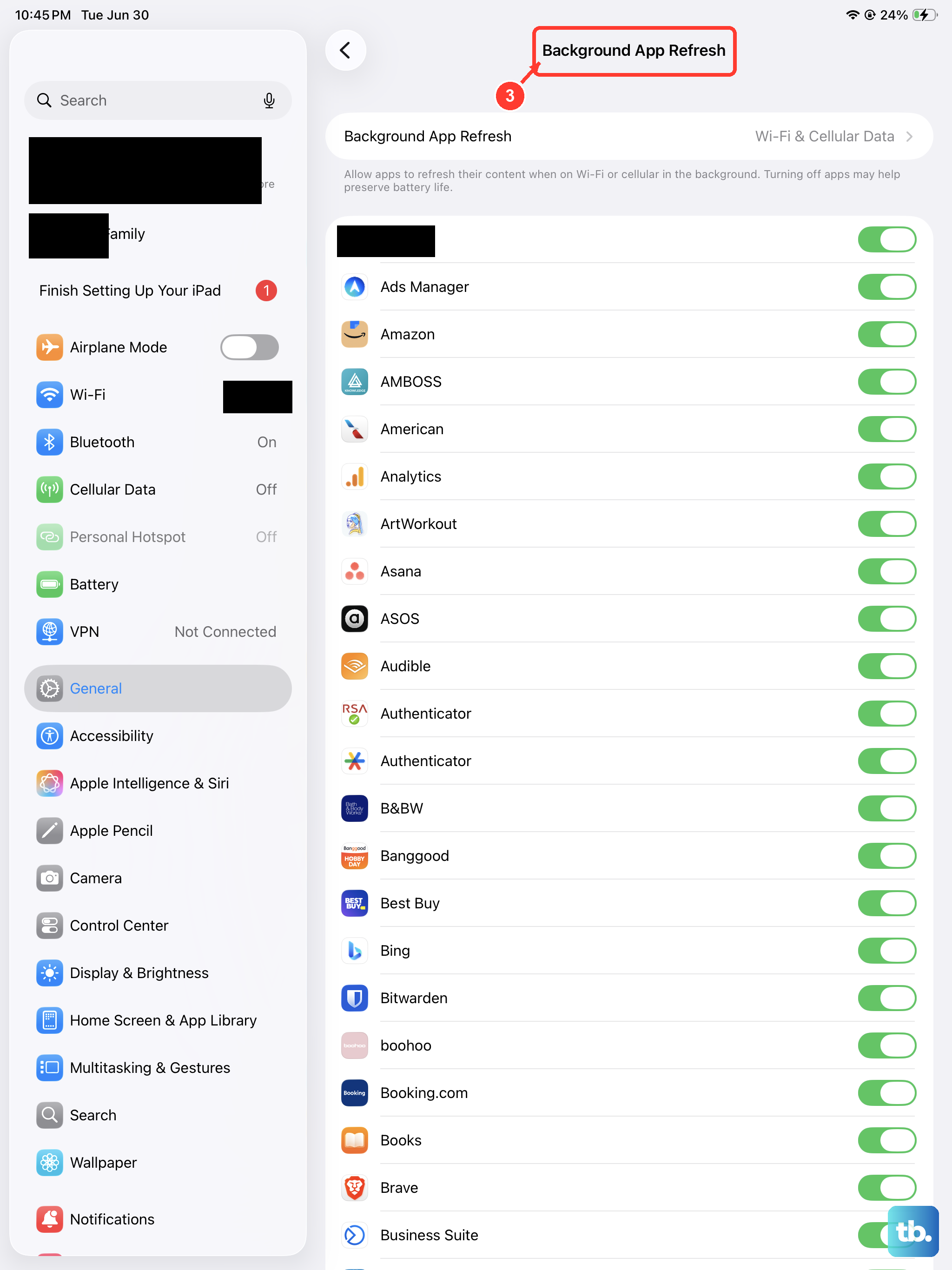
Apps refreshing content in the background are useful, but they can drain your iPad's processing power and battery. You can control which apps get this privilege. Navigate to Settings > General > Background App Refresh.
Here, you can turn the feature off entirely or just for specific apps. I usually leave it on for essential apps like Mail or Calendar and turn it off for social media or games that don't need constant updates.
Close Apps You're Not Using
While iPadOS is good at managing memory, having dozens of apps suspended can still contribute to a feeling of sluggishness. To close them, swipe up from the bottom of the screen and pause in the middle to enter the App Switcher.
Swipe left or right to find the app you want to close, then swipe it up and off the top of the screen. You don't need to do this constantly, but if your iPad feels slow, clearing out a bunch of older apps can give it a fresh start.
Reduce Motion and Transparency Effects
The parallax and blur effects on the Home Screen and within apps look great, but they require extra graphics processing. Turning them down can make your iPad Air feel snappier, especially if you're pushing it with demanding tasks.
Go to Settings > Accessibility > Motion. Turn on the switch for "Reduce Motion." Next, go to Display & Text Size within Accessibility and turn on "Reduce Transparency." The interface will look a bit flatter, but it often responds faster.
Check Your Battery Health
While less common on a newer device like the 2026 model, it's still worth a look. A degraded battery can cause the system to throttle performance to prevent unexpected shutdowns. You can find this information under Settings > Battery > Battery Health.
If the maximum capacity is significantly below 100%, it could be a contributing factor. For a device this new, it's more likely a software issue, but it's a good data point to have.
Reset All Settings
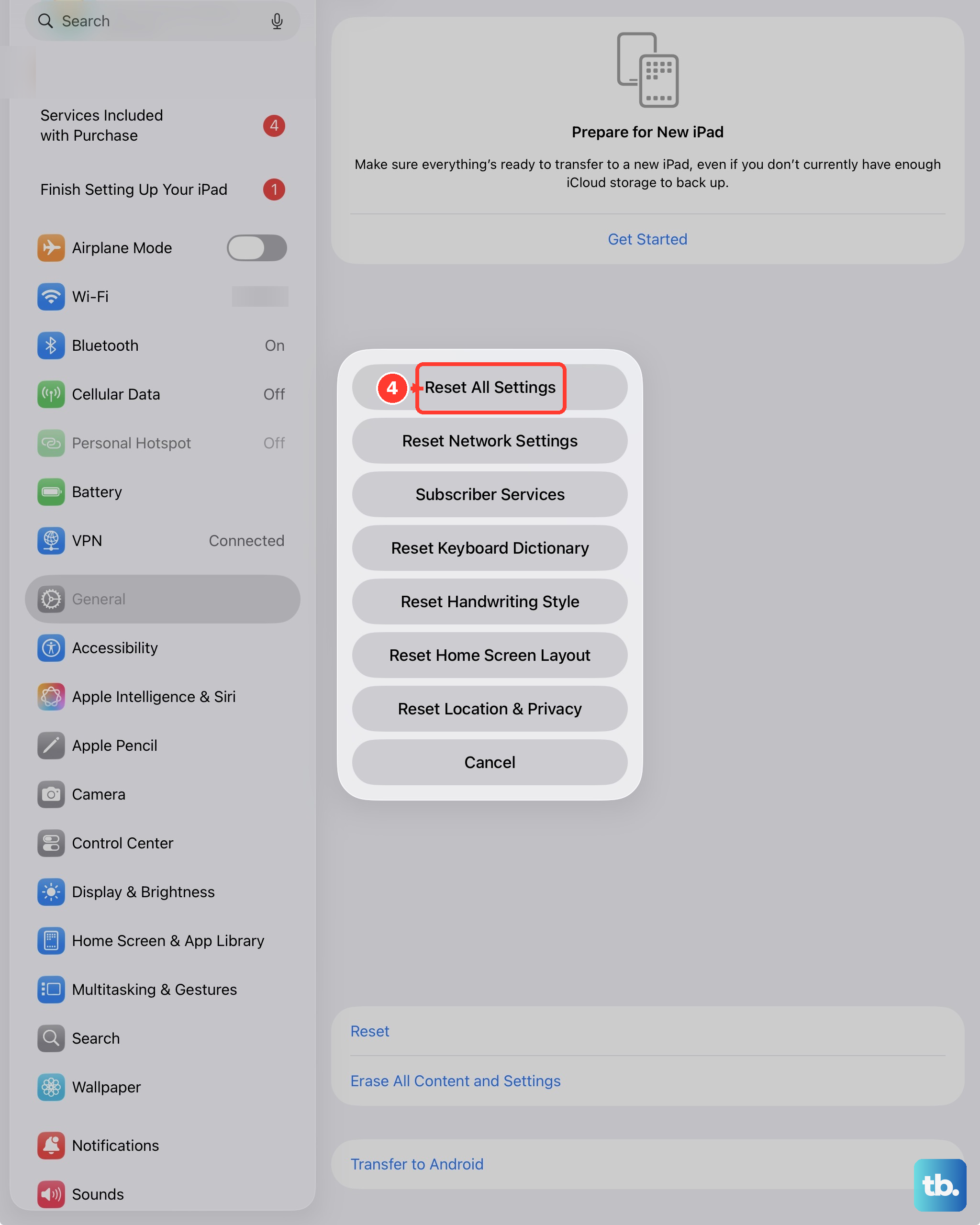
If you've tried everything else and the lag persists, this is a strong next step. Resetting all settings will revert your network, privacy, and display preferences back to factory defaults without erasing your apps or personal data.
Go to Settings > General > Transfer or Reset iPad. Then, tap Reset and choose Reset All Settings. You'll need to re-enter Wi-Fi passwords and reconfigure things like notifications, but it can resolve deep-seated configuration conflicts that cause slowdowns.
Review Your Home Screen Widgets
Widgets that update frequently, like weather, news, or stock tickers, can use resources in the background. If you have many of them, try removing a few to see if performance improves.
Touch and hold a widget on your Home Screen until a menu appears, then tap "Remove Widget." Try keeping only the widgets you check daily and see if that makes a difference in general responsiveness.
Ensure You're Using a Proper Charger
This might seem unrelated, but if your iPad Air is running on a very low battery or a weak charger, it may intentionally limit performance to conserve power. For the fastest, most consistent charging, use a USB-C Power Delivery (PD) charger that supports at least 30W.
Plug it in directly to the USB-C port. Since the iPad Air doesn't support wireless charging, the wired connection is your only and best option for getting full power. Performance is often optimal when the battery is above 20% and the device isn't under heavy thermal stress.