
When your iPad Air (2026) gets stuck in a restart loop, it's more than just an annoyance. It can stop you from working, studying, or just relaxing with a movie. This kind of problem usually points to a software hiccup, but it's good to know there are several things you can try yourself before anything else.
First, make sure you have a recent backup. You can do this through iCloud or by connecting your iPad to a Mac or PC. This protects your photos, documents, and app data just in case you need to take more serious steps later.
Force Restart Your iPad Air
This is almost always the first thing to try. A force restart clears out minor software glitches in the memory without touching your data. For the 2026 iPad Air, which doesn't have a Home button, the process is straightforward.
Press and quickly release the Volume Up button. Then, press and quickly release the Volume Down button. Finally, press and hold the Top button (the one on the upper edge) and keep holding it. Don't let go when you see the Apple logo appear, wait until you see the full startup screen.
Check for Problematic Apps
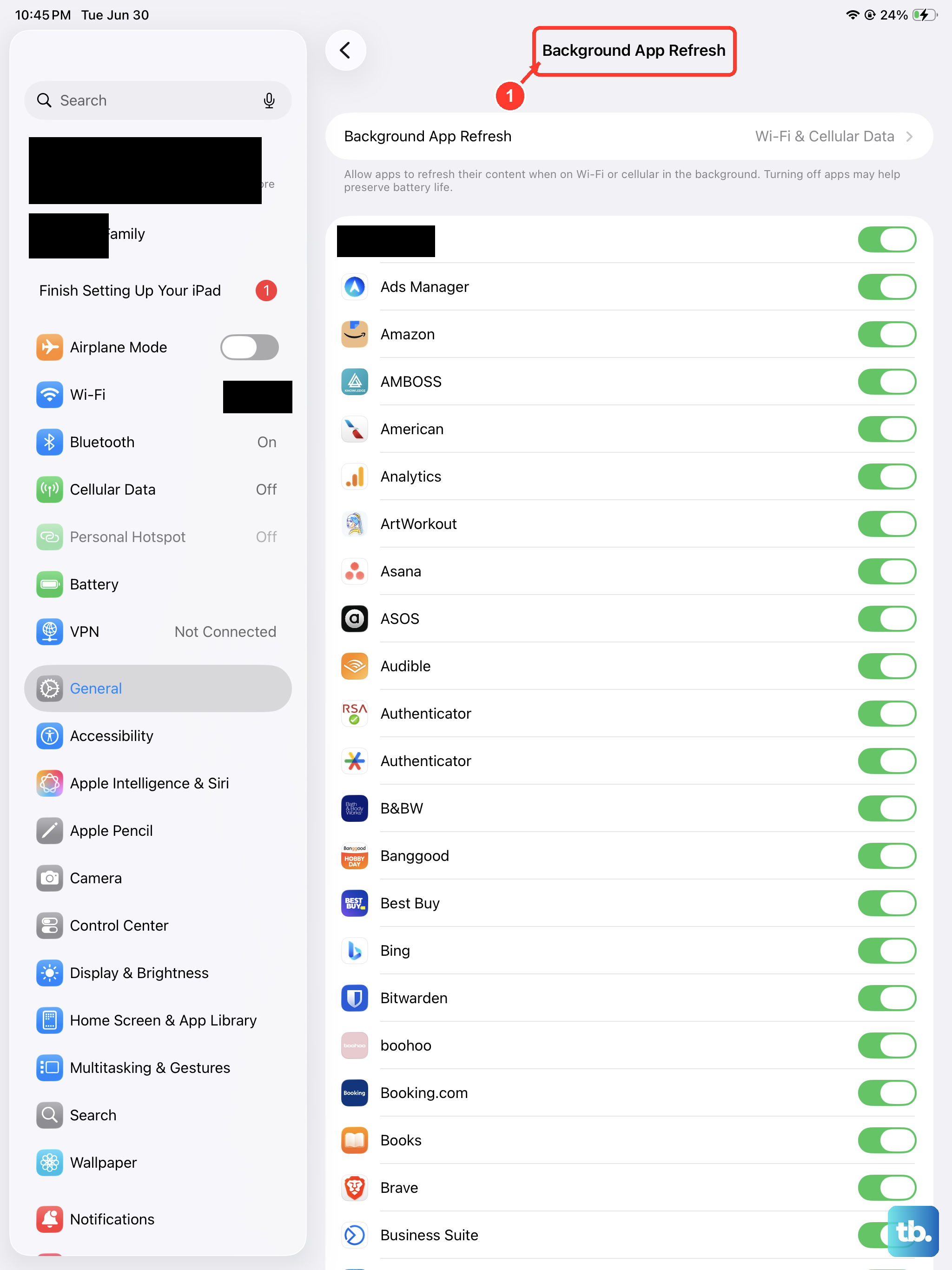
An app that's misbehaving can easily cause your entire iPad to crash and restart. Start by closing all your open apps. Swipe up from the bottom of the screen and pause in the middle to bring up the app switcher, then swipe up on each app's preview to close it.
Next, you can stop apps from refreshing in the background, which can sometimes help. Go to Settings > General > Background App Refresh. You can turn this off entirely, or just for specific apps you suspect might be causing trouble.
Update Your Apps and iPadOS
Running outdated software is a common trigger for instability. Developers release updates to fix bugs, and Apple's iPadOS updates often include important performance patches. Head to the App Store, tap your profile icon in the top corner, and scroll down to see if any app updates are pending.
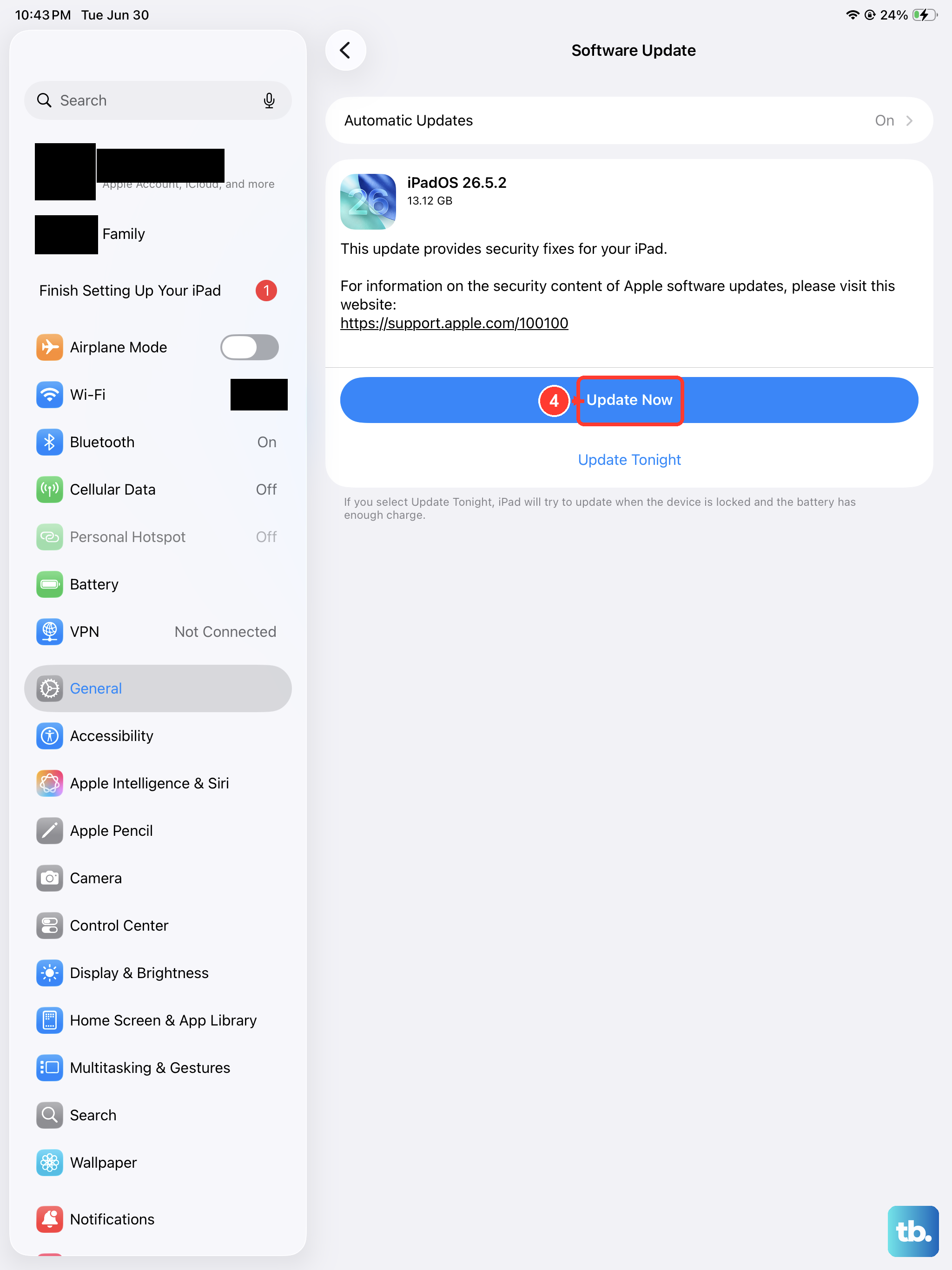
More importantly, check for a system update. Go to Settings > General > Software Update. If an update for iPadOS 26 (or newer) is available, download and install it. Make sure your iPad is connected to power and Wi-Fi during this process.
Review iPad Analytics Logs
Your iPad keeps detailed logs of every crash and system error, which can be a huge help in pinpointing the cause. To find them, navigate to Settings > Privacy & Security > Analytics & Improvements > Analytics Data.
Look through the list for entries that start with "panic-full" or "ResetCounter". These indicate a full system crash. You might also see logs named after specific apps, which can tell you exactly which piece of software is failing.
Free Up Storage Space
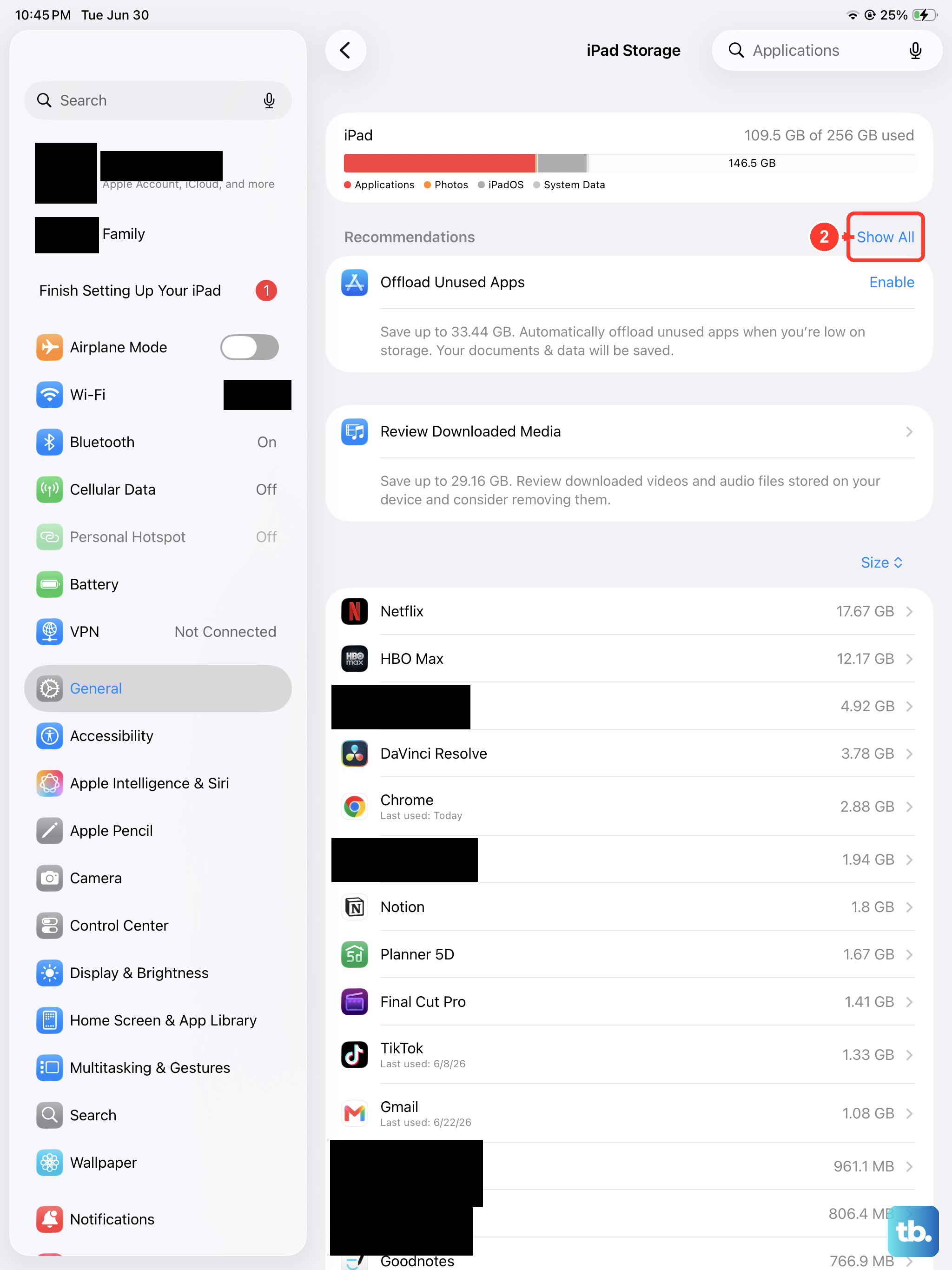
When your iPad's storage is critically full, the system can struggle to operate properly, leading to crashes. Check your available space by going to Settings > General > iPad Storage.
This screen will show you a breakdown of what's using space and often provides recommendations. You can offload unused apps (which removes the app but keeps its data), delete old videos, or move photos to iCloud to clear up room.
Reset All Settings
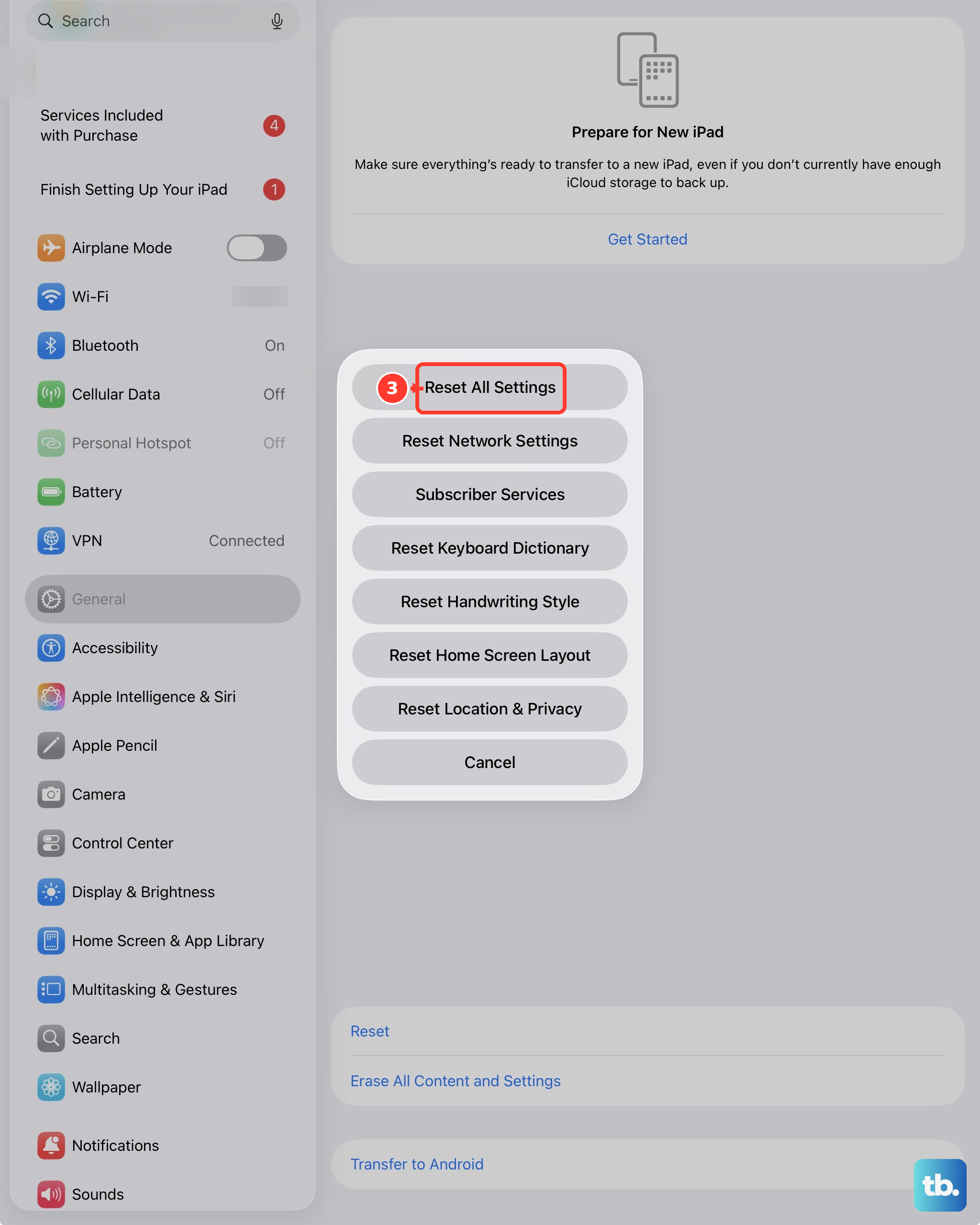
If the restarting continues, you can try resetting your iPad's settings to their defaults. This won't erase your personal data like photos or messages, but it will clear network settings, display preferences, and privacy permissions.
Go to Settings > General > Transfer or Reset iPad. Tap "Reset" and then choose "Reset All Settings." You'll need to enter your passcode to confirm. After it reboots, you'll have to reconnect to Wi-Fi and redo some customizations, but it often resolves deep-seated configuration conflicts.
Check Your Charger and Port
While it might seem unrelated, power issues can sometimes cause erratic behavior. The 2026 iPad Air uses a USB-C port and supports fast charging up to an estimated 30W. Try using a different USB-C cable and a different power adapter, preferably an Apple USB-C Power Delivery charger or a certified third-party one.
Also, take a quick look inside the USB-C port on your iPad. Use a can of compressed air or a soft, dry brush to gently remove any lint or debris that might be preventing a solid connection. A poor connection can cause voltage drops that might make the iPad act up.
Restore via Recovery Mode
For a persistent restart loop that won't stop, restoring your iPad using a computer is the most thorough software fix. You'll need a Mac with Finder (or a PC with iTunes) and a USB-C cable. First, make sure your computer is trusted by your iPad if it has been connected before.
Connect your iPad to the computer. Quickly press and release the Volume Up button, then quickly press and release the Volume Down button. Immediately press and hold the Top button. Keep holding it even after the Apple logo appears, until you see the recovery mode screen (a cable pointing to a computer icon).
On your computer, you'll get an option to "Update" or "Restore." Choose "Restore." This will download and install a fresh copy of iPadOS. This erases all data and settings, so it's a last resort, but it can fix serious software corruption.
Consider a Hardware Check
If you've tried every software fix here and your iPad Air (2026) is still restarting on its own, the issue could be physical. While less common, problems with the logic board, memory, or other internal components can cause these symptoms.
Before this step, if you use accessories like an Apple Pencil Pro or a keyboard folio, try using the iPad without them for a while to rule out a faulty accessory causing a short. If the problem is definitely with the iPad itself, contacting Apple Support is the next logical step for diagnosis.