
Getting a "Call Failed" message on your iPad Air (2026) can stop you in your tracks, especially if you rely on it for FaceTime or cellular calls. This error pops up when your iPad can't properly connect to the cellular network or the calling service. It's usually a quick fix related to your signal, a software hiccup, or a simple setting that needs adjusting.
Let's start with the fastest solution you can try right now.
Toggle Airplane Mode
The quickest way to reset your cellular connection is by flipping Airplane Mode on and off. This clears out any temporary network glitches that might be blocking your calls.
Swipe down from the top-right corner of your screen to open Control Center. Tap the airplane icon to turn Airplane Mode on, wait about 10 seconds, then tap it again to turn it off. Check your signal bars in the status bar to see if your connection comes back stronger.
Check Your Cellular Signal
Weak signal is the most common culprit for failed calls. Look at the signal indicator in the top-right corner of your iPad's screen. If you only have one or two bars, try moving to a different room or closer to a window.
Walls and building materials can significantly interfere with cellular reception. If you're in a basement or a large building, you might need to go outside or to a higher floor to get a reliable connection for your call.
Restart Your iPad Air
A simple restart can clear out minor software bugs that affect calling. To restart your iPad Air (2026), press and quickly release the Volume Up button, then press and quickly release the Volume Down button.
Finally, press and hold the Top button until you see the Apple logo appear on the screen. Let go of the button and allow your iPad to boot up completely before trying your call again.
Review Focus and Do Not Disturb Settings
Check that your iPad isn't silencing calls accidentally through a Focus mode. Swipe down from the top-right to open Control Center and look for an active Focus icon, like a moon for Do Not Disturb.
If you see one is on, tap it to turn it off. You can also go to Settings > Focus to see which modes are enabled and make sure they aren't configured to silence calls from the people you're trying to reach.
Update Date and Time Settings
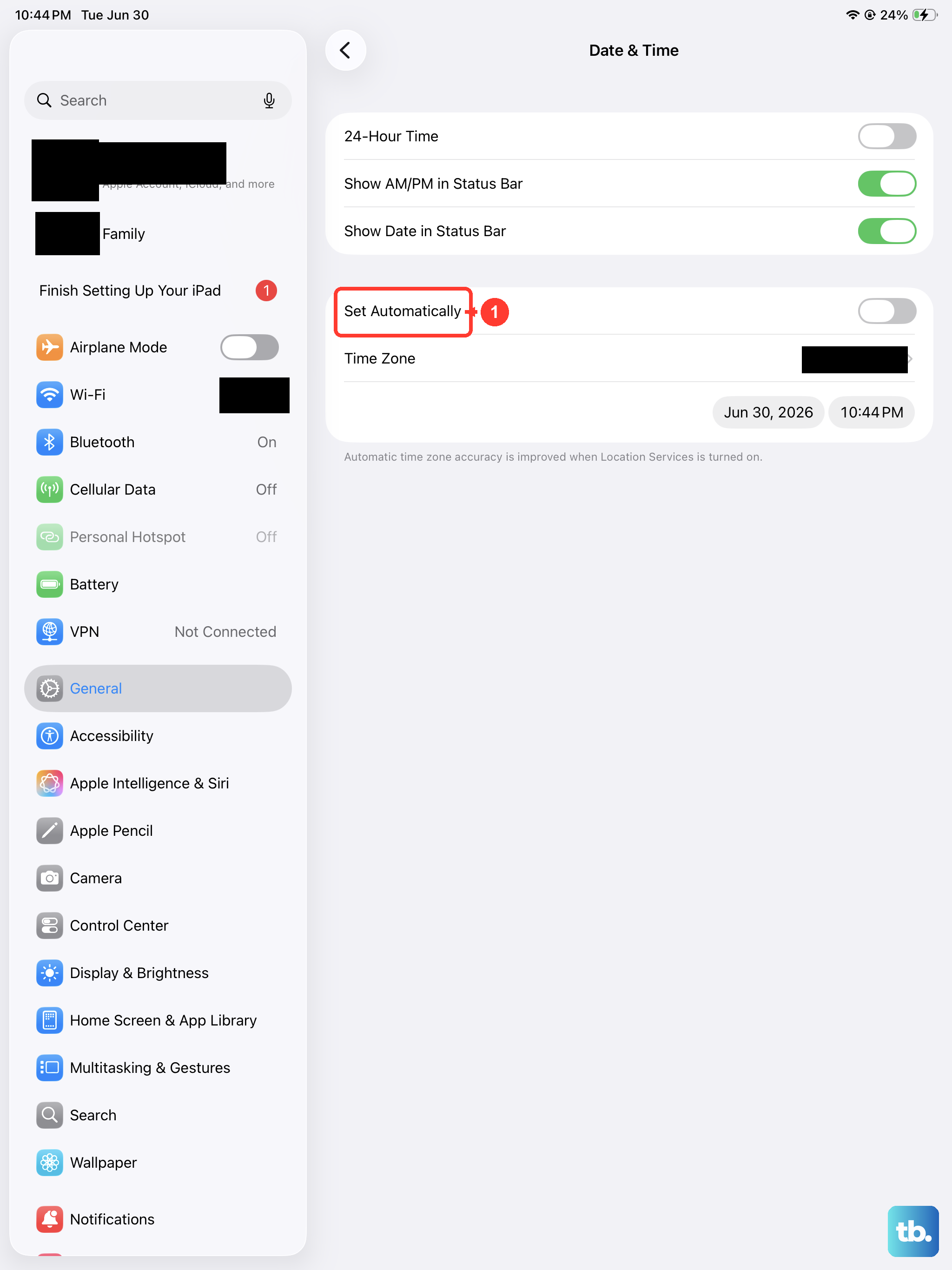
Incorrect date and time settings can sometimes cause conflicts with network services. Your iPad needs the correct time to authenticate properly with cellular towers.
Go to Settings > General > Date & Time. Make sure the "Set Automatically" option is turned on. This allows your iPad to get the correct time from the network, which can resolve odd connection issues.
Check for Blocked Contacts
It's worth a quick look to ensure you haven't accidentally blocked the number you're trying to call. This would immediately cause any call attempt to fail.
Open the Settings app, then tap Phone (or FaceTime for FaceTime calls). Tap Blocked Contacts to see your list. If the number is there, swipe left on it and tap "Unblock."
Verify Your Cellular Data Settings
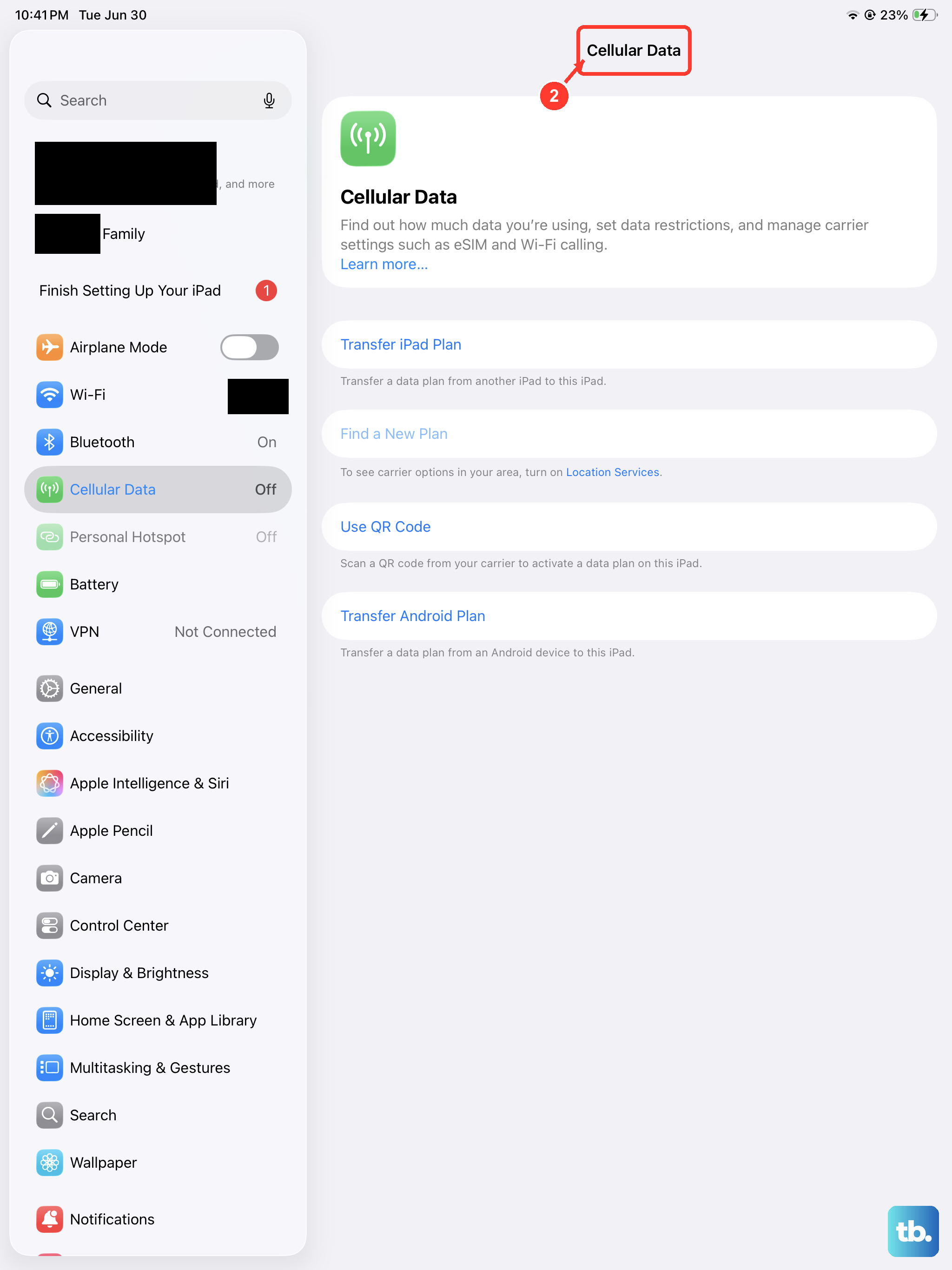
Ensure your cellular data is switched on, especially if you're trying to make a FaceTime audio call or use another internet-based calling app. Go to Settings > Cellular Data and make sure the main "Cellular Data" switch is in the on position.
If you're traveling, you might also need to enable data roaming. In the Cellular Data settings, tap Cellular Data Options and then turn on "Data Roaming." Just be aware of potential charges from your carrier.
Update Your Carrier Settings
Carrier updates are small files that help your iPad communicate better with your cellular network. These can fix calling issues and improve coverage.
Make sure your iPad is connected to Wi-Fi. Then, go to Settings > General > About. If a carrier update is available, a prompt will appear on this screen asking you to update. Just tap to install it.
Check Your SIM Card
A loose, dirty, or faulty SIM card can prevent your iPad from connecting to the network. You'll need a SIM eject tool or a small paperclip to check it.
Gently insert the tool into the small hole on the SIM tray (on the edge of your iPad) to eject it. Remove the SIM card, wipe the gold contacts gently with a soft, dry cloth, and reinsert it carefully. Push the tray back in until it clicks.
If you have another cellular device, you can test the SIM card there to see if the problem follows the card. If it does, you'll need to contact your carrier for a replacement SIM.
Install the Latest iPadOS Update
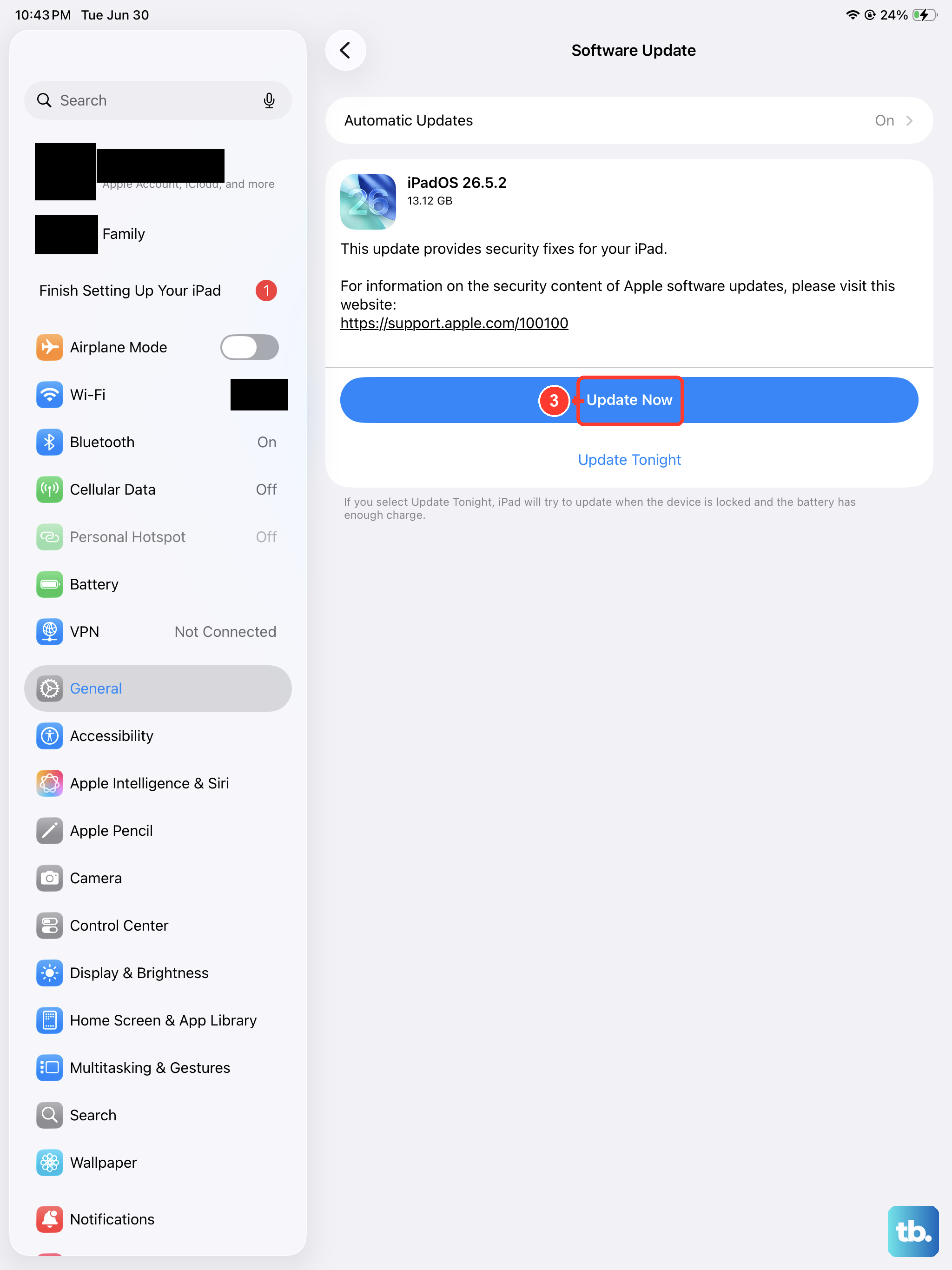
Software updates from Apple often include fixes for connectivity bugs. Keeping your iPad Air (2026) on the latest version of iPadOS 26 is a good way to prevent these issues.
Plug your iPad into power using a USB-C charger and connect to Wi-Fi. Go to Settings > General > Software Update. If an update is available, tap "Download and Install." I'd recommend doing this regularly, as it can solve a lot of minor glitches before they become problems.
Reset Your Network Settings
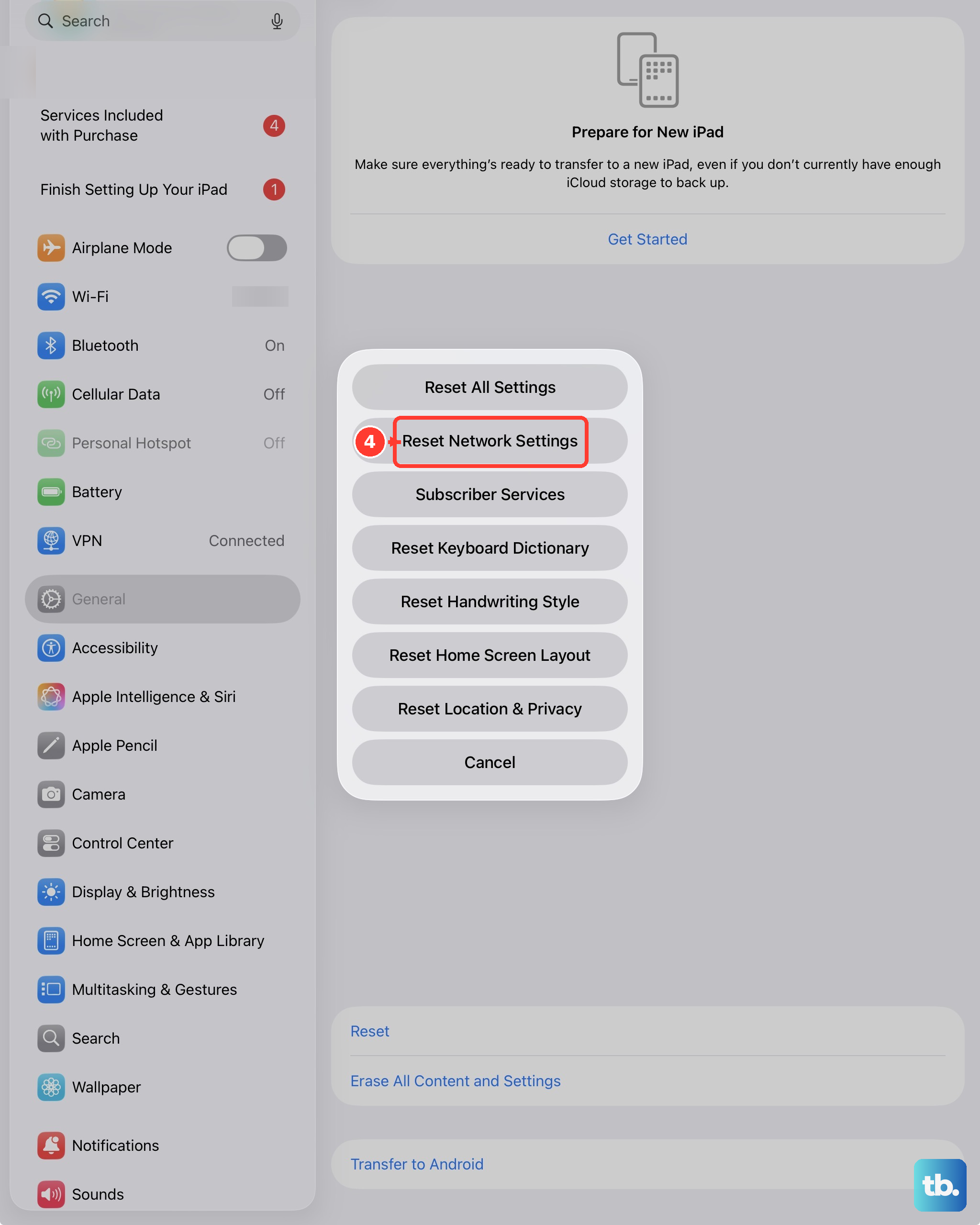
This step clears all your saved Wi-Fi networks, passwords, cellular settings, and VPN configurations. It's a deeper reset for network-related problems without touching your personal data.
Go to Settings > General > Transfer or Reset iPad. Tap Reset, then choose Reset Network Settings. You'll need to enter your passcode to confirm. After the iPad restarts, you'll have to rejoin your Wi-Fi networks and re-enter their passwords.
Contact Your Cellular Carrier
If you've tried everything and calls are still failing, the issue might be on your carrier's end. There could be a temporary network outage in your area, a problem with your account, or a wider service issue.
Call your carrier's customer support from another phone if possible. Ask them to check for outages and verify that your account and line are active and in good standing for cellular data and calling on your iPad plan.