
If your iPad Air (2026) is losing its charge way faster than it used to, it's a frustrating problem that can make the device feel unreliable. The good news is that a sudden battery drain is rarely a sign of a failing battery right away. It's almost always something you can fix in the settings or with a quick habit change.
I'd start by checking the battery health and usage stats. This gives you a clear picture of whether it's a hardware issue or a software one. Head to Settings > Battery. Here, you can see your battery's maximum capacity and check which apps have been using the most power over the last 24 hours or 10 days.
If you see an app consuming a huge percentage of your battery in the background, that's your likely culprit. For overall health, look for the Battery Health section. While Apple suggests battery service when maximum capacity falls below 80%, you might notice faster drain once it dips under 85%.
Update iPadOS and Your Apps
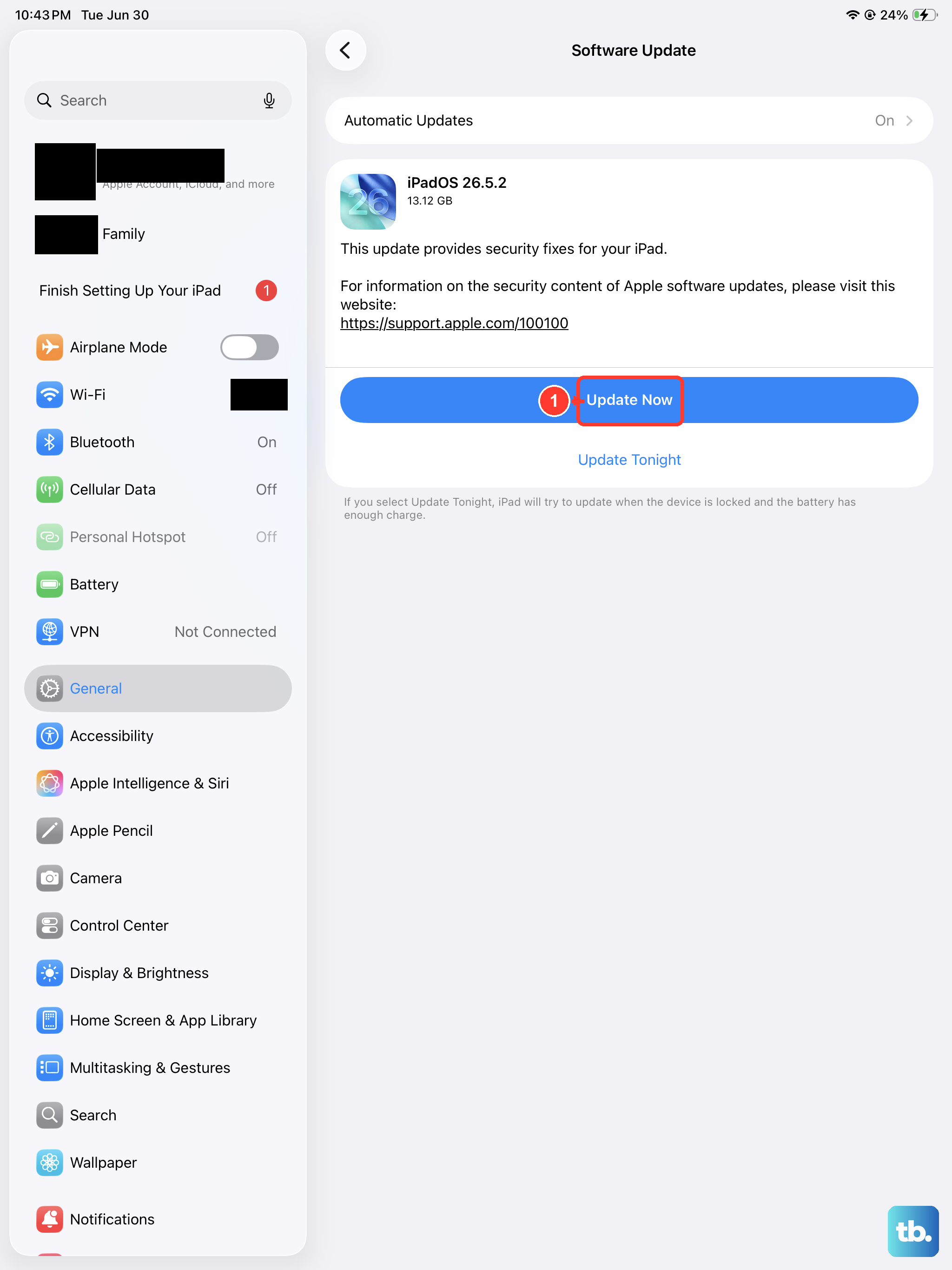
This is one of the simplest and most effective fixes. Software updates from Apple frequently include optimizations and bug fixes that directly improve battery performance. Go to Settings > General > Software Update and install any available update.
Don't forget about your apps, too. Outdated apps can have bugs that cause them to run inefficiently. Open the App Store, tap your profile icon in the top right, and scroll down to see all pending updates. It's a good idea to update them all.
Manage Screen and Display Settings
The display is one of the biggest battery users on any tablet. A few adjustments here can make a significant difference. First, consider lowering the screen brightness. You can do this quickly from Control Center or in Settings > Display & Brightness.
Next, shorten the Auto-Lock timer. This controls how long the screen stays on after you stop using it. Setting it to 30 seconds or 1 minute can save a lot of power over a day. You'll find this in the same Display & Brightness settings menu.
Enable Dark Mode. While the iPad Air uses an LCD screen, which doesn't save as much power as OLED in dark mode, it still reduces the backlight intensity for darker pixels. You can set it to turn on automatically at sunset or keep it on all the time.
Control Background Activity
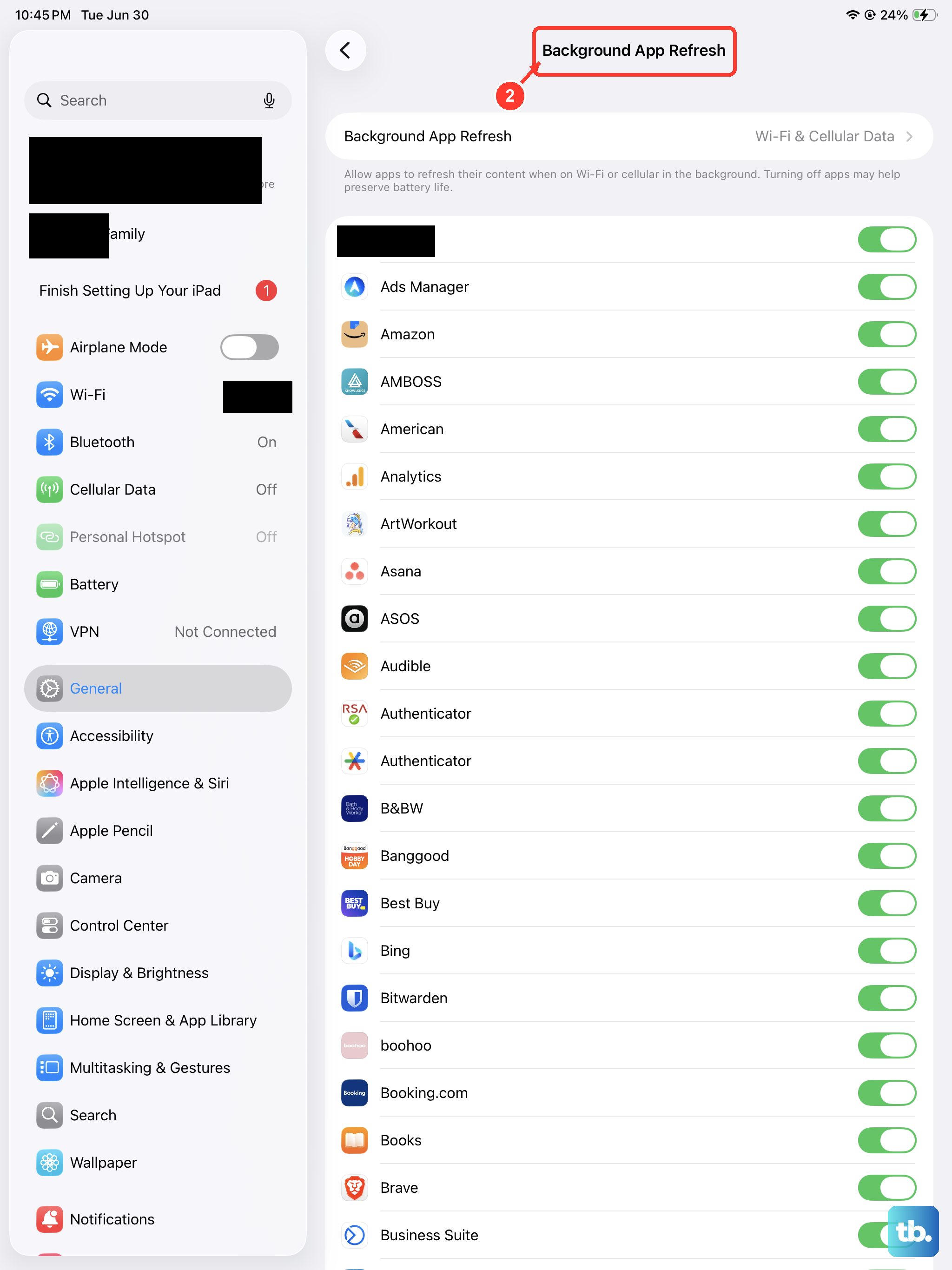
Apps refreshing in the background, checking your location, and fetching new data are silent battery killers. Start with Background App Refresh. Go to Settings > General > Background App Refresh. You can turn it off entirely or just for specific apps you don't need updating constantly.
Location Services is another major drain. Navigate to Settings > Privacy & Security > Location Services. Review the list and set apps to "Never" or "While Using the App" instead of "Always" where it makes sense. You can also tap into System Services at the bottom to disable things like iPhone Analytics and Routing & Traffic.
For email, change how often your accounts fetch new messages. Go to Settings > Apps > Mail > Accounts > Fetch New Data. Turning Push off and setting Fetch to "Hourly" or "Manually" can add hours to your battery life if you get a lot of mail.
Disable Unnecessary Features
Several convenient features constantly listen or look for input, which uses power. If you don't use "Hey Siri," turn it off. Go to Settings > Siri & Search and toggle off Listen for "Hey Siri". This stops the microphone from always being in a ready state.
Consider reducing motion and animations. This makes interface elements like app zooming less fluid, but it reduces GPU workload. You can find this in Settings > Accessibility > Motion. Toggle on Reduce Motion.
Turn off features you aren't actively using. If you're not sharing files, go to Control Center, force touch the network settings card, and turn AirDrop Receiving to "Off." Also, remember to turn off Bluetooth in Control Center if you're not connected to a keyboard, pencil, or headphones.
Check Your Connectivity and Widgets
If you're in an area with a weak cellular or Wi-Fi signal, your iPad will work harder to maintain a connection, draining the battery faster. When you can, switch to a strong, stable Wi-Fi network. If you're using a cellular model, turning on Wi-Fi can sometimes be more efficient than a poor cellular signal.
Take a look at your Home Screen and Today View widgets. Each widget that provides live information (like weather, stocks, or news) requires periodic updates. Remove any widgets you don't actually glance at regularly by entering jiggle mode and tapping the minus (-) sign.
Use Low Power Mode and Proper Charging
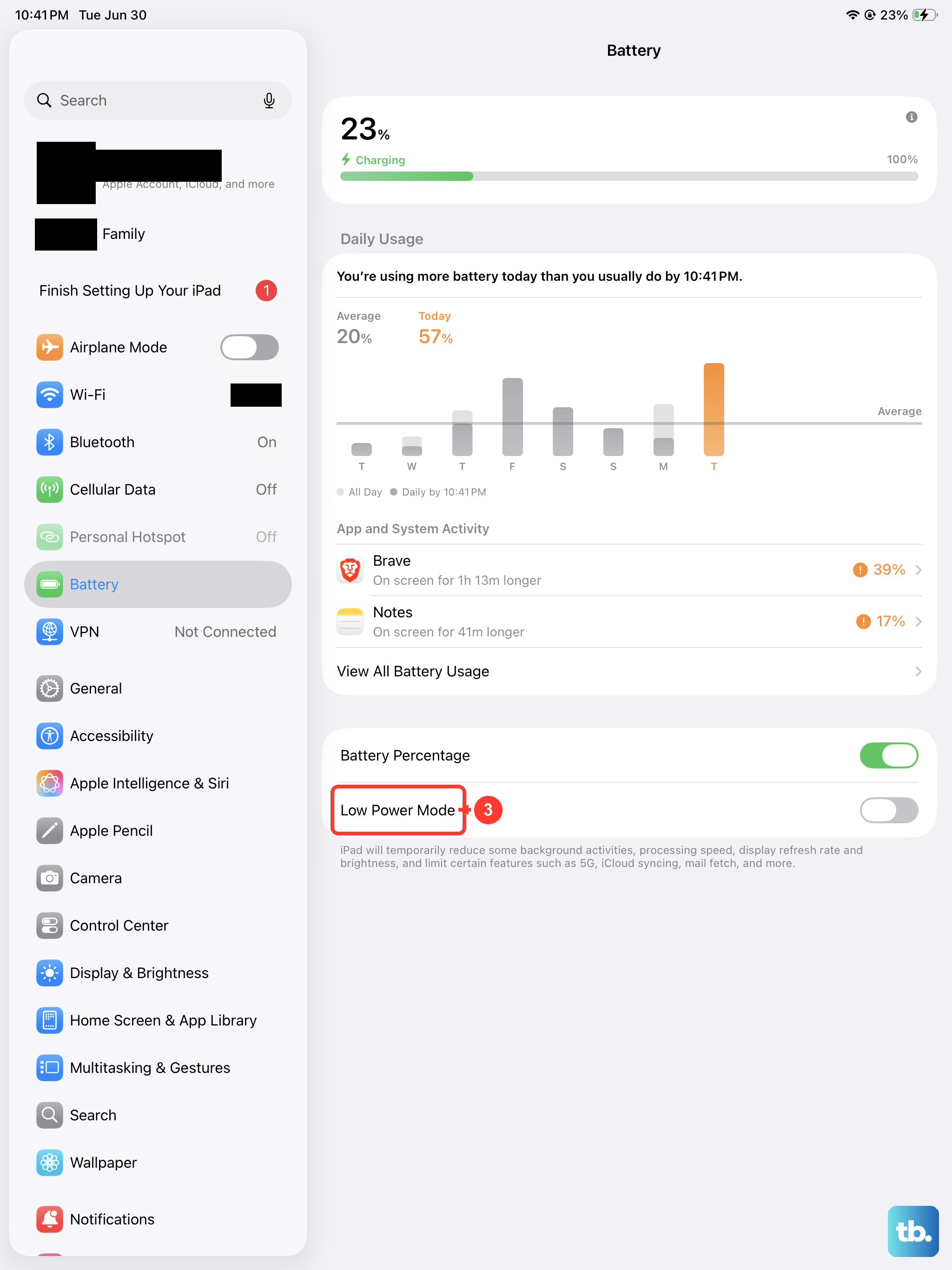
iPadOS includes a Low Power Mode, similar to the iPhone. You can enable it manually in Settings > Battery. It reduces background activity, disables automatic downloads, and pauses some visual effects. It's a great tool for when you need to stretch your battery until you can get to a charger.
Speaking of charging, using the right charger matters. Your iPad Air (2026) uses a USB-C port and supports fast charging. For the quickest charge, use a USB-C Power Delivery (PD) charger rated at 30W or higher. Avoid using old, low-wattage chargers meant for phones, as they will charge your iPad very slowly.
Perform a Force Restart
If your battery is draining rapidly after a recent update or app installation, a minor software glitch could be the cause. A force restart can clear this up without deleting any of your data. Here's how to do it on the iPad Air (2026): quickly press and release the Volume Up button, quickly press and release the Volume Down button, then press and hold the Top button until you see the Apple logo appear on the screen.
Reset All Settings
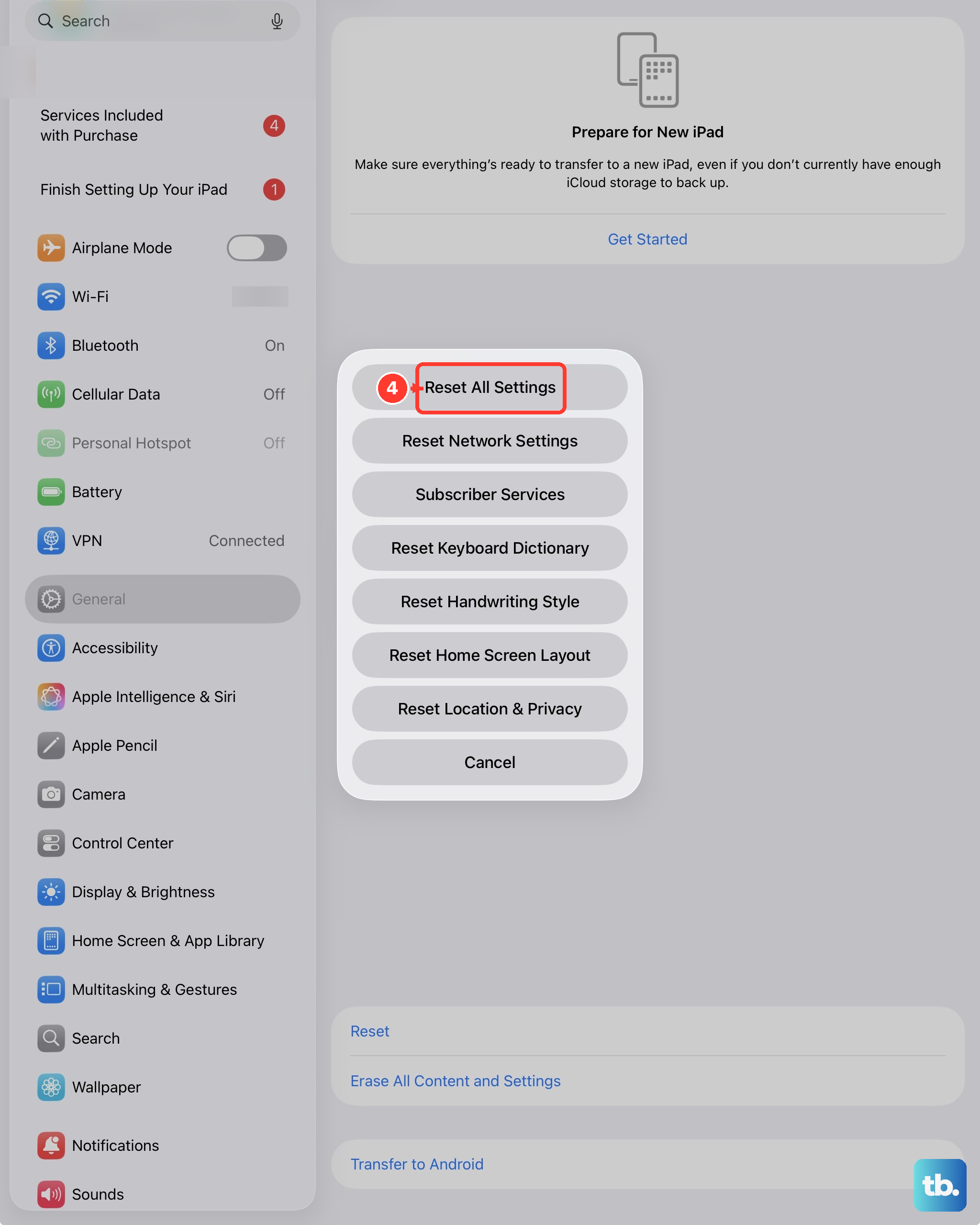
If you've tried everything else and the drain persists, a deeper software reset might help. This will revert all your system settings (like Wi-Fi passwords, wallpaper, and privacy permissions) back to their defaults, but it won't touch your personal data or apps. Go to Settings > General > Transfer or Reset iPad > Reset, and then choose Reset All Settings.