
When your iPad (11th generation) won't update to the latest iPadOS, it can leave you feeling stuck. You might see an error like "Unable to Check for Update," a download that never starts, or an installation that fails partway through. The good news is there are several straightforward ways to get things moving again.
Free Up Storage Space on Your iPad
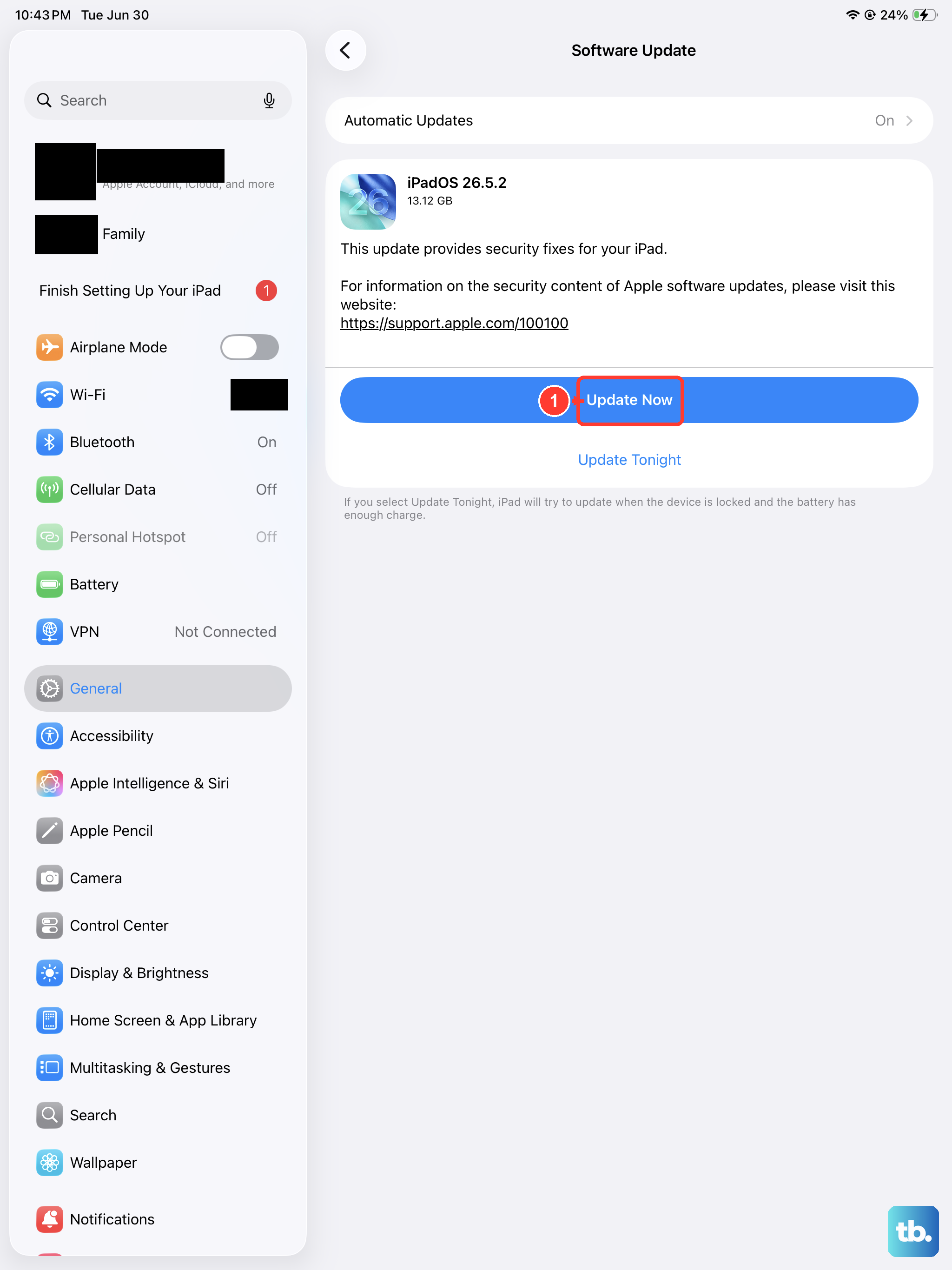
iPadOS updates need a significant amount of free space to download and install properly. Go to Settings > General > iPad Storage to see how much room you have. A major update like iPadOS 26 could require 5 GB or more. If you're low, start by offloading apps you don't use often, which removes the app but keeps its documents and data. You can also review large files in the Files app or clear out old messages and photos.
Check Your Wi-Fi Connection
Your iPad needs a stable Wi-Fi connection to download an update; it won't work over cellular. Make sure you're connected and test the speed by opening a webpage in Safari. If it's slow, try restarting your router. I've seen public networks or corporate Wi-Fi that block large downloads, so switching to a different, trusted network is often the quickest fix.
Delete the Downloaded Update File
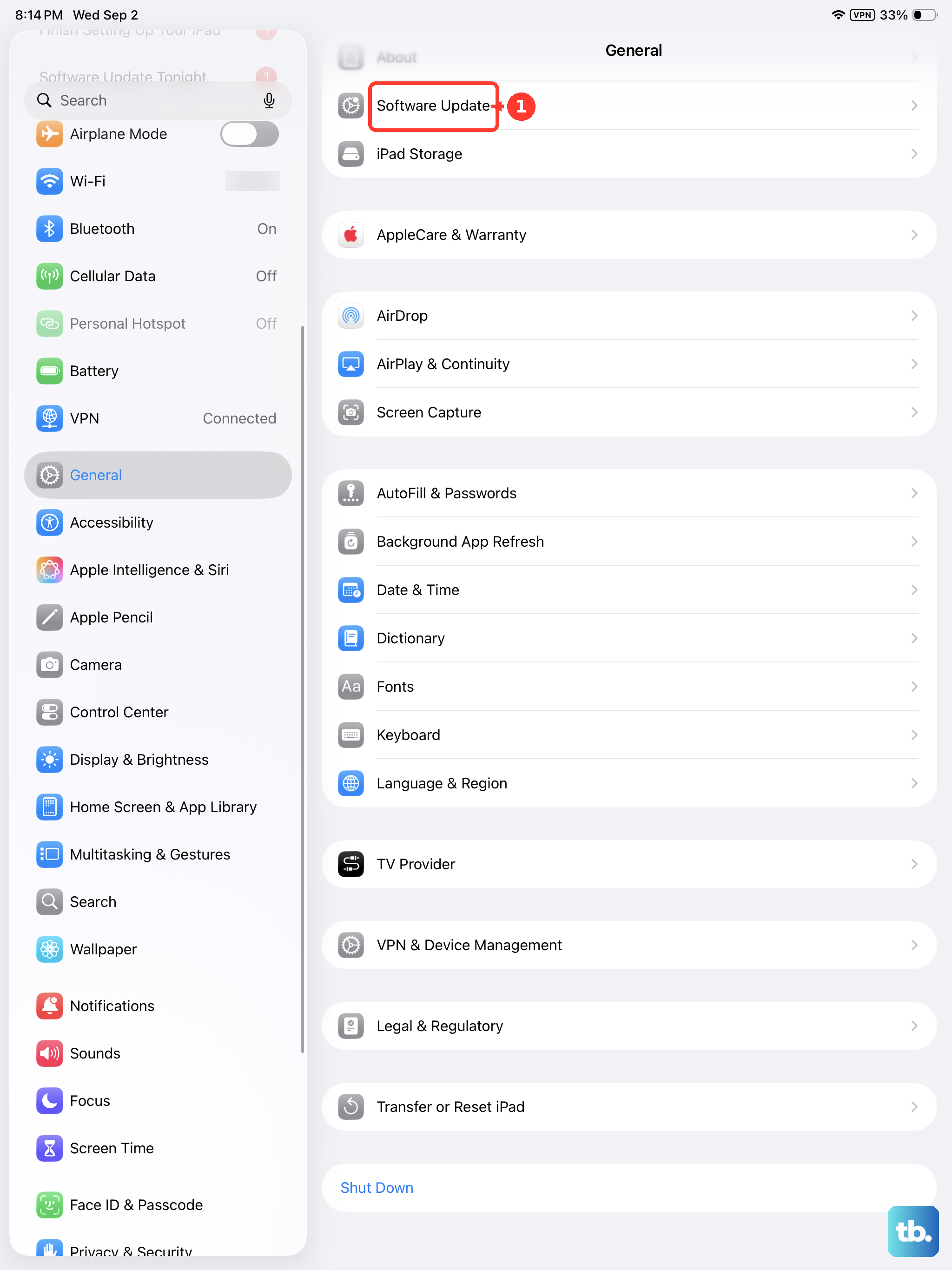
If a previous update attempt failed, a corrupted download file might be blocking a new one. Head to Settings > General > iPad Storage and scroll through the list of apps. Look for an entry labeled "iPadOS Update" or something similar. Tap on it and select Delete Update. After that, go back to Settings > General > Software Update to try downloading a fresh copy.
Restart Your iPad
A simple restart can clear out temporary glitches that are preventing the update. To restart your iPad (11th generation), press and quickly release the Volume Up button, press and quickly release the Volume Down button, then press and hold the Top button until you see the Apple logo appear. Once it boots back up, try the update process again.
Update Using a Mac or PC
If the over-the-air update keeps failing, using a computer is a very reliable workaround. Connect your iPad to your Mac or Windows PC using a USB-C cable. On a Mac with macOS Catalina or later, open Finder, select your iPad in the sidebar, and click Check for Update. On a Windows PC, open iTunes, select your device, and do the same. This method downloads the update to your computer first, which often bypasses Wi-Fi and storage issues on the iPad itself.
Reset Your Network Settings
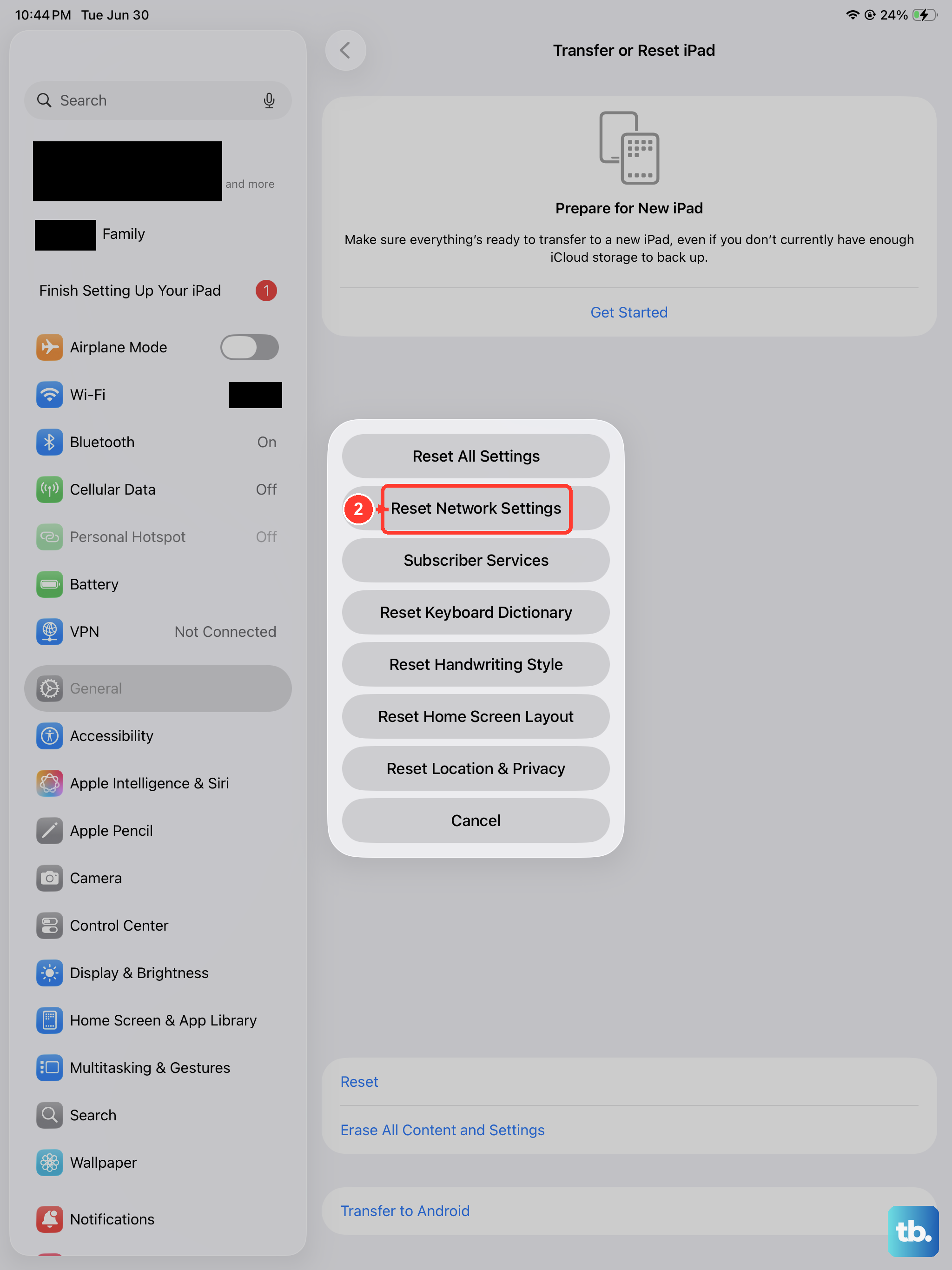
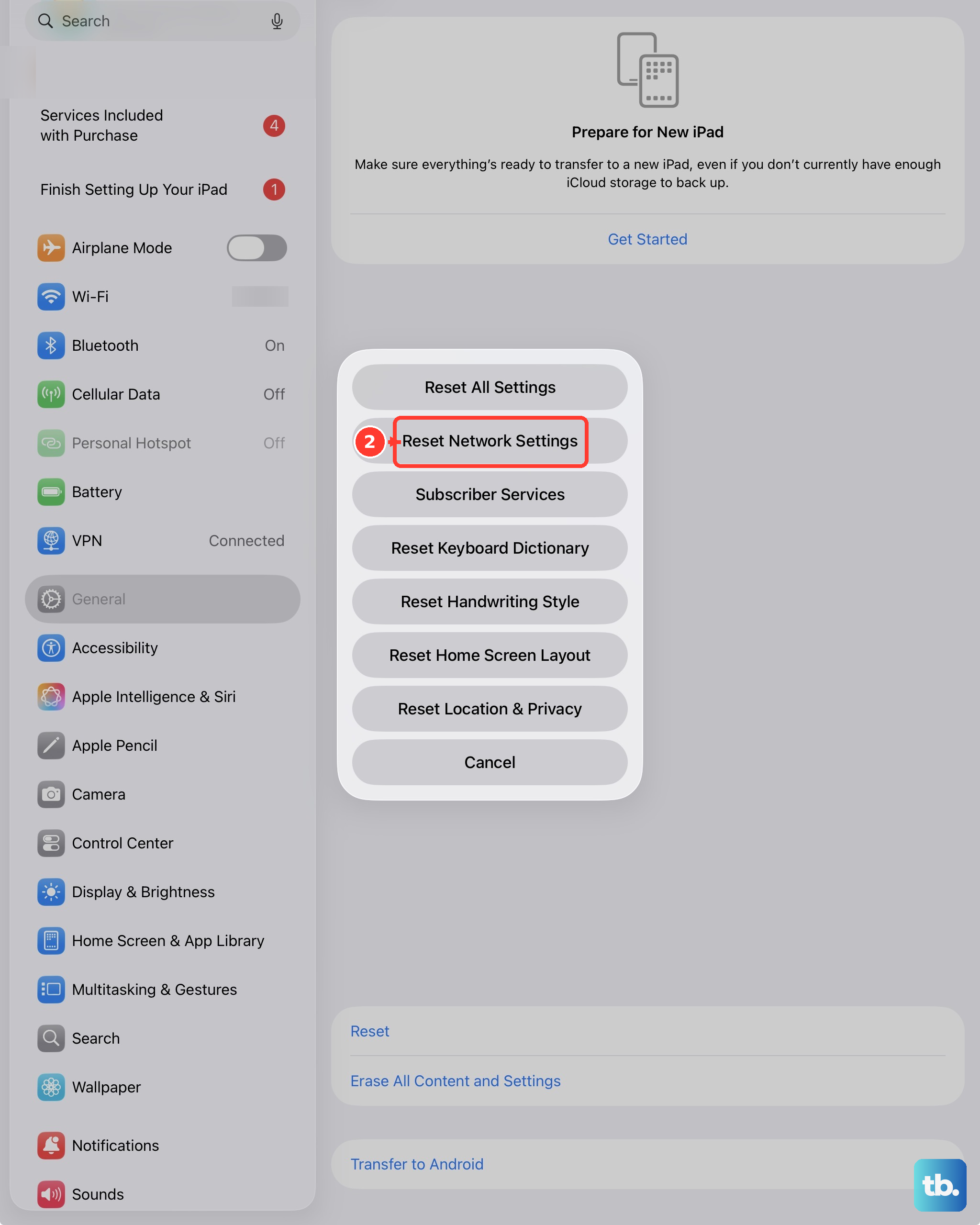
Network configuration problems are a common culprit. You can reset them by going to Settings > General > Transfer or Reset iPad > Reset > Reset Network Settings. This will erase all saved Wi-Fi networks and passwords, so you'll need to reconnect to your Wi-Fi afterward. Once you're back online, attempt the software update again.
Check Apple's System Status Page
Occasionally, the issue is on Apple's end. It's worth checking their official system status page. Open Safari on any device and go to apple.com/support/systemstatus. Look for the "Software Update" service. If there's a yellow or red indicator, Apple's servers are experiencing issues and you'll just need to wait a few hours before trying your update again.
Try Updating During Off-Peak Hours
When a new version of iPadOS is released, Apple's servers can get overwhelmed by millions of download requests. This high traffic can cause failures or extremely slow downloads. I'd recommend trying your update early in the morning or late at night when fewer people are likely to be downloading the update simultaneously.
Ensure Your iPad is Compatible and Charged
First, make sure your iPad (11th generation) is compatible with iPadOS 26; it should be, but it's good to confirm. Also, plug it in. The update process requires your iPad to have at least a 50% charge, or it needs to be connected to power. Using Apple's 20W USB-C Power Adapter will keep it charged optimally throughout the potentially lengthy download and installation.











