
You're trying to get online with your iPad (11th generation), but it just won't connect to Wi-Fi. That spinning icon is frustrating, especially when you need to get work done or stream a show. This is a common issue with iPadOS, but the good news is it's almost always something you can fix yourself without any special tools.
Toggle Wi-Fi and Restart Your iPad
Let's start with the simplest fix that works more often than you'd think. Swipe down from the top right corner of your screen to open Control Center. Tap the Wi-Fi icon to turn it off, wait about five seconds, then tap it again to turn it back on. This forces your iPad to drop the connection and search for networks fresh.
If that doesn't do it, the next step is to restart your iPad. A simple reboot clears out temporary software glitches that can mess with wireless connections. On your iPad (11th generation), press and hold the top button and either volume button, then slide the power off slider. Wait 30 seconds, then press and hold the top button again until you see the Apple logo.
Forget the Network and Rejoin
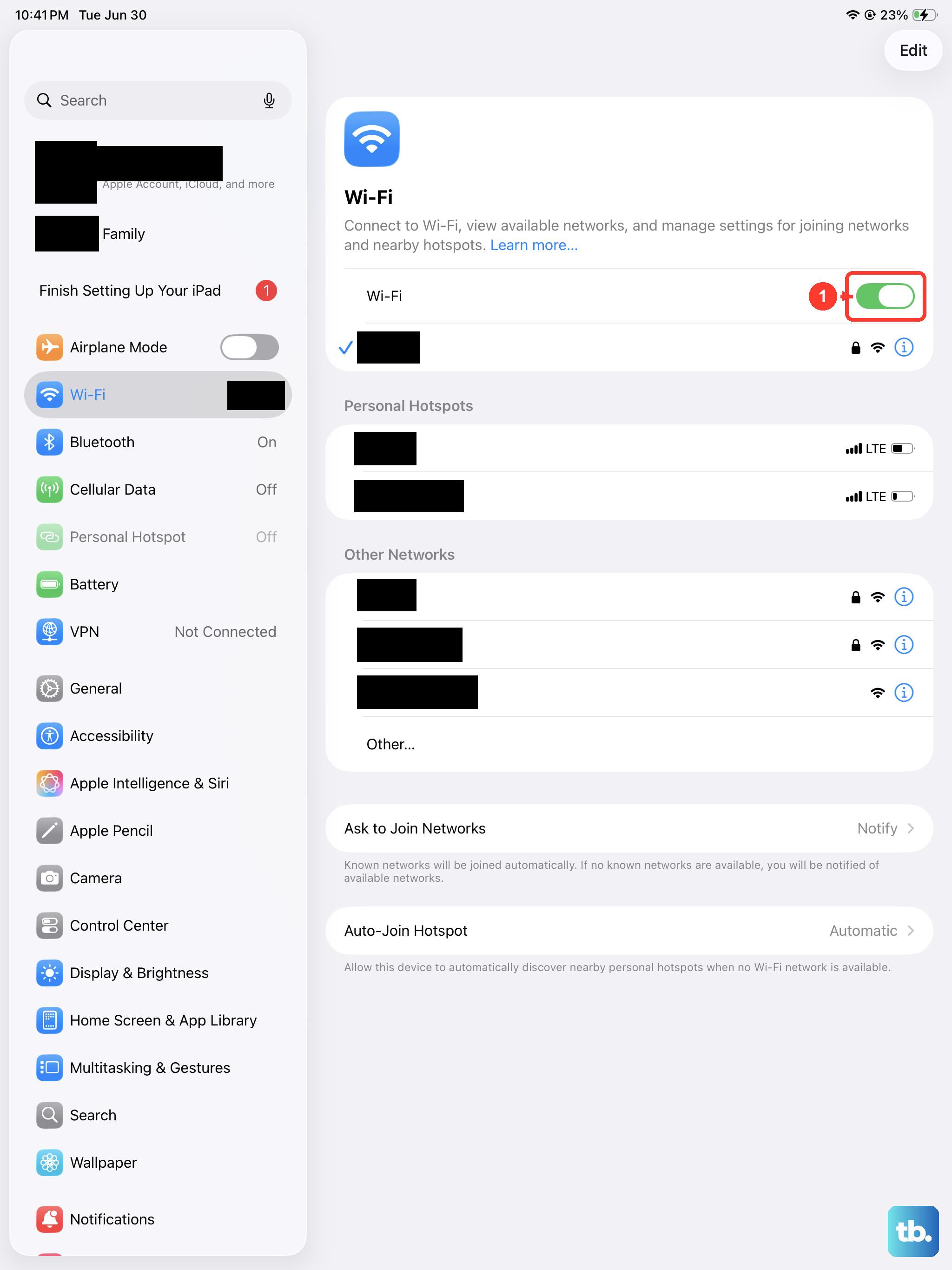
Sometimes your iPad holds onto old or corrupted information for a network. To clear this out, go to Settings > Wi-Fi. Tap the info icon (the small "i" in a circle) next to the network name you're trying to join. Then, tap Forget This Network and confirm.
Now, go back to the list of available networks, select yours again, and carefully re-enter the password. I've seen this fix work immediately, especially if you recently changed your Wi-Fi password or got a new router. Your iPad might have been stubbornly trying to use the old credentials.
Check for iPadOS Updates
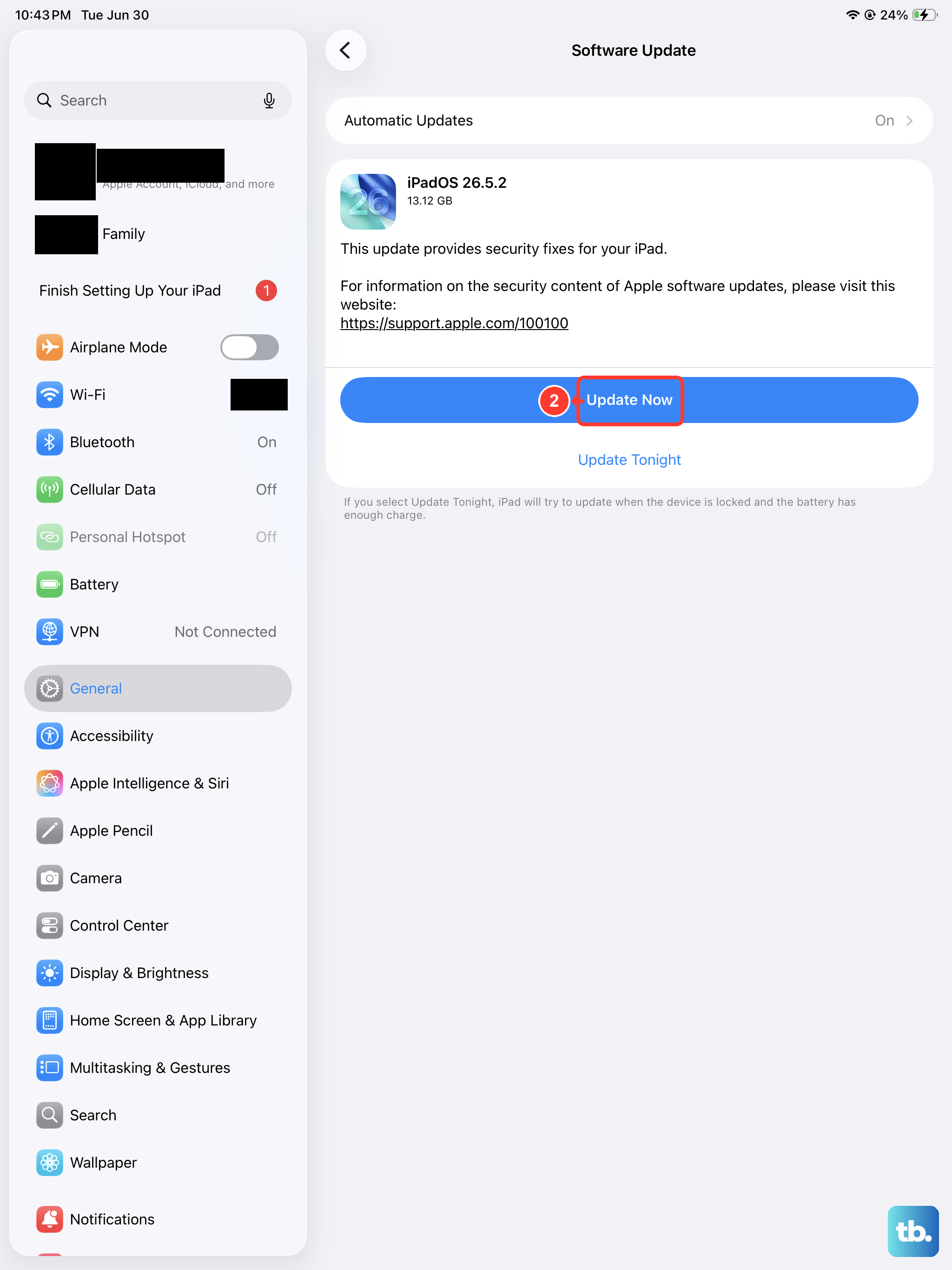
Running an outdated version of iPadOS can lead to all sorts of connectivity bugs. Apple regularly releases updates that include fixes for Wi-Fi stability. To check, open Settings, go to General, and then tap Software Update.
If an update is available, install it. It's a good idea to keep your iPad updated anyway for performance and security, especially on a newer model like the 11th generation. Make sure your iPad is plugged in with its 20W USB-C charger or has plenty of battery life before starting the update.
Restart Your Router and Modem
Here's a step people often overlook: the problem might not be your iPad at all. If other devices in your home are also struggling to connect, the issue is almost certainly with your network equipment. Unplug both your router and modem from power.
Wait a full 60 seconds. This gives the devices time to fully clear their memory. Then, plug the modem back in and wait for all its lights to stabilize. Finally, plug the router back in. Give it another minute, then try connecting your iPad again.
Reset Your Network Settings
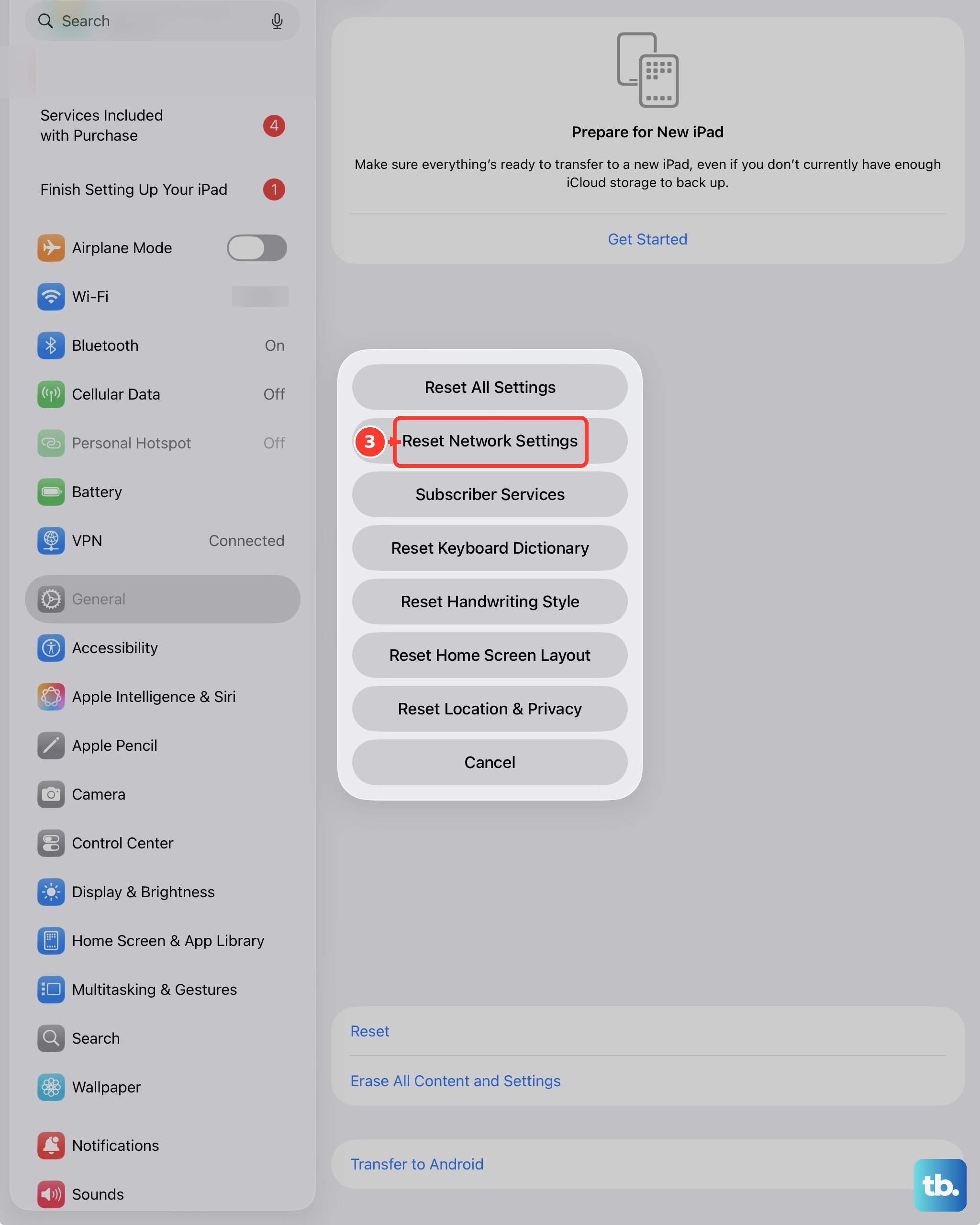
If the simpler steps haven't worked, resetting network settings is a powerful next move. This will erase all saved Wi-Fi networks, passwords, Bluetooth pairings, and VPN settings on your iPad, so you'll have to reconnect to everything afterward.
To do this, go to Settings > General > Transfer or Reset iPad. Tap Reset, and then choose Reset Network Settings. Your iPad will restart. This process doesn't touch your personal data or apps, it just clears all network-related configurations.
Check Date and Time Settings
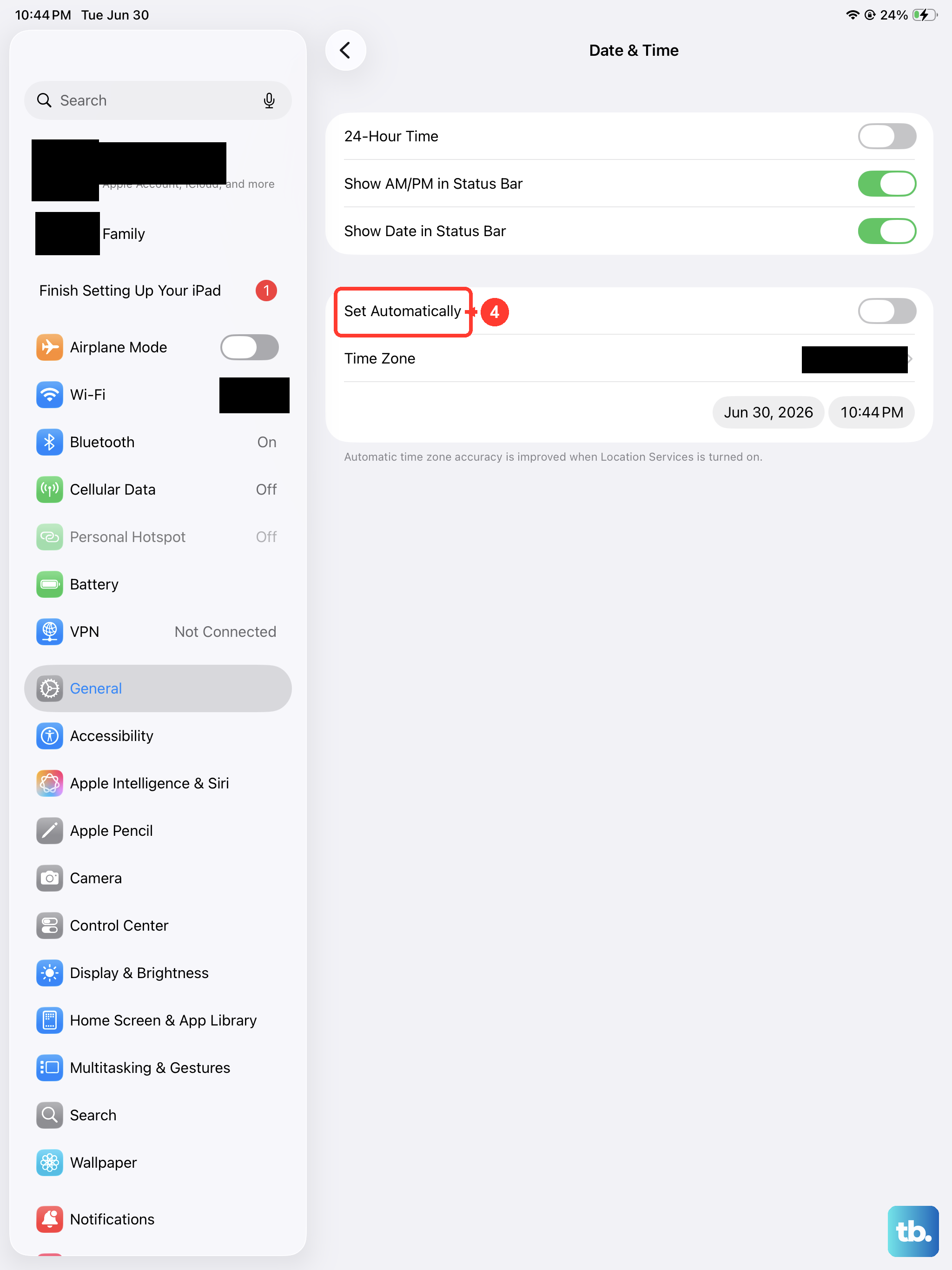
This one can be a sneaky culprit. If your iPad's date and time are incorrect, it can fail to connect to secure Wi-Fi networks because security certificates won't validate properly. The fix is easy.
Go to Settings > General > Date & Time. Make sure the switch for Set Automatically is turned on. This allows your iPad to get the correct time from the network, which helps with all sorts of background authentication processes.
Disable VPN or Content Blockers
If you use a VPN app or a content blocker (like 1Blocker or AdGuard), try temporarily disabling it. These apps work by routing or filtering your internet traffic, and sometimes they can interfere with the initial connection to a Wi-Fi network.
You can usually turn off a VPN from within its app or from the VPN section in your Settings. For content blockers, go to Settings > Apps > Safari > Extensions and toggle them off. See if your Wi-Fi connects normally with these services disabled.
Try a Different Wi-Fi Network
To rule out a problem with your specific home network, try connecting to a different one. This could be a public network at a cafe, a mobile hotspot from your phone, or a friend's Wi-Fi. If your iPad connects without issue to other networks, then the problem is isolated to your home router or its settings.
If it won't connect to any network at all, the issue is likely with the iPad itself, pointing back to software or, less commonly, hardware.
Review Router Settings (Band and Security)
Some older routers or those with specific settings can have trouble with newer devices. If you have access to your router's admin settings, there are two things to check. First, see if your network is broadcasting on both the 2.4GHz and 5GHz bands. Try connecting your iPad to the other band to see if it works.
Second, check the security protocol. The most compatible option is WPA2/WPA3. If your router is set to an older protocol like WEP, your iPad may not be able to connect. You may need to consult your router's manual or your internet service provider to make these changes.
Force Restart Your iPad
A force restart is different from a normal shutdown and restart. It's a deeper reset that can clear more persistent glitches. On the iPad (11th generation), you do this by quickly pressing and releasing the Volume Up button, then quickly pressing and releasing the Volume Down button. Finally, press and hold the Top button.
Keep holding the Top button even after you see the power off slider. Continue holding until you see the Apple logo appear, then you can let go. This doesn't erase any data, it just gives the system a fresh start. After it boots up, try your Wi-Fi connection again.