
Unlock your iPad from carrier restrictions and use it with any cellular data provider
What to Know
- Carrier Lock is a restriction applied by your cellular provider that prevents your iPad from accepting SIM cards from other networks.
- Contact your carrier first. They are obligated to provide the unlock for free if you meet their eligibility requirements.
- You need your IMEI. This unique number identifies your specific iPad and is required for any unlock request.
- The process is remote. For modern iPads, the carrier typically unlocks the device on their end; you won't enter a code on the iPad itself.
- Third-party services are an option if your original carrier cannot or will not unlock the device for you.
If you bought your iPad (11th generation) through a cellular carrier on a payment plan, it's almost certainly locked to that carrier's network. This means if you try to pop in a SIM card from a different provider to get data, it simply won't work. The good news is that getting it unlocked is a straightforward process, and I'd start by going directly to the source.
Request the Unlock from Your Current Carrier
This is always the first and best step. In many regions, carriers have policies or even legal obligations to unlock your device once certain conditions are met. The process is handled entirely by them and applied to your iPad's IMEI number in their database.
First, check if you're eligible. Common requirements include the device being fully paid off, not reported as lost or stolen, and having been active on the carrier's network for a minimum period (often 60 days). If you fulfilled a contract term, that usually qualifies you too.
Gather your information before you call or visit their website. You'll need your account details for verification and your iPad's IMEI number. To find the IMEI on your iPad (11th gen), go to Settings > General > About and look for the IMEI/MEID entry. You can also find it printed on the original box.
Contact their customer support, specifically asking for a "carrier unlock" for your iPad. They will verify your account, check the IMEI, and if you qualify, submit the unlock request. They'll usually tell you it can take a few business days to process.
What Happens After the Carrier Unlocks It
For your iPad (11th generation) running iPadOS, you typically won't enter a code. Instead, the carrier updates their network policy for your device's IMEI. Once that's done, you need to complete the unlock on your iPad.
The standard method is to back up your iPad, then perform a full restore via a computer. Connect your iPad to a Mac or PC, open Finder (on Mac) or iTunes (on PC), select your device, and choose "Restore iPad." This erases the device and installs the latest version of iPadOS.
After the restore is complete and you've set up the iPad again, the carrier lock should be removed. You can verify this by inserting a SIM card from a different, compatible carrier. If you see signal bars and the name of the new carrier in the status bar, the unlock was successful. If not, you may need to contact the original carrier to confirm the unlock was applied.
Using a Third-Party Unlocking Service
If your original carrier refuses to unlock the iPad, perhaps you bought it second-hand and the original owner still has a balance, a reputable third-party service is your next option. These services use contacts within carrier systems to submit unlock requests.
Choose a service carefully. Look for ones with strong, verified customer reviews and a clear guarantee policy. You'll provide them with your iPad's IMEI number and the name of the carrier it's currently locked to. They handle the rest and will notify you once the unlock is ready, usually within 1 to 5 days.
The cost varies, but it's a one-time fee. After they confirm the unlock is processed, you'll follow the same steps: back up your iPad, restore it via a computer, and then test with a new SIM card. A legitimate service will not ask for your Apple ID password or require you to jailbreak your device.
Troubleshooting Unlock Problems
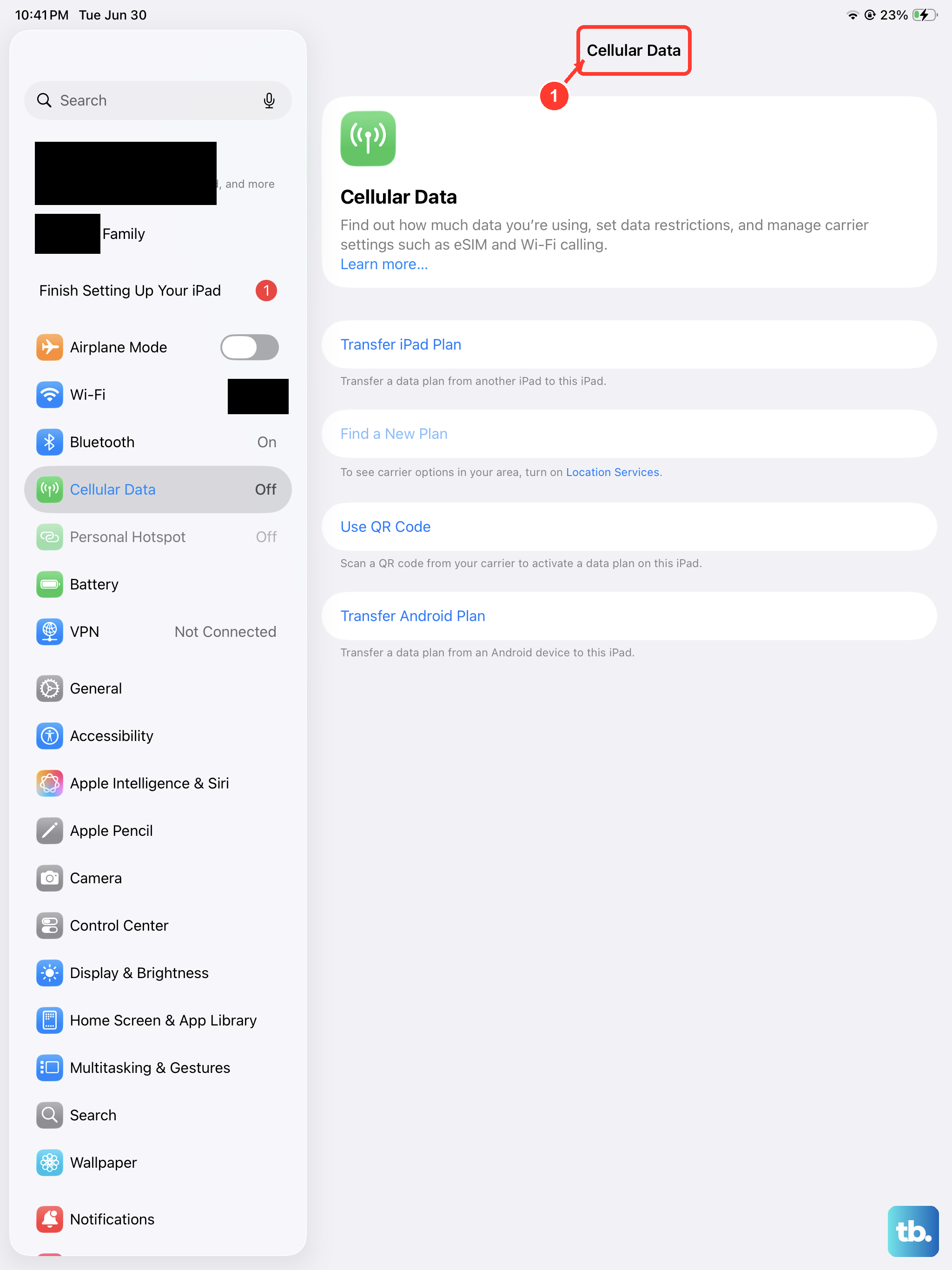
Sometimes, even after a successful unlock request, the iPad might not recognize the new SIM. The most reliable fix is that computer restore I mentioned. It clears out any old carrier settings and forces the iPad to check for the updated unlock status from Apple's activation servers.
If you still see a "SIM Not Supported" or "Invalid SIM" message after a restore, double-check the IMEI you provided. One wrong digit will cause the unlock to be applied to the wrong device. Contact the unlock provider or your carrier with the correct IMEI to have them re-submit the request.
Remember, your iPad (11th generation) uses a nano-SIM or eSIM for cellular data. Make sure the new SIM you're testing is active, properly sized, and from a carrier that supports the iPad's cellular bands. Not all carriers use compatible networks.
Unlocking your iPad gives you the freedom to shop for better data plans, use local SIMs while traveling, and generally increases the resale value of the device. It's a process that requires a little patience, but following these steps will get you there.