
Start with a force restart. Press and quickly release the Volume Up button, then quickly press and release the Volume Down button. Immediately after, press and hold the Top button. Keep holding it until you see the Apple logo appear, then let go. This is the most common fix for an unresponsive iPad screen and doesn't delete any of your data.
If touches seem to go missing, run an online touch screen test first. The grid fills in wherever the screen registers contact, so gaps stand out immediately.
Key Points
- Force Restart Your iPad : This is the first and most effective step to try.
- Clean the Screen and Your Hands : Dirt, oil, or moisture can interfere with the touch sensors.
- Remove Any Screen Protector or Case : A poorly fitted accessory can cause touch issues.
- Check for a Software Update : Outdated iPadOS can have bugs that affect touch response.
- Charge Your iPad : A very low battery can cause the screen to become unresponsive.
- Reset All Settings : This clears system preferences without erasing your personal content.
- Check for Physical or Liquid Damage : Look closely at the screen for any cracks or signs of moisture.
- Restore Your iPad via a Computer : This is a last-resort software fix that will erase your data.
I'd start with the force restart every time. It resolves a temporary software glitch more often than not, especially if the screen stopped working after installing an app or an iPadOS update.
Clean the Screen and Your Hands
Turn off your iPad first by holding the Top button and either volume button, then slide to power off. Once it's off, use a soft, lint-free cloth slightly dampened with water to gently wipe the entire screen. Dry it thoroughly with another clean, dry cloth.
Also, make sure your own hands are clean and dry. Lotions, oils, or even a little sweat can prevent the capacitive touch screen from registering your fingers correctly. If you were using your iPad with wet hands, this is almost certainly the cause.
Remove Any Screen Protector or Case
Take off your iPad's case and any tempered glass or plastic screen protector. Sometimes a low-quality or improperly applied screen protector can create a gap or interfere with the touch sensitivity.
Once everything is off, try using the bare iPad. If the screen starts responding normally, you've found the culprit. You may need to reapply your screen protector more carefully or invest in a higher-quality one that's certified for your iPad model.
Check for a Software Update
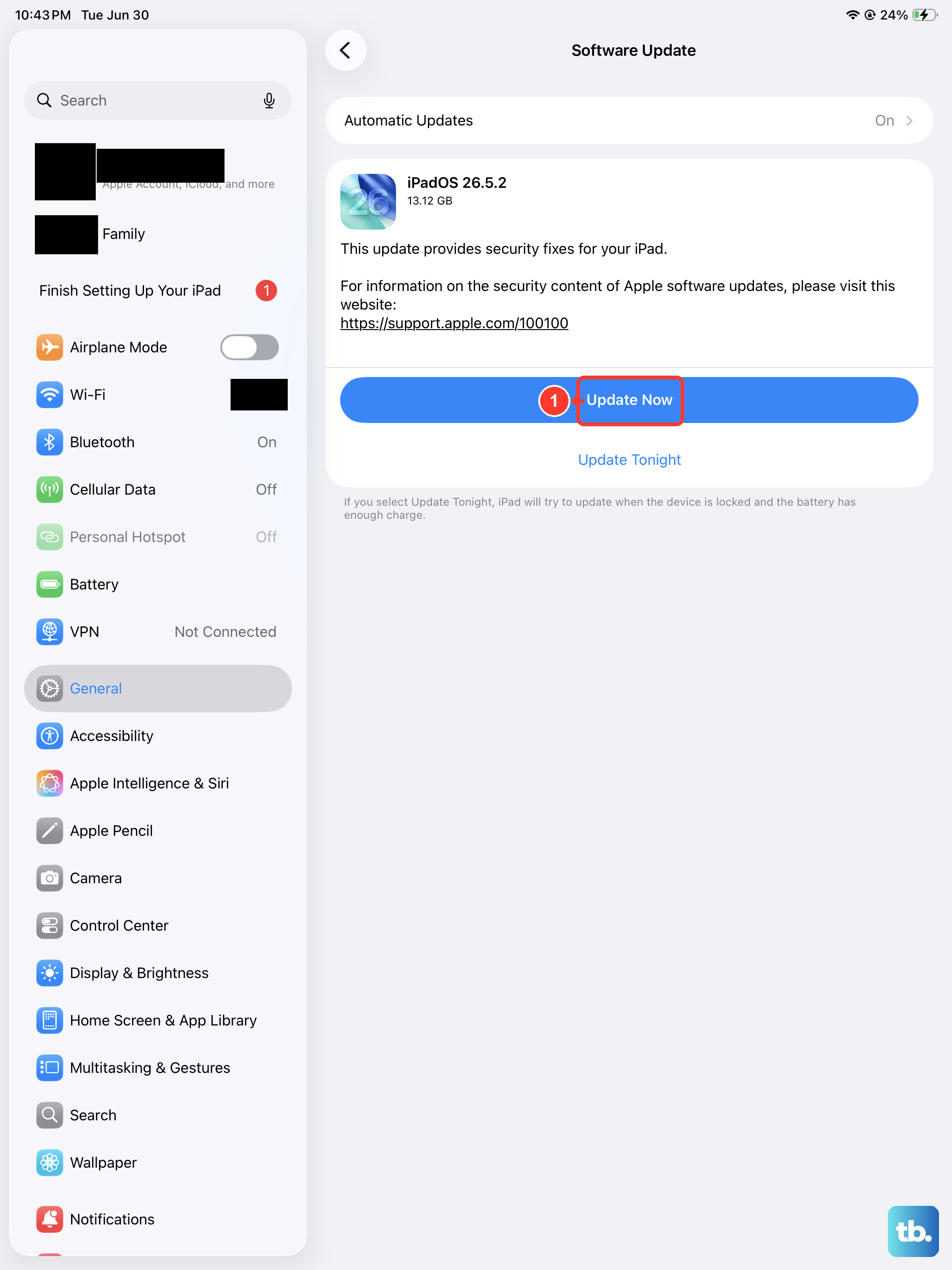
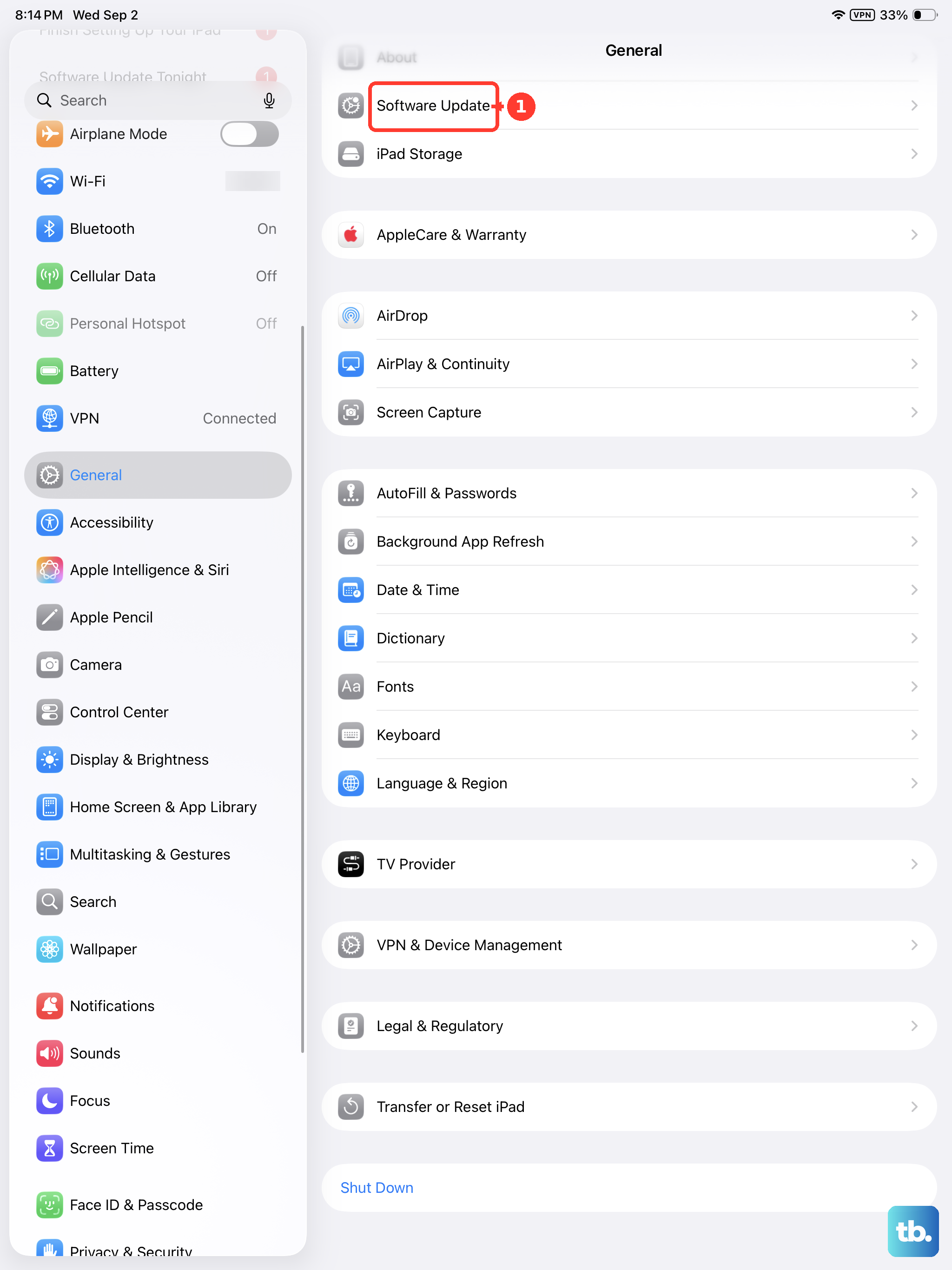
If your screen is partially working, navigate to Settings > General > Software Update. Apple frequently releases iPadOS updates that include bug fixes for performance and touch issues.
Plug your iPad into power and connect to Wi-Fi to download and install any available update. Keeping iPadOS updated is one of the best ways to maintain smooth performance and security on your device.
Charge Your iPad
Connect your iPad to its 20W USB-C Power Adapter using an Apple-certified cable. Let it charge for at least 30 minutes. If the battery is completely drained, the screen may not turn on or respond until it has a little power.
You should see a charging indicator. If you don't, try a different USB-C cable and wall adapter. A faulty cable is a common reason an iPad won't charge, which can then lead to an unresponsive black screen.
Reset All Settings
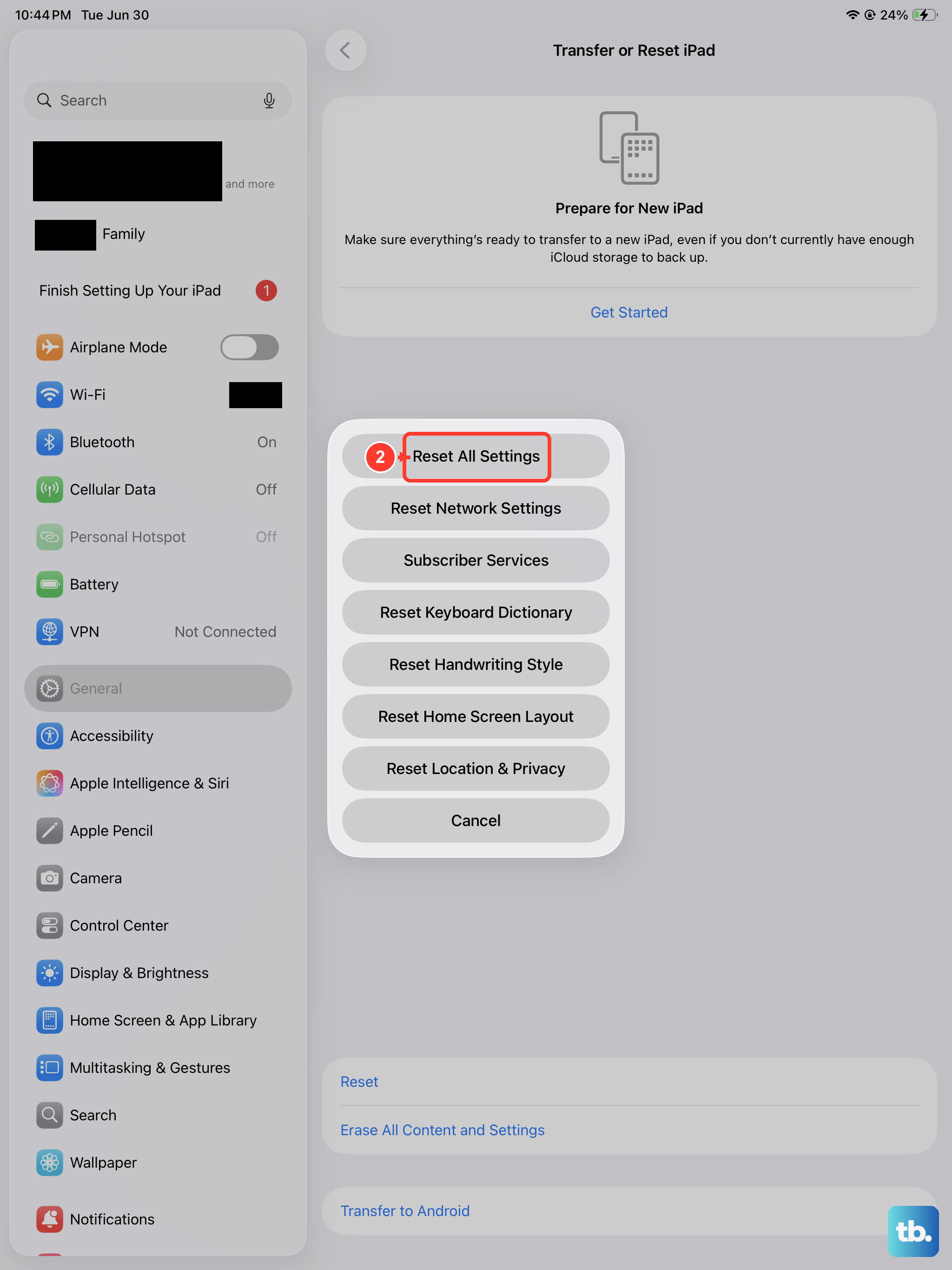
This will reset your network settings, home screen layout, privacy permissions, and keyboard dictionary back to default, but it won't delete your photos, apps, or documents. Go to Settings > General > Transfer or Reset iPad > Reset.
Tap Reset All Settings and enter your passcode if prompted. Your iPad will restart. After it boots back up, you'll need to reconnect to Wi-Fi and re-customize some preferences, but it can clear out a software conflict causing the touch problem.
Check for Physical or Liquid Damage
Look at your iPad's screen under a bright light. Check for any hairline cracks, especially near the edges, that you might not have noticed before. Even a small crack can damage the delicate digitizer layer underneath the glass.
Also, check the USB-C port for any lint, debris, or signs of corrosion. If your iPad has been exposed to moisture, liquid contact indicators inside the port may have been triggered. Physical damage typically requires a repair from Apple or an authorized service provider.
Restore Your iPad via a Computer
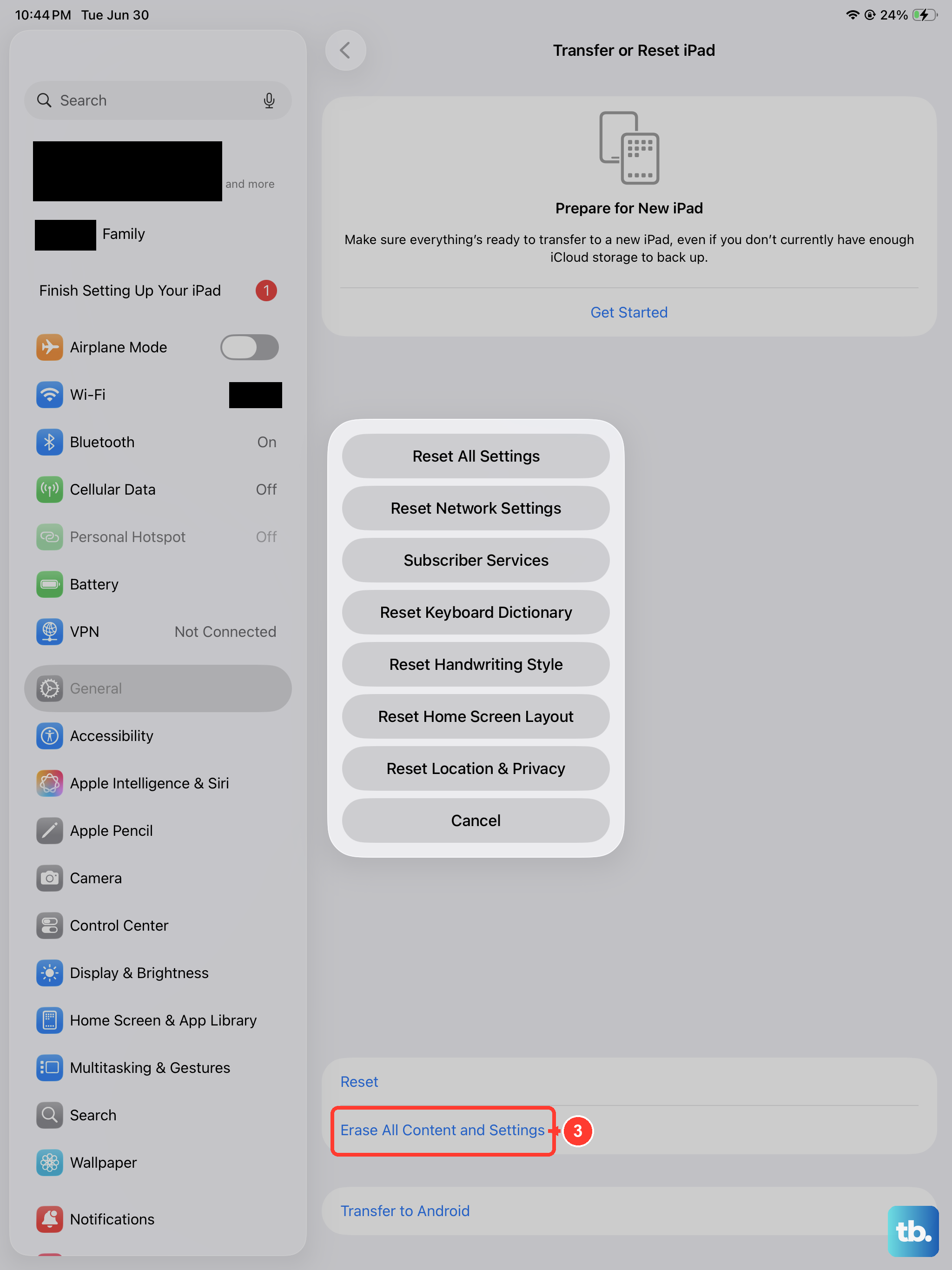
This is a last resort as it will erase all content and settings. You'll need a Mac or PC with the latest version of Finder or iTunes. Connect your iPad to the computer with a USB-C cable.
Force restart the iPad again, but keep holding the Top button until you see the recovery mode screen. On your computer, you'll see an option to Restore the iPad. This installs a clean, fresh copy of iPadOS, which can fix deep-seated software corruption.