
If your iPad (11th generation) feels unusually warm, it's usually a sign it's working harder than it should. Modern iPads are powerful, but that power generates heat, especially during demanding tasks. While some warmth is normal, excessive heat can lead to performance throttling, unexpected shutdowns, and in rare cases, long-term battery wear.
I'd start with the simplest fix first: give it a quick restart. Press and quickly release the Volume Up button, then press and quickly release the Volume Down button. Finally, press and hold the Top button until you see the Apple logo appear. This clears out any temporary software glitches that might be causing a process to run wild and generate extra heat.
Check for Problematic Apps and Background Activity
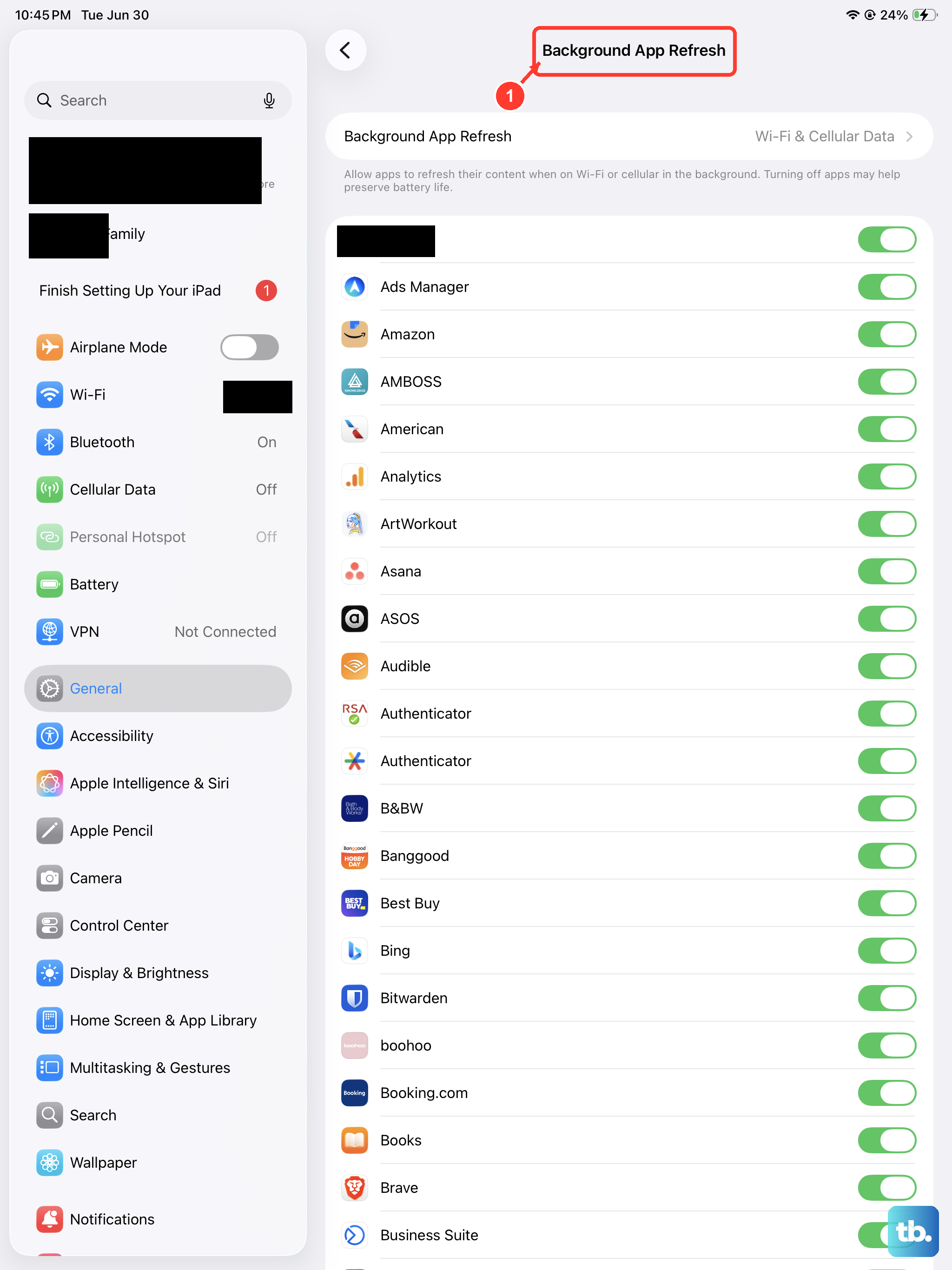
Often, a single app is the culprit. If your iPad gets hot while using a specific game, video editor, or even a web browser, force close that app. Swipe up from the bottom of the screen and pause in the middle to enter the app switcher, then swipe up on the app's preview to close it.
Background app refresh can also keep apps active when you're not using them. Go to Settings > General > Background App Refresh. You can turn it off entirely or just for the most data-heavy apps you suspect might be causing issues.
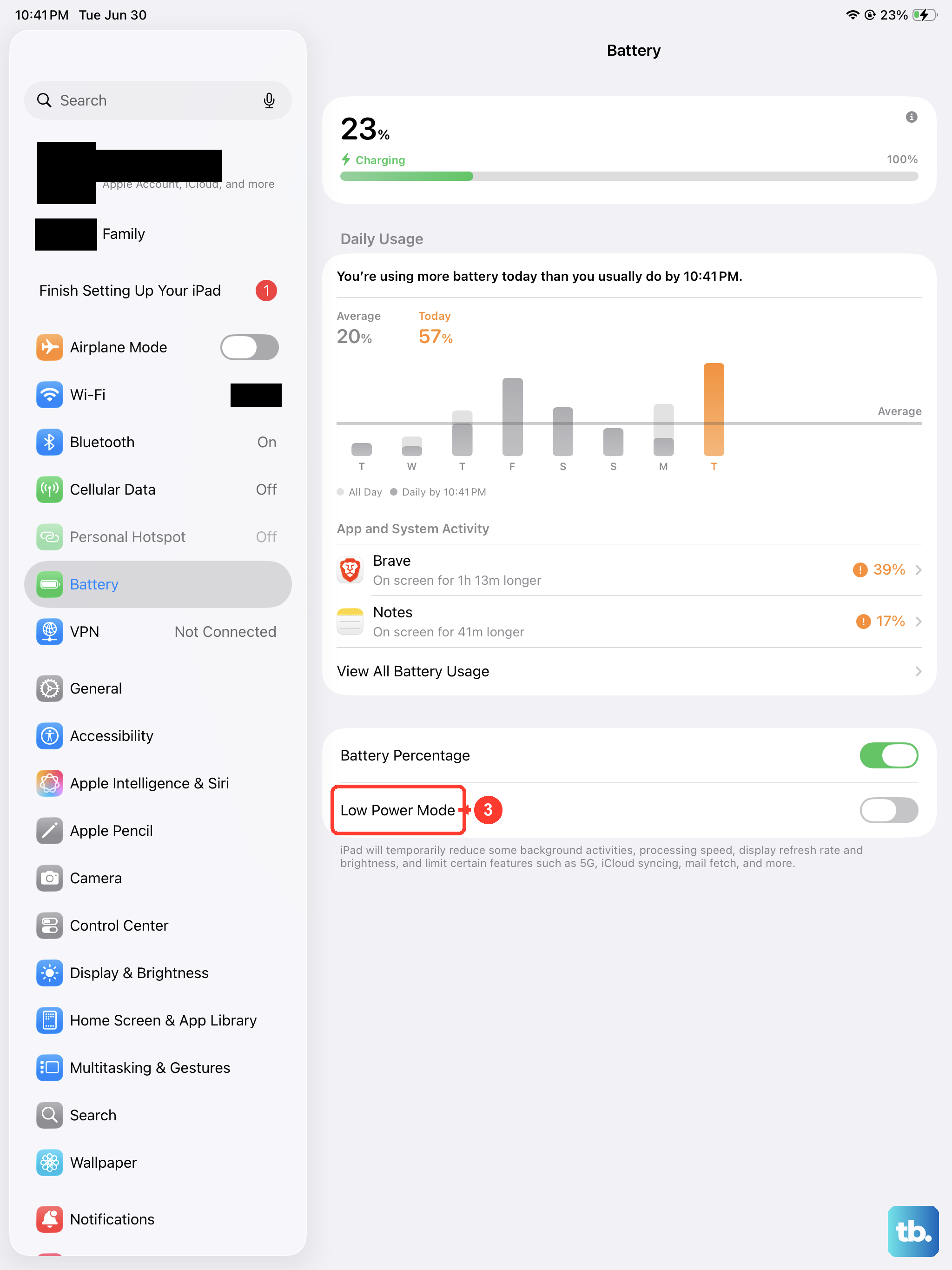
Take a look at your battery usage stats for clues. Head to Settings > Battery. This screen shows which apps have used the most battery over the last 24 hours or 10 days. An app with a high percentage here, especially if you haven't been actively using it, is likely running processes in the background and generating heat.
Update Your iPadOS Software
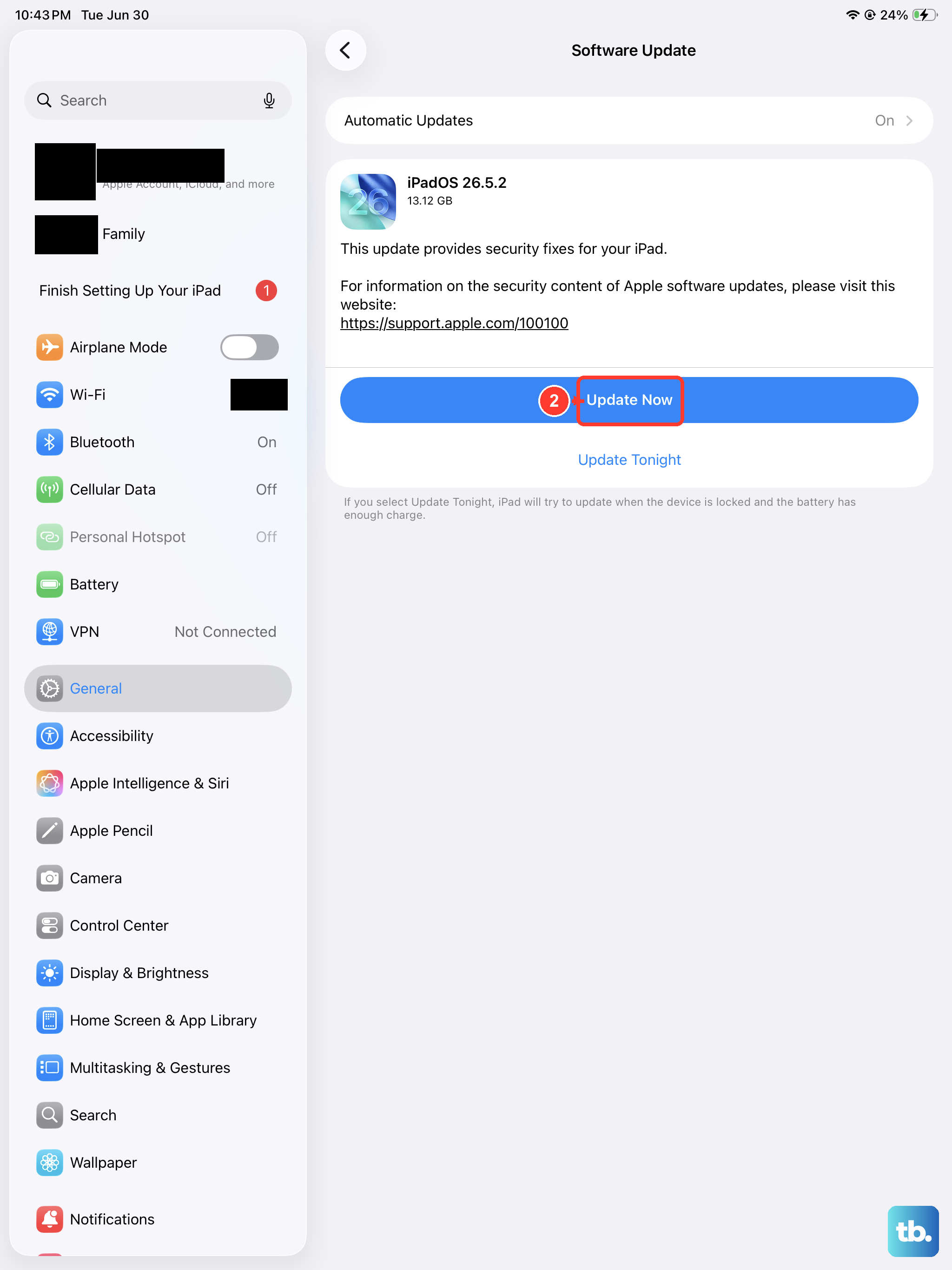
Apple frequently releases iPadOS updates that include performance optimizations and bug fixes. A software bug could be causing your iPad's processor to work inefficiently. Make sure you're running the latest version.
Go to Settings > General > Software Update. If an update is available, install it. It's a good idea to plug your iPad into power using the 20W USB-C adapter during this process, as updates can be resource-intensive.
Manage Your iPad's Physical Environment
Where and how you use your iPad has a huge impact on its temperature. Never leave it in direct sunlight, like on a car dashboard or by a sunny window. Similarly, avoid using it on top of blankets, pillows, or your lap for extended periods, as these materials insulate heat and block the device's natural dissipation.
Always use your iPad on a hard, flat surface when possible. If you're using a case, especially a thick, rugged one, try removing it during intensive tasks like gaming or video calls to see if the temperature improves. Some cases can trap heat around the device.
Be Mindful of Charging Habits
It's completely normal for any iPad to get warm while charging, as energy transfer creates heat. However, using the right charger matters. For the fastest and most efficient charge on the 11th-gen iPad, use Apple's 20W USB-C Power Adapter or a certified third-party equivalent.
Avoid using your iPad for demanding tasks while it's charging. Streaming a movie, playing a graphics-heavy game, or doing a video edit while plugged in forces the processor and battery to work simultaneously, which can generate significant heat. If you need to use it while charging, stick to lighter tasks like reading or browsing.
Adjust Display and Performance Settings
The brilliant Liquid Retina display is a major power user. If your iPad is hot, consider reducing the screen brightness manually. You can also enable Auto-Brightness in Settings > Accessibility > Display & Text Size to let the iPad manage this for you based on ambient light.
For models with ProMotion technology (which the 11th generation may or may not include), high refresh rates can increase heat during fast motion. You can limit the frame rate to 60Hz in Settings > Accessibility > Motion.
Also, check if Low Power Mode is available for your iPad model in the Battery settings. When enabled, this reduces background activity and visual effects, which can lower processor load and heat generation.
Reset All Settings
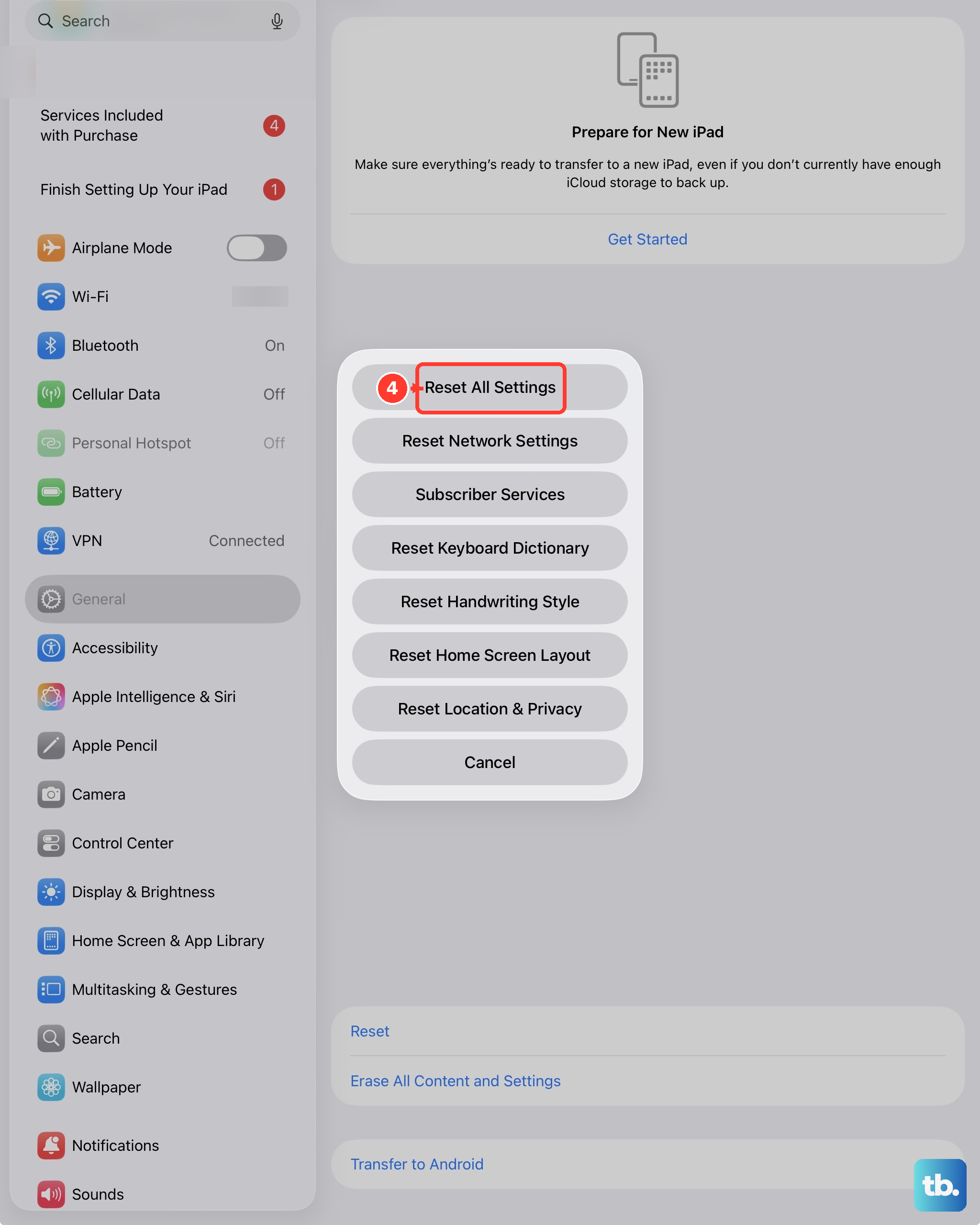
If the overheating persists and you can't trace it to a specific app, a deeper software reset might help. This won't erase your personal data like photos or apps, but it will reset all your system settings to default.
Go to Settings > General > Transfer or Reset iPad > Reset, and choose Reset All Settings. You'll need to re-enter Wi-Fi passwords and reconfigure preferences like notifications and wallpaper, but it can resolve conflicts causing thermal issues.
Consider Your Usage Patterns
Finally, think about what you were doing when the iPad got hot. Extended sessions of 3D gaming, 4K video editing, using AR apps, or participating in long video conferences are all processor-intensive activities that will naturally make the device warm. This is typically within its operational design.
If the heat is accompanied by rapid battery drain or the device becomes too hot to hold comfortably, that's a sign to stop the activity, close the app, and let the iPad cool down on a flat surface. Persistent overheating during normal, light tasks is more concerning and may point to one of the software or environmental fixes above.