
Missing FaceTime calls or not hearing alerts on your iPad (11th generation) can be confusing, especially when you're sure the volume is up. Since iPads handle calls and notifications differently than iPhones, the fixes are a bit specific. This guide walks through the common reasons your iPad might stay silent and how to get your ringer and alerts working again.
Check the Side Switch and Volume
First, check the physical switch on the side of your iPad. In iPadOS, this switch can be set to either mute the device or lock screen rotation. Go to Settings > Sounds and look at the option for "Use Side Switch to." If it's set to "Mute," make sure the switch isn't flipped to show the orange indicator. If it is, flip it back.
Next, unlock your iPad and press the volume up button on the side. You should see the volume indicator appear on screen. Keep pressing until it reaches the maximum level. Sometimes the ringer volume can be turned down independently, even if media volume is loud.
Turn Off Focus Modes
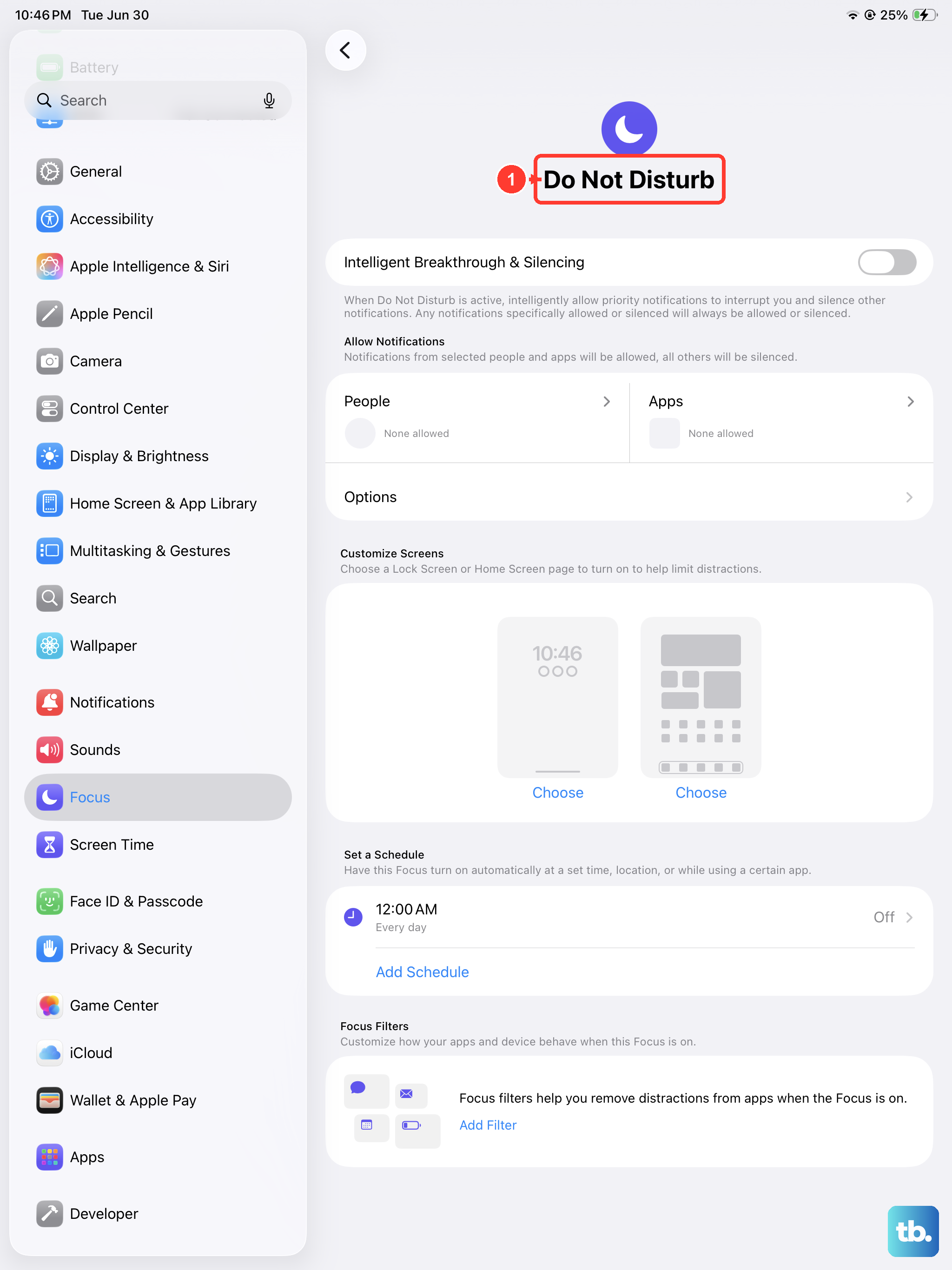
Focus modes like Do Not Disturb, Work, or Sleep can silence all incoming calls and alerts. Swipe down from the top-right corner to open Control Center and look for the Focus icon (it looks like a crescent moon or another symbol). If any Focus is active, tap it to turn it off.
You can also check your scheduled Focus times. Go to Settings > Focus. Look through each Focus profile and ensure they are turned off. Also check the "Schedule" or "Turn On Automatically" section to make sure a Focus isn't set to activate at certain times or locations without you realizing.
Review Your Notification Settings
For an app like FaceTime or Messages to play a sound, its notifications must be enabled. Go to Settings > Notifications. Find the app you're having trouble with (e.g., FaceTime) and tap on it.
Make sure "Allow Notifications" is turned on. Then, check that "Sounds" is enabled. You can also try changing the alert style to "Banners" or "Alerts" if it's set to "None." I've seen this fix notification issues after an iPadOS update.
Disconnect Bluetooth Audio Devices
If your iPad is connected to Bluetooth headphones, a speaker, or a car stereo, all audio, including ringers and alerts, will be routed to that device. To check, open Control Center by swiping down from the top-right.
Look in the audio card in the top-right corner. If it shows anything other than "iPad," tap it and select your iPad from the list to switch the audio back. For a more permanent check, go to Settings > Bluetooth and toggle it off temporarily to see if your iPad's speaker starts working.
Change Your Ringtone and Alert Sounds
A corrupted sound file can sometimes cause issues. Try changing your default tones. Go to Settings > Sounds. Here you can tap on options like "Ringtone" or "Text Tone" and select a new sound.
Test immediately after changing it by having someone send you a message or call you on FaceTime. This simple refresh of the sound system can clear up minor software glitches.
Check for Blocked Contacts
If calls from a specific person aren't coming through, you might have accidentally blocked them. Open the Settings app and scroll down to FaceTime. Tap on "Blocked Contacts" to see a list.
If the contact is there, you can swipe left on their name and tap "Unblock." This will allow their FaceTime calls and Messages to notify you again with sound.
Restart Your iPad
A simple restart clears the device's memory and can fix temporary software bugs affecting sound. Press and hold the top button and either volume button until the "slide to power off" slider appears.
Drag the slider, wait about 30 seconds for the iPad to fully turn off, then press and hold the top button again until you see the Apple logo. This is different from a force restart, which is our next step.
Force Restart Your iPad (11th Gen)
If a normal restart doesn't help, try a force restart. This doesn't erase any data. Quickly press and release the Volume Up button, then quickly press and release the Volume Down button. Immediately after, press and hold the Top button.
Keep holding the Top button even after you see the Apple logo appear. Release it only when you see the logo. This process can resolve deeper system freezes that might be affecting audio services.
Update iPadOS
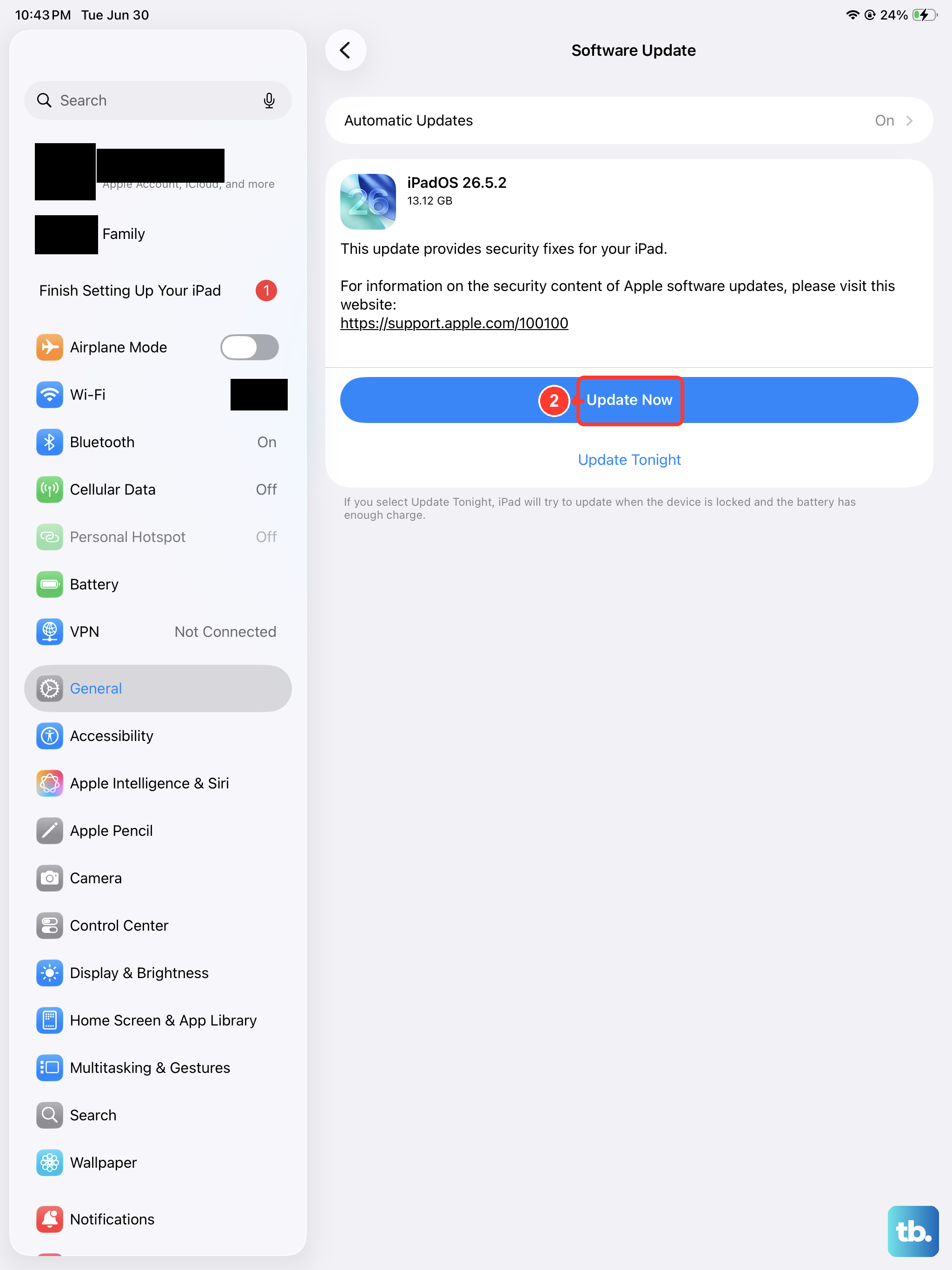
Apple frequently releases updates that fix bugs, including ones related to audio and notifications. Make sure your iPad (11th generation) is running the latest version of iPadOS. Connect to Wi-Fi and plug it into power if the battery is low.
Go to Settings > General > Software Update. If an update is available, tap "Download and Install." Keeping your OS updated is one of the best ways to maintain performance and security.
Reset All Settings
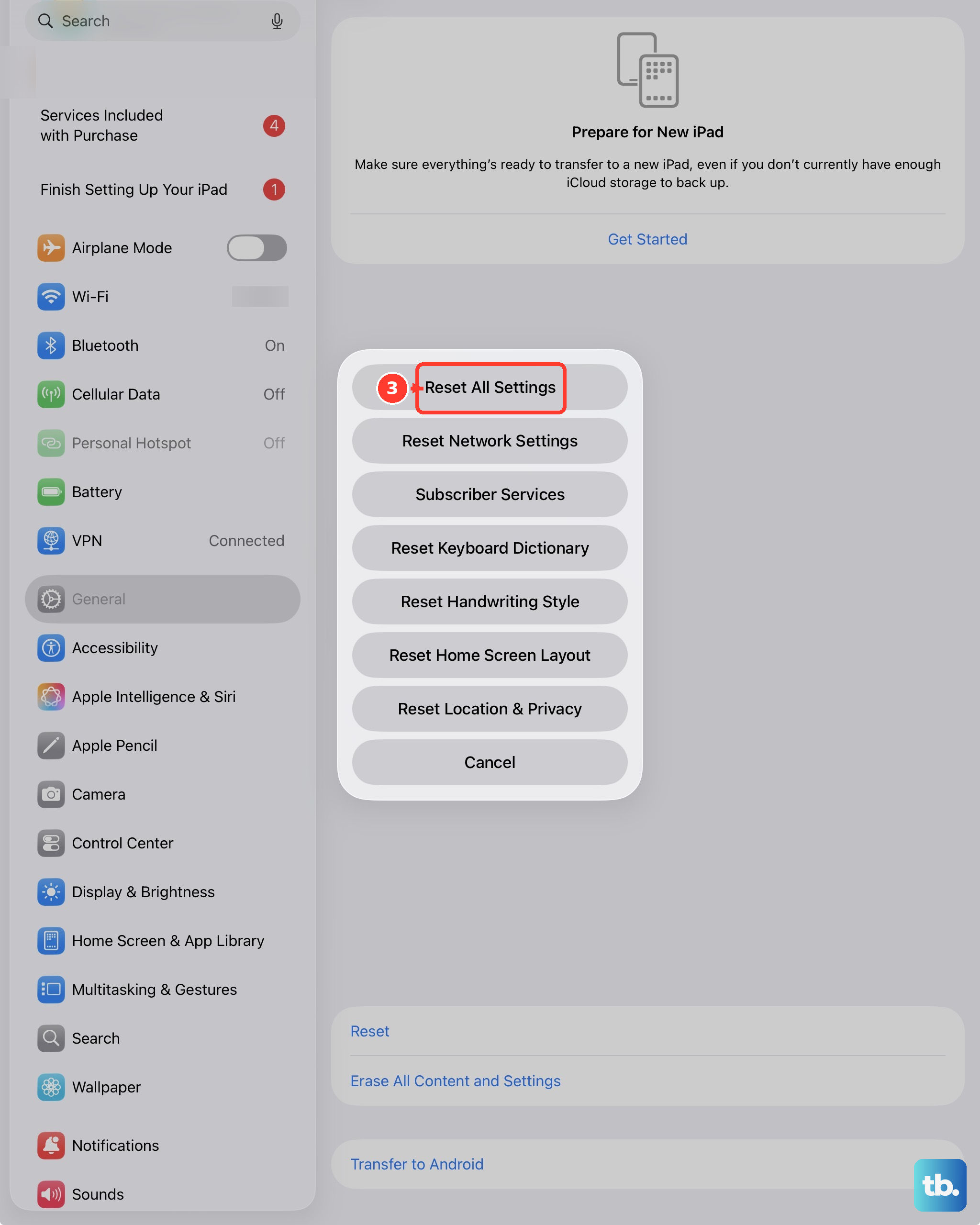
This will revert all your preferences, like network settings, wallpaper, and privacy permissions, back to their defaults without deleting your apps or personal data. It's a strong step for persistent issues.
Go to Settings > General > Transfer or Reset iPad. Tap "Reset" at the bottom, then choose "Reset All Settings." You'll need to enter your passcode to confirm. Afterward, you'll need to re-join Wi-Fi networks and reconfigure some preferences, but it often clears up stubborn glitches.
Check for Guided Access or Accessibility Settings
Certain accessibility features can affect sound. Go to Settings > Accessibility. Check if "LED Flash for Alerts" is the only thing on, which would mean sounds are off. Also, look under "Audio/Visual" to ensure the balance slider is centered.
Triple-click the top button to see if Guided Access is accidentally enabled, which can lock you into a single app and restrict functions. If a Guided Access session is active, enter your passcode to end it.
Reset Network Settings
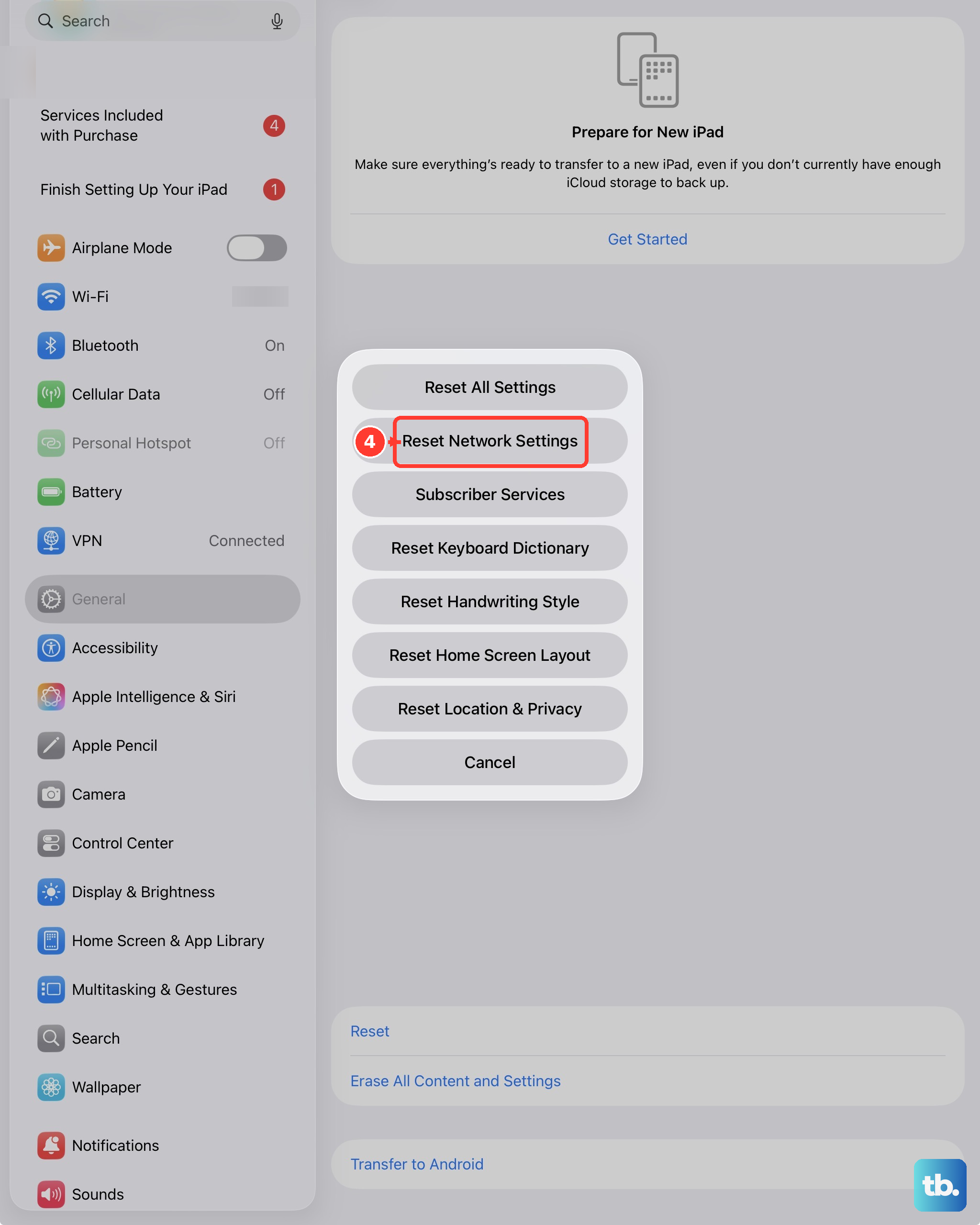
If your issue is specifically with internet-based calls over FaceTime, WhatsApp, or Skype, resetting network settings can help. This clears all Wi-Fi passwords, cellular settings, and VPN configurations.
Navigate to Settings > General > Transfer or Reset iPad > Reset. Select "Reset Network Settings" and enter your passcode. Your iPad will restart, and you'll need to re-join your Wi-Fi networks.
Review App-Specific Sound Settings
Open the app that's not making sound, like FaceTime or Messages, and look for in-app sound settings. Sometimes an app has its own internal volume control or mute setting that overrides the system.
Also, ensure the app is updated. Open the App Store, tap your profile icon in the top-right, and scroll down to see if any pending updates are available for your communication apps.
Erase All Content and Settings (Last Resort)
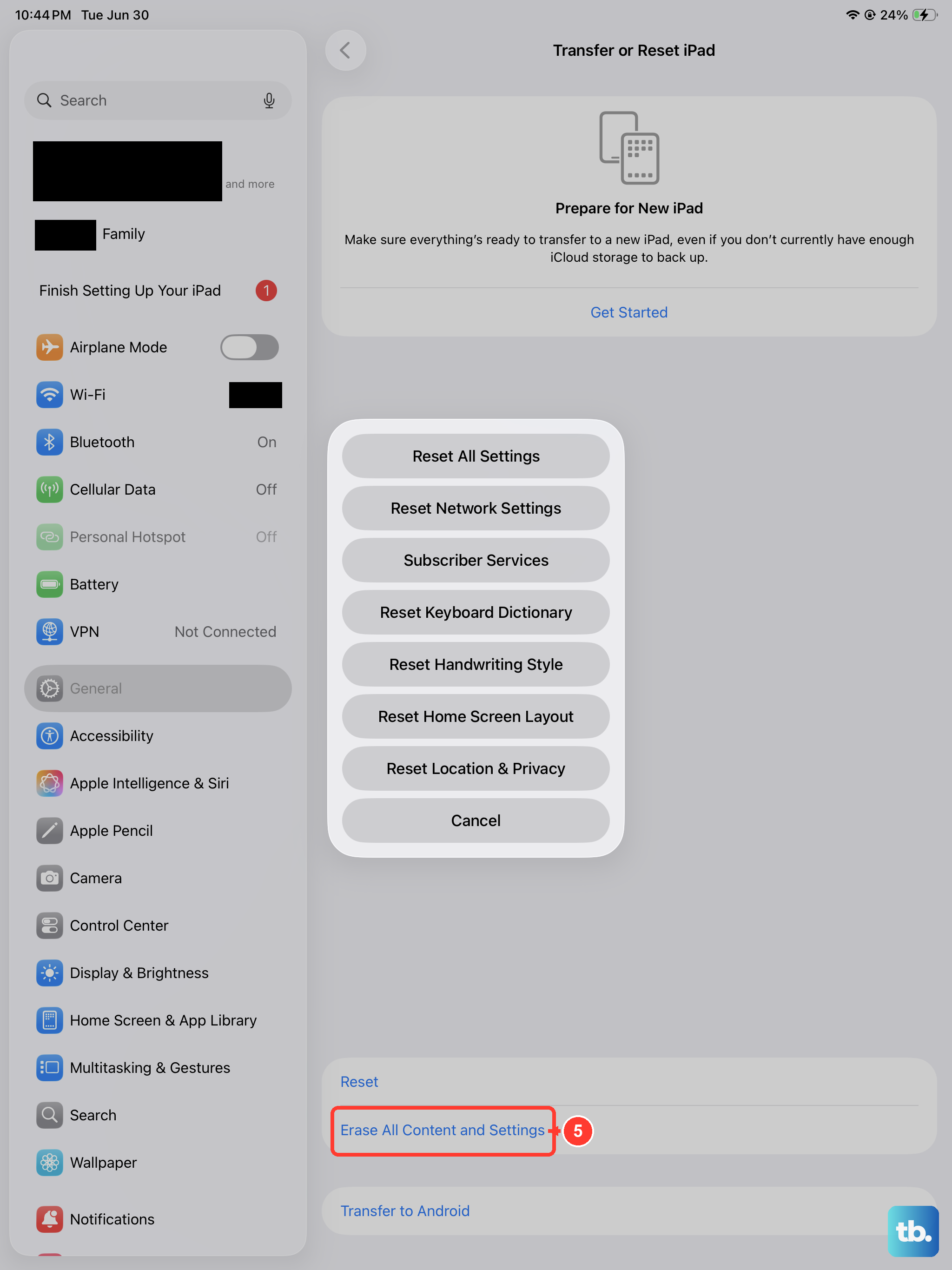
If nothing else has worked, you can try erasing the iPad and setting it up as new. This is a major step, so ensure you have a recent backup in iCloud or on your computer first.
Go to Settings > General > Transfer or Reset iPad and tap "Erase All Content and Settings." After the iPad restarts, you can test the basic sounds on the setup screen before restoring your data. If the sound works then, the issue was likely in your previous software configuration.