
So your iPad (11th generation) won't charge. You've plugged it in, maybe swapped cables, and the screen stays stubbornly dark. It's a frustrating spot to be in, but this is a common problem with a handful of straightforward fixes you can try right now.
Whether the USB-C port feels loose, the battery icon won't appear, or it just sits there at 1%, we'll walk through the solutions. Let's start with the quickest fix and work our way through.
Force Restart Your iPad
This should always be your first move. A force restart clears out any temporary software glitches that might be interfering with the charging system. It takes about 20 seconds and solves the issue more often than you'd think.
For the iPad (11th generation), here's exactly what to do. Press and quickly release the Volume Up button, then press and quickly release the Volume Down button. Finally, press and hold the Top button until you see the Apple logo appear on the screen.
Once it boots back up, plug in your charger and check for the charging indicator in the status bar.
Inspect and Clean the USB-C Port
This is the single most common culprit. Over time, lint, dust, and pocket debris get compacted into the USB-C port every time you slide the iPad into a bag or case. Eventually, there's so much gunk that the cable's connector can't make proper contact.
Grab a bright light and take a close look inside the port. If you see any debris, turn off your iPad first for safety. Then, use a wooden or plastic toothpick to gently scrape out the lint. Avoid metal tools like paperclips, as they can scratch or damage the delicate gold contacts inside.
You can also try a quick blast of compressed air from a can, holding it a few inches away. Give the iPad a gentle tap with the port facing down to dislodge anything stubborn. After cleaning, try your cable again.
Test a Different Cable and Power Source
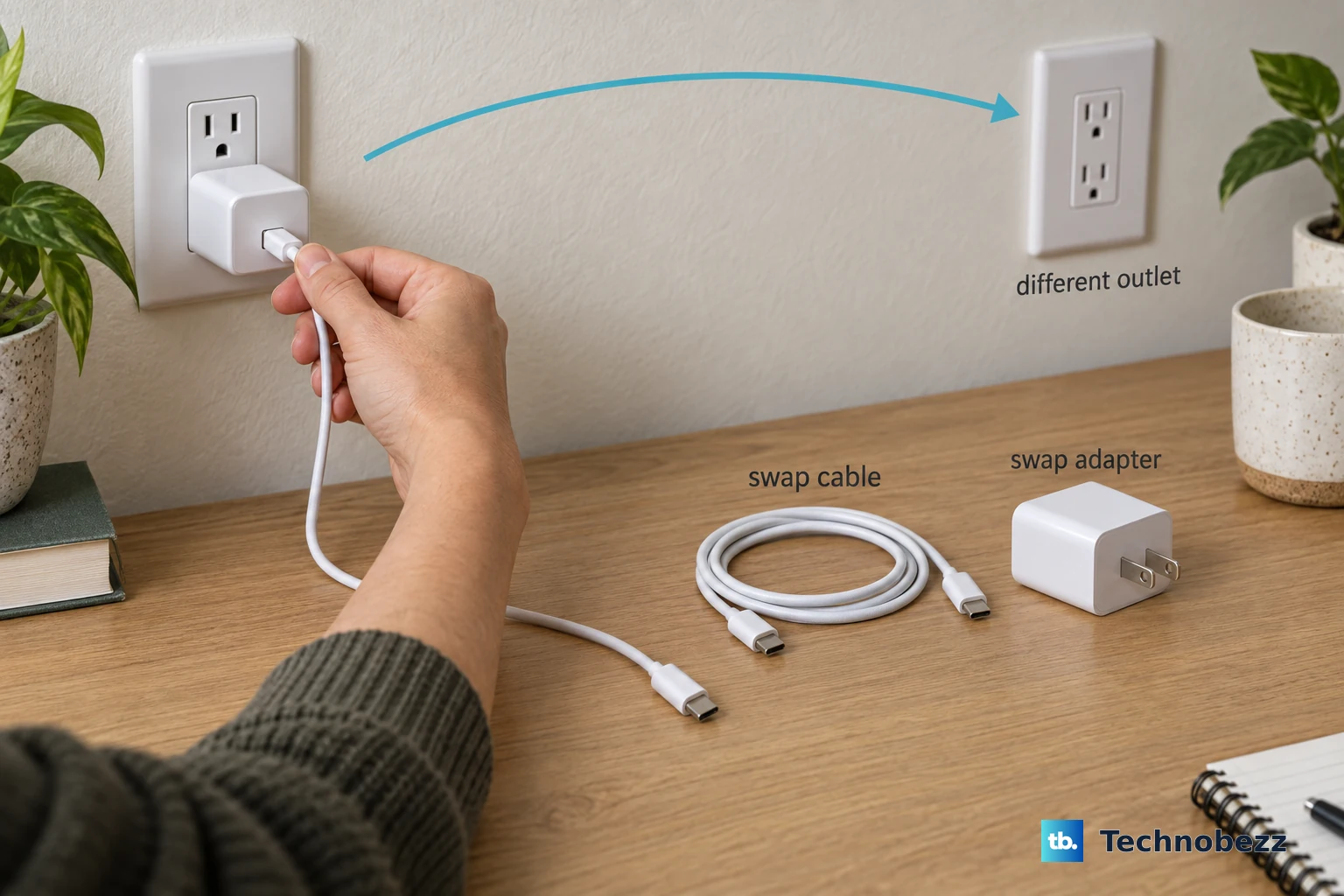
You need to isolate the problem. Is it the cable, the wall adapter, or the outlet itself? The best way to find out is to swap each component one by one.
First, try a different USB-C cable, preferably one that's Apple-certified or from a reputable brand. Next, test with a different wall adapter. The iPad (11th generation) supports up to 20W for optimal charging, so try an adapter that can deliver that power.
Also, plug into a different wall outlet entirely. Sometimes a faulty power strip or a tripped GFCI outlet is the issue. If you have a thick case on your iPad, try removing it, as some cases can prevent the USB-C plug from seating fully.
Check for Software Updates
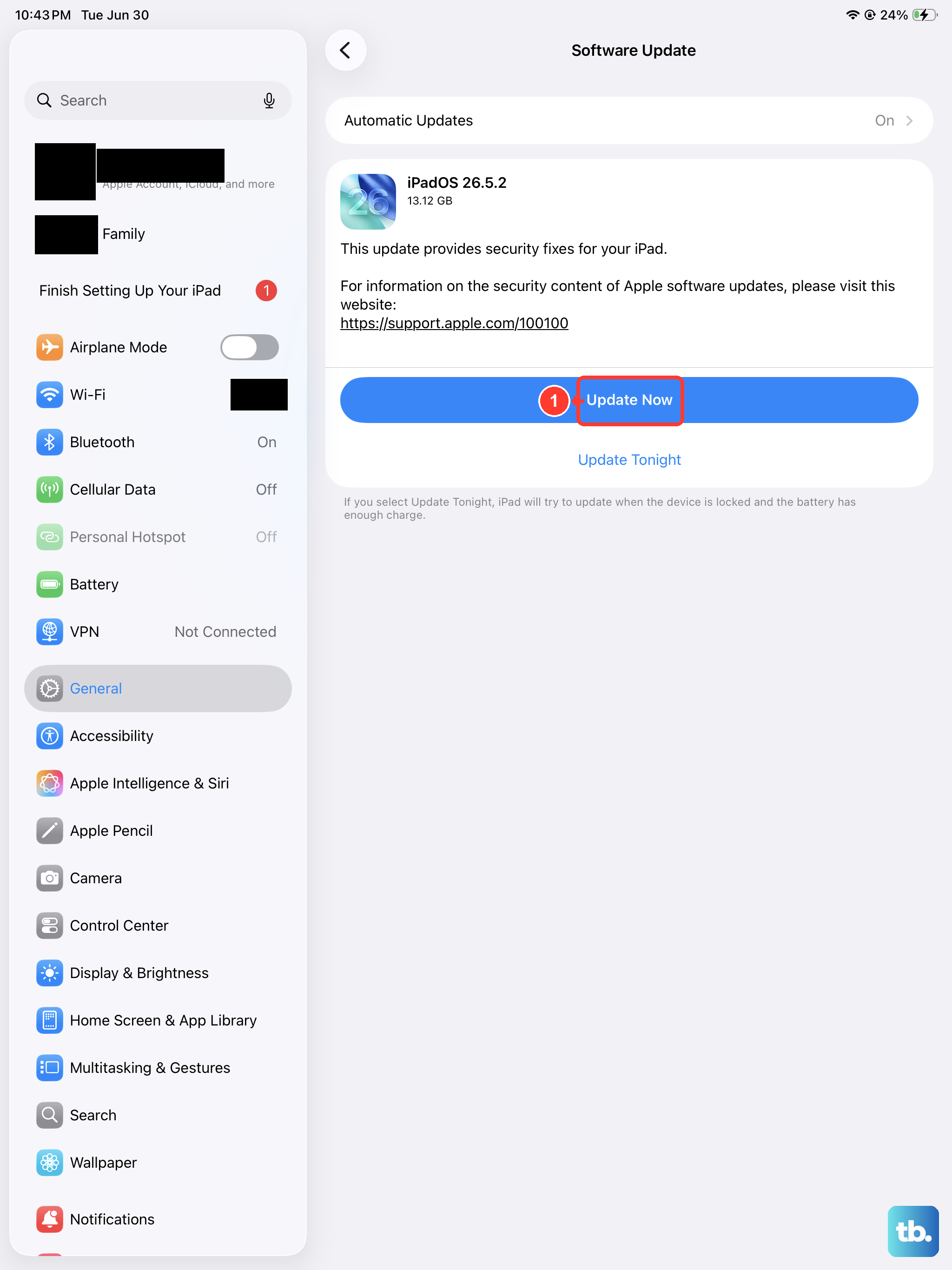
Apple regularly releases iPadOS updates that include bug fixes for charging and power management. If you're running an older version of iPadOS, a simple update might resolve your problem.
Go to Settings > General > Software Update. If an update is available, download and install it. I'd recommend doing this while your iPad has some charge, but if it's completely dead, you can update via a computer.
Connect your iPad to a Mac or PC using a USB-C cable. On a Mac with macOS Catalina or later, open Finder. On a PC or older Mac, open iTunes. Your computer should recognize the device and give you an option to update it, which can sometimes kickstart a stalled charging process.
Let It Sit on the Charger
If your iPad's battery is completely depleted, it won't show any signs of life immediately when you plug it in. This is a normal safety feature. Leave it connected to a known-good wall charger (not a low-power computer port) for at least 30 minutes.
You should eventually see a low-battery icon or the charging indicator. If you see nothing after a half-hour, try performing the force restart sequence while the iPad is still plugged into the wall.
Review Battery Health and Settings
While iPads don't have a user-facing battery health percentage like iPhones, software settings can affect charging behavior. Go to Settings > Battery.
Look for any options related to optimized charging. iPadOS includes features to preserve long-term battery health by sometimes delaying a full charge. This isn't usually the cause of a total failure to charge, but it's worth checking if your iPad seems to stop at 80%.
Also, check if your battery is simply old. All batteries degrade over time. If your iPad is several years old and has been through many charge cycles, the battery itself may be nearing the end of its lifespan and struggling to hold a charge.
Charge with the iPad Powered Off
A background app or process could be causing a conflict that prevents proper charging. Try turning your iPad completely off, then plugging in the charger. If the charging symbol appears on the black screen, you'll know it was a software-related issue.
Charging while powered off is also the fastest way to get a boost, as no system resources are being used by the screen or apps.
Try a Different Charging Environment
Extreme temperatures can prevent any lithium-ion battery from charging. Apple designs its devices to stop charging if the internal temperature is too high or too low. If your iPad has been sitting in a hot car or a very cold room, bring it to a moderate, room-temperature environment and let it sit for a bit before trying to charge again.
Also, make sure you're not trying to charge on a soft surface like a bed or couch, which can trap heat. Place it on a hard, flat surface for better ventilation.
Restore Your iPad via a Computer
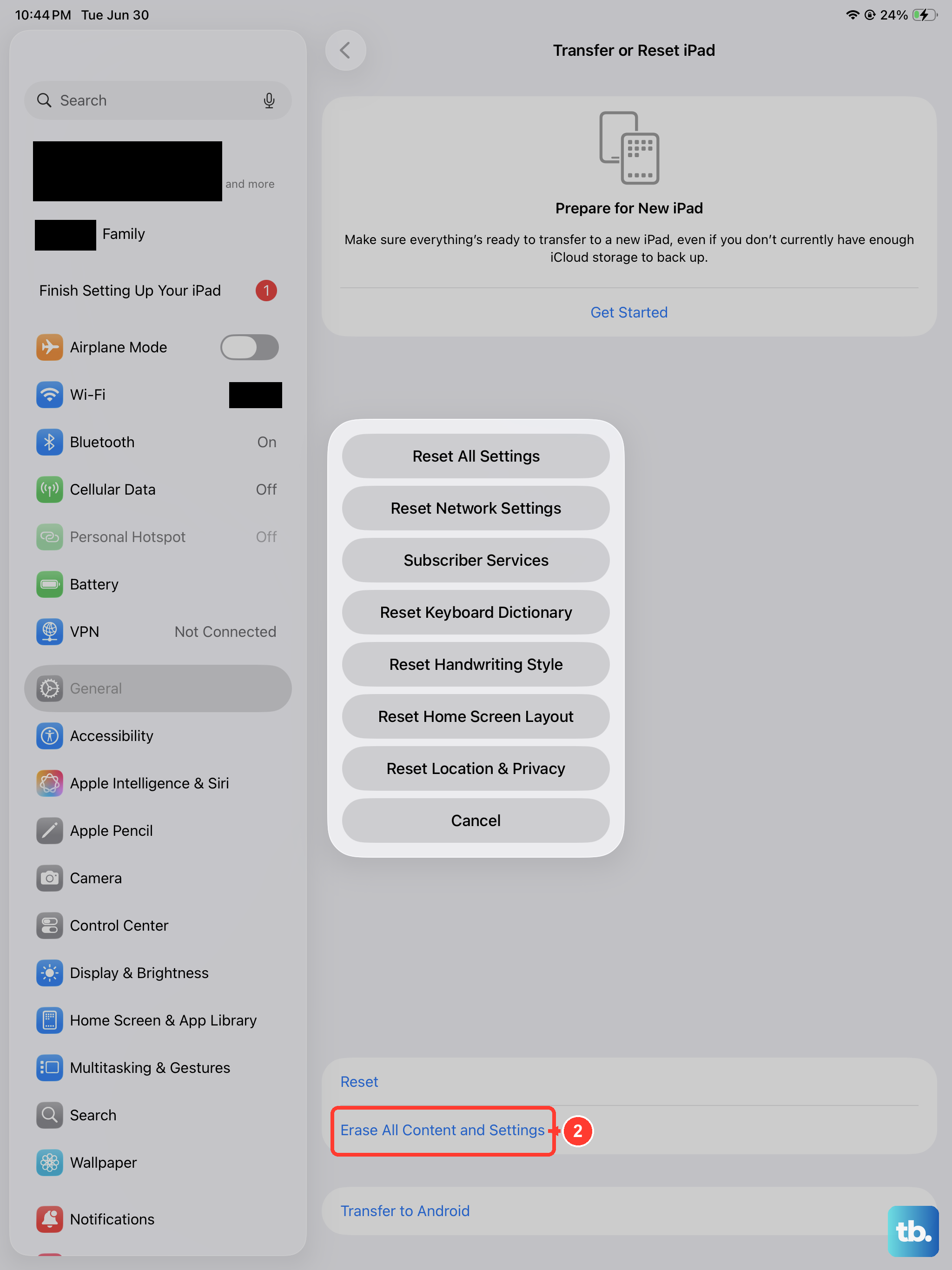
If all else fails, a deeper software issue might require a restore. This will erase all content and settings, so it's a last resort. Ensure you have a recent backup in iCloud or on your computer before proceeding.
Put your iPad into Recovery Mode. Connect it to your computer with a USB-C cable. Quickly press and release the Volume Up button, then quickly press and release the Volume Down button. Immediately press and hold the Top button. Keep holding it until you see the recovery mode screen on your iPad.
On your computer, you'll see an option to Restore or Update. Choose Restore. Your computer will download the latest version of iPadOS and install it on your iPad. After the process finishes, set it up as new or from your backup and test the charging again.