
If your iPad (11th generation) won't connect to your AirPods, keyboard, or car, it can really disrupt your workflow. Bluetooth issues on iPadOS are usually software hiccups that you can resolve yourself. I'd start with the simplest fix first, which often does the trick.
Toggle Bluetooth and Restart
First, swipe down from the top-right corner to open Control Center. Tap the Bluetooth icon to turn it off, wait about ten seconds, then tap it again to turn it back on. Try pairing your device again. If that doesn't work, a full restart is the next logical step.
For the iPad (11th generation), press and quickly release the Volume Up button, then quickly press and release the Volume Down button. Finally, press and hold the Top button until you see the Apple logo appear on screen. Don't forget to restart the Bluetooth accessory you're trying to connect to as well.
Forget and Re-Pair the Device
Sometimes a device gets stuck in a bad connection state. Go to Settings > Bluetooth on your iPad. Find the problematic device in your list and tap the info (i) icon next to it. Tap Forget This Device and confirm.
Now, put your accessory back into pairing mode. This process varies, but for things like AirPods, you hold the setup button on the case. With the accessory discoverable, it should appear in the Bluetooth settings list on your iPad again. Tap its name to pair from scratch.
Check for iPadOS Updates
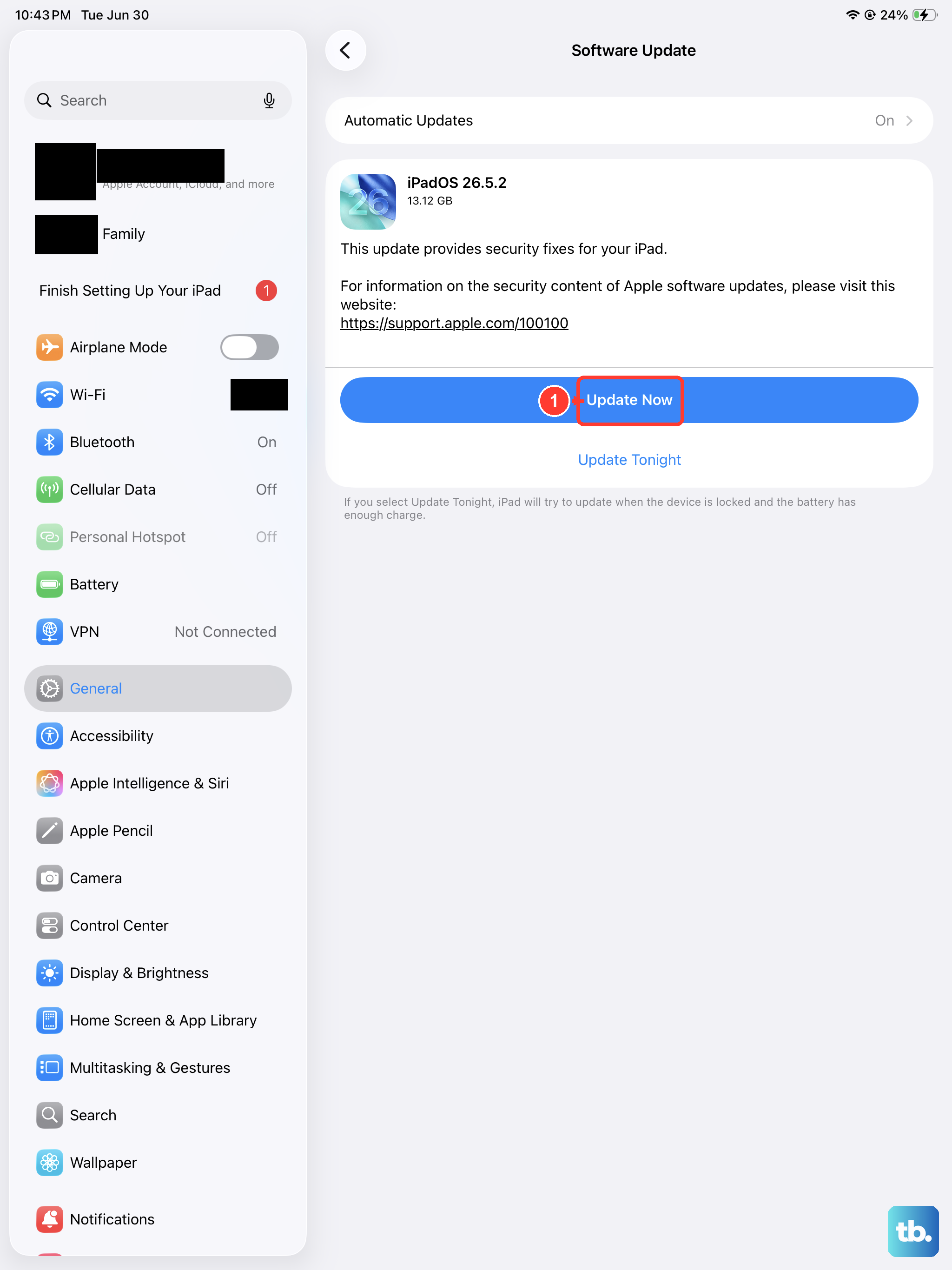
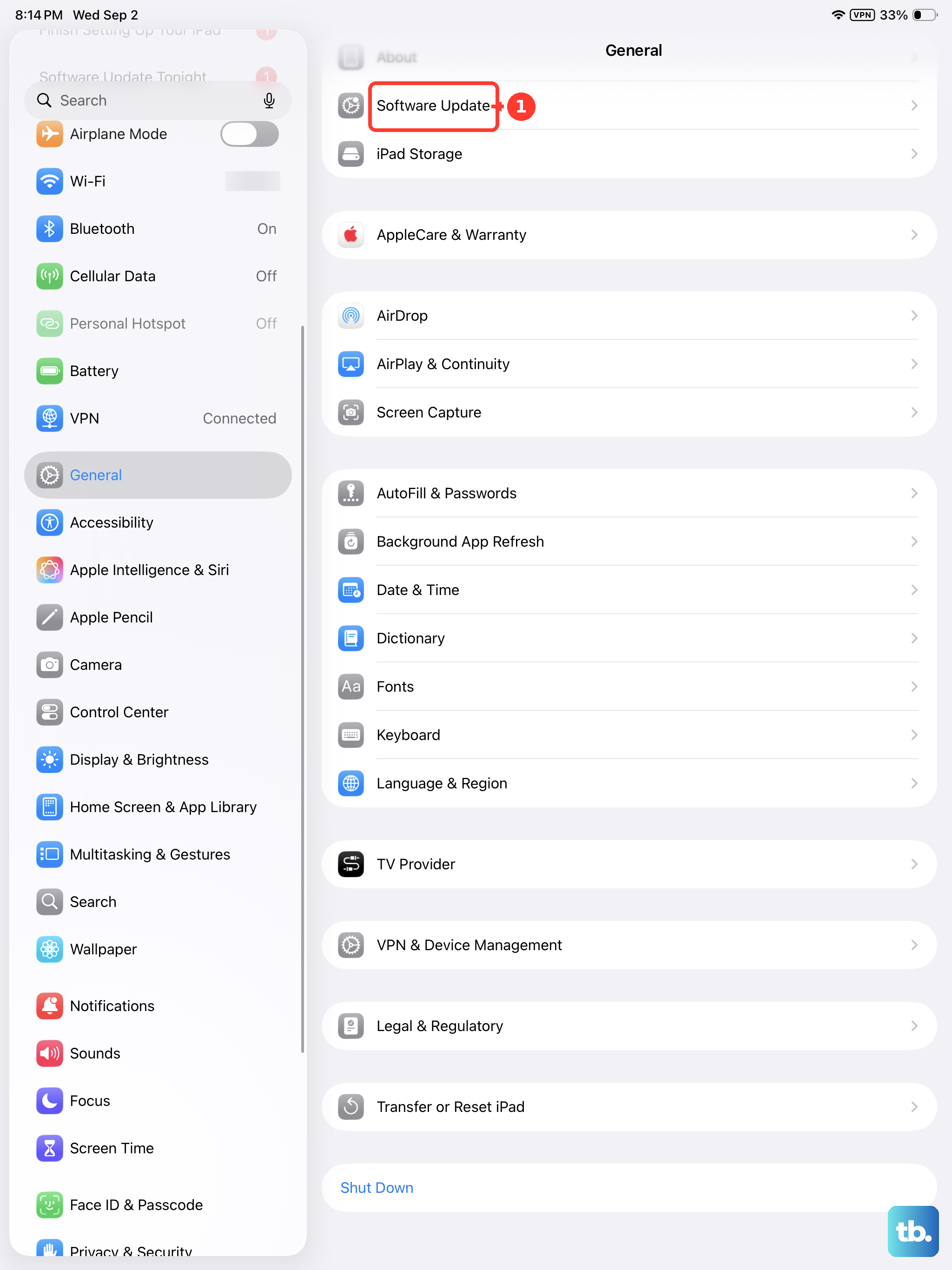
An outdated operating system is a common cause of Bluetooth instability, especially with new accessories. Apple frequently releases updates that include fixes for connectivity bugs. Make sure your iPad is connected to Wi-Fi and has a decent charge, then go to Settings > General > Software Update.
If an update is available, tap Download and Install. Keeping iPadOS updated is one of the best ways to ensure all features, including Bluetooth, work smoothly and securely.
Reset Your Network Settings
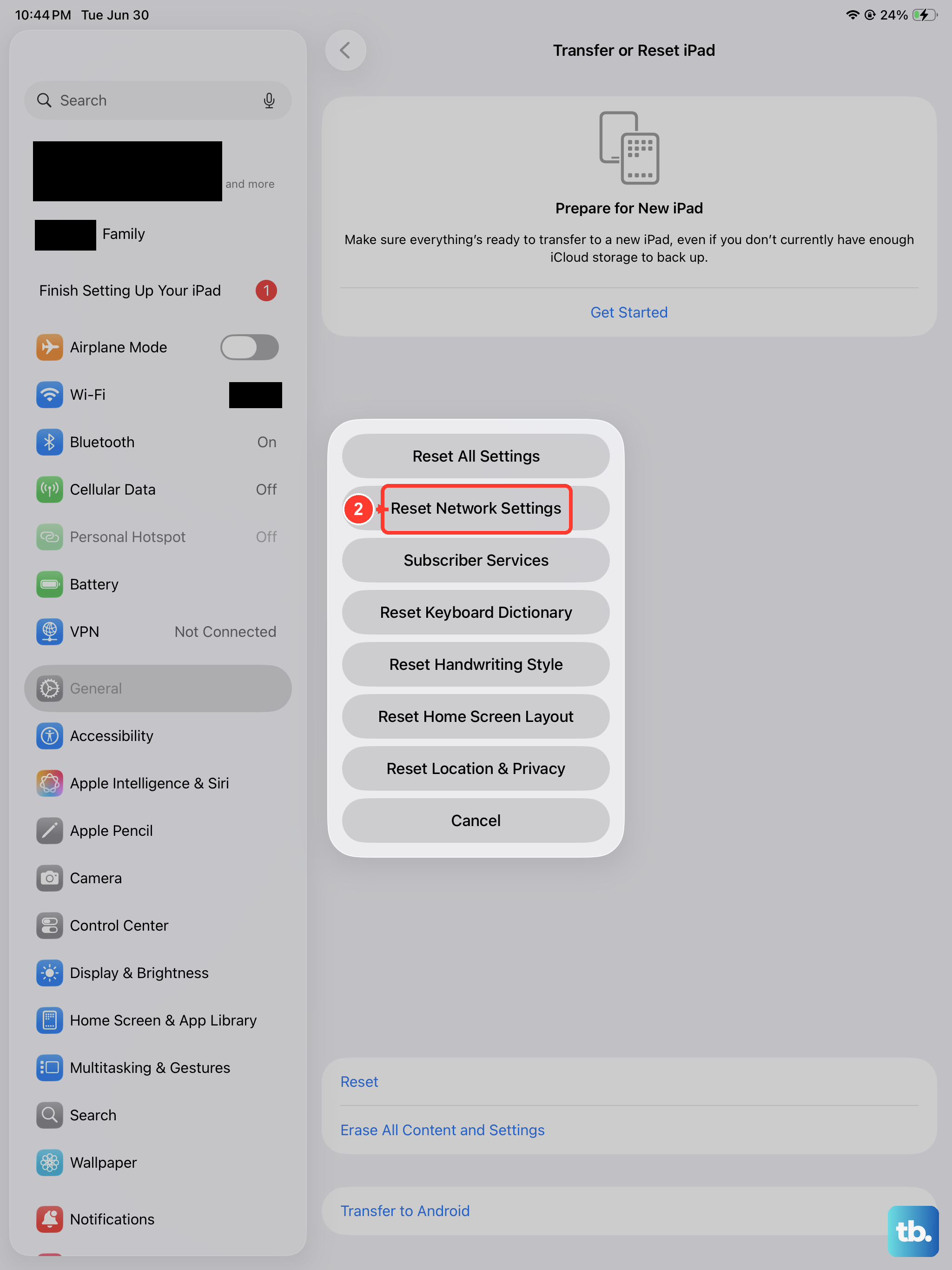
This is a more thorough step that clears all network-related configurations. It will remove saved Wi-Fi networks, Bluetooth pairings, and VPN settings, so you'll need to re-enter Wi-Fi passwords afterward. To do this, open Settings > General > Transfer or Reset iPad.
Tap Reset and then choose Reset Network Settings. Enter your passcode if prompted and confirm. Your iPad will restart, and you can attempt to pair your Bluetooth devices again with a fresh slate.
Check for Interference and Distance
Bluetooth uses the 2.4 GHz radio band, which is crowded. Other devices like Wi-Fi routers, microwaves, baby monitors, and even USB 3.0 cables can cause interference. Try moving your iPad and the Bluetooth accessory to a different room, away from other electronics.
Also, keep the devices within about 30 feet of each other with a relatively clear line of sight. Walls and metal objects can significantly weaken the signal. Testing the accessory with another phone or tablet can also tell you if the problem is with the iPad or the accessory itself.
Disable Bluetooth Handoff and Automation
Features like Handoff, which lets you start a task on one Apple device and finish it on another, can sometimes confuse connections. If you're having trouble with audio devices like AirPods switching unpredictably, try turning this off temporarily. Go to Settings > General > AirPlay & Handoff and toggle Handoff off.
Similarly, if you use Bluetooth with Shortcuts automations or Focus modes, a buggy automation could be interrupting the connection. Review any automations in the Shortcuts app that involve Bluetooth toggling.
Review App Permissions and Background Activity
A specific app might be monopolizing or interfering with the Bluetooth connection. You can check which apps have requested Bluetooth access. Go to Settings > Privacy & Security > Bluetooth. You'll see a list of apps that have asked to use Bluetooth.
If you see an app you don't recognize or trust, you can toggle its access off. You can also try closing all open apps by swiping up from the bottom of the screen and pausing in the middle, then swiping up on each app preview. Afterward, try the Bluetooth connection again with just the essential app open.