
When the predictive text on your Infinix Note 40 Pro stops working, it can turn simple typing into a chore. You might find it's not suggesting words, the autocorrect is making bizarre changes, or the whole keyboard feels sluggish. The good news is this is usually a software hiccup you can fix yourself. Let's start with the quickest solution.
First, try a simple restart. Press and hold the Power button, then tap 'Restart' on your screen. This clears out any temporary glitches in the system, including ones affecting the keyboard. If the phone is unresponsive, you can force restart it by holding the Power button and Volume Down button together for about 10 seconds until you see the Infinix logo.
Clear the Keyboard App Cache
Your keyboard stores temporary data to help it run smoothly. Sometimes this cache gets corrupted, which can break predictive text. Clearing it is a safe first step that won't delete your personal dictionary or settings.
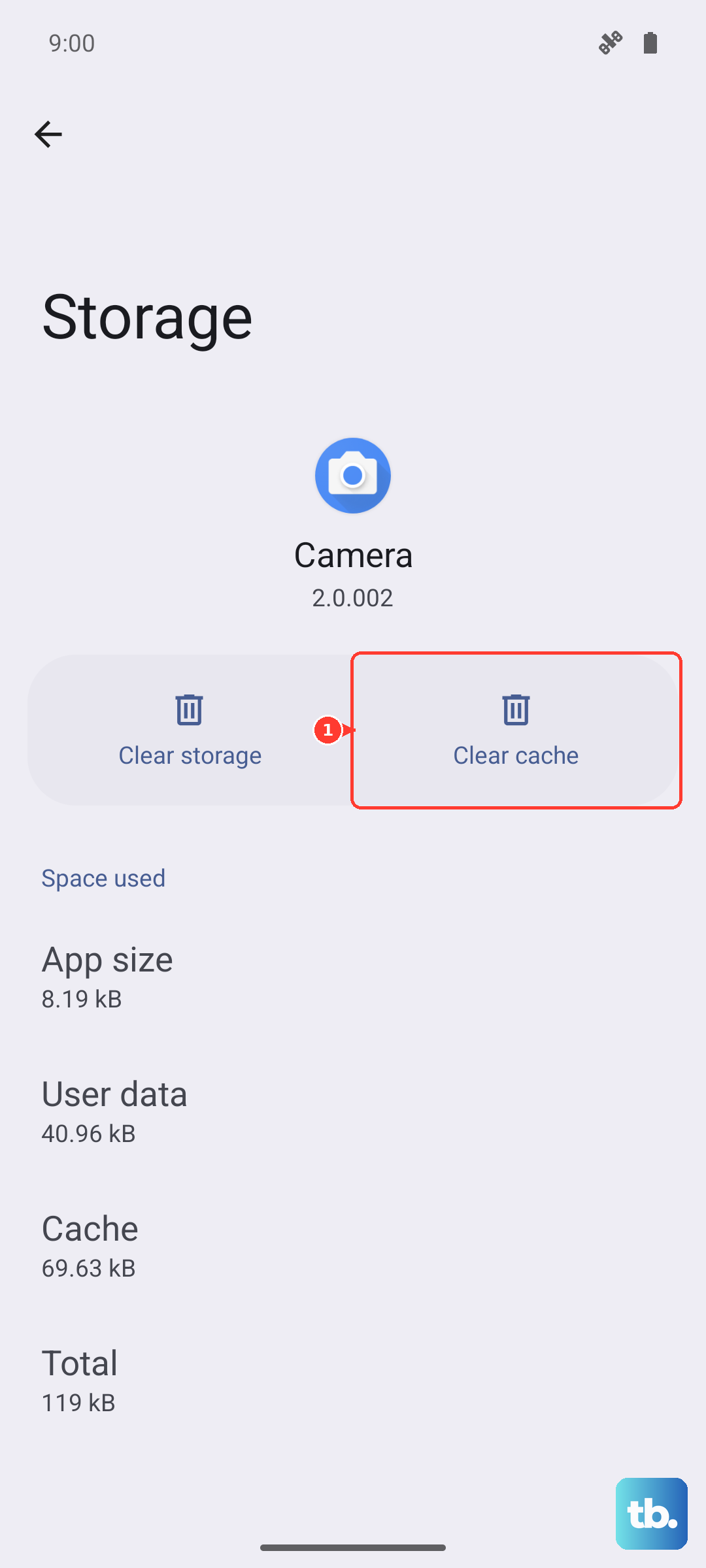
Go to Settings > Apps > Manage apps. Find and tap on XOS Keyboard or System Keyboard in your app list. Tap on Storage usage, then select Clear cache. This only takes a moment and often resolves the issue right away.
Check and Toggle Predictive Text Settings
It's possible the feature was accidentally turned off. Open any app that uses the keyboard, like Messages or Notes. Tap in a text field to bring up the keyboard, then look for a settings icon (it often looks like a gear) on the toolbar above the keys.
Tap that icon to open the keyboard settings. Look for an option labeled Predictive text, Text correction, or Smart typing. If it's off, toggle it on. If it's already on, try turning it off, closing the settings, then turning it back on to refresh the connection.
Update Your System Language Packs
Predictive text relies on language data. If that data is outdated or incomplete, suggestions won't work properly. You can update this through your phone's language settings.
Head to Settings > System > Languages & input > On-screen keyboard. Select XOS Keyboard. Look for a section called Languages or Input languages. Tap on the language you use (e.g., English), and see if there's an option to Update or download the latest language pack. Ensuring this is current can fix missing or poor suggestions.
Reset the Keyboard App to Default
If predictive text is still acting up, a deeper reset can help. This will restore the keyboard's original settings, which can clear out any bad configuration data. Remember, this will erase any custom dictionary words you've added.
Go back to Settings > Apps > Manage apps and select your keyboard app again. This time, tap Storage usage and then Clear data or Manage data. Confirm that you want to reset the app. Afterward, you'll need to go through the initial keyboard setup again, so be sure to re-enable predictive text when prompted.
Check for a System Software Update
Infinix occasionally releases updates that fix bugs in XOS, their software layer on top of Android. A bug affecting the keyboard could have been patched in a recent update. It's always worth checking.
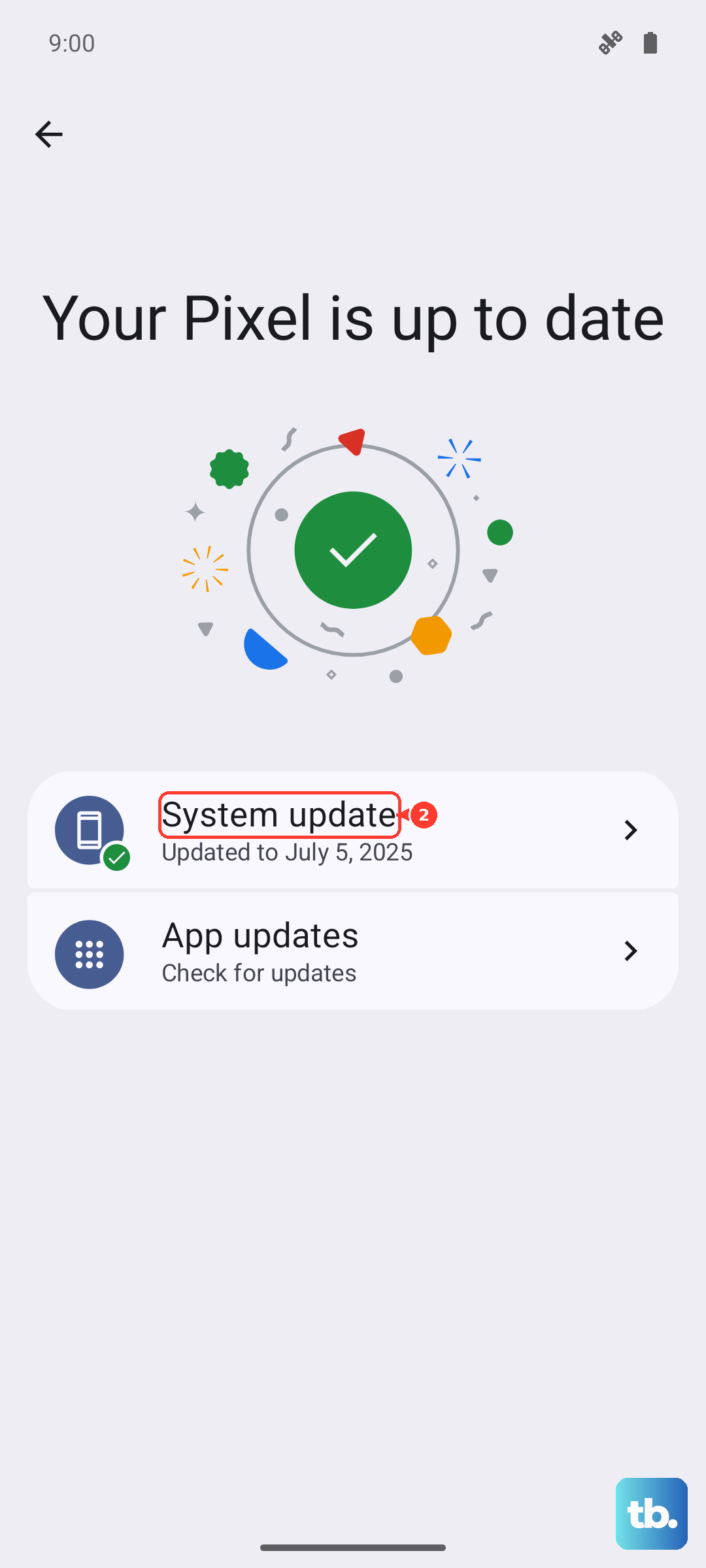
Open Settings and scroll down to System. Tap on System updates and then Check for updates. If an update is available, I'd recommend installing it, especially if it mentions stability or performance improvements. Make sure your phone is connected to Wi-Fi and has a good charge, preferably using the included 70W charger, before you start the update.
If you've tried all these steps and the problem persists, consider trying a popular third-party keyboard from the Google Play Store, like Gboard or SwiftKey, as a temporary workaround. They often have robust prediction engines and can bypass issues with the stock XOS keyboard while you look into a potential factory reset as a last resort.