
Missing calls on your Infinix Note 40 Pro is a real headache, especially when you're expecting something important. This can happen for a bunch of reasons, from a simple notification setting to a deeper network glitch. I'd start with the quick fixes below, as they solve the problem more often than not.
Check Do Not Disturb and Silent Mode
This is the most common culprit. XOS 14 has several ways to silence your phone that you might have activated accidentally. First, pull down the notification shade twice to see the full Quick Settings panel.
Look for the Do Not Disturb icon (a circle with a line through it) and the Silent Mode icon (a speaker with a slash). Tap them to make sure they're turned off. You should also go into Settings > Sound & vibration to check the ringtone volume slider.
Sometimes, scheduled "Sleep" modes or driving profiles in Smart Services can also block calls. It's worth a quick look in those settings to make sure nothing is set to activate automatically.
Restart Your Phone and Check Signal
A simple restart clears out temporary software bugs that can mess with the radio. Press and hold the Power button, then tap "Restart". While you're waiting, take a glance at your signal bars in the top corner.
If you're seeing one bar or an "X", the issue is likely network coverage, not your phone. Try moving to a different location, near a window, or going outside. The Dimensity 7020 chip is solid, but like any modem, it needs a decent signal to work.
You can also try toggling Airplane mode on for 10 seconds, then off again. This forces the phone's modem to re-register with the nearest cell tower, which can instantly fix call issues.
Verify Your SIM Card
A loose or dirty SIM card can cause intermittent network problems, including missed calls. Grab the SIM ejector tool that came in the box and pop out the tray.
Carefully remove the SIM card and gently wipe the gold contacts with a dry, soft cloth. Blow any dust out of the SIM tray slot, then reseat the card firmly. Push the tray back in until it clicks. After the phone reboots, check if your signal improves.
If you have access to another phone, try your SIM card in it to see if calls come through. This will tell you if the problem is with the SIM or your Infinix Note 40 Pro itself.
Disable Call Blocking and Spam Features
XOS comes with built-in spam protection that can sometimes be too aggressive. Open your Phone app and tap the three-dot menu in the top right, then go to Settings > Blocked numbers.
Review this list to make sure no important contacts are accidentally blocked. Also, look for a setting called "Caller ID and spam protection" or similar within the Phone app settings.
You can temporarily turn this feature off to see if it's the reason calls aren't coming through. Some of these services block calls from "suspected spam" numbers entirely instead of just flagging them.
Reset Your Network Settings
If you've been traveling or switching networks, your phone's network configuration can get stuck. Resetting it clears all that out. Go to Settings > System > Reset options.
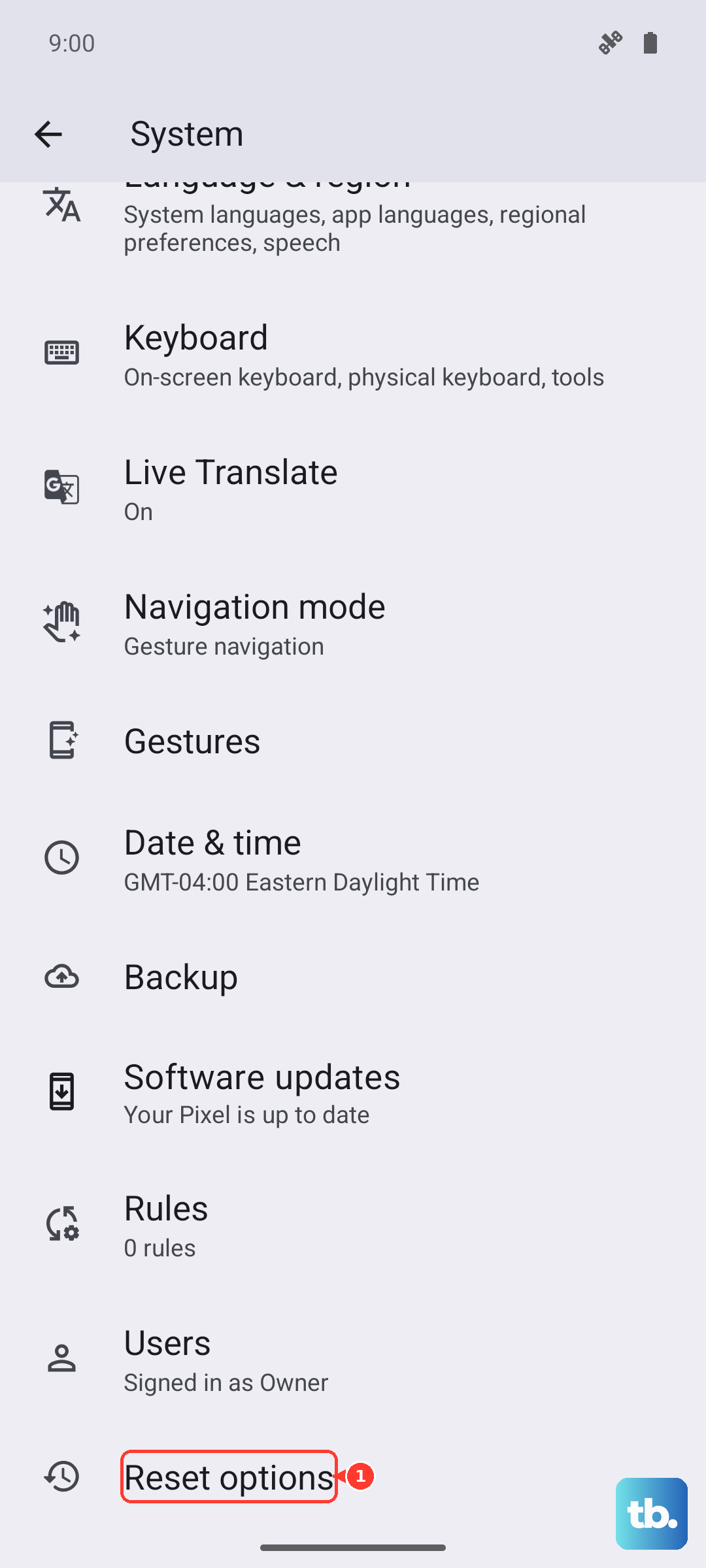
Tap on "Reset Wi-Fi, mobile & Bluetooth". Confirm the action. Just know this will erase all saved WiFi passwords, Bluetooth pairings, and mobile network preferences.
Your phone will reboot. Afterward, you'll need to reconnect to WiFi and re-pair Bluetooth devices, but it often resolves persistent calling and network issues.
Update Your Software
Outdated software can have bugs that affect cellular connectivity. Infinix releases updates to fix these kinds of problems. Connect to a WiFi network, then go to Settings > System > System update.
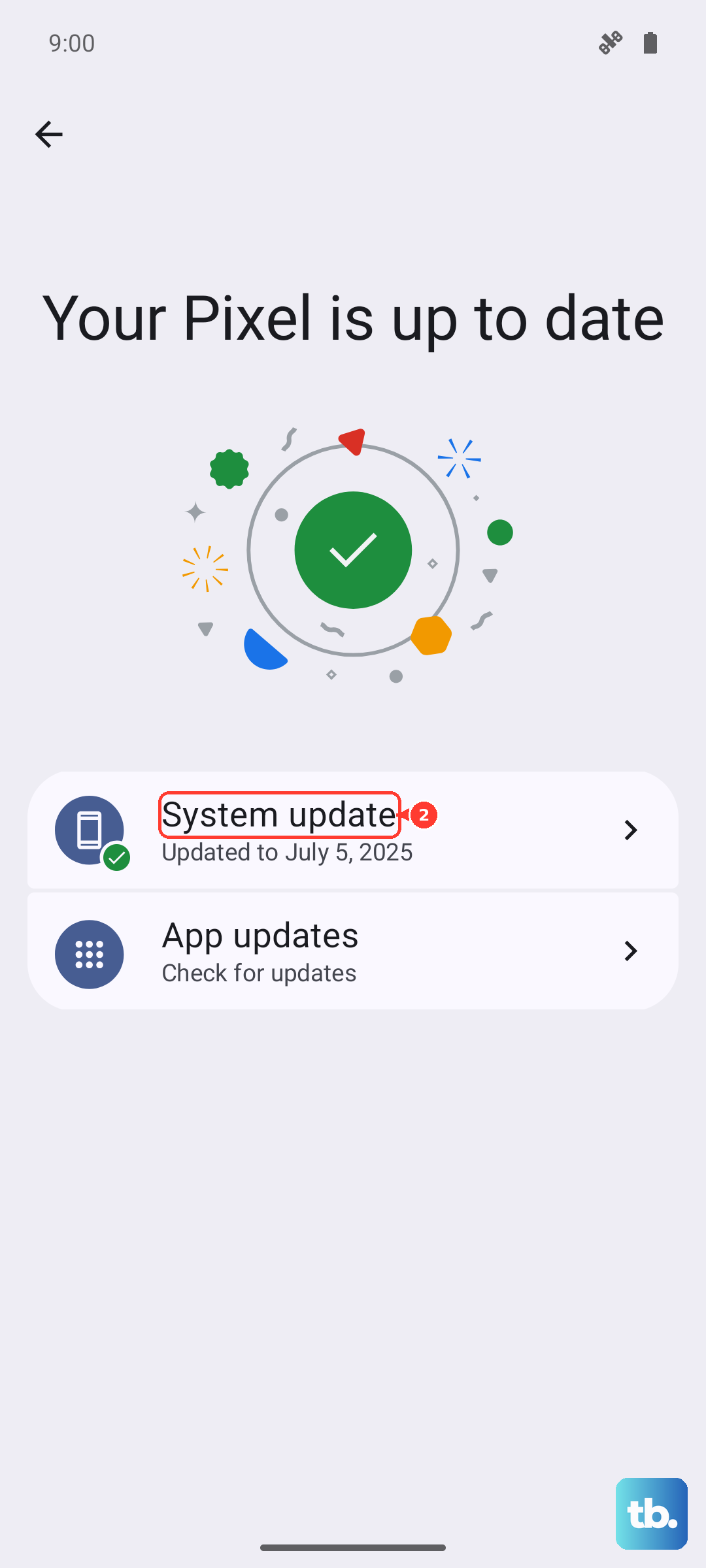
Tap "Check for updates". If an update is available, download and install it. Make sure your phone is charged above 50% or plugged in, preferably using the included 70W charger for speed.
Keeping your Note 40 Pro updated is one of the best ways to ensure stability, especially for core functions like calling.
Check for Problematic Apps
A recently installed app could be interfering with the phone's ability to ring or notify you. Think about any new apps you downloaded around the time the problem started.
You can boot the phone into Safe Mode to test this. Press and hold the Power button until the power menu appears, then long-press the "Power off" option. Tap "OK" to reboot into Safe Mode.
In Safe Mode, all third-party apps are disabled. If you can receive calls normally here, then a downloaded app is the culprit. Reboot normally and start uninstalling recent apps one by one to find the offender.
Clear the Phone App's Cache
The Phone app stores temporary data that can sometimes become corrupted. Clearing this cache is harmless and won't delete your call history or contacts. Go to Settings > Apps > See all apps.
Find and tap on "Phone" or "Dialer". Select Storage & cache, then tap "Clear cache". Don't select "Clear storage" or "Clear data" unless you're prepared to reset the app completely, as that will erase your call log.
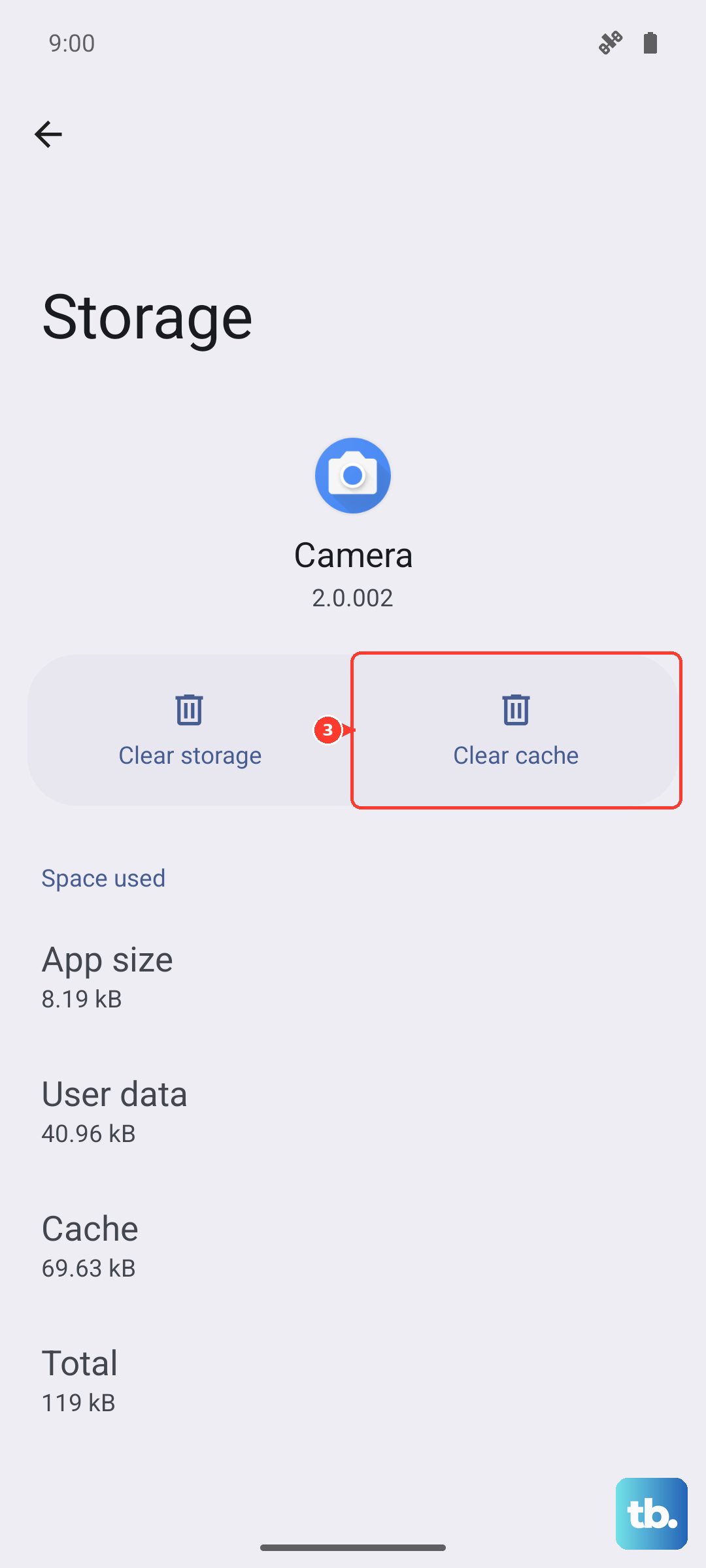
After clearing the cache, force stop the app using the button on the same screen, then open it again. Test to see if calls come through.
Review Smart Services and Battery Settings
XOS's Smart Services can include power-saving features that restrict background activity. Go to Settings > Battery and look at "Power saving mode". Make sure it's turned off for testing.
Also, tap on "Background usage limits" or "App launch". Find your Phone and Contacts apps in the list and ensure they are not set to "Restricted" or "Auto-managed". Set them to "No restrictions" to be safe.
While you're in Settings, you might want to visit Smart Service and turn off any promotional ads or notifications. These systems can sometimes conflict with core operations.
Perform a Factory Reset
If you've tried everything and calls are still missing, a factory reset is the final step. This will erase all data on your phone, so you must back up everything important first. Use Google Drive for your photos and files, and make sure your contacts are synced to your Google account.
Once backed up, go to Settings > System > Reset options > Erase all data (factory reset). Follow the prompts to confirm. The phone will reboot into a fresh state.
After setup, test calling before you restore all your apps. If the problem is gone, it was a software glitch. If calls are still missing on a clean device, the issue could be hardware-related.