
When your Huawei Pura 70 Pro keeps closing apps unexpectedly, it's usually a sign that something is interfering with the app's normal operation. This can range from a simple software hiccup to a more persistent compatibility issue, especially given the unique software environment of EMUI 14.2. The good news is you can almost always get things running smoothly again with a few targeted checks.
Restart Your Pura 70 Pro
This is the universal first step for a reason. A quick restart clears out temporary glitches in the system's memory that can cause apps to misbehave. Just press and hold the Power button for about 10 seconds until you see the Huawei logo appear and the phone reboots. It takes less than a minute and solves a surprising number of random crashes.
Update Your Apps Through AppGallery
Since your Pura 70 Pro uses Huawei's AppGallery instead of Google Play, keeping apps updated is crucial. Developers frequently release patches for bugs that cause instability. Open the AppGallery, tap on the 'Me' tab at the bottom right, and go to 'Update management'. From there, you can update all your apps at once or choose specific ones.
If you've sideloaded an app from a third-party source like APKPure or Aurora Store, you'll need to check for updates within that app's own interface or the store you used to download it. Outdated sideloaded apps are a common source of crashes.
Force Stop and Relaunch the App
When an app freezes and then closes, it might not have shut down properly in the background. Force stopping it gives it a completely clean slate. Go to Settings > Apps > App management.
Find the troublesome app in the list and tap on it. On the app's info page, tap the 'Force stop' button. Wait a moment, then open the app again from your home screen. This severs any faulty connections the app had with the system.
Clear the App's Cache and Data
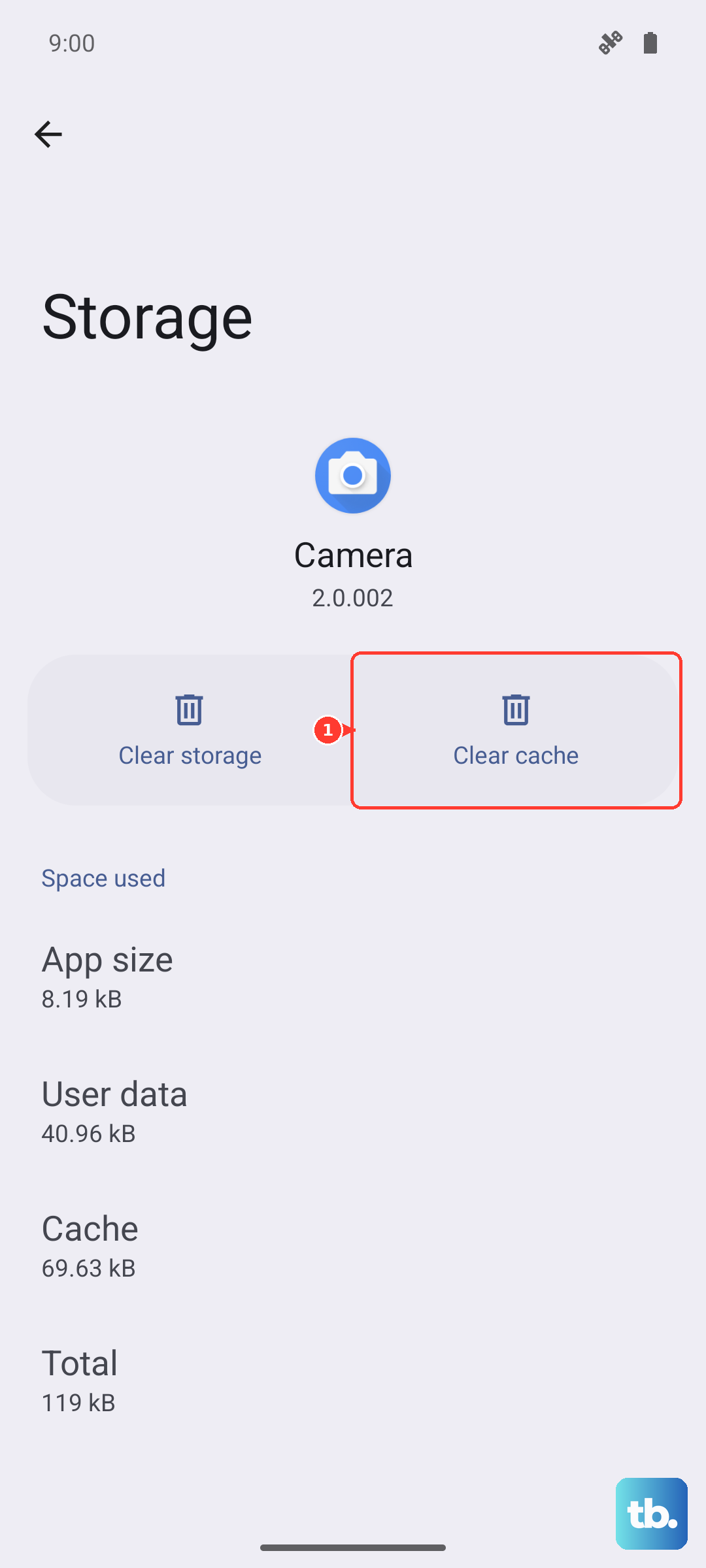
Over time, an app's temporary cache files can become corrupted, leading to constant crashes. Clearing the cache is safe and won't delete your login info or saved files. In the same app info screen (Settings > Apps > App management), tap on 'Storage'.
First, tap 'Clear cache'. If the app continues to crash, you can try 'Clear data'. Be warned, this will reset the app to its freshly installed state, so you'll need to log back in and reconfigure any settings. It's a very effective reset button for a misbehaving app.
Check Your Available Storage Space
EMUI needs some free space to operate smoothly. If your storage is nearly full, apps can crash because they have no room to create temporary files or process data. Head to Settings > Storage to see your available space.
If you're running low, consider offloading large videos to your computer or cloud storage, clearing out old downloads, or uninstalling apps you no longer use. I've seen phones start acting strangely once they dip below 5GB of free space.
Manage Your Phone's Memory and Background Apps
The Kirin 9010 chip is capable, but having too many apps running in the background can still eat up RAM. Huawei's EMUI has a feature called 'Launch' that manages how apps start automatically. Go to Settings > Apps > Launch.
Here, you can see which apps are set to manage automatically, manually, or are disabled from running in the background. For an app that's crashing, try setting it to 'Manage manually' to give it more consistent resources. You can also close recent apps by swiping up from the bottom and holding, then swiping away app previews.
Update Your EMUI System Software
Huawei releases system updates that include stability improvements and bug fixes. An outdated system version can sometimes conflict with newer apps. Check for updates by going to Settings > System & updates > Software update.
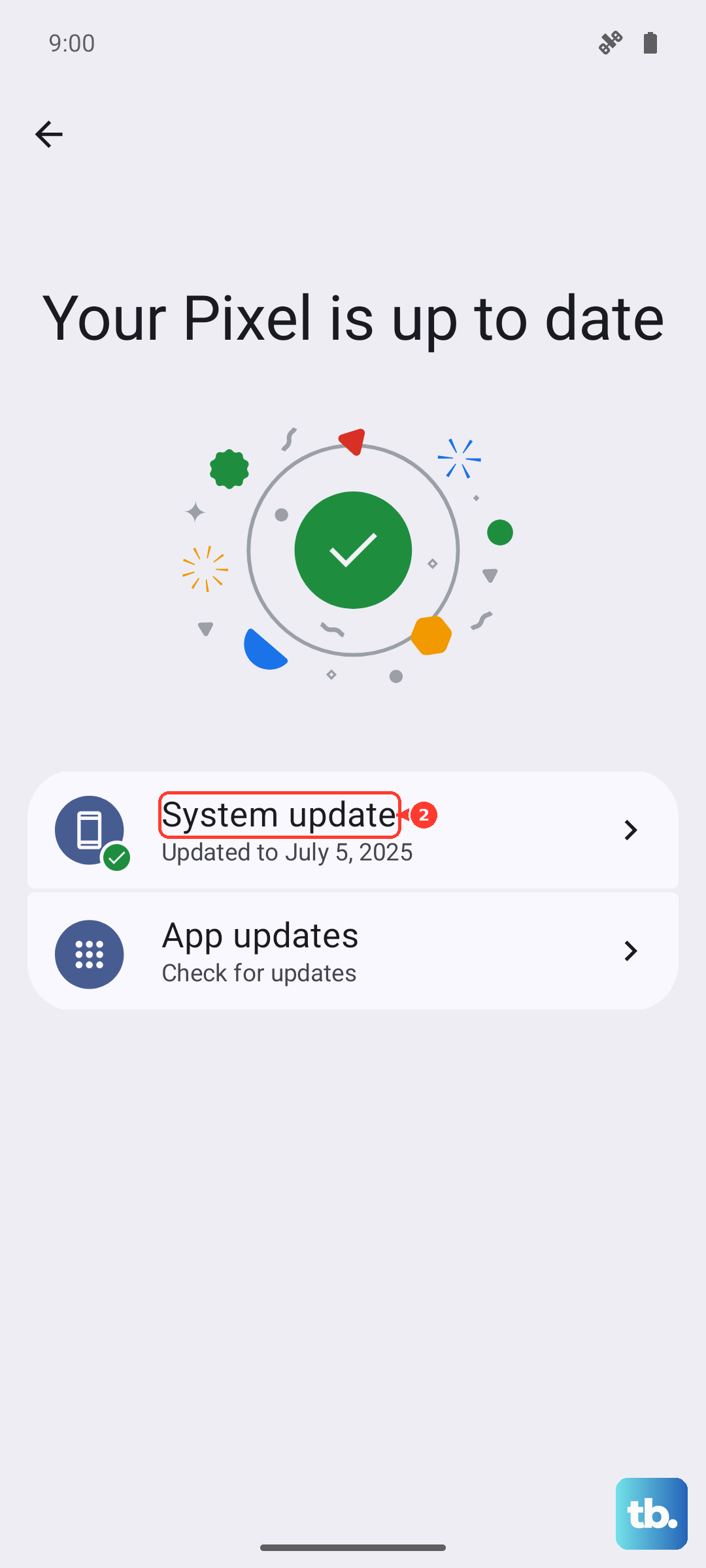
Tap on 'Check for updates' and install any that are available. It's a good idea to be on a strong Wi-Fi connection and have your phone plugged into its 100W SuperCharge cable for this, as the update file can be large.
Reinstall the Problematic App
If a specific app is the only one giving you grief, a fresh install can work wonders. This replaces all the app's files, which might have become damaged. Uninstall the app by long-pressing its icon on the home screen and tapping 'Uninstall'.
Then, reinstall it directly from the Huawei AppGallery. For sideloaded apps, you'll need to go back to your trusted APK source. A fresh install often resolves deep-seated corruption that clearing cache and data can't fix.
Review App Compatibility and Permissions
Some apps, particularly those heavily reliant on Google Mobile Services (GMS), may struggle or crash on Huawei's HarmonyOS-based EMUI. If you're constantly having issues with one specific app, check online forums to see if other Pura 70 or Mate 60 series users report the same problem.
Also, ensure the app has the permissions it needs. Go to the app's info page in Settings and tap 'Permissions'. If an app is crashing the moment it tries to access your location or camera, for example, granting the permission might stabilize it.
Perform a Factory Reset
If every app is crashing and nothing else has worked, a factory reset is the final step. This will erase everything on your phone, so you must back up your photos, contacts, and important files to your computer or Huawei Cloud first.
Once backed up, go to Settings > System & updates > Reset > Factory data reset. Follow the prompts to erase all data. After the phone restarts, you'll set it up as new. This returns the software to a pristine state, eliminating any system-wide corruption causing the crashes.