
When your HP OmniBook 5 14 suddenly goes silent, whether through its built-in speakers or headphones, it can be a real roadblock. The issue could be a simple setting, a driver conflict, or a quirk of the new Windows on ARM platform. Here's how to systematically get your sound back.
Check the Volume and Output
First, click the speaker icon in your taskbar. Make sure the master volume slider isn't all the way down or muted. Right above the slider, click to see the list of available output devices. If you recently unplugged headphones, Windows might still be trying to send audio to that port. Select your laptop's internal speakers to switch back.
Run the Built-in Audio Troubleshooter
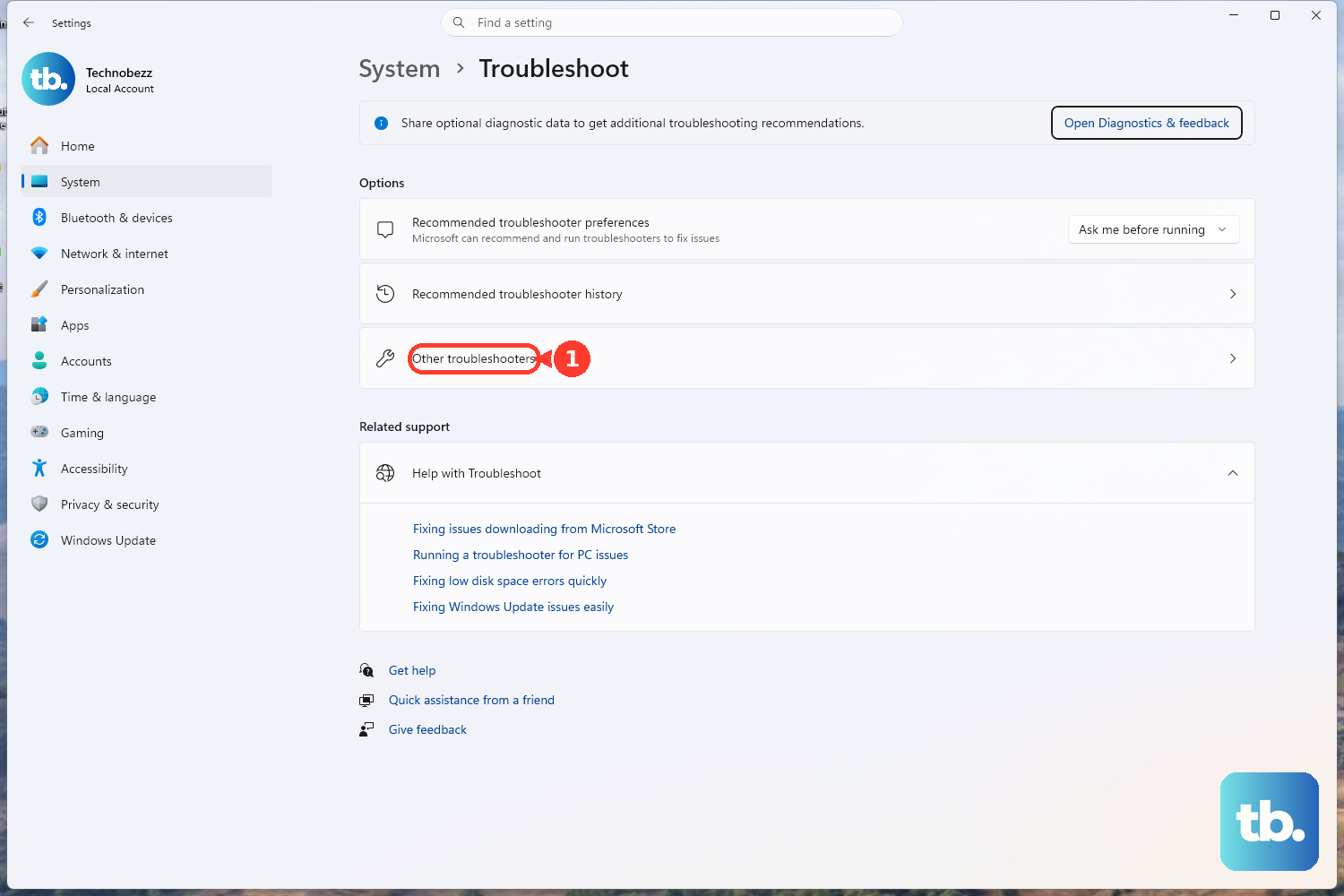
Windows has a handy tool for this. Go to Settings > System > Troubleshoot > Other troubleshooters. Find the Playing Audio troubleshooter and click Run. It will automatically scan for common problems like disabled services or incorrect default devices and attempt to fix them. I've seen this resolve issues that popped up after a system update.
Restart Your OmniBook
This is the classic fix for a reason. A full restart reloads all audio drivers and clears any stuck processes. Click Start > Power > Restart. This is particularly effective if the sound stopped working after the laptop woke from sleep mode or if you just installed an app.
Update Drivers via HP Support Assistant
For the OmniBook 5 14, your best bet is HP's own tool. Open the HP Support Assistant app. It will check for the latest, HP-certified drivers specifically for your model, including crucial audio drivers for the Qualcomm Snapdragon platform. Installing these can fix compatibility issues that generic Windows updates might miss.
Verify App Compatibility
Since the OmniBook 5 14 runs Windows on ARM, some older x86 apps run through emulation. This can occasionally cause audio glitches. Check the app-specific volume by right-clicking the speaker icon and opening Volume mixer. Ensure the app isn't muted there. If problems persist with one specific app, check the developer's website for an ARM-native version or compatibility notes.
Check Sound Settings and Enhancements
Go to Settings > System > Sound. Under Output, confirm your speakers are selected. Click on the device and then Properties. Look for Audio enhancements and try setting it to Off. Sometimes these software enhancements conflict and can cause audio to drop out or distort.
Restart the Windows Audio Services
Press the Windows key + R, type services.msc, and hit Enter. In the list, find Windows Audio. Right-click it and select Restart. Do the same for the Windows Audio Endpoint Builder service. If either service was hung, this will get sound back immediately.
Roll Back a Problematic Driver Update
If the audio stopped after a recent driver install, you can revert. Press Windows key + X and choose Device Manager. Expand Sound, video and game controllers, right-click your audio device, and select Properties. Go to the Driver tab and click Roll Back Driver if the option is available. This returns you to the previous version.
Check for Physical Connections and Blockages
If you're using headphones or external speakers, test the cable and try a different pair. For the built-in speakers, check if the grilles on the bottom or sides of the laptop are obstructed by dust or if the laptop is sitting on a soft surface like a blanket, which can muffle sound dramatically.
Perform a System Diagnostic
HP includes a hardware test suite. Restart your OmniBook and immediately press the F2 key repeatedly to launch HP PC Hardware Diagnostics. You can run tests on the audio components to rule out a hardware failure. For BIOS settings related to audio, you can press F10 during startup.