
A touchpad that suddenly stops working on your gaming laptop is more than an inconvenience, it breaks your flow. Whether the cursor is frozen, taps aren't registering, or multi-finger gestures have failed, you can usually get it back without much fuss.
Let's start with the quickest check. On the HP OMEN 16, you can quickly toggle the touchpad on and off by pressing the Fn + F11 keys. Look for the backlit touchpad icon on the F11 key. If that doesn't wake it up, navigate using your keyboard to Start > Settings > Bluetooth & devices > Touchpad and ensure the main toggle at the top is switched to "On."
Perform a Full Restart
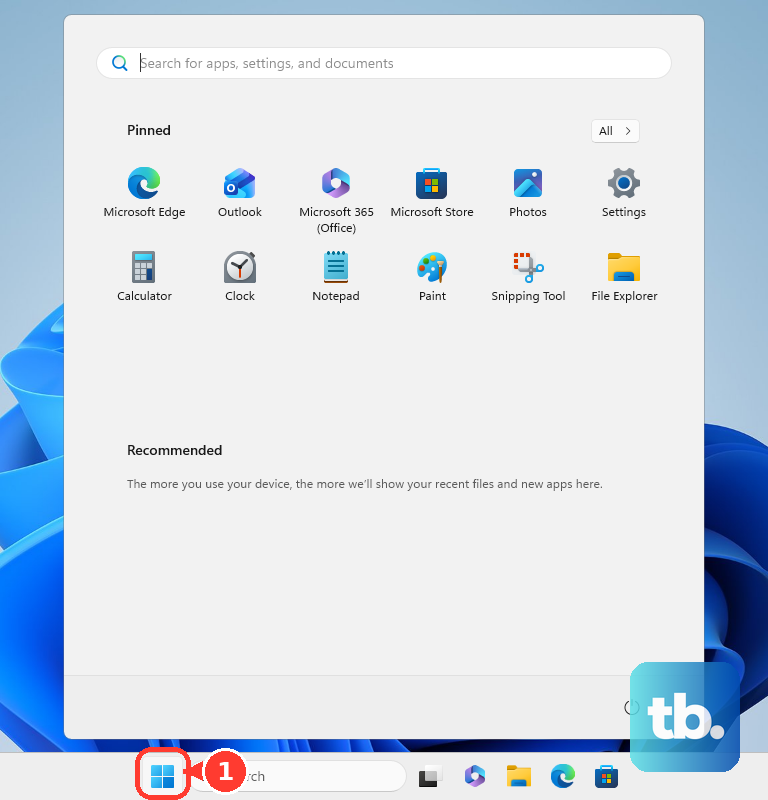
If the touchpad stopped responding after the laptop woke from sleep or hibernation, a simple restart is your best first step. This reloads all the drivers, including the one for your pointing device. Use the Tab key to navigate to the Windows Start menu, arrow over to the power icon, and hit Enter to select Restart.
I've found this clears up a lot of temporary glitches, especially if you use the OMEN Gaming Hub for performance profiles, as those can sometimes interfere with system processes.
Disconnect All External Pointing Devices
Windows has a setting that can automatically disable the internal touchpad when it detects an external mouse. Unplug any USB mouse and disconnect any paired Bluetooth mice. Immediately check if your touchpad starts working again.
To stop this from happening in the future, go back into Settings > Bluetooth & devices > Touchpad. Scroll down and look for the setting that says "Leave touchpad on when a mouse is connected." Make sure this box is checked.
Update or Reinstall the Touchpad Driver
Outdated or corrupted drivers are a common culprit. Press the Windows key + X and select Device Manager. Expand the "Mice and other pointing devices" section. You'll likely see an "HID-compliant mouse" or a specific Synaptics or ELAN driver.
Right-click on it and choose Update driver, then "Search automatically for drivers." For a more thorough fix, right-click it again, select Uninstall device, and restart your laptop. Windows will install a basic driver upon reboot. For full gesture support, you should then download the latest Synaptics or Precision Touchpad driver directly from the HP support site for your specific OMEN 16 model.
Check for System Updates and Run SFC
Sometimes a Windows update itself can introduce a bug. Go to Settings > Windows Update and check for any pending updates or optional driver updates. Install them and restart.
If the problem persists, corrupted system files might be to blame. Open the Start menu, type "cmd," right-click on Command Prompt, and select "Run as administrator." In the window, type sfc /scannow and press Enter. Let the scan complete and repair any issues it finds, then restart your computer.
Inspect the BIOS and Run Hardware Diagnostics
The touchpad can be disabled in the system BIOS. Restart your OMEN 16 and immediately press the F10 key repeatedly to enter the BIOS setup. Use your keyboard arrows to navigate and look for an option related to the "Internal Pointing Device" or "TouchPad." Ensure it is set to "Enabled." Save and exit.
You can also run HP's built-in hardware tests. Restart and press F2 to launch HP PC Hardware Diagnostics. Choose "Component Tests," then "Input Devices," and run the test for the touchpad. This will tell you if the system itself can detect a hardware fault.
Clean the Touchpad Surface and Check for Conflicts
Gaming sessions can leave oils and residue on the touchpad. Power off the laptop and gently clean the touchpad surface with a dry, soft microfiber cloth. For stubborn grime, slightly dampen the cloth with water only. Make sure the surface is completely dry before turning the laptop back on.
Also, consider any recent software changes. If you just installed or updated the OMEN Gaming Hub, NVIDIA app, or other control panel software, try temporarily closing them from the system tray. Conflicts between these utilities and Windows power or input management can sometimes cause issues.
Consider the Hardware Itself
If none of the software fixes work, and the touchpad is also unresponsive in the BIOS or if you boot into Windows Safe Mode, the issue is likely physical. The ribbon cable connecting the touchpad to the motherboard can become loose, especially if the laptop has been moved around a lot or had its bottom panel removed.
Liquid damage is another possibility, even from ambient humidity during intense gaming sessions where the fans are pushing a lot of air. In these cases, the touchpad assembly or its cable may need to be replaced by a technician.