
When your HP OMEN 16's built-in camera shows a black screen, isn't detected by apps, or gives an error, it can stop your gaming streams or video calls dead in their tracks. The fixes are usually straightforward, and I'd start with the privacy settings.
Check Windows Camera Privacy Settings
Windows has a master privacy switch that can block all camera access. On your OMEN 16, press the Windows key and type "camera privacy" to open the settings directly. Make sure the toggle for Camera access is turned On.
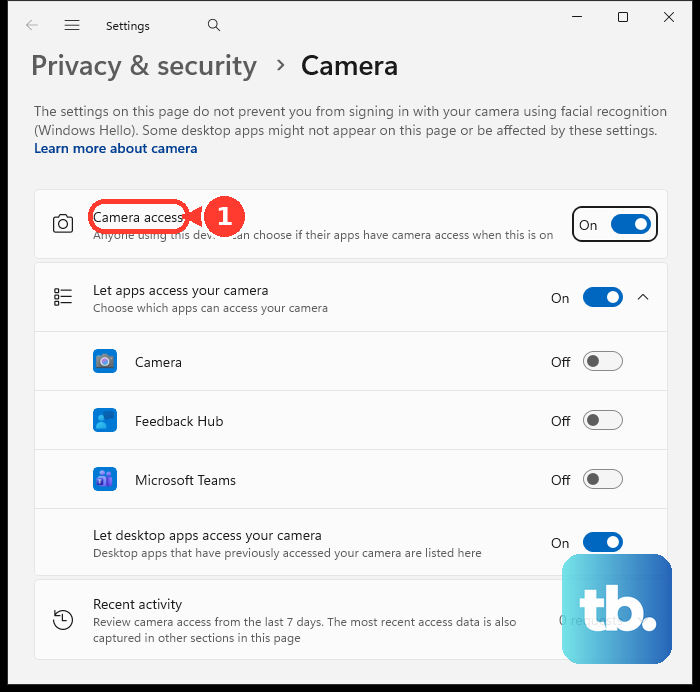
Scroll down to the list of apps and ensure the specific app you're using, like Discord, OBS, or Zoom, has permission enabled. Sometimes an update can reset these permissions, so it's worth a quick look even if you've checked before.
Look for a Physical Camera Shutter
Some OMEN models include a physical privacy shutter for the webcam. Look closely at the top bezel of your display, right above the screen. You should see the camera lens itself.
If there's a thin plastic slider directly next to it, gently slide it to the side. This will physically uncover the camera. It's an easy thing to miss, especially if someone else used your laptop last.
Close Conflicting Software and Restart
Only one application can control the camera at a time. If you have OMEN Gaming Hub open for performance tuning, or another app like the Xbox Game Bar running in the background, it might be holding onto the camera.
Close all applications completely, then give your OMEN 16 a full restart. This clears any software locks on the hardware. I've seen this resolve the issue immediately, especially after a gaming session where multiple overlays were active.
Test with the Windows Camera App
Open the built-in Camera app from your Start Menu. This is the simplest test to see if the hardware itself is working. If you get a picture here, then the problem is with the settings in your third-party app like Discord or Teams.
If the Camera app shows an error or a black screen, then the issue is with Windows, the drivers, or the camera hardware. This tells you exactly where to focus your troubleshooting efforts.
Update or Reinstall the Camera Driver
Press the Windows key, type "device manager," and open it. Expand the section called Cameras or Imaging devices. You should see your OMEN camera listed, often as an "HP Wide Vision HD Camera."
Right-click it and choose Update driver, then Search automatically for drivers. If that doesn't work, right-click again, select Uninstall device, and then restart your laptop. Windows will attempt to install a fresh driver upon reboot.
For the most reliable driver, visit the official HP Support site, enter your OMEN 16's exact serial number, and download the latest camera driver from there. Installing the manufacturer-provided driver often works better than the generic Windows one.
Check for System and Optional Updates
Go to Settings > Windows Update and click Check for updates. Install all available updates. Microsoft and HP frequently release fixes that improve hardware compatibility, including for cameras.
After the main updates install, click Advanced options and then Optional updates. There may be a driver update specifically for your camera listed here. Installing it can resolve detection issues.
Reset the Camera App's Data
If the Windows Camera app is buggy but other apps work, you can reset it. Go to Settings > Apps > Installed apps, find the "Camera" app in the list, click the three dots next to it, and select Advanced options.
Scroll down and click the Reset button. This clears the app's cache and settings without affecting your personal files or other applications. It can fix freezing or crashing behavior.
Run HP Hardware Diagnostics
Your OMEN 16 has built-in diagnostics. Restart the laptop and immediately press the F2 key repeatedly as it boots up. This will launch the HP Hardware Diagnostics menu.
Navigate to Component Tests, select Webcam, and then run the Webcam Connection test. This will check the camera hardware independently of Windows. If it fails here, it could indicate a physical hardware problem.
Also, consider checking for any BIOS updates through the HP Support Assistant or the HP website. A BIOS update can sometimes resolve underlying hardware communication issues, including with peripherals like the webcam.











