
When your HP EliteBook 840 goes silent, it's a real productivity killer. The issue could be a simple Windows setting, a driver conflict, or something specific to HP's enterprise hardware. Let's get your sound back.
Before changing anything, play a quick speaker test in your browser. It sends a tone to the left and right channels separately, so you immediately know whether the speakers produce any sound at all.
Run the Windows Audio Troubleshooter
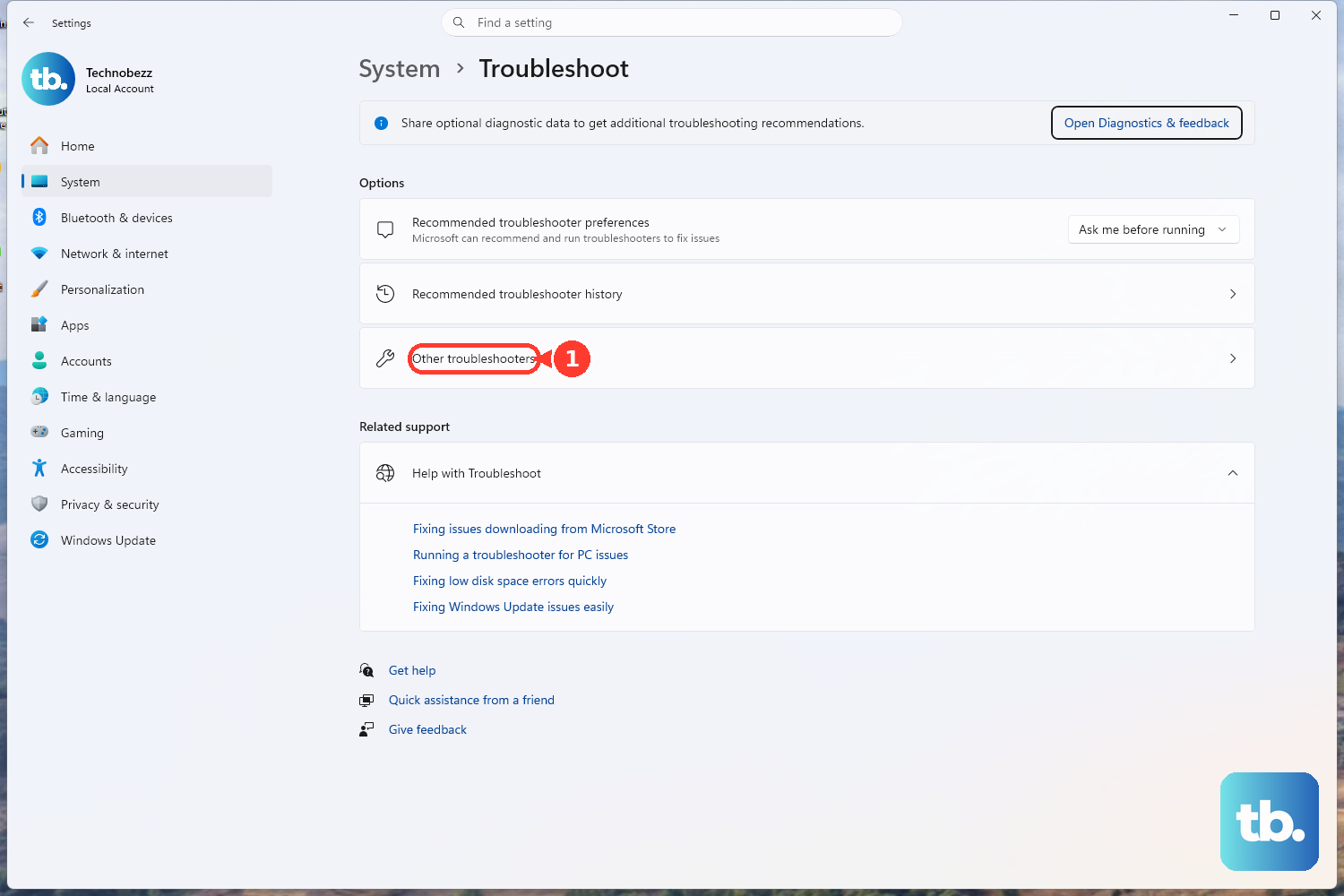
This is a great first step. Go to Settings > System > Troubleshoot > Other troubleshooters. Find and run the Playing Audio troubleshooter. It automatically checks for common problems like disabled services or incorrect default devices and often fixes them on the spot.
Check Your Volume and Output Device
Click the speaker icon in your taskbar. Make sure the master slider isn't at zero and the mute icon isn't highlighted. Click the small arrow above the slider to see a list of output devices. If you recently unplugged headphones, Windows might still be sending audio to that port. Select your laptop's internal speakers.
Update or Reinstall Audio Drivers
Outdated or corrupted drivers are a frequent culprit. Press Windows + X and choose Device Manager. Expand Sound, video and game controllers. Right-click your audio device (often Realtek Audio or similar) and select Update driver > Search automatically. If that doesn't work, right-click it again, choose Uninstall device, restart your EliteBook, and Windows will install a fresh driver.
For a more thorough approach, use the HP Support Assistant. It's designed to manage drivers for HP enterprise hardware and can find updates that Windows Update misses, which is crucial for avoiding conflicts with security software.
Restart Your EliteBook
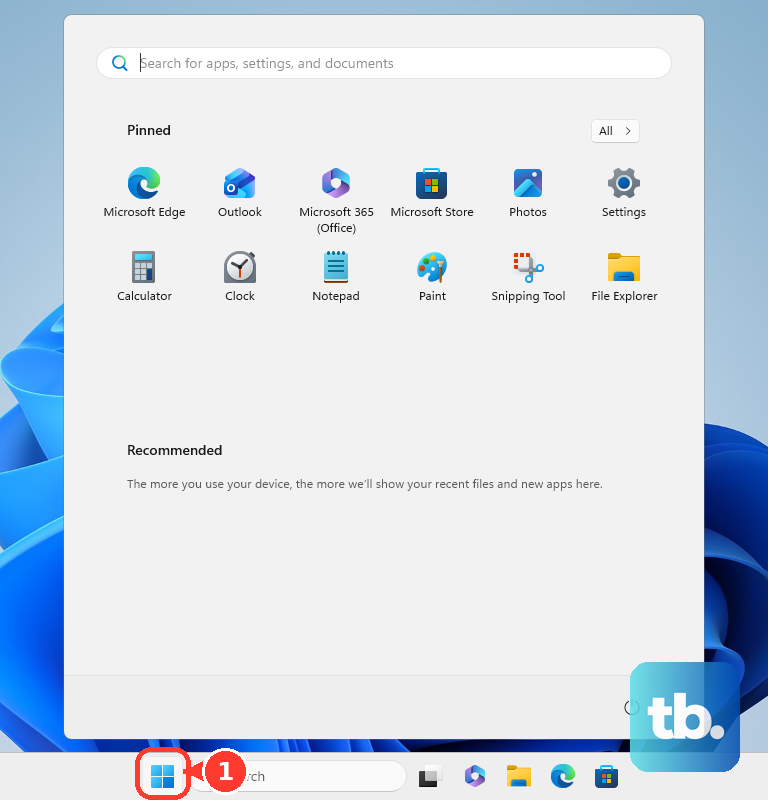
A simple restart clears stuck audio processes and reloads all drivers. Click Start > Power > Restart. I've seen this resolve audio issues that pop up after the laptop wakes from sleep or hibernation, which can sometimes confuse the audio hardware.
Verify Sound Settings in Windows
Go to Settings > System > Sound. Under Output, confirm your "Speakers" are selected. Click on them and ensure the volume is up. While you're there, scroll down to Audio enhancements and try setting it to Off. These enhancements can sometimes cause distortion or complete audio loss on business-class laptops.
Check the App Volume Mixer
Sometimes the system volume is fine, but a specific app is muted. Right-click the speaker icon in the taskbar and select Open Volume mixer. You'll see individual volume sliders for every open application. Make sure the app you're using isn't set to zero.
Restart the Windows Audio Services
Press Windows + R, type services.msc, and hit Enter. In the list, find Windows Audio. Right-click it and select Restart. Do the same for the Windows Audio Endpoint Builder service. This forces the core audio components to reset.
Inspect for Physical and Connection Issues
If you're using headphones or external speakers, try a different pair to rule out faulty peripherals. For the EliteBook 840, if you're using a USB-C docking station, try connecting your audio device directly to the laptop. Some enterprise docking stations have known audio routing issues that can be resolved with a firmware update from HP.
Roll Back a Problematic Driver Update
If the audio stopped working right after a Windows or driver update, you can revert. Open Device Manager, double-click your audio device, go to the Driver tab, and click Roll Back Driver. This reinstalls the previous version that was working.
Use HP PC Hardware Diagnostics
HP builds diagnostic tools right into the hardware. Restart your EliteBook and immediately press F2 repeatedly to launch HP PC Hardware Diagnostics. Run the System Tests and choose the Audio Check. This tests the speakers and audio hardware independently of Windows, helping you determine if it's a software or hardware problem.
If you're dealing with persistent, strange issues, remember that the HP Sure Start feature can automatically recover a corrupted BIOS on reboot, which can sometimes underlie deeper system problems. For BIOS settings, press F10 during startup.