
Keeping your Motorola Edge 40 updated is the best way to ensure it runs smoothly and securely. With Android 15, updates bring new features, performance tweaks, and essential security patches directly from Motorola and Google. Here’s how to check for them and keep your phone current.
Check for System Updates Over Wi-Fi
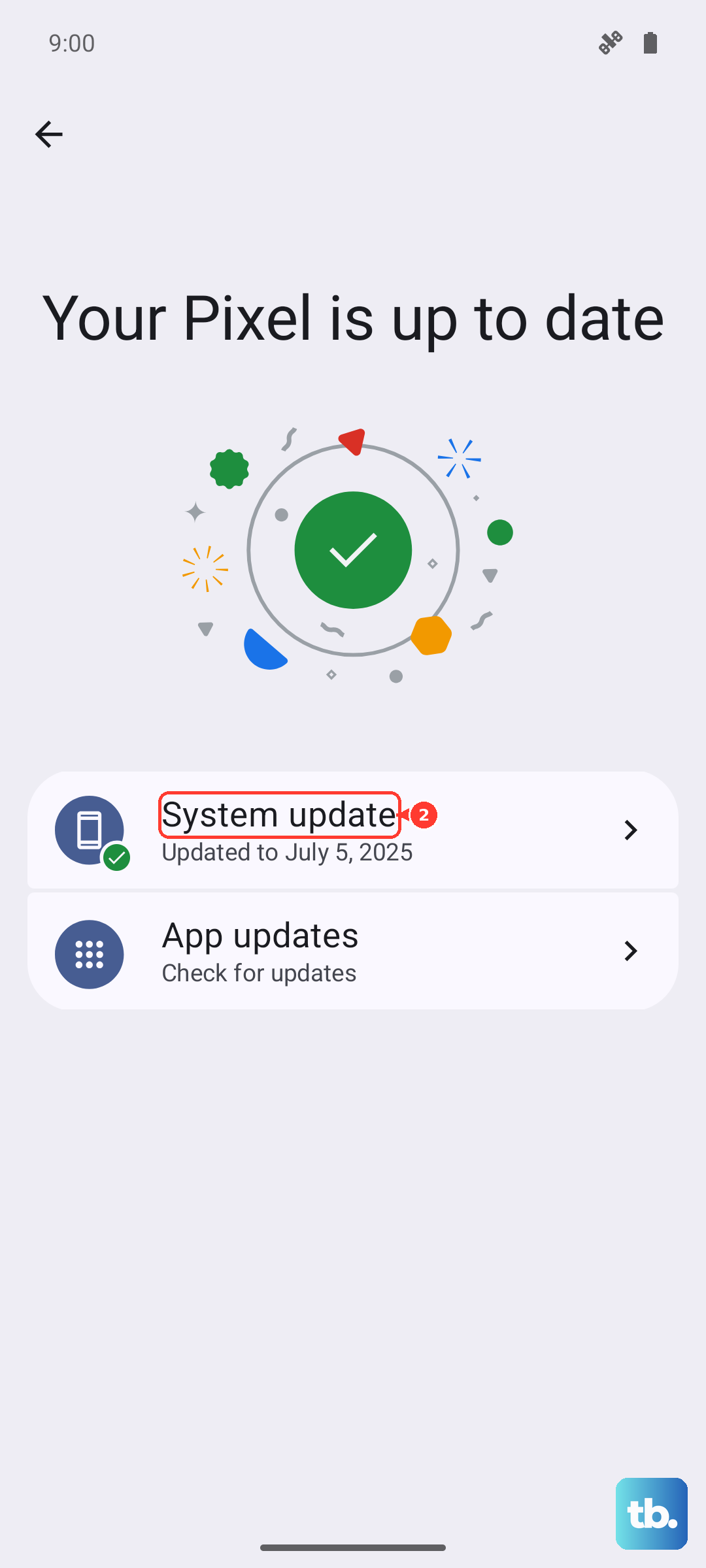
Open your Settings app and scroll down to System. Tap on it, then select Software update. Your Edge 40 will immediately check for any available Motorola or Android updates. If one is found, you’ll see an option to Download and install.
I’d recommend plugging your phone into its original 68W charger or ensuring the battery is above 50% before starting. Also, connect to a stable Wi-Fi network, as these downloads can be large, especially for major version upgrades.
Enable Automatic Updates
To save yourself the trouble of manual checks, you can set your phone to handle updates automatically. Go back to Settings > System > Software update. Look for a menu option like Advanced or gear icon, where you’ll find toggles for Auto-download over Wi-Fi and sometimes Auto-install.
With this on, your Edge 40 will download updates in the background when you’re on Wi-Fi. You’ll typically still get a notification to approve the installation, which is a good safety net in case you need to finish something important first.
Update Using Motorola's Rescue Tool
If an over-the-air update fails repeatedly or your phone is having serious software issues, you can use Motorola’s official desktop software. Download the Rescue and Smart Assistant tool from Motorola’s support website to your Windows or Mac computer.
Connect your Edge 40 to the computer with a USB-C cable, open the tool, and follow the on-screen instructions. It can diagnose your phone and re-flash the latest official software, which often resolves stubborn update problems.
What to Do If an Update Gets Stuck
A frozen update can usually be fixed with a force restart. Press and hold the Volume Down button and the Power button together for about 10-15 seconds. Release them when you see the Motorola logo appear, and your phone will reboot.
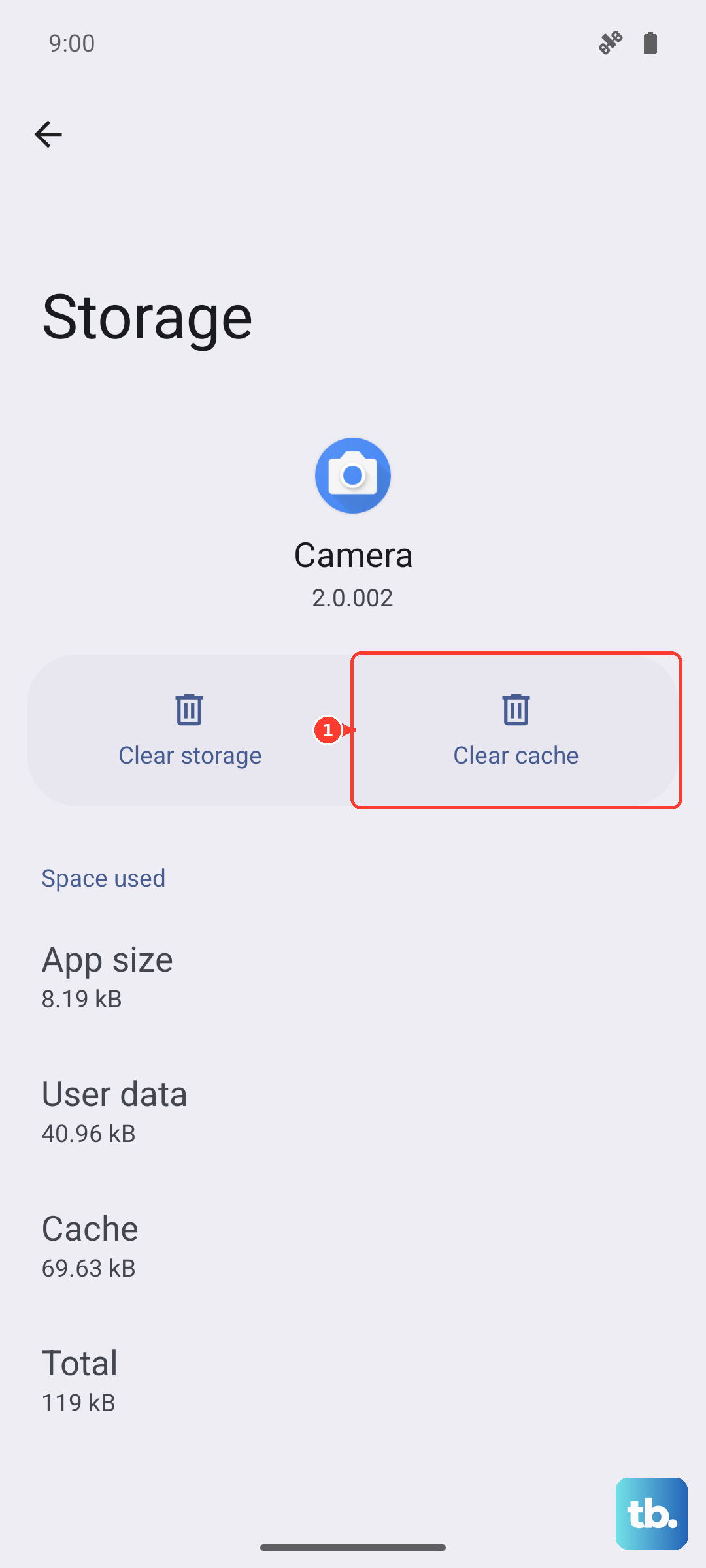
If the update still won’t proceed, try clearing the cache for the system update process. Go to Settings > Apps > See all apps, tap the three-dot menu and select Show system. Find Software Update in the list, tap Storage & cache, and then Clear cache. Attempt the update check again.
Verify Your Current Android Version
It’s useful to know exactly what software you’re running. Head to Settings > About phone. Here you’ll see your Android version, the Android security update level, and the Build number.
This information is key for knowing if you’ve received the latest monthly security patch or if a major Android version upgrade is available for your specific model.
Don't Forget App Updates
System updates are crucial, but your apps need love too. Open the Google Play Store app, tap your profile icon in the top right, and go to Manage apps & device. Under the Updates available section, you can tap Update all.
Outdated apps are a common source of crashes, battery drain, and security holes, even on a fully updated phone. I make a habit of checking this every week or so.
Check for Google Play System Updates
This is an important layer that sometimes gets missed. Google can update core Android components independently through the Play Store. To check, go to Settings > Security & privacy.
Scroll to System & updates and tap on Google Play system update. Your phone will check for any available modules. Installing these updates is just as important as the regular security patches for keeping your system secure.
Regular updates on your Edge 40 often include optimizations for battery life and charging performance, which is especially helpful given the 68W wired and 15W wireless Qi2 capabilities. Keeping everything updated ensures you get the most stable and efficient experience from your phone.