
Keeping your iPhone SE 4 on the latest version of iOS is the best way to ensure it runs smoothly and securely. With iOS 18, you get access to new features and important bug fixes that are specifically tuned for your device. The process is straightforward, whether you update wirelessly or with a computer.
Update Directly on Your iPhone SE 4
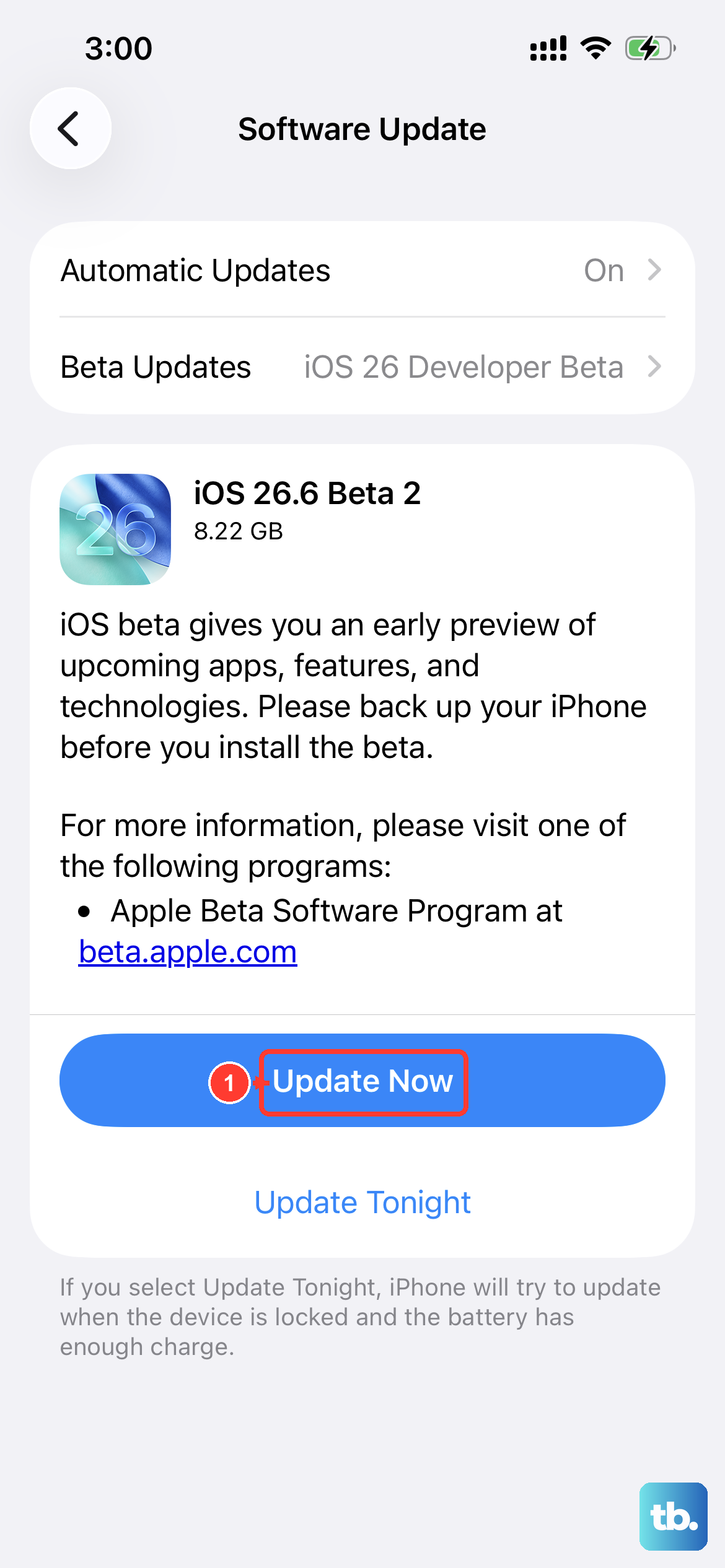
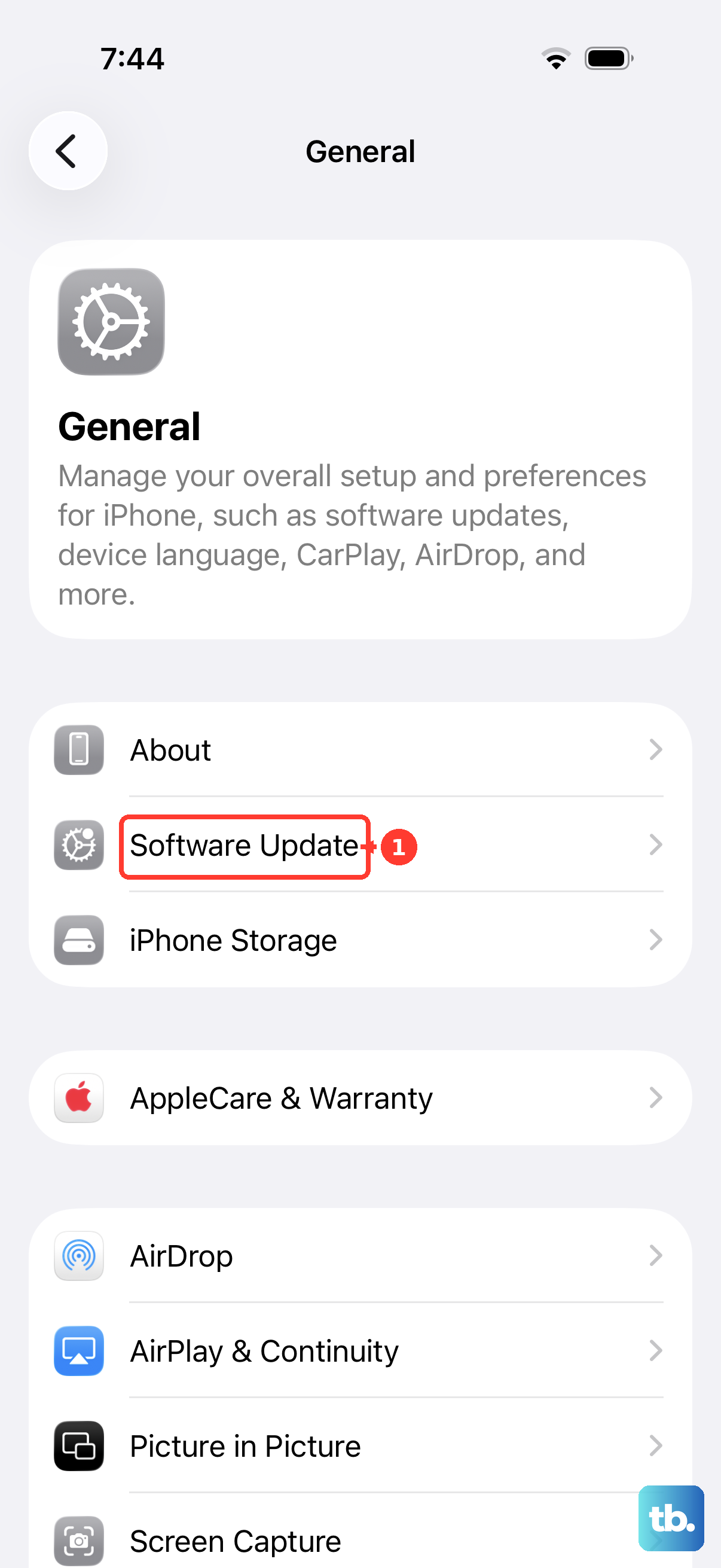
The easiest method is over-the-air. Open Settings > General > Software Update on your iPhone SE 4. Your phone will check for available updates. If iOS 18.1 or a newer version is ready, you'll see a description and an option to download it.
Tap Download and Install. I'd recommend plugging your phone into a charger, as the process can use a fair bit of power. Using a 20W USB-C PD charger will keep it topped up quickly. Make sure you're on a stable Wi-Fi connection, as the download can be large.
Set Up Automatic Updates
To have your iPhone SE 4 handle updates for you, go to Settings > General > Software Update > Automatic Updates. Turn on both Download iOS Updates and Install iOS Updates. With this enabled, your phone will download updates in the background and install them overnight when it's connected to power and Wi-Fi.
You'll still get a notification before the installation happens, so you can delay it if you need to. This is a great set-it-and-forget-it option that helps keep your phone's security current without any effort on your part.
Update Using a Mac or PC
If you're having trouble with the over-the-air update, or if your iPhone SE 4 is low on storage, updating via a computer is a reliable alternative. Connect your phone to your Mac or Windows PC using a USB-C cable.
On a Mac with macOS Catalina or later, open Finder. On a Windows PC or an older Mac, open iTunes. Select your iPhone when it appears, then click Check for Update. Click Download and Update to proceed. This method is useful because the computer handles the download, bypassing any storage limitations on the phone itself.
If an Update Gets Stuck or Fails
Sometimes an update can hang on the Apple logo or a progress bar. If this happens, force restart your iPhone SE 4. Quickly press and release the Volume Up button, then the Volume Down button, then press and hold the Side button until you see the Apple logo appear.
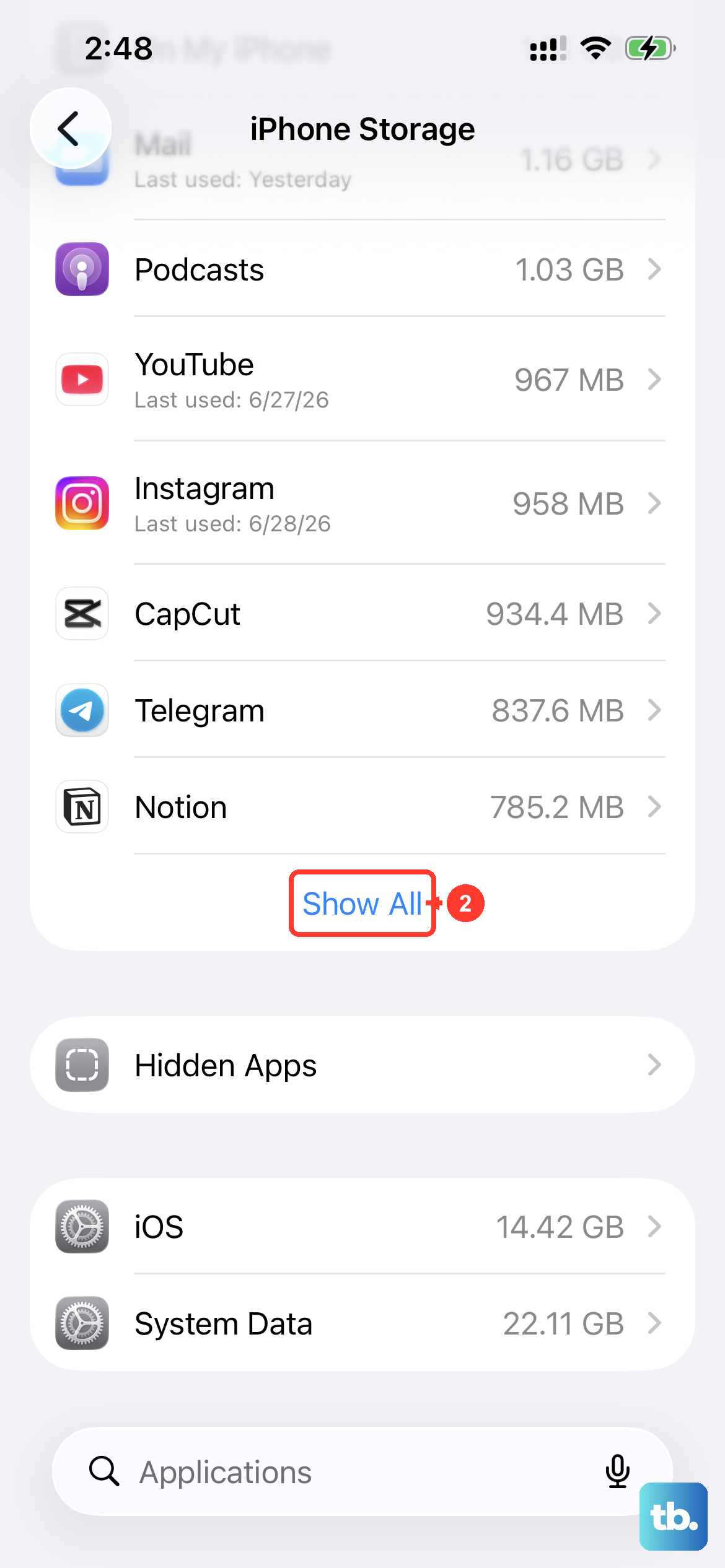
If the update still won't complete, the computer method is your next best step. Connect to Finder or iTunes and try the update from there. For errors like "Unable to Verify Update," try switching to a different Wi-Fi network. You can also delete the downloaded update file by going to Settings > General > iPhone Storage, finding the iOS update in the list, and tapping Delete Update, then trying again.
Check Your iOS Version
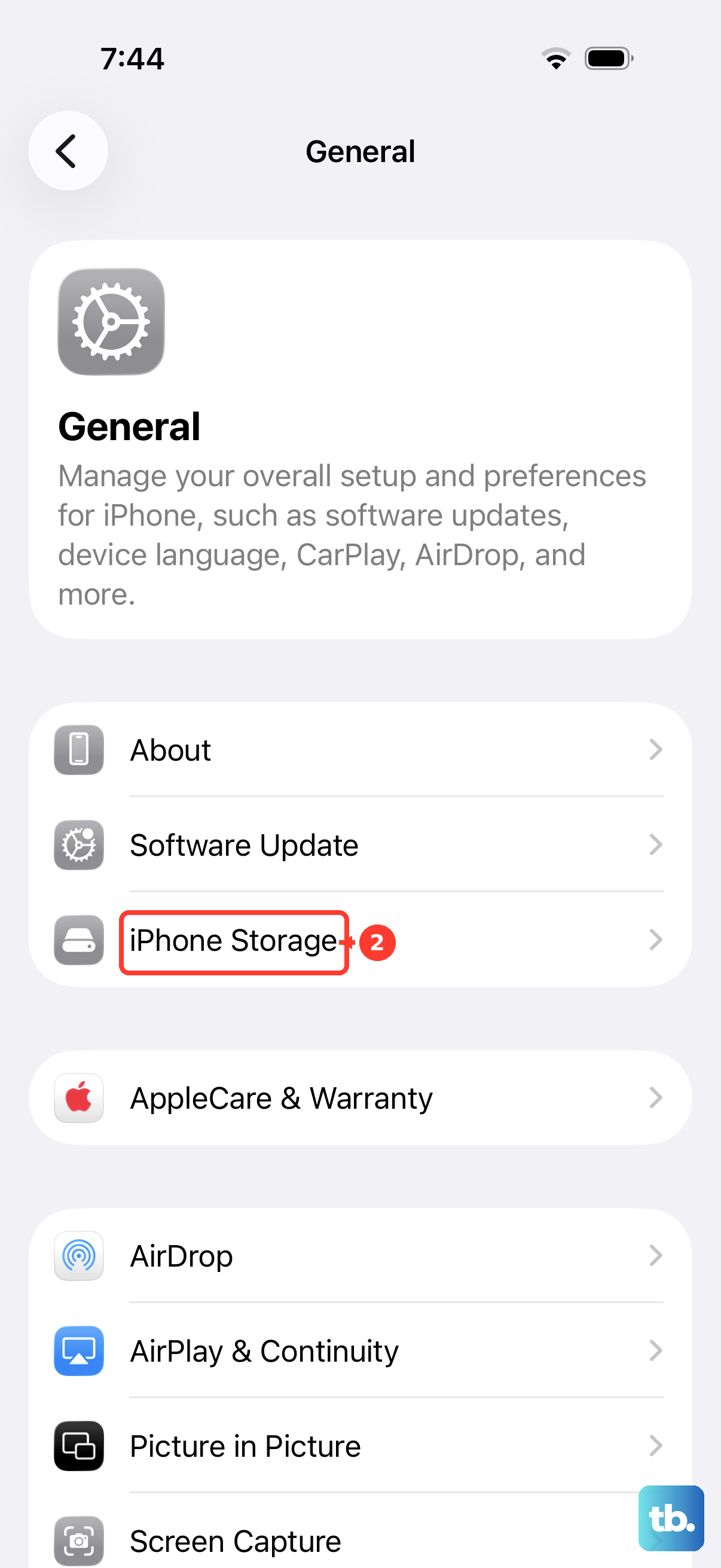
It's good to know what version you're currently running. Go to Settings > General > About on your iPhone SE 4. Your iOS version number is listed near the top. This is helpful for knowing if a specific feature or security patch has already been applied to your device.
Prepare Your Phone Before Updating
Before any major update, it's a smart habit to create a fresh backup. Go to Settings > [Your Name] > iCloud > iCloud Backup and tap Back Up Now. This ensures your data is safe if anything unexpected happens during the installation.
Also, make sure your iPhone SE 4 has enough free space. Major iOS updates can require several gigabytes. If you're short, you might need to offload some apps or photos temporarily, or simply use the computer update method which doesn't require the free space on the device.
Regular updates are crucial for security, closing vulnerabilities that could affect your phone. They also often include performance tweaks and battery optimizations, which can be particularly beneficial for getting the most out of the iPhone SE 4's battery life. Keeping iOS updated ensures you have the best and safest experience with your phone.