
Keeping your Huawei Pura 70 Pro updated is crucial, especially since it runs on EMUI 14.2. Updates deliver new features, fix bugs, and patch security vulnerabilities that are vital for protecting your data. I'd make checking for updates a regular habit to keep your phone running smoothly.
Check for Updates Over Wi-Fi
Open the Settings app on your Pura 70 Pro. Scroll down and tap on System & updates. From there, select Software update. Your phone will immediately check for any available updates from Huawei.
If an update is found, you'll see an option to download and install it. Make sure your phone is connected to a stable Wi-Fi network and has at least a 50% charge, or better yet, plug it into the included 100W SuperCharge adapter. The download size can vary from a small security patch to a major feature update.
Enable Automatic Download for Updates
You can set your Pura 70 Pro to handle the download part automatically. Go to Settings > System & updates > Software update. Tap the three-dot menu in the top right corner and select Update settings.
Here, you can toggle on WLAN auto-download. With this enabled, your phone will automatically download new update packages when connected to Wi-Fi. You'll still need to manually approve and start the installation process, which gives you control over when the phone restarts.
What to Do If an Update Fails or Gets Stuck
If the update process freezes or fails to download, a simple force restart often clears the glitch. Press and hold the Power button for about 10 seconds until the Huawei logo appears and the phone reboots. After it powers back on, try checking for the update again in Settings.
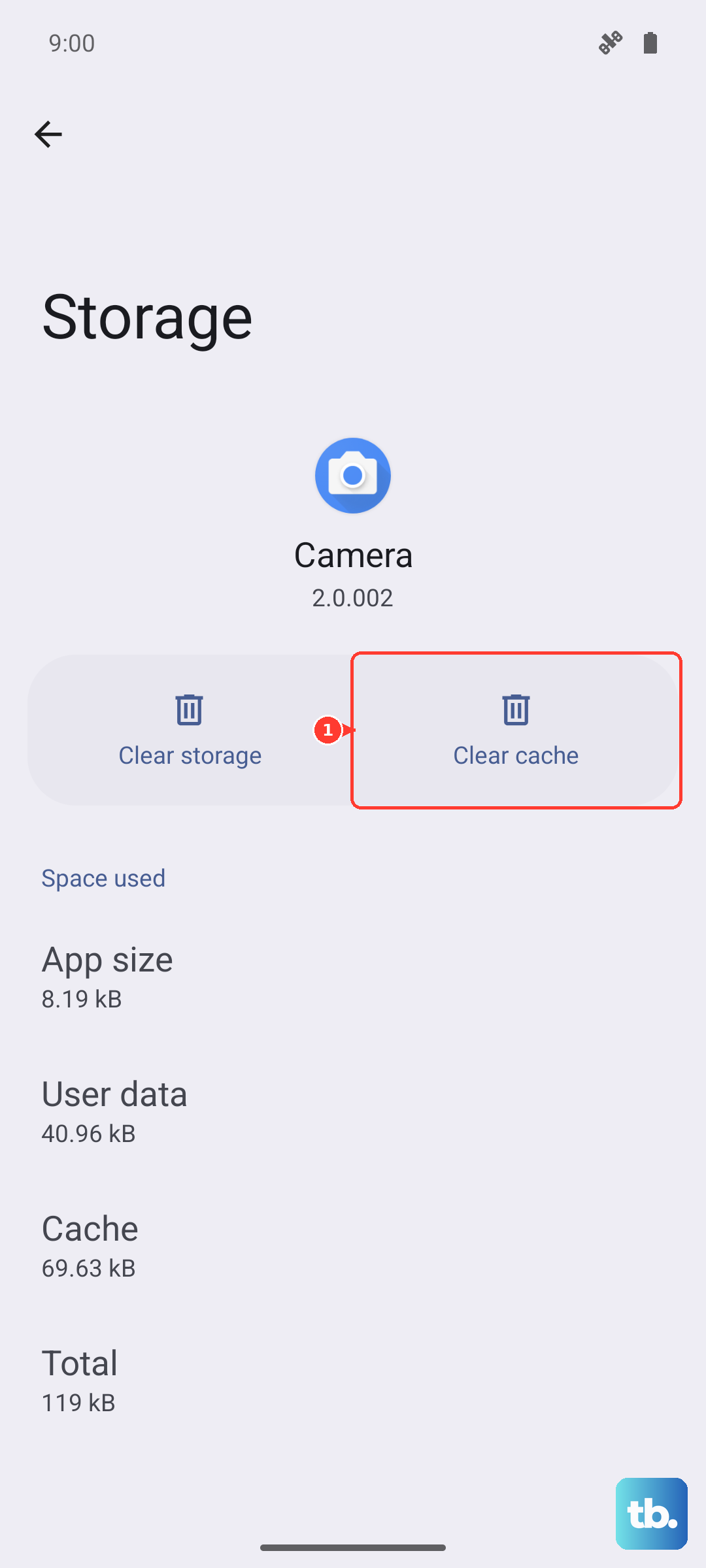
Sometimes, the issue is with the network cache. Try switching from your current Wi-Fi to a different one, or use your mobile data just for the download if the update is small. If the problem persists, you can clear the cache for the update service by going to Settings > Apps > Apps > Software update (you may need to tap "Show system processes" to see it), then selecting Storage > Clear cache.
Verify Your Current Software Version
It's helpful to know exactly what version your phone is running. Head to Settings > System & updates and tap on About phone. Here you'll see details like your EMUI version, the Android version it's based on, and the Security patch level.
This information is useful for confirming an update installed correctly or for troubleshooting specific issues that might be addressed in a newer patch. Huawei typically provides detailed update notes you can cross-reference with your version number.
Keep Your Apps Updated via AppGallery
Since the Pura 70 Pro uses Huawei's AppGallery instead of Google Play, managing app updates happens there. Open the AppGallery app and tap on the Me tab at the bottom right. Then, select Update management.
You'll see a list of all apps with available updates. You can tap Update next to individual apps or use the Update all button at the top. Keeping apps updated is just as important as system updates for security and compatibility, especially for apps that don't rely on Google Mobile Services.
Understanding Update Types and Schedules
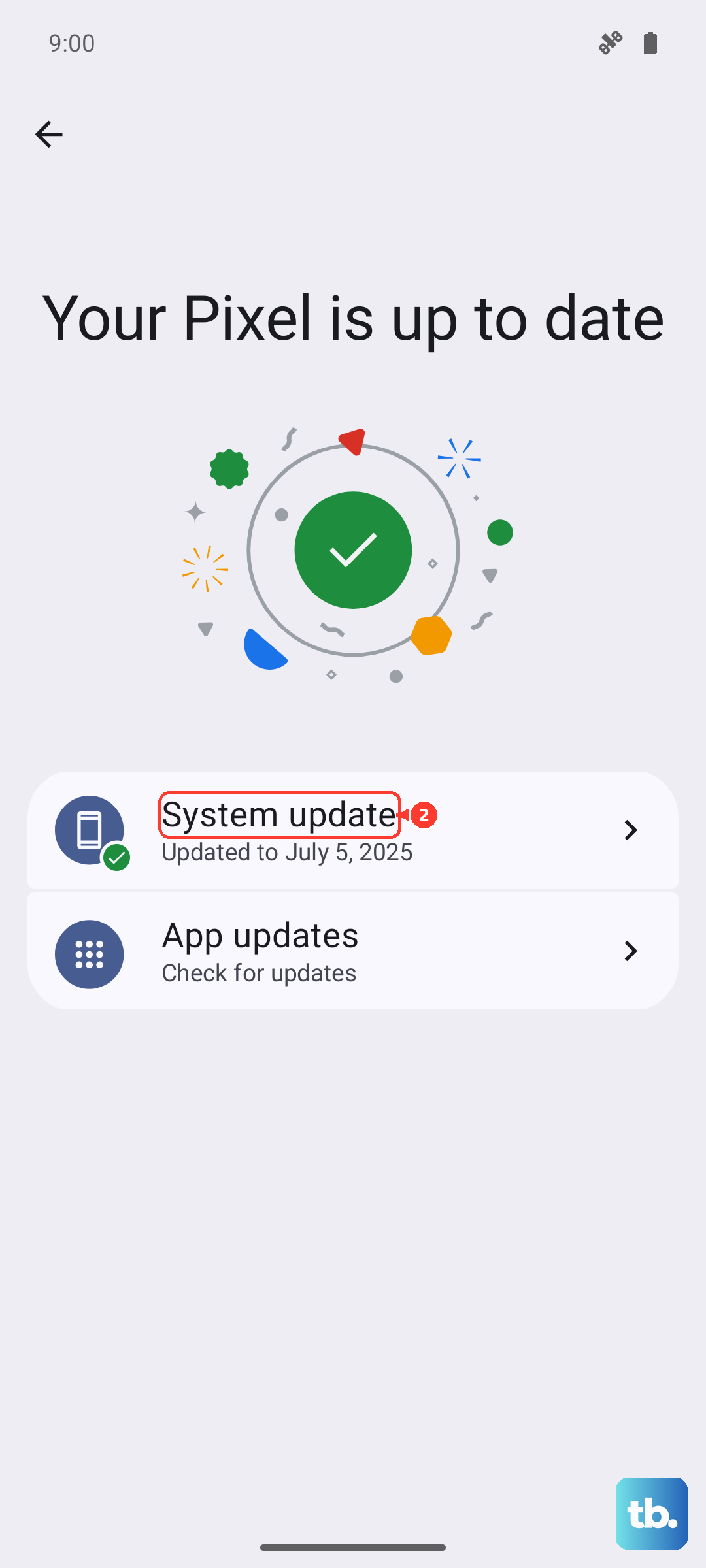
Huawei releases different kinds of updates. Regular security updates are the most frequent and are essential for protecting your phone. Larger EMUI version updates bring new interfaces and features but come less often.
The update schedule can vary by region and carrier. Flagship models like the Pura 70 Pro usually get priority for new updates. If you haven't seen an update in a while, it doesn't necessarily mean something is wrong, but it's always worth manually checking every few weeks.