
Keeping your Samsung Galaxy S23 updated is one of the best things you can do for its performance and security. Samsung pushes out monthly security patches and major One UI upgrades annually, which often include fixes for known issues like battery drain or charging bugs. The process is straightforward, and I'd start with the over-the-air method.
Update Over Wi-Fi
Open your phone's Settings app and scroll down to Software update. Tap on Download and install. Your S23 will check with Samsung's servers for any available updates. If one is found, you'll see a prompt to download it.
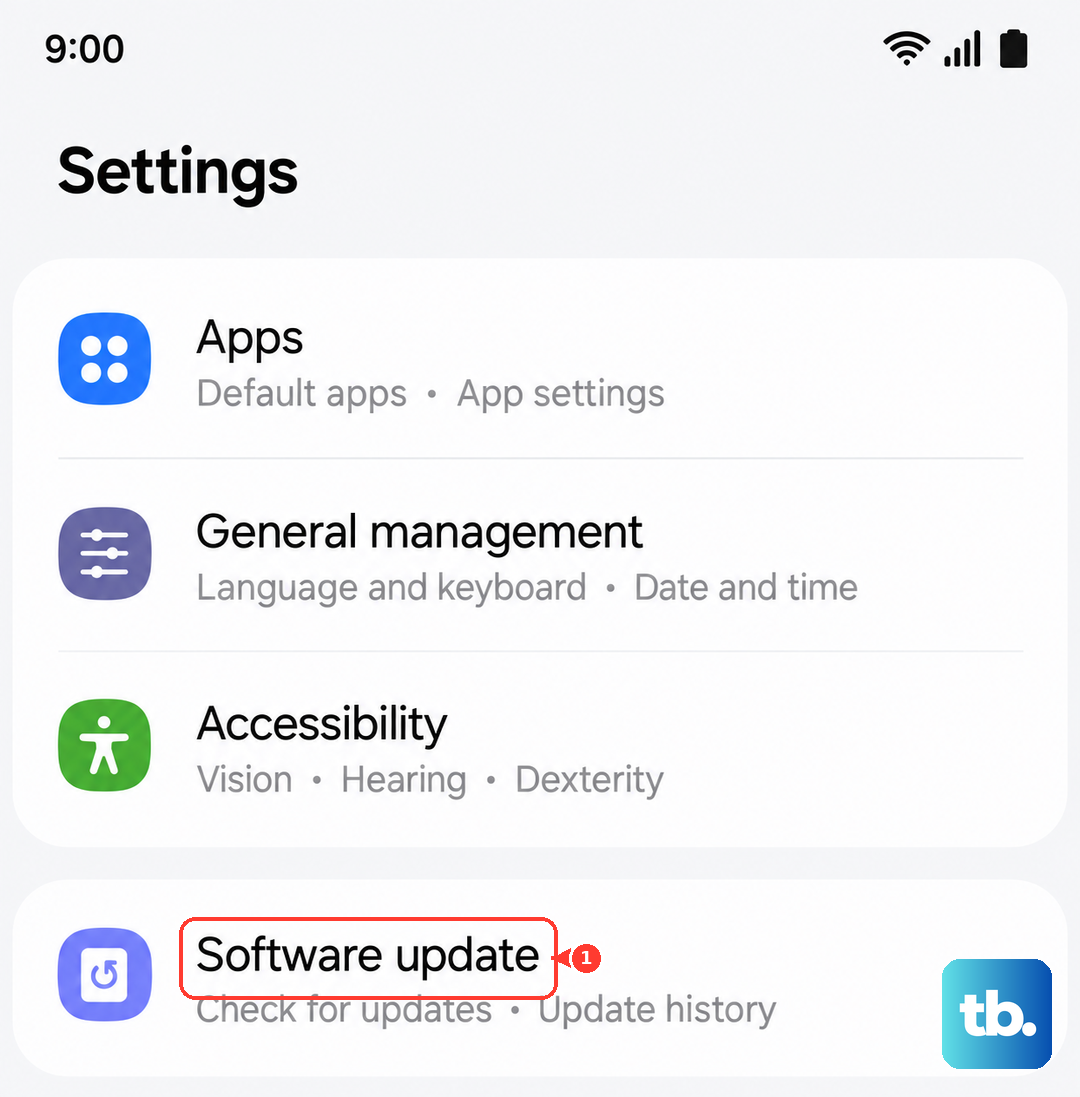
Tap Download and wait for it to complete. Once downloaded, you can choose Install now or schedule the installation for a later time. For a smooth update, ensure your phone is connected to Wi-Fi and has more than 50% battery, or just plug it into its 25W charger.
Enable Automatic Downloads
You can save a step by having your phone handle the download part automatically. Go back to Settings > Software update. Here, you'll find the option for Auto download over Wi-Fi, just toggle it on.
With this enabled, your Galaxy S23 will grab update packages in the background whenever it's on a Wi-Fi network. You'll still get a notification to tap and install it, but the waiting for the download is eliminated. Some models also have an option to auto-install updates overnight.
Use Samsung Smart Switch on a PC
If an over-the-air update is failing, perhaps due to storage issues, using a computer is a reliable alternative. Download and install the Samsung Smart Switch application on your Windows PC or Mac from Samsung's official website. Connect your S23 to the computer using a USB-C cable.
Open Smart Switch, and if an update is available for your phone, you'll see a notification. The app will guide you through downloading and installing the update directly via your computer's internet connection, which can be more stable for large One UI upgrades.
If the Update Gets Stuck
A frozen update can often be resolved with a force restart. Press and hold the Volume Down button and the Side (Power) button together for about 10 seconds until you see the Samsung logo. This reboots the phone without affecting your data.
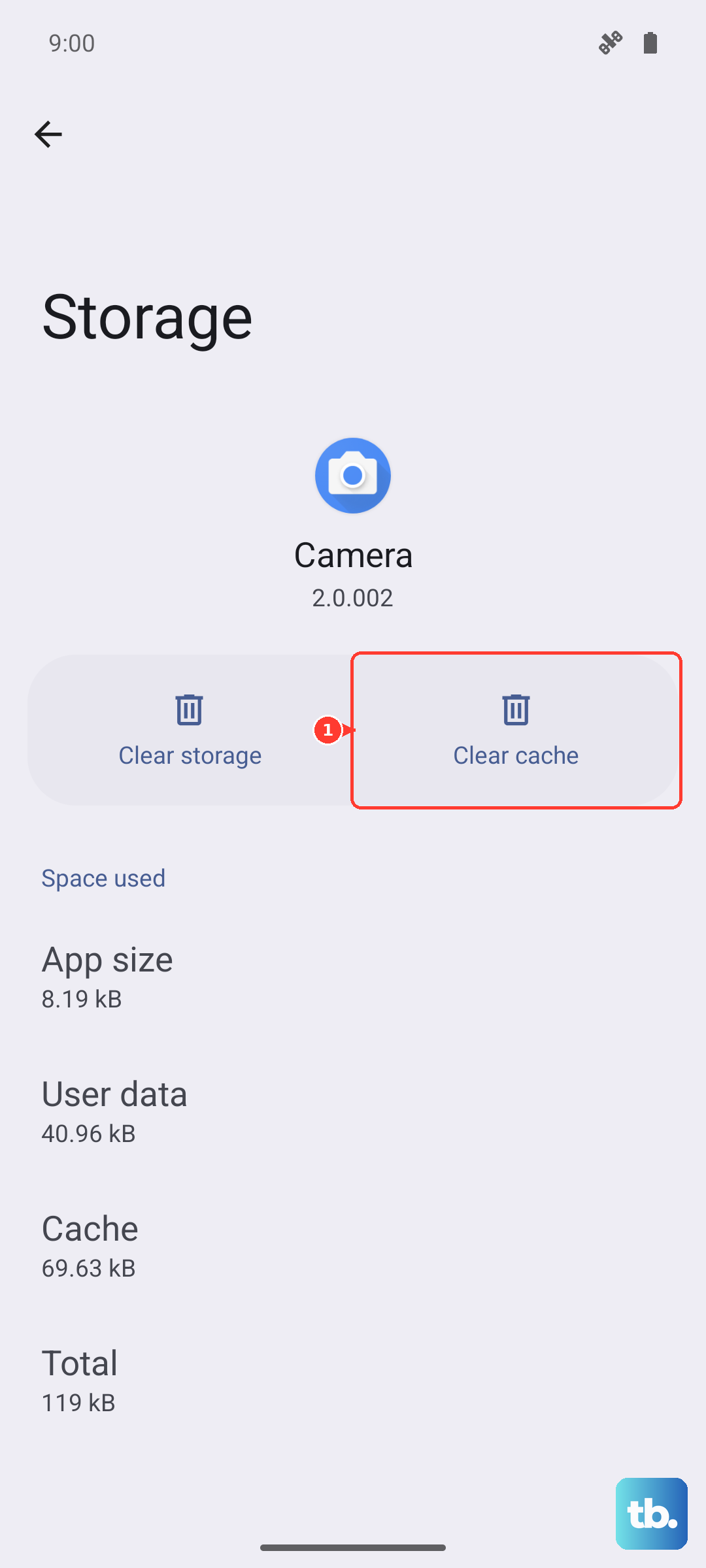
If the update still fails, try clearing the cache for the update service itself. Go to Settings > Apps, tap the three-dot menu, select Show system apps, then find and select Software update. Tap Storage and then Clear cache. After that, attempt the download again.
Check Your Current Software Version
It's helpful to know exactly what version your phone is running, especially if you're checking for a specific fix. Navigate to Settings > About phone > Software information.
This screen shows your Android version, One UI version, and the all-important Android security patch level. Samsung is generally good about monthly patches, so if your date is more than a few months old, an update is likely waiting.
Preparing for a Major Update
Before installing a significant One UI version jump, like moving from One UI 5 to One UI 6, it's wise to back up your data. You can do this quickly by going to Settings > Accounts and backup > Back up data and choosing what to save to your Samsung Cloud or Google account.
Also, check that you have ample free storage. A major Android version update can require 5GB or more of free space. You can manage storage under Settings > Battery and device care > Storage.
Regular updates are crucial. Those monthly security patches protect your S23 from newly discovered vulnerabilities. The larger One UI updates not only bring new features but also include performance tweaks and can resolve widespread issues, like the battery drain some users experienced after the Android 14 update. Keeping your phone updated ensures you're getting the most stable and secure experience Samsung has designed for it.