
Keeping your Google Pixel 10 Pro updated is one of the best things you can do for it. You get the latest Android features, important bug fixes, and crucial security patches that protect your data. Google is known for delivering timely updates directly to its Pixel phones, so the process is usually straightforward.
Check for an Update Over Wi-Fi
Open your Settings app and scroll down to System. From there, tap on System update. Your Pixel 10 Pro will immediately check for any available updates. If one is found, you'll see a button to Download and install.
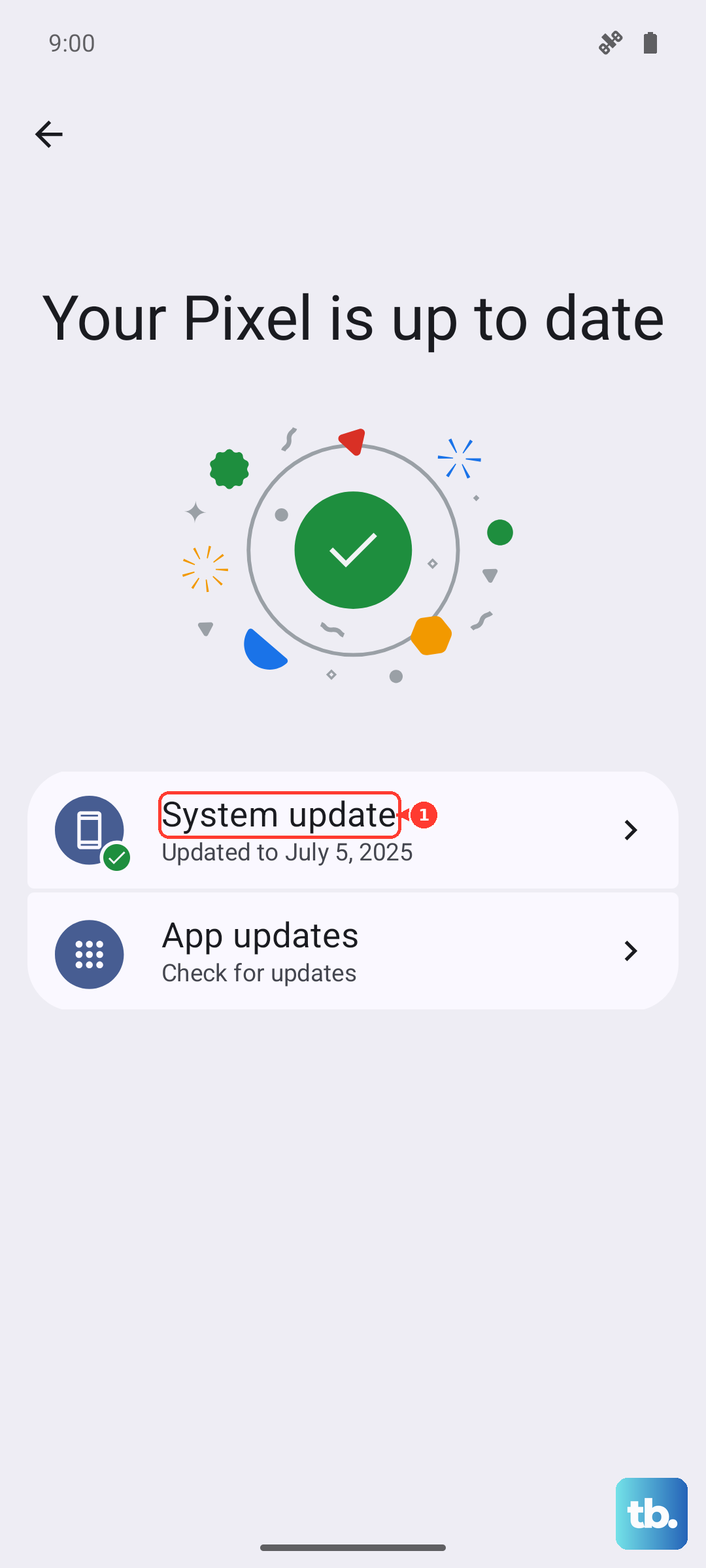
I'd recommend making sure your phone is connected to a stable Wi-Fi network and has at least a 50% charge, or better yet, is plugged into your charger. The download size can vary from a small monthly security patch to a full Android version upgrade.
Enable Automatic Updates
To make sure you never miss a security patch, you can set your Pixel to handle updates automatically. Go to Settings > System > System update. Tap the gear icon in the top right to access the update settings.
Here, you can toggle on Auto-download over Wi-Fi. With this enabled, your phone will automatically download updates when connected to Wi-Fi. You'll still get a notification to approve the installation, which gives you control over when the restart happens.
Update Using the Android Flash Tool (Manual Method)
If an over-the-air update is failing repeatedly or your phone is having serious software issues, you can use Google's official web tool. This is a more advanced method that requires a computer with a USB-C cable.
On your computer, visit the Android Flash Tool website in the Chrome browser. Put your Pixel 10 Pro into Bootloader mode by turning it off, then holding the Volume Down button while you press the Power button. Connect it to your computer, and the website will guide you through flashing the latest factory image, which includes a full update.
If an Update Gets Stuck or Fails
A force restart often clears up a stuck installation. On the Pixel 10 Pro, press and hold the Power button and the Volume Up button together for about 10 seconds until you see the Google logo. This reboots the system without affecting your data.
If the update download keeps failing, try switching to a different Wi-Fi network. Sometimes a router setting can interfere. You can also try clearing the cache for the Google Play Store app, as it handles some update components.
Verify Your Current Android Version
It's good to know exactly what software you're running. Head to Settings > About phone. Here you'll see details like your Android version, the Android security update level, and the build number.
This information is useful if you're checking online for a specific feature or to confirm a security patch has been applied. The Pixel 10 Pro launched with Android 15, so you'll see that or a higher version here.
Don't Forget Your App Updates
System updates are vital, but your apps need love too. Open the Google Play Store and tap your profile picture in the top right corner. Select Manage apps & device, then under the "Updates available" section, tap Update all.
Keeping apps updated fixes bugs, improves compatibility with new Android versions, and patches security holes. An outdated app can cause crashes or battery drain even on a fully updated phone.
Check for Google Play System Updates
This is a separate update channel that many people miss. Google can update core parts of the Android system directly through the Play Store, similar to how app updates work. To check, go to Settings > Security & privacy > System & updates > Google Play system update.
If an update is available, tap to install it. These updates often provide important security and stability improvements for underlying system modules, and they don't require a full phone restart like a regular OS update does.