Your Realtek audio driver may need an update, or your sound may have stopped working after a Windows change. The safest path is to start with Windows Update, then move to your PC or motherboard maker, and only use manual driver installs when you have the exact matching package.
These are the Realtek audio driver fixes that still make sense for Windows 11 and Windows 10 in 2026.
1. Try This First
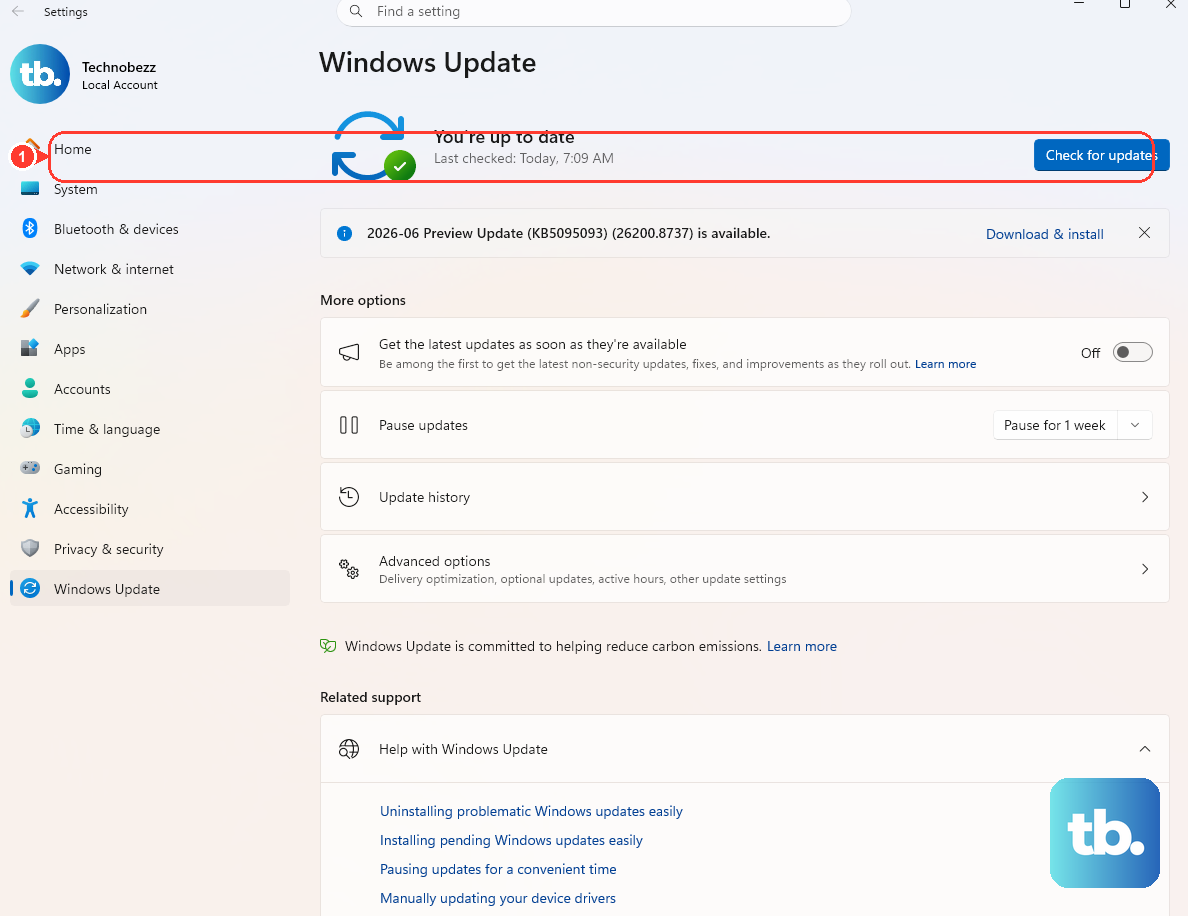
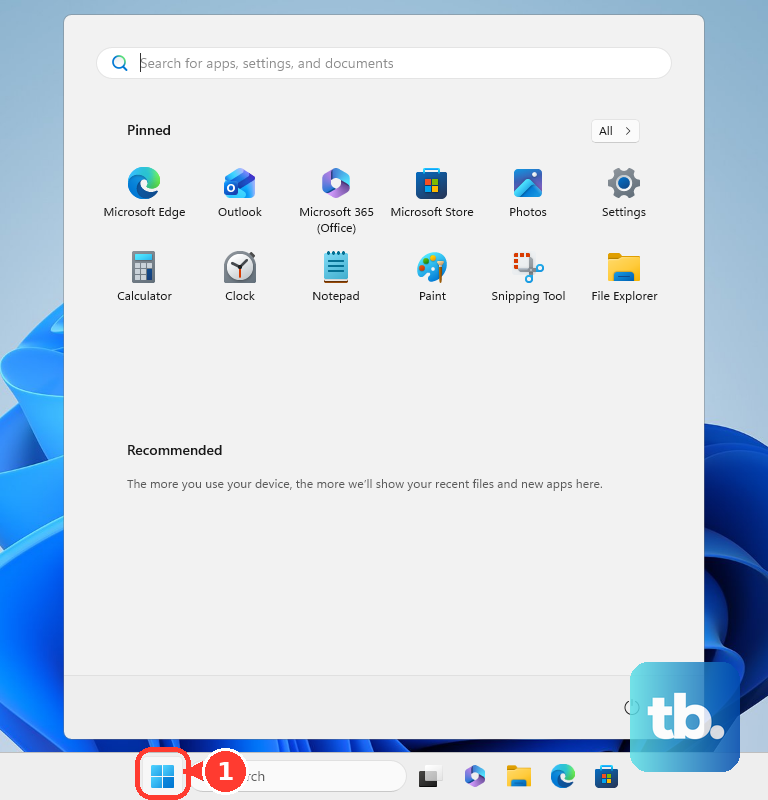
Open Start, go to Settings, select Windows Update, then choose Check for updates. If Windows offers a Realtek or audio driver update, install it and restart your PC.
That is the best first move because Microsoft and PC makers can publish Realtek audio drivers directly through Windows Update. If nothing shows up there, keep going.
2. Check Optional Driver Updates
Some driver updates do not install automatically. Microsoft puts those under optional driver updates, so check that screen next.
On Windows 11: Open Start, go to Settings, select Windows Update, open Advanced options, choose Optional updates, open Driver updates, select the Realtek or audio driver, then choose Download & install.
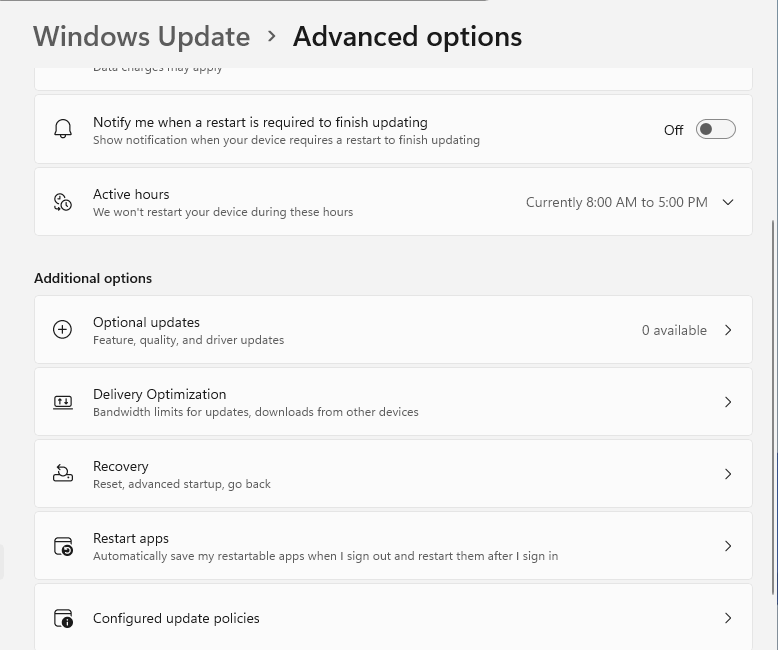
On Windows 10: Open Start, go to Settings, select Update & Security, open Windows Update, choose Advanced options, then return to Windows Update and select Check for updates. If View optional updates appears, open it, select Driver updates, choose the Realtek or audio driver, then select Download and install.
3. Use Your PC Maker's Update App
Dell: Open SupportAssist, go to Home, choose Update software, select Start, follow the prompts, and restart when asked.
HP: Open HP Support Assistant, go to My Dashboard, select your computer, open Updates, then install the available driver or audio updates.
Lenovo: Go to Lenovo Support for your product, open Drivers & Software, then use Automatic Update or Scan Now.
ASUS: Open MyASUS, go to System Update, select the Realtek or audio driver item, then choose Update Selected Items. If System Update is not shown, use the ASUS support site instead.
MSI: Open MSI Center, MSI Center Pro, or MSI Dragon Center, go to Support, choose Live Update, select Scan, then download and install the driver update.
GIGABYTE: Open GIGABYTE CONTROL CENTER, select the drivers and applications to install, then choose Install. For later updates, open the Update center icon and update online.
If Windows Update does not find anything, use the update app from your PC or motherboard maker. Realtek audio drivers are often model-specific, so this is the next cleanest route.
4. Download the Driver From the Manufacturer
Use the manufacturer's download page when Windows Update does not offer the driver or the update app is not installed. Match the download to your exact PC, motherboard model, and Windows version.
Dell: Go to Dell Drivers & Downloads, use Check for updates, enter your Service Tag, or browse for your product. Download the Realtek or audio driver, open the downloaded file, follow the installer, and restart when prompted.
HP: Go to HP Support, open Software and Driver Downloads, identify your product, choose your Windows version, open Driver-Audio, download the Realtek or audio driver, and run the installer. If HP extracts the package, open File Explorer, go to C:, open SwSetup, open the driver folder, then run Setup.

Lenovo: Go to Lenovo Support for your product, open Drivers & Software, manually choose the Realtek Audio Driver package, download it, and run the installer.
ASUS: Go to ASUS Support, enter the Model Name, open Support, choose Driver & Tools, open Driver & Utility, select the operating system version, download the audio or Realtek driver, and run the installer.
GIGABYTE: Go to GIGABYTE Download Center, enter the product model or SN, or choose Product Line, Series, Category, and Model Name. Download the Realtek HD Audio Driver for the matching Windows version and run the installer.
5. Install a Downloaded Driver Through Device Manager
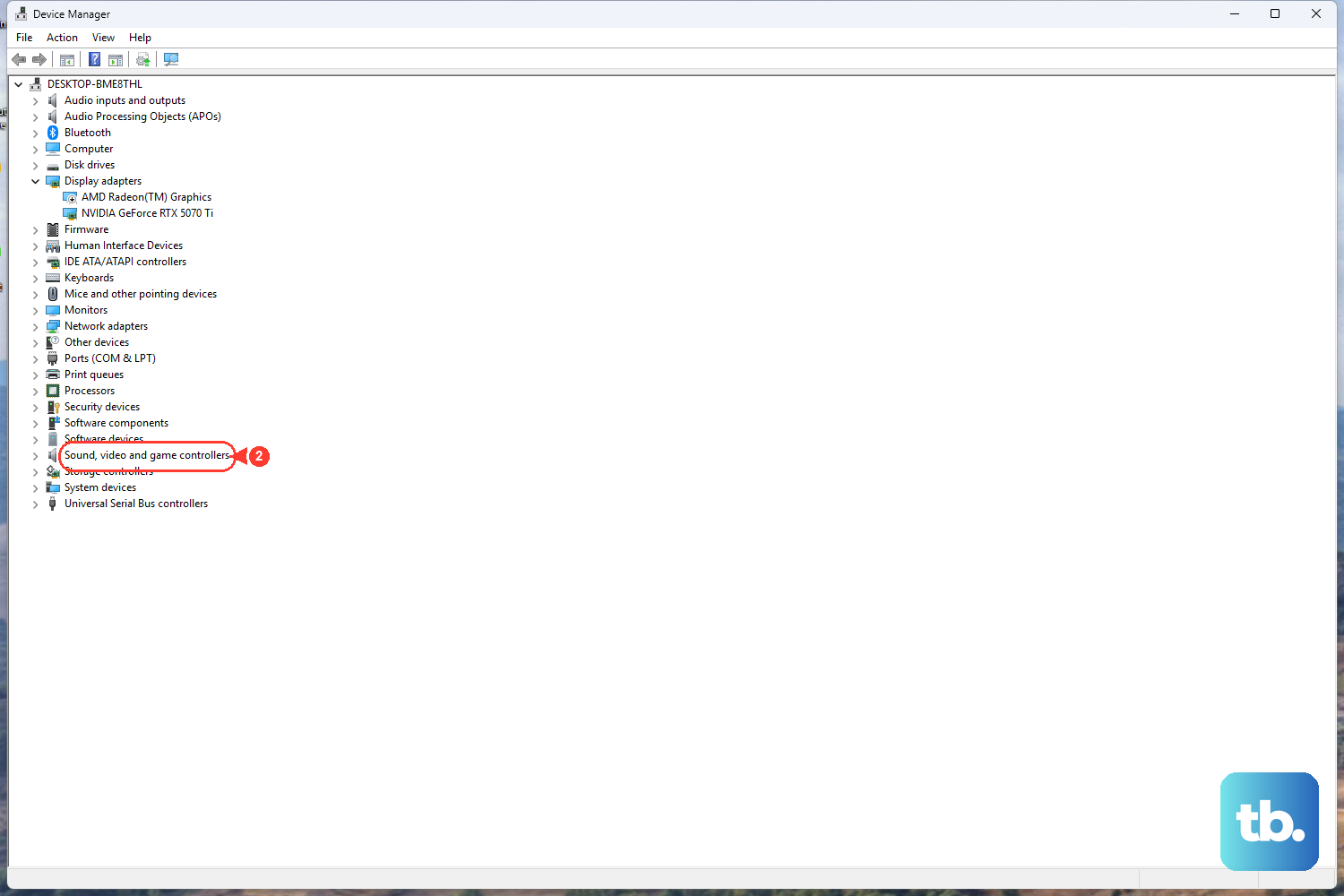
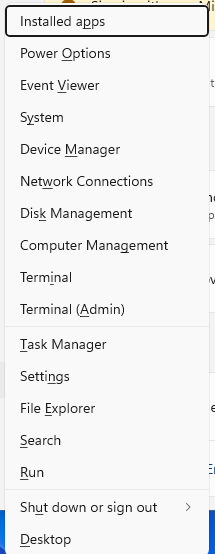
Right-click Start, then open Device Manager. Expand Sound, video and game controllers, right-click the Realtek or audio device, and choose Update driver.
Select Browse my computer for drivers, then choose Browse.... Select the extracted driver folder, choose OK, then select Next.
Use Device Manager when you already downloaded the correct OEM Realtek or audio driver and the package exposes driver files instead of only a simple installer.
You can also let Device Manager search for a driver. Right-click the Realtek or audio device, choose Update driver, select Search automatically for updated driver software, then choose Search for updated drivers on Windows update if Windows offers it.
6. Repair a Broken Realtek Audio Driver
If the driver is installed but sound is still broken, remove the device and let Windows reinstall a matching driver after restart. Select the search box on the taskbar, type device manager, then open Device Manager.
Expand Sound, video and game controllers, right-click the Realtek or audio device, and choose Uninstall device. Select Attempt to remove the driver for this device on Windows 11, or Delete the driver software for this device on Windows 10, then choose Uninstall.
After that, open Start, select Power, and choose Restart.
If a recent driver update caused the problem, roll it back instead. Open Device Manager, right-click the audio device, choose Properties, open the Driver tab, select Roll Back Driver, follow the prompts, choose Yes, then restart your PC.
If you only need to get sound working again, install Microsoft's generic driver as a fallback. In Device Manager, choose Update driver, select Browse my computer for drivers, choose Let me pick from a list of available drivers on my computer, select High Definition Audio Device, then choose Next. This can remove Realtek or OEM audio enhancements.
7. Skip Old Realtek Driver Advice
Do not use third-party driver updater sites. Dell's current guidance says to download Dell drivers only from the official Dell support website and warns against unknown websites or third-party driver tools.
Do not treat Realtek Audio Console as a driver installer either. It is an app for audio effects and device settings on some OEM systems, not a replacement for the Realtek driver package.
Skip old Realtek HD Audio Manager tutorials for current Windows 11 and Windows 10 driver updates. Use Windows Update, your PC or motherboard maker's driver package, Device Manager, or the Microsoft Update Catalog instead.
The Microsoft Update Catalog is an advanced option. Search for Realtek Semiconductor Corp. MEDIA or realtek audio, choose a package that matches your Windows version, download it, extract the .cab, then install it through Device Manager using Browse my computer for drivers.
Frequently Asked Questions
Should I install the Realtek audio driver from Realtek's own website?
Use Windows Update or your PC or motherboard maker's driver page for modern Windows 11 and Windows 10 PCs. Realtek's generic High Definition Audio Codecs page still exists, but the visible package targets older Windows versions through Windows 10 and can lack OEM customizations used by modern systems.
Why does Windows Update not show a Realtek driver?
Windows Update only shows the driver when Microsoft or the OEM publishes one for your hardware. Check Optional updates, then use your PC maker's update app or support page.
Is Realtek Audio Console the same as the Realtek driver?
No. Realtek Audio Console controls audio effects and device settings on some systems. It does not install the Realtek driver package by itself.
What should I do when the new Realtek driver makes sound worse?
Open Device Manager, right-click the audio device, choose Properties, open the Driver tab, select Roll Back Driver, follow the prompts, choose Yes, then restart your PC.
What if this is a work or school PC?
Driver updates can be controlled by your organization. Ask your IT team when Windows Update does not offer the driver or the install button is blocked.