
When your Surface Pro 11 suddenly goes silent, whether through its built-in speakers or headphones, it can be a quick setting or a deeper driver issue. Getting your audio back usually involves checking a few key areas in Windows.
If you are not sure whether it is the speakers or the software, run an online online speaker test first. Working test tones rule out a hardware fault in seconds.
Check the Volume and Output
Click the speaker icon in your taskbar and make sure the volume slider isn't at zero or muted. A common culprit is Windows getting stuck on a disconnected output. Click the arrow next to the volume slider and ensure "Speakers" is selected, not a phantom Bluetooth device or HDMI port.
Run the Audio Troubleshooter
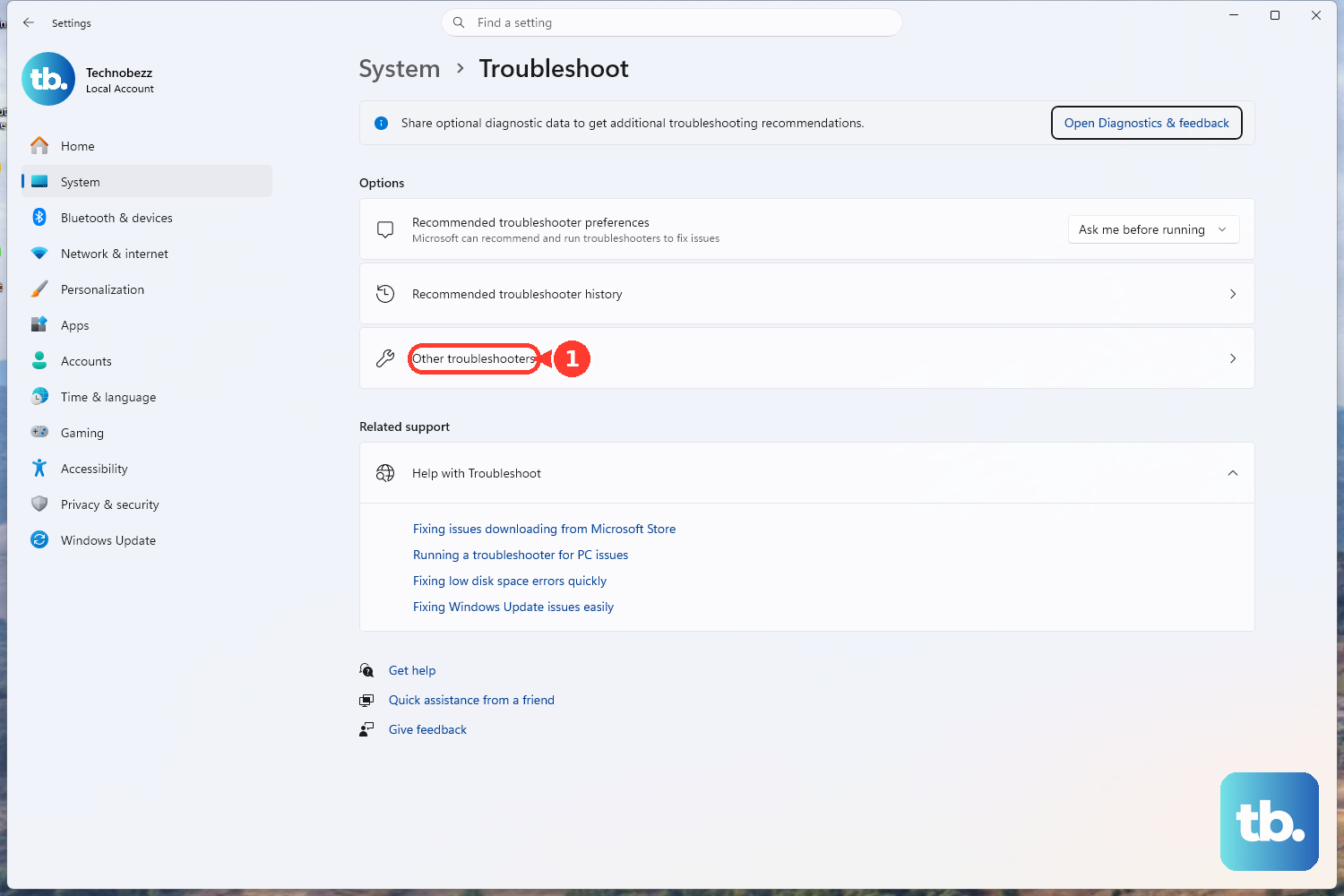
Windows has a built-in tool for this. Go to Settings > System > Troubleshoot > Other troubleshooters and run the Playing Audio troubleshooter. It will automatically detect and fix common configuration problems, like disabled audio services.
Restart Your Surface
A simple restart reloads all audio drivers and clears any stuck processes. Click Start > Power > Restart. I've found this especially effective if the audio stopped after a recent Windows update or after waking the device from sleep.
Update or Reinstall Audio Drivers
Press Windows + X and select Device Manager. Expand Sound, video and game controllers. Right-click your audio device (it may be listed as Realtek or something similar) and select Update driver > Search automatically. If that doesn't work, choose Uninstall device, restart your Surface, and Windows will reinstall a fresh driver on boot.
Use the Surface Diagnostic Toolkit
Microsoft provides a dedicated tool for hardware issues. Download and run the Surface Diagnostic Toolkit from the official Microsoft website. It will run tests on your speakers and audio hardware, which can help rule out a physical problem.
Check App-Specific Volume
Sometimes, the system volume is fine, but a specific app is muted. Go to Settings > System > Sound > Volume mixer. Each open application has its own slider here. Make sure the app you're using, like your browser or media player, isn't set to zero.
Disable Audio Enhancements
Audio processing features can sometimes conflict. Go to Settings > System > Sound, click your output device, and scroll to Audio enhancements. Set this dropdown to Off and test your sound again.
Restart Windows Audio Services
Press Windows + R, type services.msc, and press Enter. Find Windows Audio in the list, right-click it, and select Restart. Do the same for the Windows Audio Endpoint Builder service. This forces the core audio system to reset.
Detach and Reattach the Type Cover
If you're only having issues with audio from the Type Cover's headphone jack, the connection might be finicky. Detach the keyboard, wait a few seconds, and firmly reattach it. This can re-establish a clean connection for the audio pass-through.
Check for Physical and Compatibility Issues
If using headphones, try a different pair to rule out a faulty cable or jack. For the Surface Pro 11 with an ARM processor, also consider app compatibility. Some older x86 audio software or drivers might not function correctly, so ensure you're using apps designed for or compatible with Windows on ARM.