A touch screen that skips taps, drops swipes, or leaves dead zones makes an iPhone feel broken fast. Start with Apple's built-in diagnostics, then use Notes, Home Screen movement, touch settings, and service checks to find the fault before you book repair.
Start with Apple Diagnostics
Apple Diagnostics is the built-in route for checking touch hardware and software behavior. On iPhone 12 or newer, including iPhone SE (3rd generation), running iOS 18 or newer, use the Multi-Touch test from the Diagnostics test list; availability depends on model, region, and session.
Turn off the iPhone by holding either volume button and the side button until the power-off slider appears, drag the slider, and wait 30 seconds.
Press and hold both volume buttons, then connect the iPhone to a power adapter or powered computer. Release the buttons when the Apple logo appears.
When the session prompt appears, tap Start Session. On the diagnostics screen, tap Continue, choose Wi-Fi, tap Agree, tap Run Diagnostics, and run Multi-Touch from the test list.
Draw across the screen in Notes
Open the Notes app.
Open an existing note, or create a new note.
Tap the Handwriting Tools button.
Draw slowly across the whole display with your finger.
Cover the corners and edges.
Watch for gaps, jumps, or missed strokes; those marks point to areas that are not registering touch.
Use one clean, steady pass so a rushed stroke does not look like a dead zone.
Try a Home Screen drag test
This catches drag interruptions, edge misses, and places where the screen loses contact during movement.
Go to the Home Screen.
Touch and hold the Home Screen background until the items begin to jiggle.
Drag one app or widget around the same page.
Move it across the edges and corners.
Drag it to another Home Screen page for a longer sweep.
Press the Home button on an iPhone with a Home button, or tap the Home Screen background on other iPhone models.
Check touch and hold response
For long-press problems, open Settings > Accessibility > Touch, then tap Haptic Touch or 3D & Haptic Touch. Choose Fast or Slow, then test the image at the bottom of the screen.
On iPhone models with 3D Touch, choose Light, Medium, or Firm pressure before testing the same image.
For delayed taps, repeated touches, swipe problems, or tap-assist behavior, open Settings > Accessibility > Touch > Touch Accommodations. Review Hold Duration, Swipe Gestures, Ignore Repeat, and Tap Assistance.
These settings change how iPhone responds to touch timing, repeats, and pressure. They do not calibrate the display digitizer, and Apple does not provide a current iPhone touch-screen calibration menu.
Rule out simple interference
Clear the obvious blockers before treating the screen as faulty.
- 1.Restart your iPhone.
- 2.Wipe the screen until it is clean and free of debris or water.
- 3.Disconnect every Lightning or USB-C accessory.
- 4.Use a different outlet, cable, or charger when touch starts working after an accessory is removed.
- 5.Remove the case or screen protector and test the same area again.
Use the Apple Support app
Open the App Store if Apple Support is not installed.
Tap Get on the Apple Support listing.
Open the Apple Support app.
Sign in with your Apple Account if prompted.
Select the iPhone that needs help.
Choose the support topic that matches screen, display, or touch behavior.
Follow the prompts to troubleshoot, chat, schedule service, or run diagnostics.
Review the diagnostic prompt before continuing.
Use Apple Support on iOS 18.0 or later; feature availability varies by country or region.
Map dead zones with a browser or app
A browser grid test gives you a quick map of missed input. It is not an Apple warranty diagnostic.
Open Safari or another browser on the iPhone, go to the touch-screen test page, tap Fullscreen so the grid covers the whole display, and drag one finger slowly over every cell, edge to edge and into the corners.
Watch the coverage percentage climb; cells that refuse to fill after repeated touches show where that test did not register input. Place several fingers at once to check multi-touch against the Device limit shown, tap Reset to clear the grid and run a second pass, and take an iPhone screenshot when you need to show results to a technician.
For an app-based check, open the App Store, find TouchScreenCheck, and tap Get on an iPhone running iOS 14.7 or later.
Open TouchScreenCheck, touch and drag around the display, then read the touch count and last-touch coordinates.
If a browser or app test fails, repeat the same area in Notes and Apple Diagnostics.
Review repaired or managed iPhones
Use this check when the iPhone has had a display repair, belongs to work or school, or blocks installing or removing a touch-test app.
For a repaired iPhone, open Settings > General > About, then check Parts and Service History. Display shows messages such as Genuine, Used, Unknown, or Finish Repair on supported models.
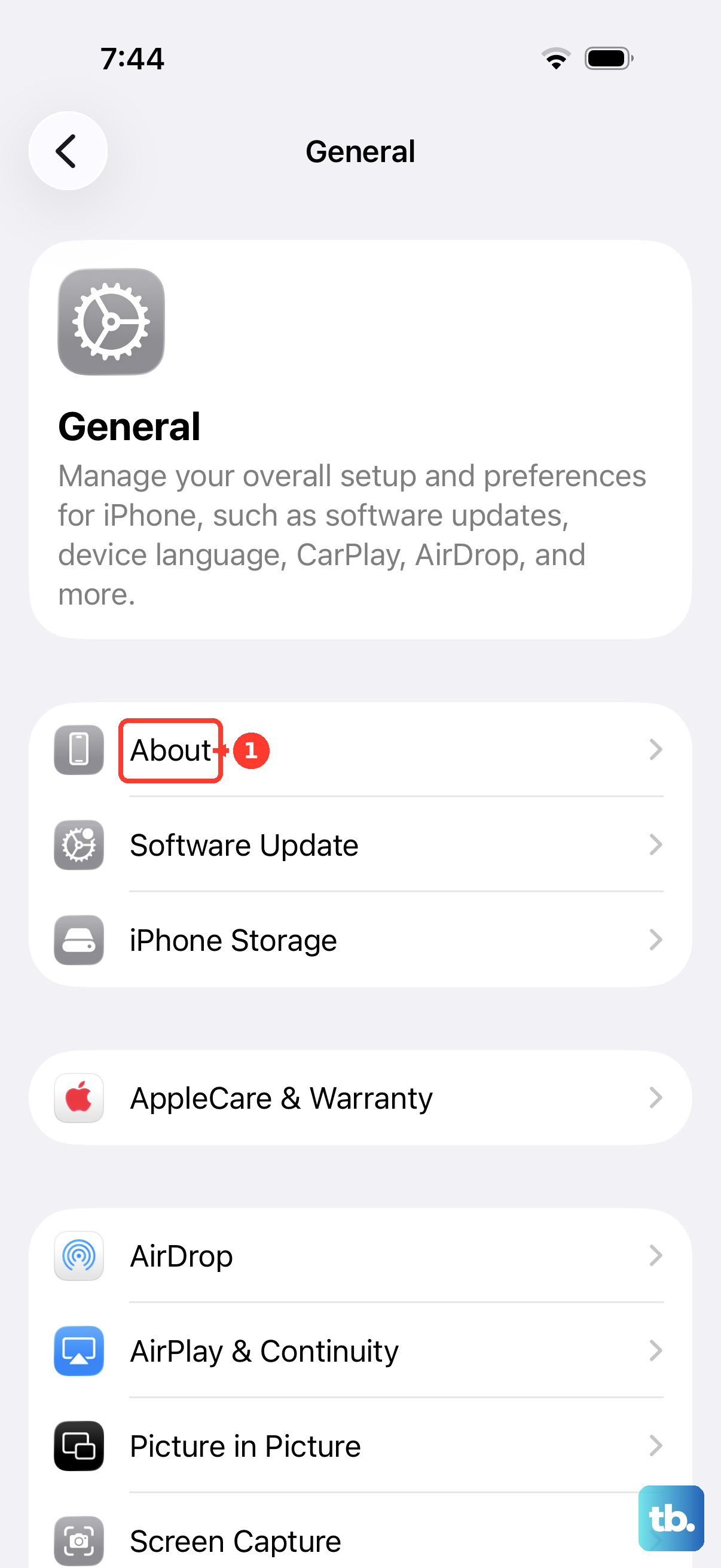
If Finish Repair appears, update the iPhone to the latest version of iOS.
Connect the iPhone to Wi-Fi.
Make sure the battery is above 20 percent.
Open Settings > General > About > Parts & Service History.
Tap Restart & Finish Repair.
Follow the onscreen instructions.
Display repair finishing covers iPhone 12 and iPhone 13, iPhone 14 and iPhone 15, and iPhone 16 and later.
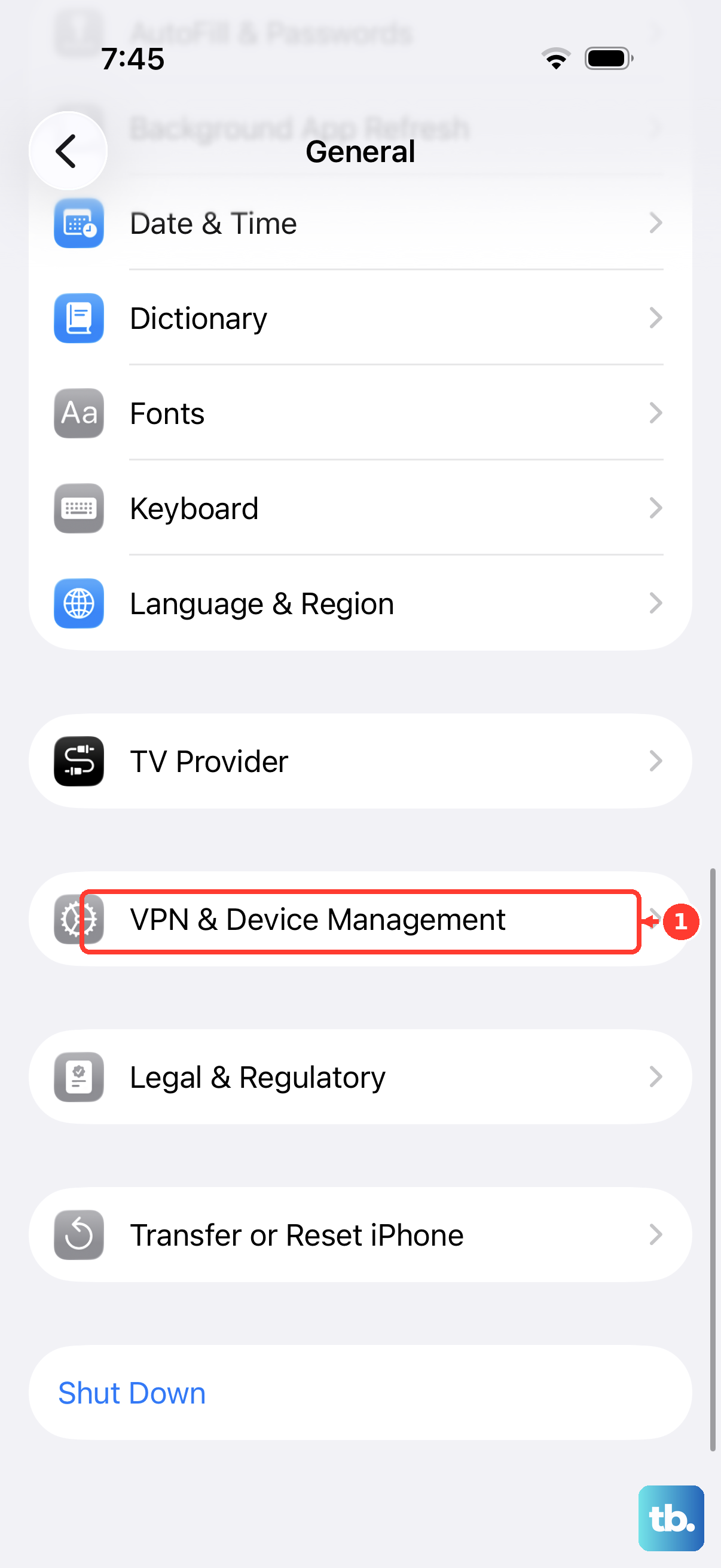
For a managed iPhone, open Settings > General > VPN & Device Management. If Mobile Device Management is present, contact the organization's IT admin or employer.
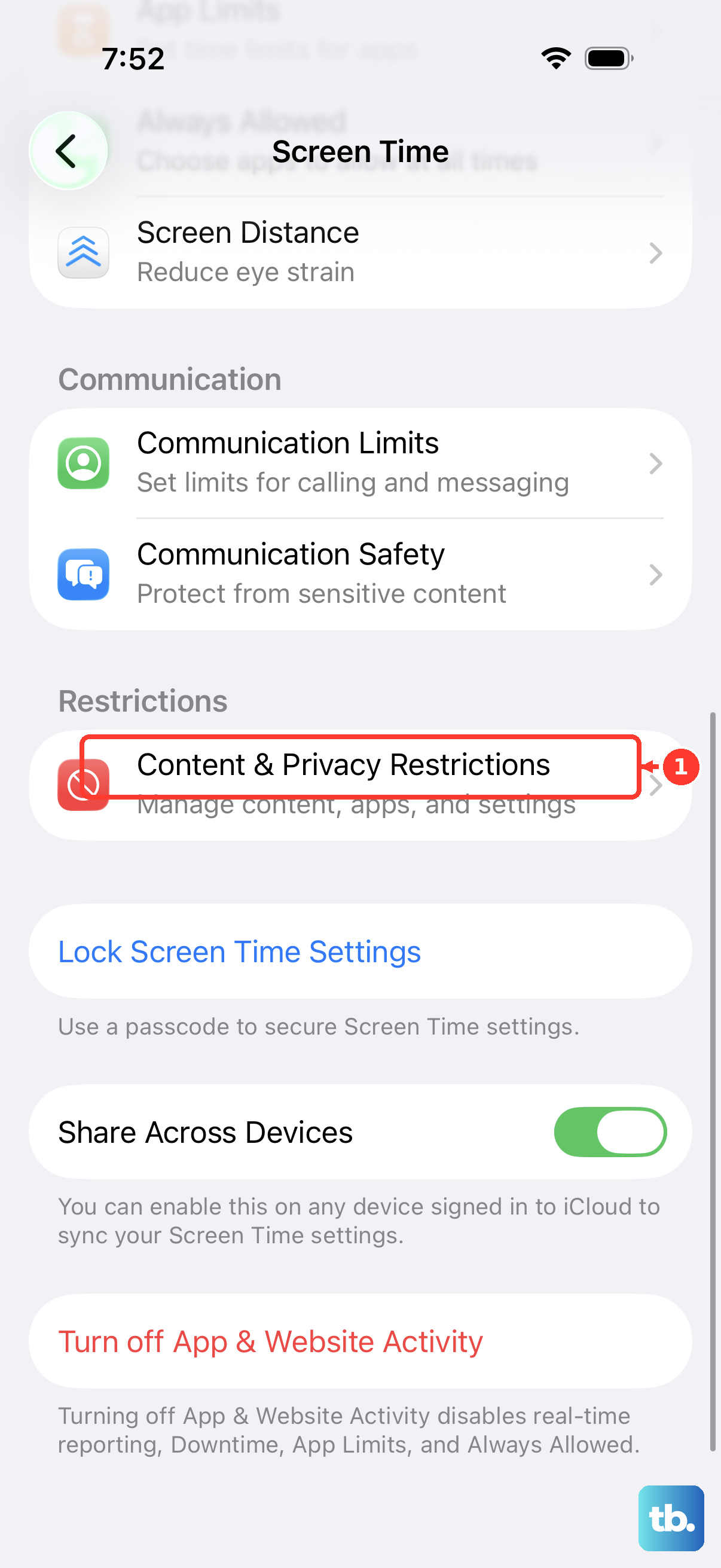
When app deletion is blocked, open Settings > Screen Time > Content & Privacy Restrictions > iTunes & App Store Purchases > Deleting Apps.
Know when to get service
Get Apple service when the same touch issue appears across several tests after cleaning, accessory removal, and display repair checks; skip *#0*#, which is a Samsung hardware-test code, not an iPhone path.
- 1.Go to Apple Service and Repair.
- 2.Click Get started.
- 3.Choose iPhone.
- 4.Follow the prompts for screen, display, or touch service options.
- 5.Choose mail-in repair, an Apple Store, or an Apple Authorized Service Provider.
- 6.Turn off Find My before service when Apple asks you to prepare the iPhone.
Frequently Asked Questions
Which iPhones show Parts and Service History for a display?
iPhone 11 models and later show Parts and Service History after a repair, except iPhone SE (2nd and 3rd generation). iPhone 15 and later on iOS 18 or later show Used for a previously used display.
How do I remove TouchScreenCheck after testing?
Touch and hold TouchScreenCheck, tap Remove App, tap Delete App, then tap Delete. If the icons jiggle first, tap the Remove icon, tap Delete App, tap Delete, then tap Done.
What should I use on an iPhone older than iPhone 12?
Use Notes, the Home Screen drag test, the Apple Support app on models that can run iOS 18 or later (iPhone XR and newer), Apple Support on the web from a browser or another device on older models such as iPhone X and iPhone 8, or Apple service. The on-device Multi-Touch diagnostic route is for iPhone 12 or newer, including iPhone SE (3rd generation), running iOS 18 or newer.
Does Touch Accommodations prove the screen hardware is bad?
No. Touch Accommodations changes hold duration, swipe, repeat, and tap-assistance behavior. A hardware fault is the same missed area across diagnostics or manual tests after cleaning and accessory removal.