Your Windows pointer can be too small, too plain, or too easy to lose on a busy screen. Windows gives you built-in controls for pointer size and color, plus a separate Mouse Properties panel for full cursor schemes and .cur or .ani files. Start with the Windows settings below, then use apps or browser extensions only when they match the kind of cursor change you want.
1. Change the built in pointer size and color first
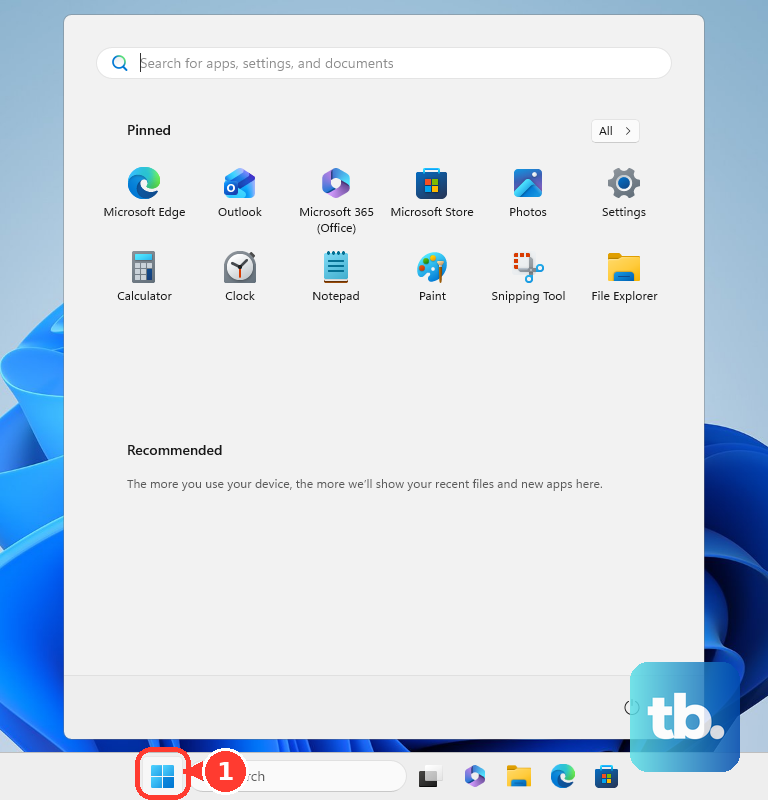
Best for a larger or brighter cursor without installing anything. Start by opening Start, then select Settings.
From there, open Accessibility and select Mouse pointer and touch. Under Mouse pointer, choose a Mouse pointer style.
For a custom pointer color, select Choose another color. Adjust Size until the pointer is large enough.
This changes the main Windows pointer style, color, and size through Windows 11 Settings. It is the fastest route when visibility is the problem and you do not need a downloaded cursor pack.
2. Replace the cursor with a Windows scheme or cursor file
Open Start, select Settings, and open Bluetooth & devices. Select Mouse, then under Related settings, select Additional mouse settings.
In Mouse Properties, open the Pointers tab. Open Scheme to apply a full pointer scheme.
To replace one pointer role, select it under Customize. Select Browse, choose the cursor file, select Open, and then select OK.
Use Mouse Properties when you want a full pointer scheme or you already have custom .cur or .ani files. Windows uses this panel for individual cursor roles such as the normal pointer, busy pointer, and text select pointer. Keep the files in .cur or .ani format for this method.
3. Open cursor controls from Themes
If you are already changing the desktop theme, open Start. Select Settings, open Personalization, and select Themes.
Select Mouse cursor. From there, use the Mouse Properties pointer controls to choose a Scheme, or use Browse to select a cursor file.
4. Save the cursor setup with your theme
After the cursor looks right, save it with your Windows theme so you can reapply or share the setup. Open Start, select Settings, and open Personalization.
Select Themes, customize Mouse cursor, and select Save. To share the saved theme, right-click the saved theme and select Save theme for sharing. Windows creates a .deskthemepack file.
5. Restore the default Windows cursor
Open Start, select Settings, and open Bluetooth & devices. Select Mouse, then select Additional mouse settings.
Open the Pointers tab. To reset the full set, choose a Windows default option from Scheme, then select OK.
To reset one pointer role, select it under Customize. Select Use Default, then select OK.
Undo the cursor change from the same Mouse Properties panel you used to apply it.
6. Add cursor visibility tools with PowerToys
PowerToys is not a replacement for a Windows cursor file. It adds cursor visibility and behavior tools for people who lose track of the pointer on screen.
Install PowerToys from Microsoft’s PowerToys install page using GitHub or the Microsoft Store. For command-line installation, run winget install --id Microsoft.PowerToys --source winget.
Open PowerToys Settings and select Mouse Utilities. Turn on CursorWrap, Find My Mouse, Mouse Highlighter, Mouse jump, or Mouse pointer crosshairs.
Adjust options such as Color, Opacity, Center radius, Crosshairs thickness, and Activation shortcut. Use this route when you want the pointer to be easier to locate, highlight, or move across displays without replacing the system cursor image.
7. Use an app or browser extension for extra cursor packs
For system-wide cursor packs through the Custom Cursor for Windows app, open the app. Select Home, choose a cursor pack, and select Apply.
To change size, select Settings. Move the size slider, then select Apply.
To undo the app’s cursor change, select Default cursor. Stardock CursorFX is another current cursor utility, though Stardock’s published system requirements list Windows 10 and Windows 7 rather than Windows 11, so confirm Windows 11 compatibility before installing it.
Open CursorFX, choose a cursor from the preview list, and select Apply. Stardock also lists size, color, drop shadow, effects, motion trails, sounds, and a theme editor that imports .PNG files.
Browser extensions are different. They change the cursor inside browser content where the extension can run, not the Windows system cursor.
In Chrome, open the Chrome Web Store listing. Select Add to Chrome, then choose a cursor pack from the extension icon in the Chrome toolbar.
In Microsoft Edge, open Settings and more. Select Extensions, select Get extensions for Microsoft Edge, select Get, and select Add extension.
In Firefox, open the Mozilla Add-ons listing. Select Add to Firefox.
To remove the browser change, use the browser’s extension manager. In Chrome, open More, open Extensions, open Manage extensions, and select Remove.
In Edge, open Extensions. Select Manage extensions, then select Remove.
In Firefox, open Add-ons and themes. Select Extensions, open the extension’s three-dot menu, and select Remove.
8. Check managed PCs before installing cursor tools
On work and school PCs, administrators control PowerToys utilities and browser extensions through policy. Edge extension controls sit under Administrative Templates, Microsoft Edge, Extensions.
Chrome extension controls sit under Administrative Templates, Google, Google Chrome, Extensions, Extension management settings. PowerToys administrative templates come from the newest PowerToys GitHub release assets.
After the templates are installed, admins configure them under Administrative Templates, Microsoft PowerToys. If a cursor app, extension, or utility is blocked on a managed PC, use the built-in Windows cursor settings or contact the administrator.
Frequently Asked Questions
What is the best way to get a custom cursor in Windows 11?
Use Start, Settings, Bluetooth & devices, Mouse, Additional mouse settings, then the Pointers tab. From there, choose a Scheme or use Browse to select a .cur or .ani cursor file.
Can I change only the cursor color and size?
Yes. Open Start, Settings, Accessibility, Mouse pointer and touch, then use Mouse pointer style, Choose another color, and Size.
Do PowerToys Mouse Utilities install custom cursor files?
No. PowerToys Mouse Utilities add visibility and behavior features such as Find My Mouse, Mouse Highlighter, Mouse jump, and Mouse pointer crosshairs. They do not replace the Windows cursor with a .cur or .ani file.
How do I share my Windows cursor setup?
Save it as part of a Windows theme. Go to Start, Settings, Personalization, Themes, customize Mouse cursor, select Save, then right-click the saved theme and choose Save theme for sharing to create a .deskthemepack file.
Why does my browser cursor not show everywhere in Windows?
Chrome, Edge, and Firefox cursor extensions work inside browser content where the extension can run. They do not replace the Windows system cursor.