Your internet works over Ethernet, but Wi-Fi refuses to connect. That means the wired connection is alive, so the fix is on the wireless side: the device, the saved network, or the router's Wi-Fi settings. Start with the quick checks, then move into resets, drivers, router settings, and hardware diagnostics.
1. Turn Wi-Fi Back On
Windows 11: Select the Network icon on the taskbar, select Manage Wi-Fi connections, choose your network, select Connect, enter the password, then select Next. Then open Settings > Network & Internet > Airplane mode and turn Airplane mode off.
Mac: Click the Wi-Fi status menu in the menu bar or Control Center, turn Wi-Fi on, then choose your network under Known Networks or Other Networks. iPhone or iPad: Open Settings > Wi-Fi, turn on Wi-Fi, tap the network name, and look for the blue checkmark.
Android or Pixel: Open Settings > Network & internet > Internet and turn on Wi-Fi. On devices that use Samsung-style labels, open Settings > Connections.
Chromebook: Select the bottom-right time, open Settings > Network > Wi-Fi, then choose your network. Start with the wireless controls on the device that cannot connect. A disabled Wi-Fi toggle or Airplane mode setting makes Wi-Fi look broken while Ethernet keeps working. On laptops with a physical Wi-Fi switch, move the switch to the on position.
2. Restart the Router and Modem
If more than one device has Wi-Fi trouble, restart the network gear before changing device settings.
- 1.Unplug the router and modem power cords from the outlet.
- 2.Wait 15 seconds.
- 3.Plug the power cords back in.
- 4.Check the cables at both ends.
- 5.Wait a few minutes for the normal lights to return.
- 6.Try Wi-Fi again.
Use this fix when Ethernet works from the modem or router, but wireless devices fail to connect.
3. Forget the Network and Rejoin
A saved Wi-Fi profile breaks after a router password, security, or configuration change. Removing it forces the device to create a fresh connection.
Windows 11: Go to Settings > Network & internet > Wi-Fi > Manage known networks, select your Wi-Fi network, choose Forget, then reconnect and enter the password. Mac: Go to Apple menu > System Settings > Wi-Fi > Details, choose Forget This Network, then join again.
iPhone or iPad: Go to Settings > Wi-Fi > Edit, tap More Info next to the network, then choose Forget This Network. To stop the device from grabbing the wrong network, turn off Auto-Join on the same screen.
Android or Pixel: Go to Settings > Network & internet > Internet > Saved networks, tap the saved network, then tap Forget. To add it manually, tap Add network, enter the SSID and security details, then tap Save.
Chromebook: Select the bottom-right time, open Settings > Network > Wi-Fi > Known networks, find the network, select More, then choose Forget.
4. Run the Built-In Repair Tools
On Windows 11, open the Get Help app, search for connect to network and internet, select Run network diagnostics, and complete the prompted steps. On Mac, quit open apps and run Wireless Diagnostics.
If Wi-Fi Recommendations appears from the Wi-Fi menu or Control Center, open it and follow the recommendation shown. On Android, swipe down from the top of the screen, touch and hold Internet, then tap Reset.
On Chromebook, select the bottom-right time and use the network diagnostic tool from Diagnostics, then restart the Chromebook. Let the operating system check the connection next. These tools reset common connection states and point to the setting that is blocking Wi-Fi.
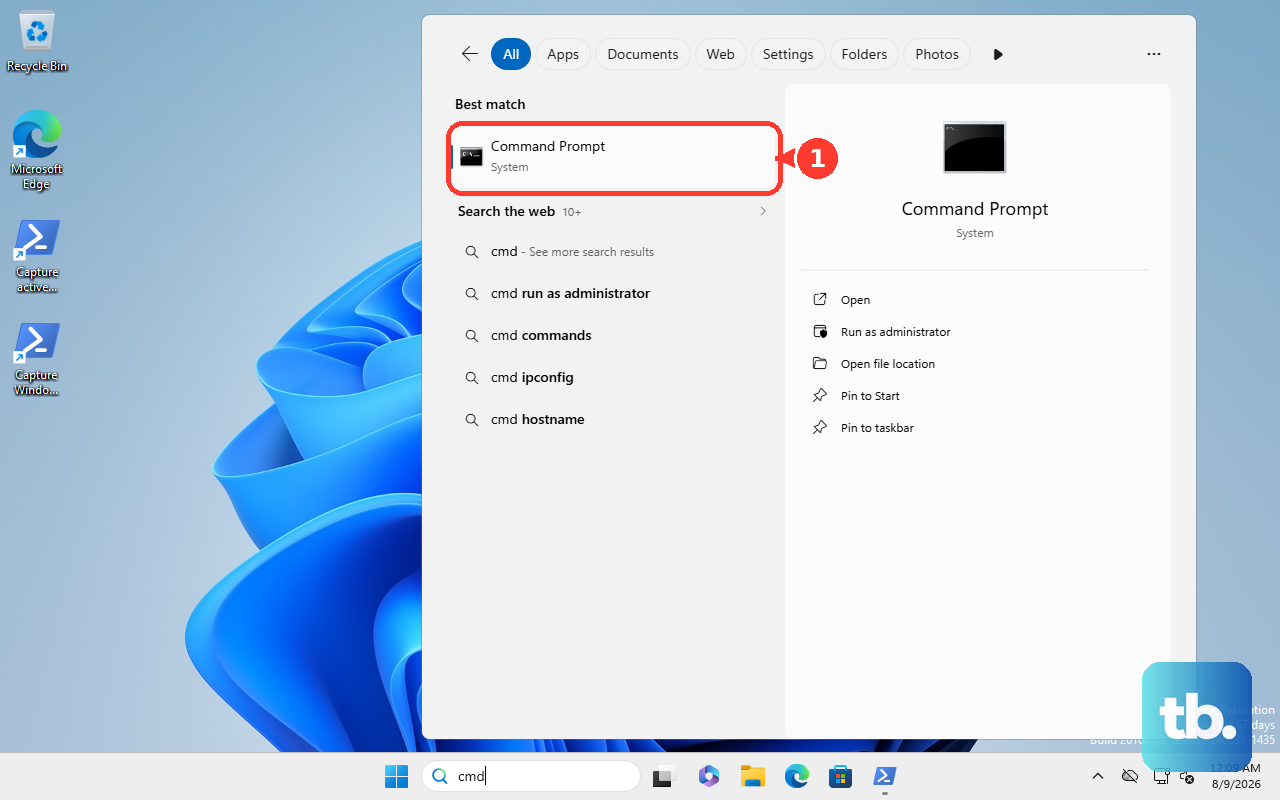
For deeper Windows clues, open Command Prompt as administrator, run netsh wlan show wlanreport, then open the generated HTML report and inspect the Wi-Fi errors.
5. Reset Network Settings
Use this when the device sees the network but will not connect, connects with no internet, or keeps falling back to Ethernet or cellular.
Windows 11: Go to Settings > Network & internet > Advanced network settings > Network reset, select Reset now, choose Yes, then wait for the PC to restart.
Mac: Go to Apple menu > System Settings > Network, select the Wi-Fi connection, open Details > TCP/IP, then renew the DHCP lease. If the IPv4 setting was changed, set Configure IPv4 to Using DHCP.
iPhone or iPad: Go to Settings > General > Transfer or Reset iPhone or Transfer or Reset iPad > Reset > Reset Network Settings. This removes previously used networks and VPN settings not installed by a configuration profile or MDM.
Android or Pixel: Go to Settings > System > Reset options > Reset Bluetooth & Wi-Fi, then tap Reset settings. On Windows, you can also reset the network stack from an elevated command window. Search for command prompt, select Run as administrator, choose Yes, then run these commands in order: netsh winsock reset, netsh int ip reset, ipconfig /release, ipconfig /renew, and ipconfig /flushdns.
Restart the PC after the commands finish.
6. Update Drivers and System Software
On Windows, update the Wi-Fi adapter driver through Windows Update first: open Start > Settings > Windows Update > Advanced options > Optional updates > Driver updates, select an available Wi-Fi or network driver, then choose Download & install. If Wi-Fi still fails on Windows, right-click Start, open Device Manager, expand Network adapters, right-click the Wi-Fi adapter, then choose Update driver.
To reinstall the adapter, choose Uninstall device, confirm the uninstall, and restart the PC. Mac: Use Ethernet or another working network, then go to Apple menu > System Settings > General > Software Update.
iPhone or iPad: Go to Settings > General > Software Update > Download and Install. Android: Go to Settings > System > Software updates or Software update, then follow the onscreen instructions.
Chromebook: Go to Settings > About ChromeOS > Check for updates and restart when prompted.
7. Check Router Settings That Block Wi-Fi
Update the router firmware from the official app or web interface for your exact model. On NETGEAR routers, open the Nighthawk app, tap the router image, then go to Router Settings > CHECK FOR UPDATES > UPDATE.
On NETGEAR's web interface, go to ADVANCED > Administration or Settings > Administration, open Firmware Update or Router Update, select Check, then choose Yes or Upgrade. Verify the router security mode, DHCP settings, Wi-Fi bands, compatibility settings, and router firmware.
Restart the device and router after router changes, then forget and rejoin the Wi-Fi network. On ASUS routers, check MAC filtering.
On firmware 3.0.0.6.102_35404 or later, go to Network > Main network profile and open the MAC Filter list; on older firmware, go to Advanced Settings > Wireless > Wireless MAC Filter. Set Enable MAC Filter to the correct mode, remove the wrongly blocked device, or add the correct device MAC, then select Apply.
On Android 10 and later, randomized MAC addresses break old router allowlists. Open the phone's Wi-Fi network settings, check the Randomized MAC address, then update the router allowlist or change the router policy.
For Google Nest Wifi, Nest Wifi, and migrated Google Wifi networks, open the Google Home app and go to Wifi > Network settings. When every wireless device struggles and Ethernet still works, check the router's Wi-Fi configuration. Use official router support pages for firmware and manuals. Do not download router firmware from third-party sites.
8. Rule Out Login Pages and Hardware Failure
Public Wi-Fi often connects first, then blocks internet access until you finish the sign-in page. iPhone or iPad: Open Settings > Wi-Fi, tap the network name, and wait for the login screen.
If it does not appear, tap More Info > Join Network, then enter the requested username, password, email, or terms acceptance. Chromebook: Join the network and browse to a website beginning with http://.
If the page does not appear, open a private window with Ctrl + Shift + n, or turn off Chrome extensions. For work, school, or managed devices, contact the administrator and ask them to check the Wi-Fi profile, VPN, proxy, captive portal, required hostnames, ports, and device policy.
When one Mac still refuses Wi-Fi after the software fixes, run Apple Diagnostics. If it reports that the Wi-Fi card is not working properly, contact Apple or an Apple Authorized Service Provider.
On Chromebook, run a hardware reset: turn off the Chromebook, press and hold Refresh, tap Power, and release Refresh when the Chromebook starts. On ChromeOS tablets, press and hold Volume Up + Power for at least 10 seconds, then release.
Frequently Asked Questions
Why does Ethernet work but Wi-Fi does not?
Ethernet uses a cable. Wi-Fi depends on the wireless radio, saved network profile, router Wi-Fi settings, device network software, and sometimes a login page. The internet connection can work over Ethernet while Wi-Fi fails.
Should I reset my router or my device first?
Restart the router and modem first when multiple devices have Wi-Fi trouble. Reset the device network settings first when only one phone, computer, tablet, or Chromebook cannot connect.
Will resetting network settings delete my files?
No. Network resets affect saved networks and related connection settings. On iPhone and iPad, Reset Network Settings removes previously used networks and VPN settings not installed by a configuration profile or MDM.
What should I do if Wi-Fi works at home but not at a hotel or campus?
Complete the captive portal sign-in. Join the network, open the login page when prompted, and enter the required username, password, email, or terms acceptance.