
You tap the call button in WhatsApp, and the call fails, rings silently, opens with no sound, or shows a frozen camera. Most WhatsApp call problems come from connection trouble, blocked microphone or camera access, muted notifications, a proxy connection, or a desktop device setting. Work through the fixes below in order, starting with the fast resets before moving to permissions, ringing, audio, desktop, and last-resort repairs.
1. Restart WhatsApp before changing settings
Start with the reset that changes nothing on your account and does not delete chats.
- 1.Close WhatsApp completely.
- 2.Restart the phone.
- 3.Open WhatsApp again.
- 4.Place a test call.
On iPhone X and later, go to the Home Screen, swipe up from the bottom, pause in the middle of the screen, find WhatsApp, then swipe up on the app preview.
On iPhone SE, iPhone 8, and earlier, double-click the Home button, then swipe up on WhatsApp.
On Android, open Settings > Apps > WhatsApp > Force stop, then reopen WhatsApp.
2. Switch the connection and clear data limits
A WhatsApp call needs a strong Wi-Fi or mobile data connection. Test both paths before changing app-level settings.
Turn Wi-Fi off, turn Mobile data on, then place a WhatsApp call.
Turn Mobile data off, turn Wi-Fi on, then place the call again.
On Android, open Settings > Network & internet or Connections > Mobile data or Cellular data, then turn Mobile data on.
Then open Settings > Network & internet or Connections > Airplane Mode or Flight mode, turn it on, wait about 10 seconds, then turn it off.
On Android, remove the Data Saver block next.
Open Settings > Network & internet > Data Saver > Unrestricted data, then turn on access for WhatsApp.
Some Android skins, like Samsung, use a different path.
You can also turn Data Saver off.
3. Give WhatsApp the microphone and camera
If the call connects but your voice does not go through, fix microphone access. If video opens black or the camera does not start, fix camera access.
For the Android microphone, open Settings > Apps > WhatsApp > Permissions > Microphone > Allow.
Tap See all apps first when WhatsApp is not listed.
For the Android camera, open Settings > Apps > All apps > WhatsApp > Permissions > Camera > Allow only while using the app.
For the iPhone microphone, open Settings > Privacy & Security > Microphone, then turn on WhatsApp.
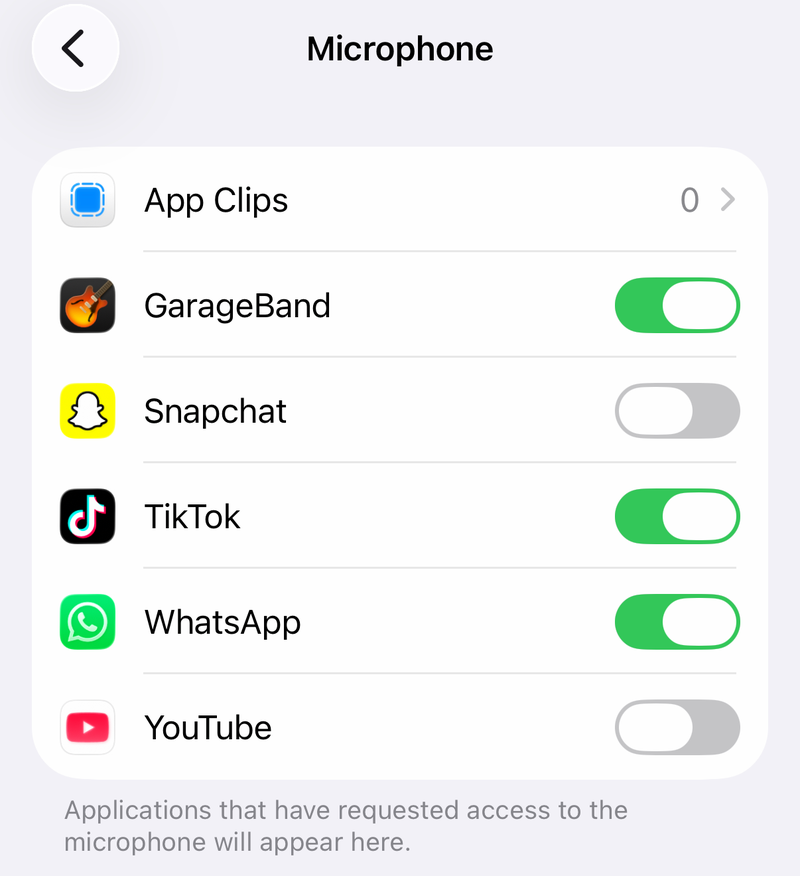
For the iPhone camera, open Settings > Privacy & Security > Camera, then turn on WhatsApp.
When an iPhone microphone or camera toggle is missing or greyed out, open Settings > Screen Time > Content & Privacy Restrictions > Privacy > Microphone or Camera, allow changes, then return to Privacy & Security and enable WhatsApp.
4. Restore ringing for incoming calls
Silent incoming calls usually come from notification settings, Focus, WhatsApp call privacy, or a missing Android ringtone.
On Android, open Settings > Notifications > App notifications > WhatsApp > Call notifications, then turn Show notifications on.
To set a ringtone, open WhatsApp > Settings > Notifications > Ringtone, choose a ringtone, then tap Save or Apply.
On iPhone, allow WhatsApp through the active Focus.
Open Settings > Focus, choose Do Not Disturb, Personal, Sleep, or Work, then open Apps or Choose Apps > Allow Notifications From > Add Apps and select WhatsApp.
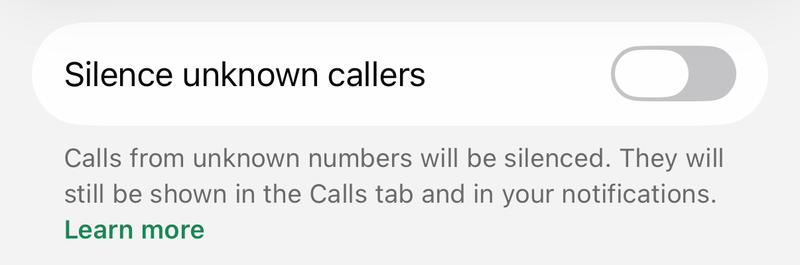
For calls from numbers outside your contacts, turn off WhatsApp call silencing.
On Android, open WhatsApp > More options > Settings > Privacy > Calls, then turn Silence unknown callers off.
On iPhone, open WhatsApp > Settings > Privacy > Calls, then turn Silence Unknown Callers off.
If notification changes created the problem, reset them inside WhatsApp.
On Android, open WhatsApp > More options > Settings > Notifications > More options > Reset notification settings.
On iPhone, open WhatsApp > Settings > Notifications > Reset notification settings > Reset.
5. Fix low sound and frozen video
Press the phone volume buttons and turn up speaker volume.
Check that the phone is not on Silent, Vibrate, or vibrate-only mode.
Check Bluetooth headphones, speakers, and car audio, then disconnect them or switch the audio output.
Check the phone proximity sensor area when audio cuts out near your face.
End the WhatsApp call, then start it again.
During a video call, turn the camera off and on again.
During a voice or video call, turn mute off and on again.
On mobile, test WhatsApp's call data setting after the basic audio checks.
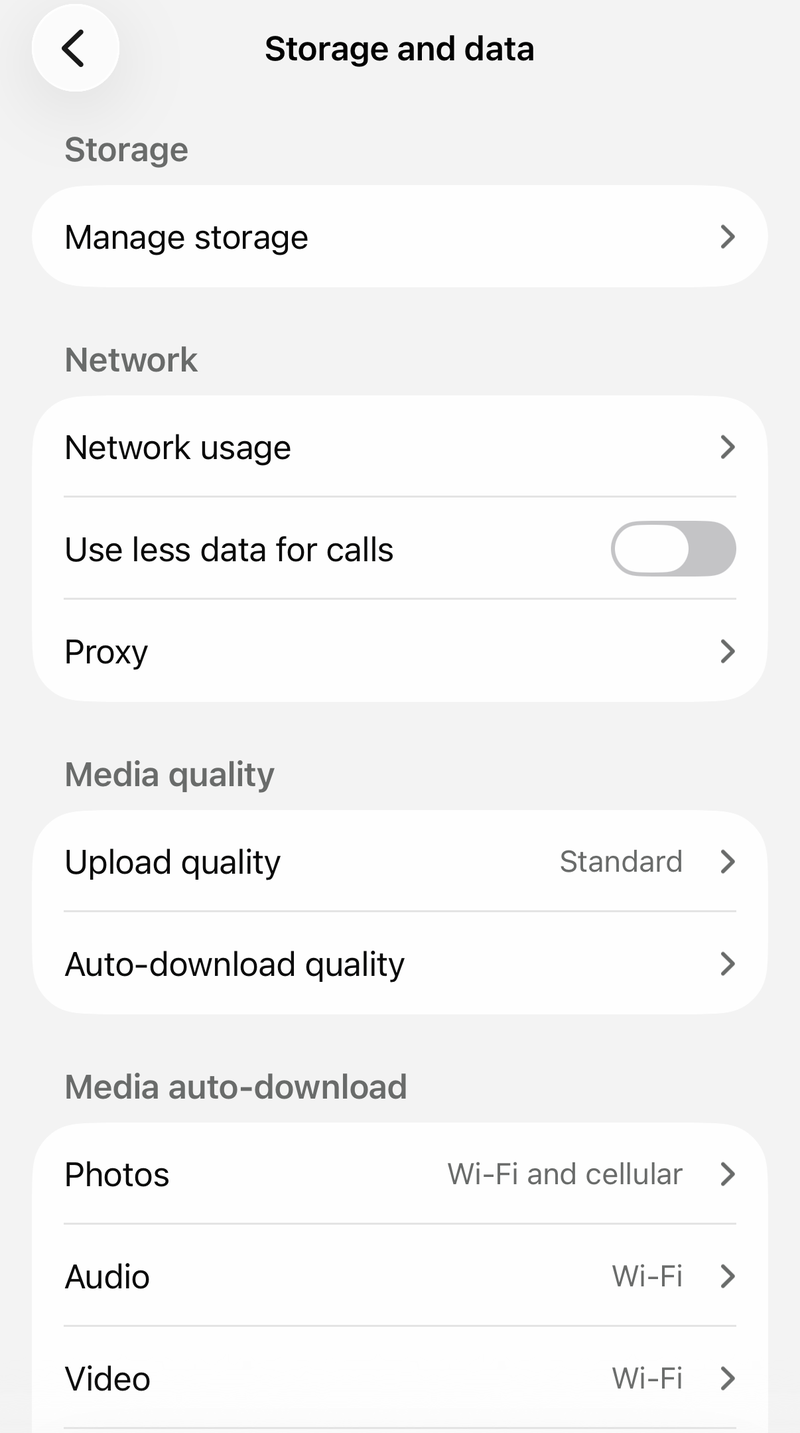
Open WhatsApp > Settings > Storage and data > Use less data for calls, turn it on, place a call, then turn it off and test again.
Use Wi-Fi for the best call quality.
6. Update WhatsApp and check support
Update the app before reinstalling it.
On Android, open Google Play Store, search for WhatsApp Messenger, then tap Update.
On iPhone, open Apple App Store, search for WhatsApp Messenger, then tap Update.
WhatsApp currently supports Android OS 5.0 and newer, and iPhone iOS 15.1 and newer.
Starting September 8, 2026, WhatsApp requires Android 6 and newer.
Starting November 30, 2026, WhatsApp requires iOS 15.5 and newer on iPhone.
If the phone is below the supported version, update the operating system or move WhatsApp to a supported phone.
When update and permission fixes do not restore calls, back up chats first, then uninstall WhatsApp.
On Android or iPhone, reinstall WhatsApp from Google Play Store or Apple App Store, verify your phone number, then tap Restore when prompted to restore a backup.
On Windows, Mac, or Web, reinstall or reopen WhatsApp from the Microsoft Store or WhatsApp's official download page, then link it from your primary phone with Linked devices.
7. Repair WhatsApp Web and desktop calling
Desktop calls need permission from the operating system, the browser or desktop app, and WhatsApp's own call settings.
On Windows, open Start > Settings > Privacy & security > Microphone, then turn on Microphone access, Let apps access your microphone, and the WhatsApp toggle when shown.
Repeat under Camera and turn on Camera access and Let apps access your camera.
For desktop apps, also enable Let desktop apps access your microphone or Let desktop apps access your camera when shown.
On Mac, open Apple menu > System Settings > Privacy & Security > Camera, then turn on WhatsApp or the browser.
Repeat under Microphone.
In Chrome, open web.whatsapp.com.
When prompted, allow Camera and Microphone.
To change it later, open Chrome > Settings > Privacy and security > Site settings > Camera or Microphone, then allow web.whatsapp.com.
During a WhatsApp Web or desktop call, click More and open microphone and video settings, then choose the correct microphone, camera, and audio device.
Close other apps and browser tabs that use the camera, microphone, or audio device, then restart the WhatsApp call.
For WhatsApp Web connection trouble, refresh web.whatsapp.com, clear the browser cache and cookies, then open web.whatsapp.com again.
If the linked session is broken, use your primary phone to open Linked devices.
On Android tap More options > Linked devices; on iPhone open Settings > Linked devices.
Then tap the linked device > Log out, and link it again with Linked devices > Link a device.
8. Remove proxy and managed-device blocks
WhatsApp calling does not work through a WhatsApp proxy server.
Open WhatsApp > Settings > Storage and data > Proxy, then turn off Proxy or remove the proxy host.
Place the call again on a normal internet connection.
On a school or work device, camera and microphone settings can be locked by the organization.
On Windows, open Start > Settings > Privacy & security > Camera or Microphone and check for organization-managed settings.
If the setting is managed, the device administrator must change the Windows privacy policy, MDM policy, or Intune policy.
Managed Android, iPhone, and iPad devices can also block camera or microphone access.
9. Reset the network and contact support
Use a network reset after the connection, permission, notification, update, and proxy checks are finished.
On iPhone, open Settings > General > Transfer or Reset iPhone > Reset > Reset Network Settings.
On many Android phones, open Settings > System > Reset options, then choose Reset network settings if your phone has a single combined option.
On Pixel and current Android the reset is split: use Reset mobile network settings for cellular issues, or Reset Bluetooth & Wi-Fi for Wi-Fi issues.
Rejoin Wi-Fi afterward if a Wi-Fi reset removed your saved networks.
On Android, clear only the cache before resetting app storage.
Open Settings > Apps > WhatsApp > Storage & cache > Clear cache.
Use Clear storage or Clear data only after backing up chats, because it resets WhatsApp and requires setup again.
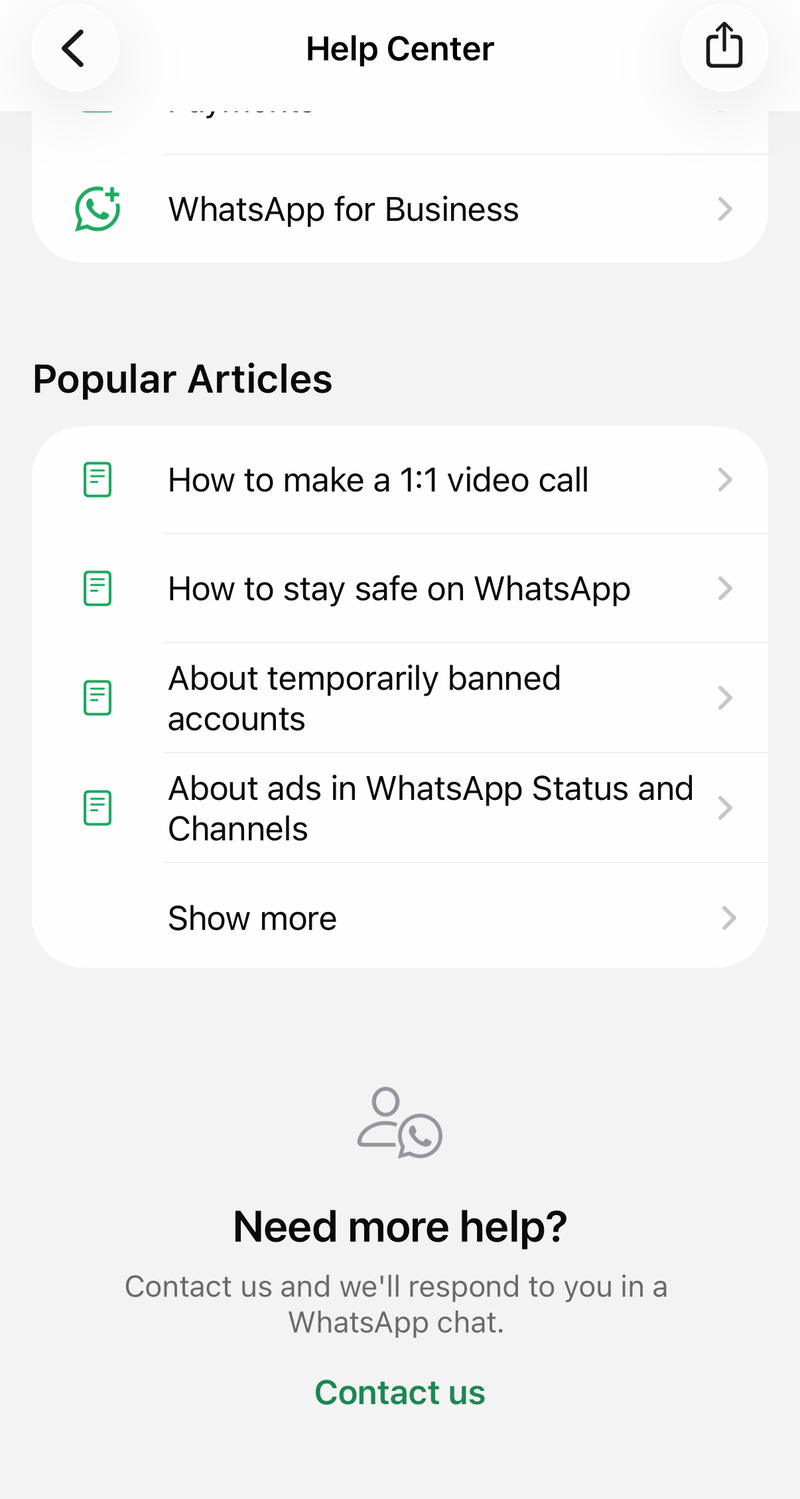
If the problem is tied to your account or device, contact WhatsApp from the app.
On Android, open WhatsApp > More options > Settings > Help and feedback > Help Center > Contact Us.
On iPhone, open WhatsApp > You > Help and feedback > Help Center, then tap Contact us at the bottom.
Frequently Asked Questions
Why does WhatsApp say calling is unavailable while I use a proxy?
WhatsApp calling is not supported through a proxy server. Turn off Proxy in WhatsApp Storage and data settings, then place the call again on a normal internet connection.
Why is the WhatsApp microphone or camera toggle missing on iPhone?
Screen Time privacy restrictions can block changes to microphone or camera access. Open Settings, Screen Time, Content & Privacy Restrictions, Privacy, then allow changes for Microphone or Camera before enabling WhatsApp in Privacy & Security.
What should I do when WhatsApp Web uses the wrong microphone?
During the WhatsApp Web or desktop call, click More, open microphone and video settings, then choose the correct microphone, camera, and audio output device.
Does WhatsApp still support my phone for calls?
WhatsApp supports Android OS 5.0 and newer and iPhone iOS 15.1 and newer. Starting September 8, 2026, Android 6 and newer is required. Starting November 30, 2026, iOS 15.5 and newer is required on iPhone.