Steam Link audio not working turns a clean game stream into silent gameplay, crackling sound, or audio that drops in and out. Start with the settings that control the Steam Link client, the host PC output device, Windows app routing, and the stream itself. Work through these fixes in order, from the fastest checks to the deeper resets.
Start with both devices
Open Valve's Remote Play page or your device's official app store, then install or update the official Steam Link app.
On the host computer, sign in to Steam and leave Steam running.
On the Steam Link device, open Steam Link, choose Connect or Start Playing, and select the computer running Steam.
Raise the volume on the TV, receiver, headset, keyboard volume keys, taskbar speaker control, and accessory volume control.
On Steam Deck, disconnect Bluetooth, USB-C, and 3.5mm audio devices, then open Steam, choose Settings, select Audio, switch to a different output, and switch back to the intended output.
Keep the stream active while testing so each volume or output change gives you a clear result.
Enable audio streaming
When the Steam Link menu has sound but the streamed game or desktop is silent, turn on the Steam Link audio streaming option. From the Steam Link main menu, open Settings, choose Streaming, press Y for Advanced Options, open Audio Streaming, and set it to Enabled.
Reconnect to the host PC and start the game again.
If this method fails, check the host PC output settings next because Steam is sending sound through the wrong Windows playback device.
Fix the Windows output device
The most common PC-side cause is Windows sending Steam or the game to the wrong playback device.
On the host PC, open Start, go to Settings, choose System, open Sound, and select the correct device under Output.
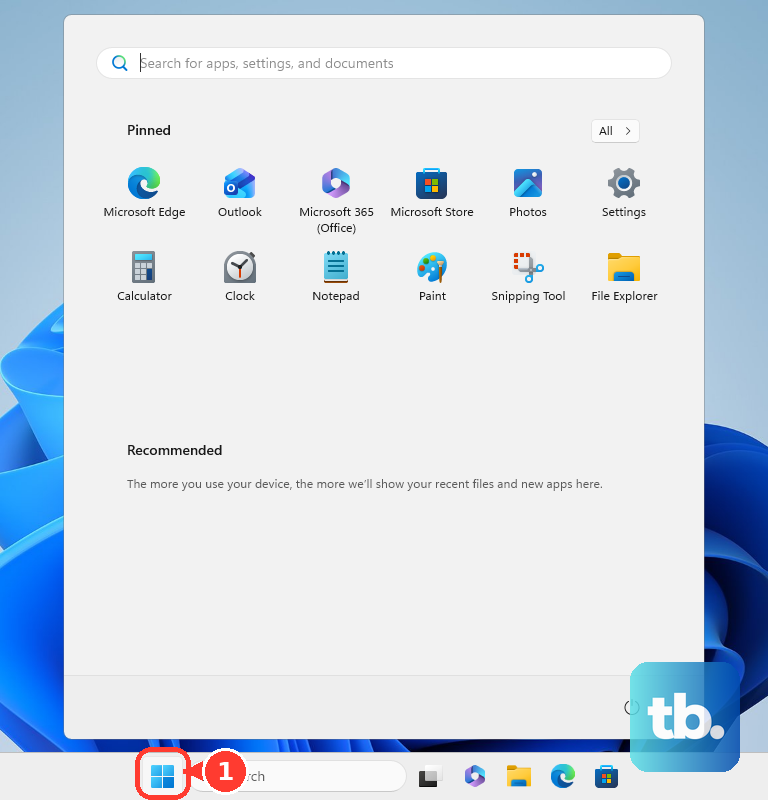
Make sure the output volume is not muted and the slider is turned up.
For the Control Panel route Valve documents, press the Windows key, type sound, open Sound in Control Panel, choose the Playback tab, right-click the inactive audio device you need, and choose Set as default device.
Return to Steam Link and reconnect so the stream uses the corrected route.
Check the app volume mixer
System sound can work while Steam or the game stays muted. On the host PC, open Start, choose Settings, open System, select Sound, and choose Volume mixer.
Under Apps, find Steam or the affected game. Confirm it is not muted, raise the volume slider, and select the correct Output device.
Restart the game stream. The next session uses the corrected app output.
Restore missing audio devices
Use this when the output device you need is missing, disabled, or Steam Link audio stopped routing correctly after working before.
Open Start, type Device Manager, select Device Manager, and expand Sound, video and game controllers.
Right-click the audio device and choose Enable device when that option appears.
If the device is still missing, open View, choose Show hidden devices, then open Action and choose Scan for hardware changes.
When routing still feels stuck, open Start, type services.msc, press Enter, right-click Windows Audio, choose Restart, then restart Windows Audio Endpoint Builder.
Clean up crackling sound
Crackling, distorted, or silent Steam Link audio can come from the Windows default format or extra audio processing. On the host PC, open Start, choose Settings, open System, choose Sound, select your output device, open Advanced, and change Default format.
Test 44100Hz and 48000Hz for Steam Link. Then return to the same output device page and set Audio enhancements to Off.
If this method fails, reduce the streaming load next because the stream is under bandwidth or encoding pressure.
Reduce streaming strain
Audio gaps, delayed sound, and dropouts come from network or encoder overload. In the Steam Link main menu, open Settings, choose Streaming, and select Fast.
On a Steam desktop Remote Play client, open Steam, choose Settings, select Remote Play, open Advanced Client Options, choose Video Quality, and select Fast.
Lower the bandwidth limit from Settings and Streaming, press Y for Advanced Client Options, and adjust Bandwidth Limit. On the desktop client, use Steam, Settings, Remote Play, Advanced Client Options, and Limit bandwidth or Bandwidth Limit.
On the host PC, open Steam, choose Settings, select Remote Play, open Advanced Host Options, and enable Prioritize Network Traffic. In the same Advanced Host Options area, turn off the hardware encoding options and retest.
Power cycle and remove conflicts
Use this reset pass when the settings look right and Steam Link audio still fails.
- 1.Turn the TV off, then turn it back on without disconnecting Steam Link or stopping the stream.
- 2.Disconnect USB and Bluetooth headsets from the Steam Link device and host PC, then retest audio.
- 3.Unplug the Steam Link power cable, wait 3 seconds, plug it back in, and give it about 30 seconds to restart.
- 4.Restart or power cycle the host computer.
- 5.Unplug each router, modem, powerline adapter, or similar network device, wait 30 seconds, plug it back in, and allow about 60 seconds to restart.
- 6.Quit MSI Afterburner, RivaTuner Statistics, Razer Synapse, ASUS AI Suite, ZoneAlarm, Skype or Skypehost, MEGASync, Fraps, Netflix or Chromecast streaming, Spotify, BitTorrent, file downloads, and cloud sync.
Update or reinstall Steam Link
The most common app-side cause is a stale or corrupted Steam Link install after the host and audio settings have been ruled out.
On Android or Android TV, open Google Play Store, tap the profile icon, choose Manage apps & device, open Updates available, choose See details, then update Steam Link.
If Android still fails, use Manage apps & devices, choose Manage, open Steam Link, select Uninstall, and reinstall it from Google Play or Valve's Remote Play page.
On iPhone or iPad, open App Store, tap your account button or photo, check App Updates, and update Steam Link.
To reinstall on iPhone or iPad, touch and hold Steam Link, choose Remove App, select Delete App, confirm Delete, then redownload it: open App Store, tap the My Account button or your photo, tap Apps & Purchase History, tap Your Apps, tap Not on this [device], find Steam Link, and tap Redownload.
On Apple TV 4K, highlight Steam Link on the Home Screen, press and hold the clickpad or touch surface, choose Delete App, then choose Delete or Offload, and reinstall it from the App Store.
On a Mac client, restart macOS after Steam updates, reopen Steam or Steam Link, and reconnect.
Valve says Steam Link is no longer available on Samsung TV, so use a supported client such as Android TV, Apple TV, Fire TV, Raspberry Pi, Windows, Linux, macOS, mobile, or Meta Quest instead.
Frequently Asked Questions
Why does the Steam Link menu have sound but my game does not?
That points to Audio Streaming, Windows output routing, the app Volume mixer, or the game's own sound settings. Enable Audio Streaming in Steam Link, then check the host PC output device and Volume mixer.
What sample rate should I use for Steam Link audio?
Test 44100Hz and 48000Hz in the Windows Default format setting when Steam Link audio is distorted, crackling, or silent.
Can network congestion cause Steam Link audio problems?
Yes. Audio gaps, distortion, and desync happen under network or encoding load. Use Fast streaming quality, lower the bandwidth limit, pause heavy downloads or streaming, and power cycle network gear.
Is the Samsung TV Steam Link app still supported?
No. Valve says Steam Link is no longer available on Samsung TV. Use a current Steam Link client such as Android TV, Apple TV, Fire TV, Raspberry Pi, Windows, Linux, macOS, mobile, or Meta Quest.