

Spotify Web Player loads in your browser, so one blocked setting or stale site file can stop music before it starts. Start with the fastest checks below, then move into protected content, network, sound, and account fixes until playback works again.
1. Start From the Official Web Player
Begin with the cleanest entry point: Spotify’s official Web Player.
Go to https://open.spotify.com/.
Sign in and play any track or playlist.
Use a supported desktop browser: Chrome, Firefox, Edge, Opera, or Safari.
On Android, use Chrome 87 or later, Samsung Internet 17 or later, or Firefox 115 or later, on Android OS 6.0 or higher.
On iPhone or iPad, use Chrome 87 or later or Safari 15 or later.
Old bookmarks and search redirects add noise when you are trying to fix a browser player. Spotify lists desktop browser support for versions updated within the last 30 months.
2. Update the Browser Then Go Private
For Chrome, open More > Help > About Google Chrome, or click Relaunch to Update when Chrome shows an update.
For Firefox, open Menu > Settings > General > Firefox Updates, or open About Firefox.
For Edge, open Settings and more > Help and feedback > About Microsoft Edge.
Spotify’s Web Player help says to keep the browser up to date. After updating, test Spotify in a private window to separate browser profile problems from Spotify problems: New Incognito window in Chrome, New private window in Firefox, New InPrivate window in Edge, File > New Private Window in Safari on Mac, or Safari > More > New Private Tab on iPhone.
3. Clear Spotify Site Data
When Spotify works in a private window but breaks in a normal tab, clear the site data. That removes bad cookies and cached files without turning the fix into guesswork.
For Chrome all browsing data, open More > Delete browsing data, choose a Time range, select cached and cookie data, then click Delete data.
For Chrome Spotify-only data, open More > Settings > Privacy and security > Third-party cookies > See all site data and permissions, search for Spotify or open.spotify.com, then click Delete > Delete.
In Edge, open Settings and more > Settings > Privacy, search, and services > Clear browsing data > Choose what to clear, select Cookies and other site data and Cached images and files, then click Clear now.
On Safari on Mac, open Safari > Settings > Privacy > Manage Website Data, select Spotify website data, then click Remove.
On Safari on iPhone or iPad, open Settings > Apps > Safari > Advanced > Website Data > Remove All Website Data > Remove Now.
4. Turn Off Blocking Extensions
Open the extensions screen for your browser.
Turn off the extension most likely to block Spotify.
Reload https://open.spotify.com/ and test playback.
Repeat until you find the extension causing the failure.
Extensions that block ads, scripts, cookies, protected content, or playback controls break the Web Player in a normal browser profile. Use More > Extensions > Manage extensions in Chrome, the Extensions icon > Manage Extensions in Edge, Add-ons and themes > Extensions in Firefox, Safari > Settings > Extensions on Mac, or Settings > Apps > Safari > Extensions on iPhone.
5. Allow Protected Content Playback
A protected-content message points straight at DRM settings. Use the current browser labels below; old Chrome instructions that mention a Play DRM Content checkbox are outdated.
In Chrome, enter chrome://settings/content in the address bar, open open.spotify.com, scroll to Protected content IDs, then choose Allow or Default.
In Firefox, click Enable DRM on the yellow warning bar. You can also open Menu > Settings > General or Tabs and browsing, find Digital Rights Management DRM Content or Media, and check Play DRM-controlled content.
In Edge, open Settings and more > Settings > Site permissions > All permissions > Protected content IDs, then enable protected content playback.
On Windows N editions, install Microsoft’s media components. In Windows 11 N, open Start > Settings > Apps > Optional features > View features, select Media Feature Pack, and install it. In Windows 10 N, open Start > Settings > Apps > Apps & features > Optional features > Add a feature, select Media Feature Pack, and install it.
6. Fix the Connection and Device Basics
Open your device settings and switch Wi-Fi off.
Wait 30 seconds, then switch Wi-Fi on again.
Restart your home router using the router maker’s instructions.
Try Spotify Web Player on another Wi-Fi network or cellular data.
On school, work, office, hotel, public, or shared Wi-Fi, ask the network owner or IT department whether Spotify is restricted.
For a player that stalls, loads slowly, or acts offline, test the connection before changing account settings. Then clear device pressure points: close unused apps and tabs, confirm at least 250MB of available memory, and update the operating system.
On Windows 11, use Start > Settings > Windows Update > Check for updates. On Windows 10, use Start > Settings > Update & Security > Windows Update > Check for updates. On Mac, use Apple menu > System Settings > General > Software Update. On Android, use Settings > System > Software updates.
7. Pull Playback Back to This Device
Sometimes Spotify is working, but the sound is going somewhere else.
Open your device sound settings and select the right output, such as laptop speakers or headphones.
Raise media volume with the computer or phone volume controls.
In Spotify, click the Connect device icon at the bottom of the screen.
Select the browser or device you want to hear.
For an unfamiliar device, open the device list, click the three dots next to that device, then choose Log out of this device.
In the Web Player, Spotify Connect works with devices already logged in, plus Google Cast devices on the current network when you use Chrome.
8. Refresh the Account or Use the App
In Spotify Web Player, click your profile picture at the top.
Click Log out.
Sign in again and test playback.
For unknown devices or repeated session problems, open your Spotify account page and click Sign out everywhere.
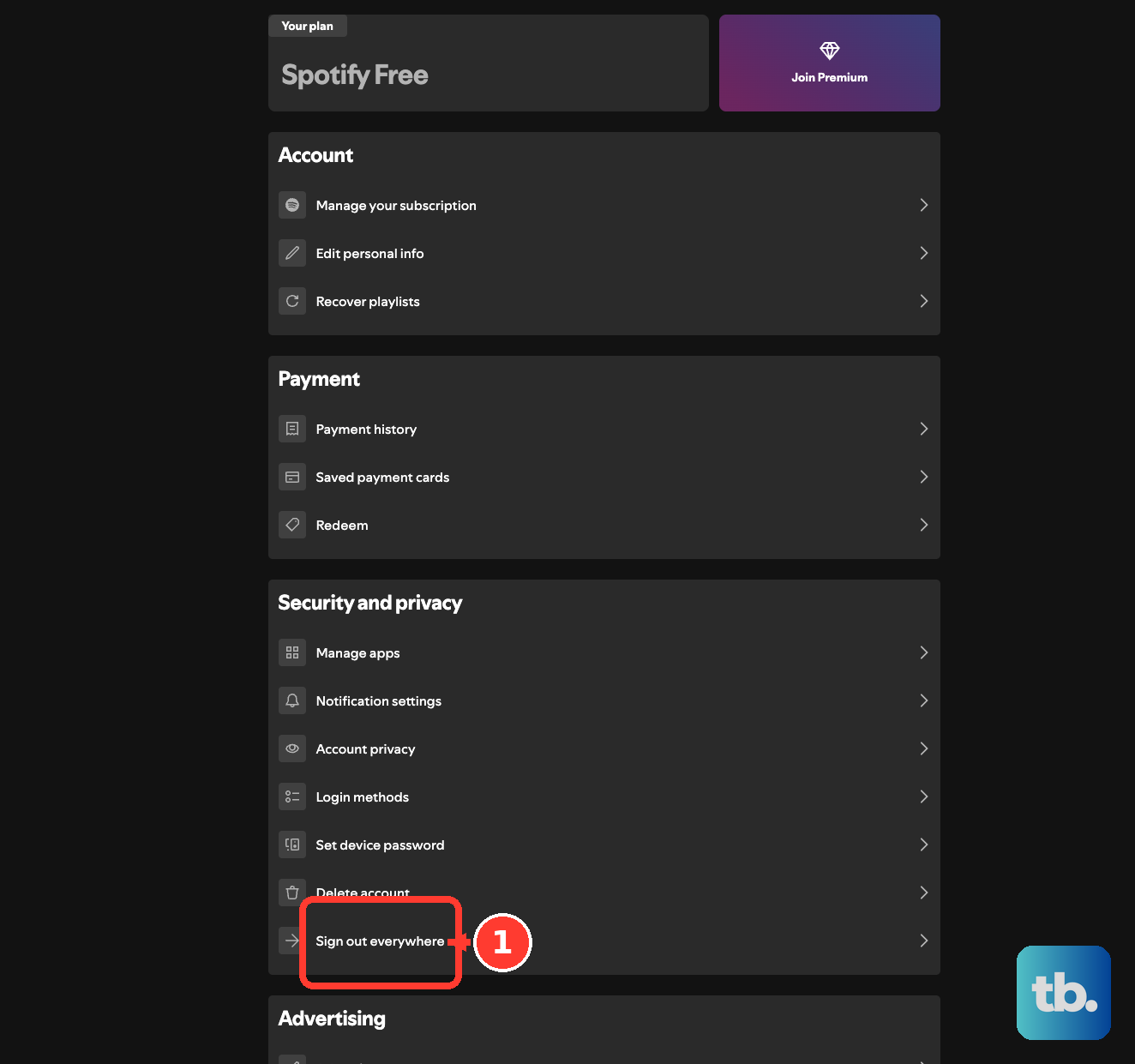
Reset your Spotify password when account access looks suspicious.
A bad session or account conflict makes the player open without behaving normally. Sign out everywhere signs out mobile, tablet, Web Player, and desktop sessions, but not partner devices such as speakers, game consoles, and TVs.
For outages, check Spotify Support’s Ongoing Issues page and @SpotifyStatus. When Web Player still fails after these fixes, install Spotify from the official Spotify download page instead of a third-party download site.
Skip old fixes that tell you to install Adobe Flash or avoid Safari. Current Spotify help points to supported browsers and protected content settings, and Spotify currently lists Safari as supported.
Frequently Asked Questions
Why does Spotify Web Player stop working after I travel?
Spotify Free accounts can stop after more than 14 days abroad. Open your account page, choose Edit profile, set Country or region to the country you are in, then save the profile.
Can I use Safari for Spotify Web Player now?
Yes. Spotify currently lists Safari as a supported desktop browser and lists Safari 15 or later as supported on iPhone and iPad.
What should I do when a school or office network blocks Spotify?
Test another Wi-Fi network or cellular data first. When Spotify works there, ask the network owner or IT department whether Spotify services are restricted.
Is Adobe Flash needed for Spotify Web Player?
No. Current Spotify Web Player help uses supported browsers and protected content settings. Adobe Flash Player is discontinued and unsupported.