When your Android phone refuses to pair, drops the connection, or pairs but plays no sound, Bluetooth quickly goes from invisible convenience to daily annoyance. The good news is that almost every Bluetooth problem on Android is software related and fixable in a few minutes.
This guide walks through 15 fixes ordered from the fastest and most common to the more advanced. We include exact menu paths for both stock Android phones like Google Pixel and Samsung Galaxy phones running One UI, since the wording differs between them.
Work through the list in order and stop as soon as your connection comes back. Most people are fixed within the first five steps.
Quick Symptom and Fix Table
Use this table to jump to the fix that matches what you are seeing. The numbered sections below explain each one in full.
| Symptom | Most likely cause | Quick fix |
|---|---|---|
| Device will not pair at all | Stale connection or device not in pairing mode | Toggle Bluetooth, forget and re-pair (1, 3, 4) |
| Pairs but no sound | Media audio disabled for that device | Turn on Media audio, disable absolute volume (8, 9) |
| Keeps disconnecting in the car | Conflicting saved profiles on both sides | Forget on phone and car, then re-pair (4, 13) |
| Bluetooth will not turn on | Corrupt Bluetooth cache or rogue app | Clear cache, test in Safe Mode (5, 11) |
| Device does not appear in the list | One UI profile filtering or out of range | Put device in pairing mode, move closer (2, 7, 14) |
| Worked before, stopped suddenly | Pending update or corrupt settings | Update software, reset network settings (10, 6) |
Start With These Basics
Before the numbered fixes, confirm a few simple things that account for a surprising number of failed connections.
- Battery: Charge both devices. Many earbuds and trackers refuse to pair when low.
- Range: Keep devices within about 30 feet and in line of sight, away from microwaves and crowded Wi-Fi routers.
- Pairing mode: Make sure the accessory is actually in pairing mode, usually shown by a flashing or color-changing light.
- Companion app: Some hardware needs its own app to pair, such as Galaxy Wearable for Samsung earbuds and watches.
If your phone connects fine to one accessory but not another, the problem is likely the accessory and not your phone. Test with a second device to confirm before going further.
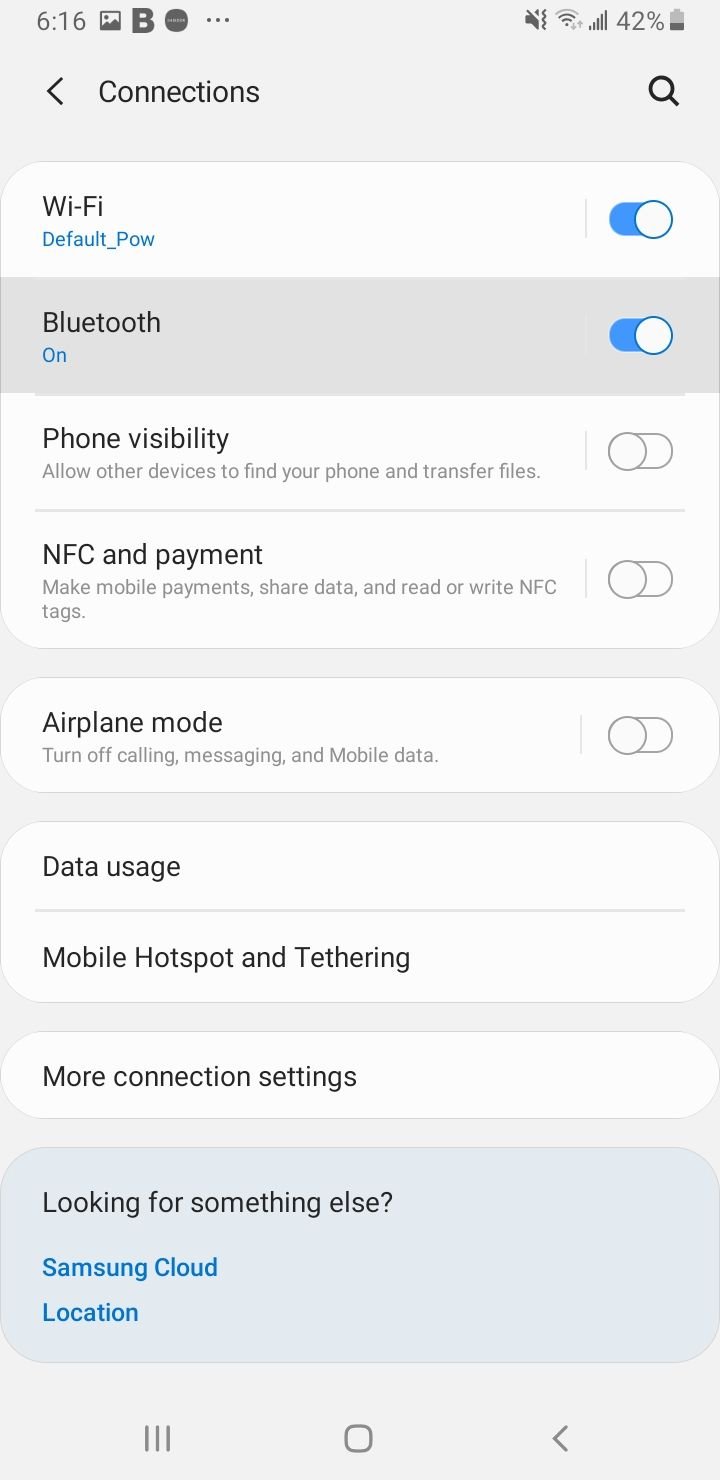
1. Toggle Bluetooth Off and On
The single most effective first step is to turn Bluetooth off and back on. This clears a stuck radio state that causes a lot of failed connections.
Swipe down from the top of the screen to open Quick Settings, tap the Bluetooth tile to turn it off, wait about 10 seconds, then tap it again to turn it back on. Try pairing once more.
2. Cycle Airplane Mode
If a simple toggle does not help, flip Airplane mode on and off. This forces every wireless radio on the phone, including Bluetooth, to fully reset at once.
Open Quick Settings, tap the Airplane mode icon, wait about 15 seconds, then turn it off again. Bluetooth will reconnect on its own, and you can retry the pairing.
3. Restart Both Devices
A full restart clears temporary glitches that toggling cannot. Power your phone off completely, wait a few seconds, then turn it back on.
Do the same with the accessory you are trying to connect, whether that is headphones, a speaker, a watch, or a car system. After both have rebooted, attempt the connection again.
4. Forget the Device and Pair Again
A corrupted saved pairing is one of the most common reasons a device pairs once and then never reconnects. Removing it and starting fresh fixes this cleanly.
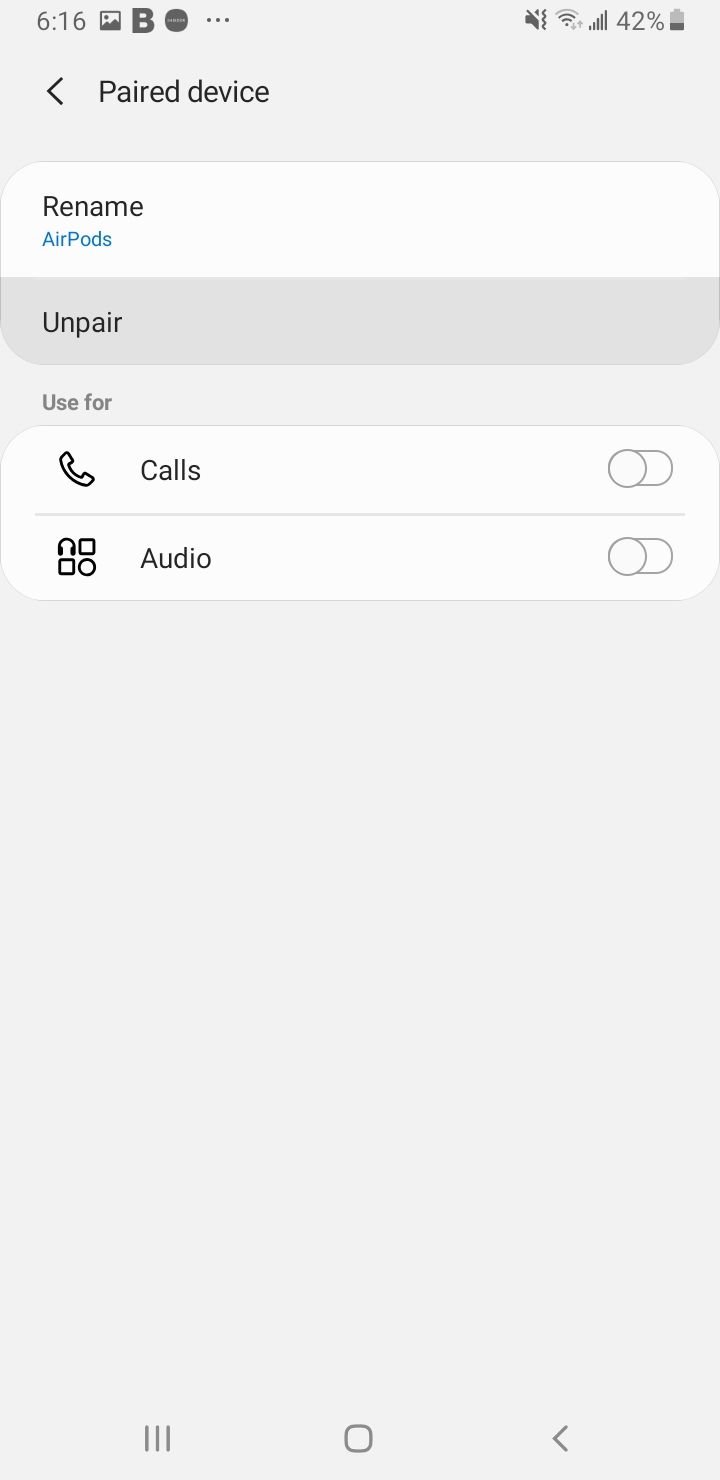
On a Pixel or stock Android phone, go to Settings > Connected devices > Saved devices, tap the gear icon next to the device, then tap Forget and confirm. On a Samsung Galaxy phone, go to Settings > Connections > Bluetooth, tap the gear next to the device, then tap Unpair.
After removing it, restart your phone, put the accessory back in pairing mode, then choose Pair new device and connect it as if for the first time.
5. Clear the Bluetooth Cache
If Bluetooth worked before and recently stopped, or it refuses to turn on, a corrupt cache for the Bluetooth system service is often to blame. Clearing it is harmless and frequently solves the problem.
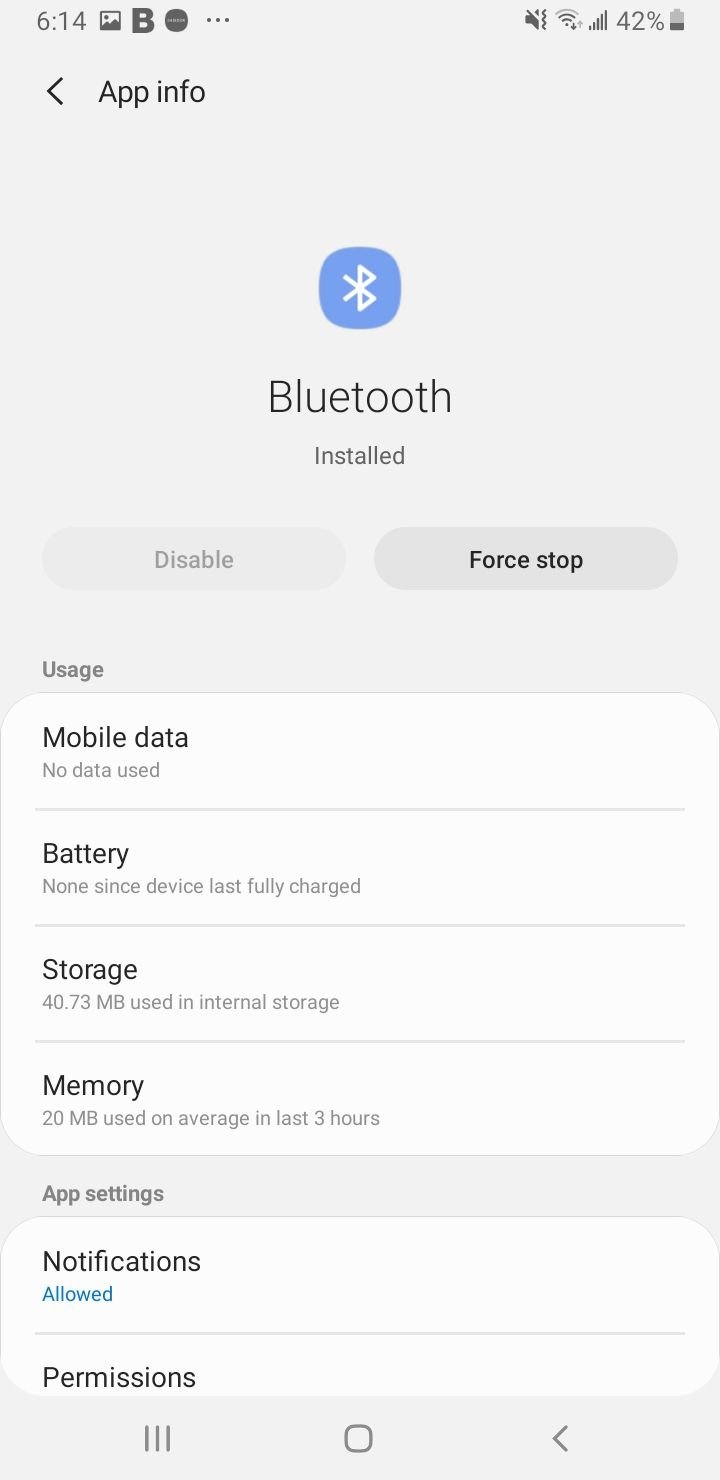
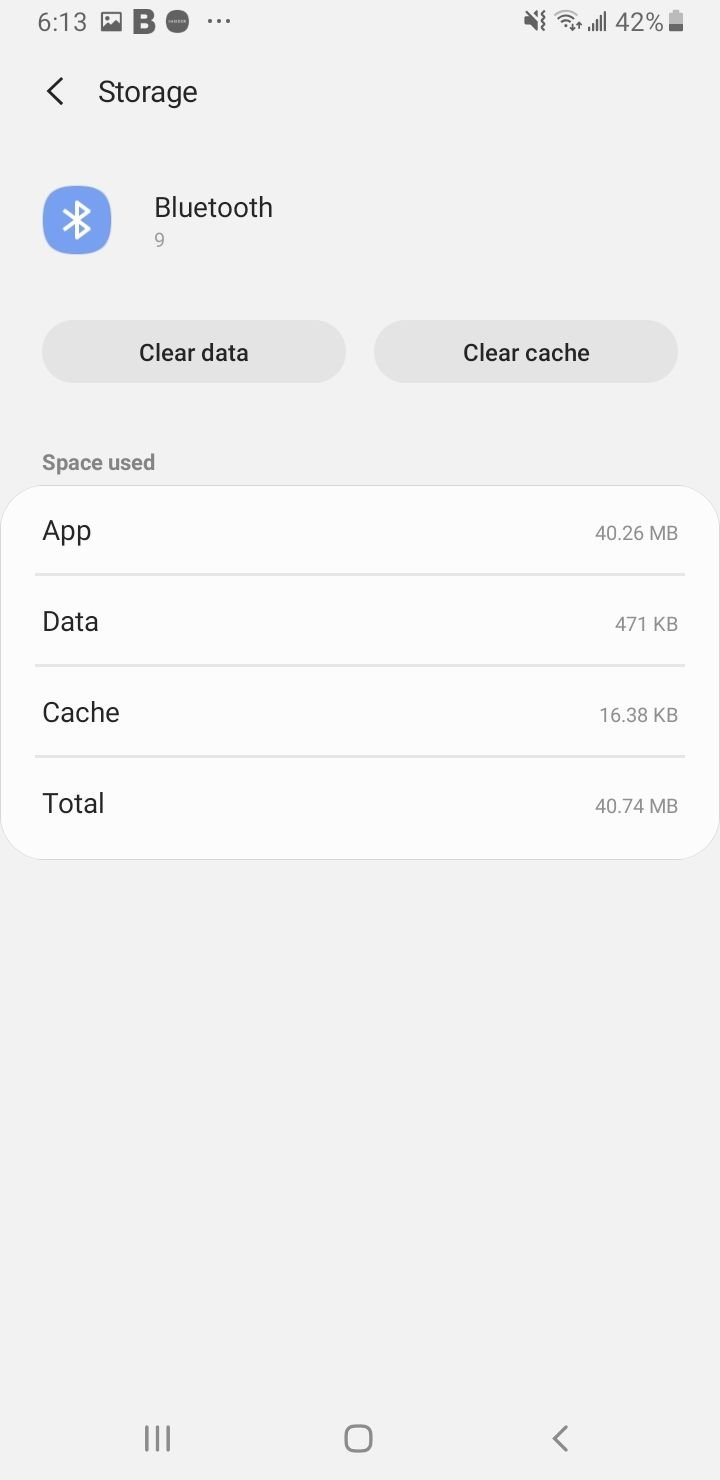
Go to Settings > Apps, tap the menu or sort option, and choose Show system apps (called Show system on some phones). Find and tap Bluetooth, open Storage, then tap Clear cache.
Restart your phone and try pairing again. If the option to clear cache is greyed out or missing, that simply means there is nothing cached to clear, so move on to the next step.
6. Clear Bluetooth Data
If clearing the cache alone did not help, clearing the Bluetooth data resets the service completely. This removes every saved pairing, so you will need to re-pair your devices afterward.
Follow the same path to Settings > Apps > Bluetooth > Storage, but this time tap Clear data or Clear storage and confirm. Restart the phone, then re-pair each accessory from scratch.
7. Make Sure the Device Is Discoverable
Your phone can only connect to an accessory that is actively advertising itself. Most accessories enter pairing mode only for a short window after you hold a dedicated button, so timing matters.
Put the accessory into pairing mode, then immediately open Settings > Connected devices > Pair new device on Pixel, or Settings > Connections > Bluetooth > Scan on Samsung. Select the device from the list as soon as it appears.
On Samsung phones running One UI 7 and One UI 8, the scan list only shows devices that offer a connectable profile, so an accessory that is on but not in pairing mode may not appear. Trigger pairing mode again and rescan if it is missing.
8. Turn On Media Audio for the Device
If a speaker or headphones connect but play no sound, the media audio profile is probably switched off for that device. This is a per-device setting, not a system one.
On Pixel, go to Settings > Connected devices > Saved devices, tap the gear next to the device, and turn on Media audio. If calls are the problem instead, turn on Phone audio in the same place. These per-device audio toggles are available on Android 8.0 and newer.
On a Samsung phone, open the device under Settings > Connections > Bluetooth, turn the Media audio toggle off, wait a moment, then turn it back on to refresh the profile.
9. Disable Absolute Bluetooth Volume
Absolute volume syncs your phone and your headphones to a single volume level. On some hardware this sync causes stuttering, dropouts, or a volume that jumps from far too quiet to far too loud, and turning it off can smooth things out.
First enable Developer options. Go to Settings > About phone (on Samsung, Settings > About phone > Software information) and tap Build number seven times, entering your PIN if asked.
Then open Settings > System > Developer options, scroll to the Networking section, and turn on Disable absolute volume. Reconnect your headphones and test the sound again.
10. Update Android and Accessory Firmware
Outdated software is a frequent cause of new Bluetooth bugs, and many of them are fixed in later patches. Keeping both ends current matters.
On Pixel, check Settings > System > System update. On Samsung, check Settings > Software update > Download and install. Install anything offered and restart.
Also update the accessory itself. Headphones, watches, and speakers usually receive firmware updates through their companion app, and an outdated accessory can break a connection that the phone is handling correctly.
11. Test in Safe Mode
Safe Mode loads Android without any third-party apps, which tells you whether an installed app is interfering with Bluetooth.
On Pixel 6 and later, press and hold the Power and Volume up buttons, then touch and hold Power off until the Safe Mode prompt appears and tap OK. On Samsung, press and hold Power and Volume down to reach the menu, then touch and hold Power off until Safe mode appears.
Try Bluetooth in Safe Mode. If it works there, restart normally and uninstall recently added apps one at a time, especially battery savers, audio tools, or device managers, until the conflict is gone.
12. Reset Wi-Fi and Bluetooth Settings
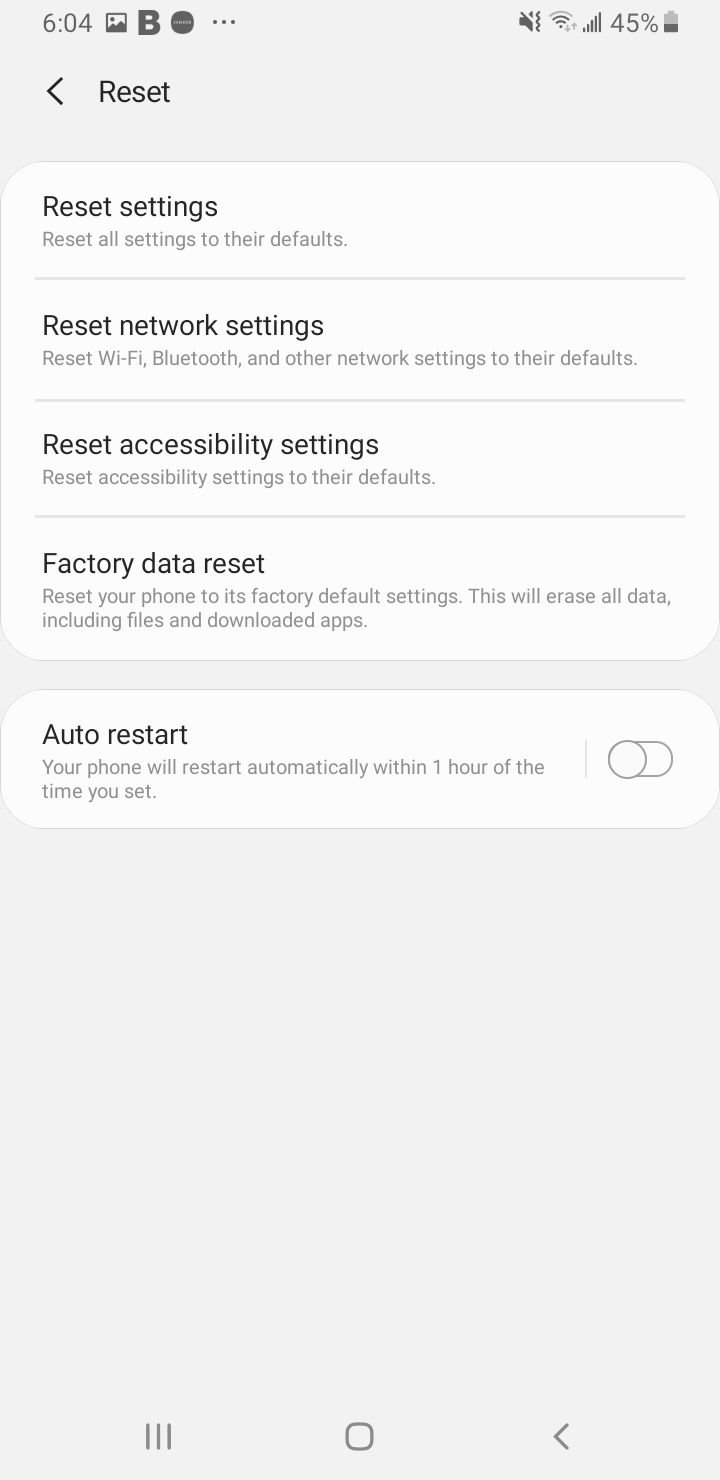
If individual fixes have not worked, resetting all network settings wipes corrupt configurations without touching your apps, photos, or files. You will need to reconnect Wi-Fi and re-pair Bluetooth devices afterward.
On Samsung, go to Settings > General management > Reset > Reset Wi-Fi and Bluetooth settings, then tap Reset settings. On Pixel, go to Settings > System > Reset options > Reset Wi-Fi, mobile & Bluetooth and confirm.
Enter your PIN or pattern if prompted, restart the phone, and pair your devices again from scratch.
13. Fix Car Bluetooth Connection Issues
Car systems are a common pain point because both the phone and the car store their own pairing records, and a mismatch between them causes repeated disconnects.
Delete your phone from the car's paired list using your car's manual, then delete the car from your phone under Settings > Connected devices (Pixel) or Settings > Connections > Bluetooth (Samsung). With both sides cleared, start the pairing fresh and confirm that the PIN shown on your phone matches the one on the car screen.
If your phone asks for permission to access contacts and call history, allow it so hands-free calling works. Older car systems may struggle with newer phones, so check the carmaker site for any infotainment update.
14. Move Closer and Remove Interference
Bluetooth is short range and shares the crowded 2.4 GHz band with Wi-Fi, microwaves, and many other devices. Interference shows up as stutter, dropouts, or a connection that holds only when the phone is very close.
Bring the two devices within a few feet of each other with nothing solid in between, and move away from the router or microwave. Removing a thick case or carrying the phone in a front pocket on the same side as your earbuds can also help with audio that cuts out as you move.
15. Run Bluetooth Diagnostics or Check Hardware
If nothing above works, rule out a hardware fault. On Pixel 6 and later, Google includes a built-in tool at Settings > Connected devices > Bluetooth diagnostics that runs a series of tests and suggests fixes when it finds a problem.
As a last software step, back up your data and perform a factory reset from Settings > System > Reset options > Erase all data on Pixel, or Settings > General management > Reset > Factory data reset on Samsung. Test Bluetooth before restoring your apps.
If Bluetooth still fails after a factory reset, the Bluetooth module is likely faulty. Contact your phone maker for warranty service or visit an authorized repair center.
Frequently Asked Questions
Why won't my Android connect to Bluetooth?
The most common causes are a stuck Bluetooth radio, a corrupted saved pairing, or the accessory not being in pairing mode. Toggle Bluetooth off and on, forget the device and pair it again, and confirm the accessory is discoverable. If it still fails, clear the Bluetooth cache and restart your phone.
Why does my Bluetooth pair but play no sound?
This almost always means the media audio profile is turned off for that device. On Pixel, open the device under Settings > Connected devices > Saved devices and turn on Media audio. On Samsung, toggle the Media audio option off and on for that device. Disabling absolute volume in Developer options can also fix stuttering or muted playback.
How do I clear the Bluetooth cache on Android?
Go to Settings > Apps, choose Show system apps from the menu, then tap Bluetooth and open Storage. Tap Clear cache to remove temporary files, or Clear data to fully reset Bluetooth and all saved pairings. Restart your phone afterward and re-pair your devices.
Why does my Bluetooth keep disconnecting in my car?
Repeated car disconnects usually come from conflicting pairing records stored on both the phone and the car. Delete the phone from the car's list and the car from your phone, then pair fresh and match the PIN shown on both screens. Updating your car's infotainment software helps when an older system meets a newer phone.
Will resetting network settings delete my data?
No. Resetting Wi-Fi and Bluetooth or full network settings does not touch your apps, photos, or files. It only clears saved Wi-Fi networks, Bluetooth pairings, and mobile network preferences, so you will need to reconnect to Wi-Fi and re-pair your Bluetooth devices afterward.
Why won't my Bluetooth device show up on my Samsung phone?
On One UI 7 and One UI 8, the scan list only shows devices that are actively advertising a connectable profile, so an accessory that is powered on but not in pairing mode may not appear. Put the device back into pairing mode, then rescan from Settings > Connections > Bluetooth. Moving closer and removing nearby interference also helps it appear.
First published October 14, 2025. Last updated June 4, 2026.