
You press the right mouse button and the menu never appears, or the menu opens in one place and fails in another. The fix depends on where right-click breaks: the mouse button, a touchpad gesture, Windows or macOS settings, Bluetooth, a browser extension, or mouse software. Start with the fastest workaround, then move through the setting that matches your device.
1. Open the menu another way first
Use the built-in shortcut when you need the context menu before the mouse is fixed.
On Windows, select the item and press Shift + F10. If your keyboard has a Windows Menu key, press that key.
In Microsoft Edge, focus the page item and press Shift + F10.
On Mac, hold Control while clicking the item. On a Magic Keyboard with Touch ID and Numeric Keyboard (USB-C), press the Contextual Menu key below F13.
On Chromebook, click or tap the touchpad with two fingers. ChromeOS also supports a right-click shortcut set to Alt + click, Search + click, or Off.
On Windows 11 File Explorer, the first right-click menu is the newer compact menu. Choose Show more options, or press Shift while right-clicking, to open the fuller menu Microsoft documents for older-style commands.
2. Put Windows back on left primary click
- 1.Open Start > Settings > Bluetooth & devices > Mouse.
- 2.Open Primary mouse button.
- 3.Choose Left.
When the left and right mouse buttons act reversed, fix the primary button setting before changing drivers or browser settings. On Windows 10, use Start > Settings > Devices > Mouse > Select your primary button, then choose Left. When this setting is Right, the physical right button becomes the primary click and the physical left button changes role.
3. Switch on the missing secondary click gesture
A laptop or trackpad can click normally and still fail at right-click when the secondary-click gesture is off.
On Windows 11, open Start > Settings > Bluetooth & devices > Touchpad > Taps. Turn on Tap with two fingers to right-click and Press the lower right corner of the touchpad to right-click. On Windows 10, use Start > Settings > Devices > Touchpad.
On Mac, open Apple menu > System Settings > Mouse > Secondary click, then choose Click Right Side or the option shown for your mouse. For a Mac trackpad or Magic Trackpad, open Apple menu > System Settings > Trackpad > Secondary click, then choose Click with Two Fingers or another listed gesture.
On a Microsoft Surface Arc Mouse, right-click by clicking with one finger on the right side of the touchpad surface.
4. Reconnect the mouse cleanly
For a wired mouse, reseat the USB plug and try another USB port.
For a wireless mouse, check the battery or charge, confirm the receiver or Bluetooth connection, and make sure the mouse is set up correctly.
If right-click fails across the computer, check the physical connection next. For a Bluetooth mouse on Windows 11, open Start > Settings > Bluetooth & devices. Next to Bluetooth, switch it Off, then switch it On.
If the mouse still fails, open Bluetooth & devices > Devices, choose More options for the mouse, select Remove device, confirm with Yes, then select Add device and pair it again.
On Mac, turn the mouse off and on.
Open Apple menu > System Settings > Bluetooth and make sure Bluetooth is on.
For supported Magic accessories, connect the accessory cable, wait one minute, then disconnect it to pair and charge.
To reconnect a Bluetooth mouse, open System Settings > Bluetooth, disconnect or forget the mouse, then pair it again.
5. Clean up Chromebook touchpad problems
On a Chromebook, right-click depends on the touchpad responding correctly and the built-in touchpad staying enabled.
Remove dust or dirt from the touchpad.
Press Esc several times.
Drumroll your fingers on the touchpad for ten seconds.
Turn the Chromebook off, then turn it back on.
If needed, and only after the other fixes fail, perform a hard reset: turn off the Chromebook, press and hold Refresh, tap Power, then release Refresh when the Chromebook starts. Google says a hard reset restarts the Chromebook hardware and might delete some files in your Downloads folder.
If the built-in touchpad is disabled, select the time at the bottom right and open Settings > Accessibility > Cursor & touchpad > Disable built-in touchpad. Choose Never.
For a Bluetooth mouse on ChromeOS, charge the mouse, confirm it is supported, turn Bluetooth off and on, move the mouse and Chromebook closer together, move the mouse away from other wireless devices or appliances, and close tabs and apps you are not using.
6. Repair drivers and system updates
Search the taskbar for check for updates.
Open Check for updates.
Select Windows Update > Check for updates.
Install available updates, including driver updates that appear.
On Windows, use Windows Update first because Microsoft lists mouse and keyboard fixes there, including driver updates offered through the normal update flow. If the right button still fails, open Device Manager, expand Mice and other pointing devices or the matching Human Interface Devices or touchpad category, then open the device Properties. On the Driver tab, use Update Driver, Roll Back Driver if the button is active, or Uninstall device, then restart Windows so it reinstalls the device.
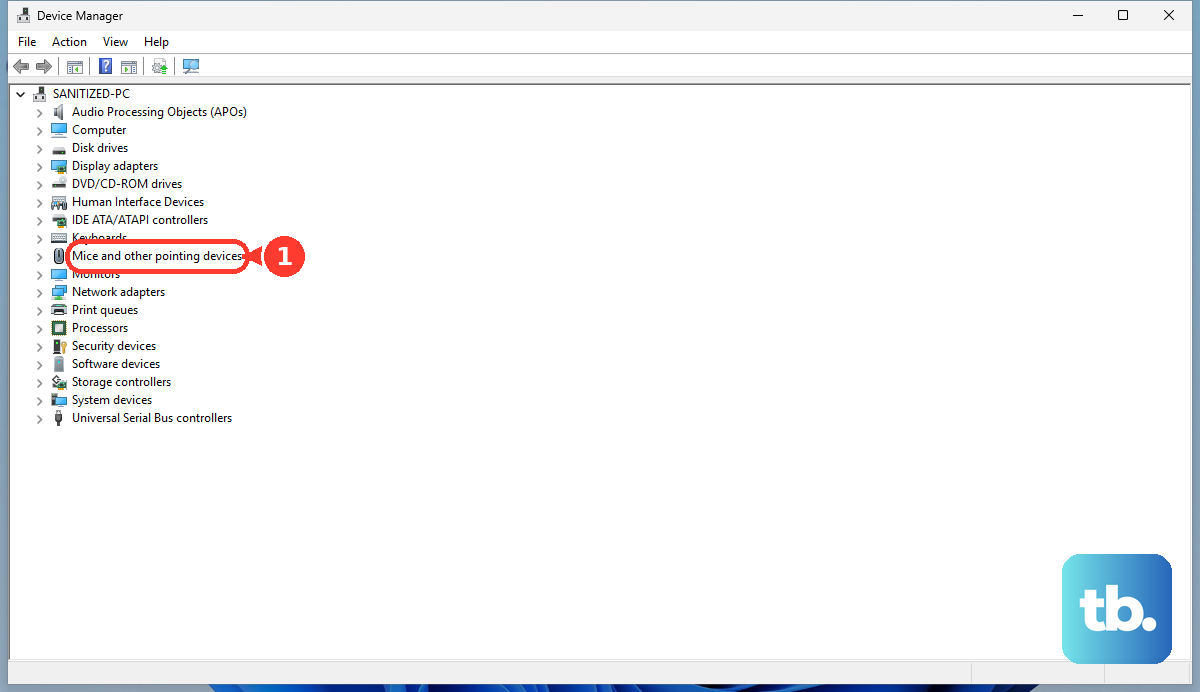
For a laptop touchpad, use the same Windows Update or Device Manager path to update or reinstall the touchpad driver.
On Mac, open Apple menu > System Settings > General > Software Update. Click Update, Upgrade, or Restart Now if one of those buttons appears. If login items or other software are affecting input, test once in Safe Mode, then restart normally after testing.
7. Remove browser and mouse app overrides
When right-click fails only in Chrome or Edge, check the browser before replacing the mouse.
In Chrome, open More > Extensions > Manage extensions, then turn off or remove the extension causing the problem. To reset Chrome settings, open More > Settings > Reset settings > Restore settings to their original defaults > Reset settings.
In Edge, open Extensions > Manage extensions and toggle off the extension, or choose More actions > Remove from Microsoft Edge > Remove. To update Edge, open Settings and more > Help and feedback > About Microsoft Edge, let Edge check for updates, and restart Edge when prompted.
For Logitech devices supported by Logi Options+, open Logi Options+, select the mouse, open Buttons or Mouse, select the button, and assign the right-click action you want.
For Razer mice, open Razer Synapse 4, select the device under DEVICES or from DASHBOARD, select the button, then assign the preferred Mouse Function.
For Corsair mice, open iCUE, select the mouse, open Key Assignments, select + below Assignments, choose an assignment type, select the mouse button, and set the remap or action.
Do not use older Logitech utilities as the first fix for supported modern Logitech devices. Logitech says Logitech Options, SetPoint, Control Center, Preference Manager, Connection Utility, and Unifying Software are no longer maintained or have reached end of support, and current supported-device guidance points to Logi Options+.
8. Use accessibility controls when the button is broken
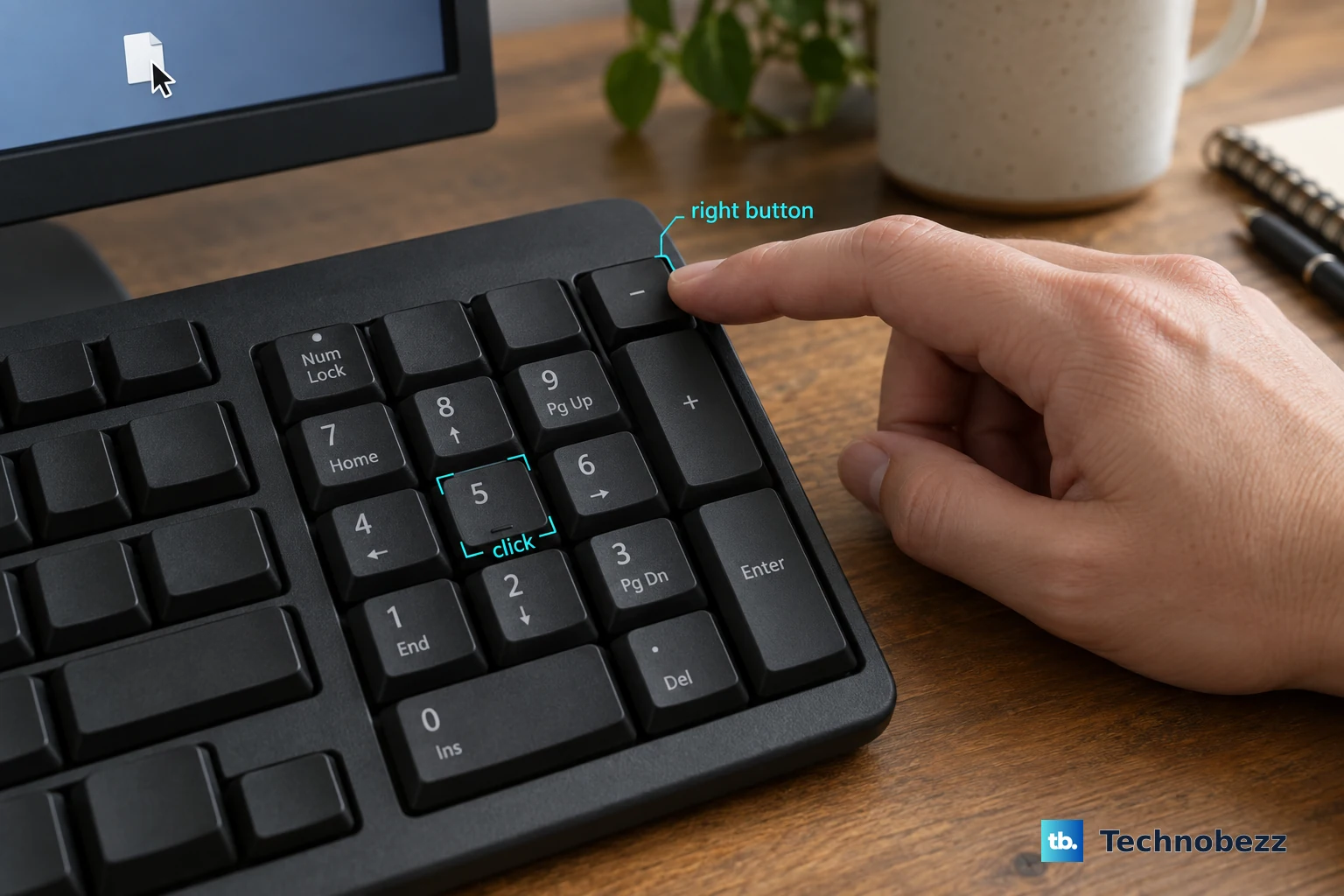
On Windows, open Start > Settings > Accessibility > Mouse > Mouse keys, then turn Mouse keys on. Use the numeric keypad and the on-screen Mouse Keys guidance to move, select, and click.
On a Windows 11 touchscreen device, press and hold or right-click the taskbar, choose Taskbar settings, then under System tray icons turn Virtual Touchpad on and select the virtual touchpad icon in the system tray. On Windows 10, right-click the taskbar and choose Show touchpad button instead, then select the icon and use the on-screen touchpad.
On Mac, open Apple menu > System Settings > Accessibility > Pointer Control > Mouse Keys. Turn Mouse Keys on for keyboard pointer control, or turn it off when keyboard text entry is disrupted, because Apple says the keyboard or numeric keypad cannot enter text while Mouse Keys is on.
On ChromeOS, select the time at the bottom right, then open Settings > Accessibility > Cursor and touchpad > Mouse keys. Turn it on, press - to select the right mouse button, then use the documented Mouse Keys click controls.
Use these when you need to keep working with a failed button or a device that cannot right-click.
9. Escalate managed and outdated fixes correctly
On a work or school Windows device, File Explorer and desktop context menus can be disabled by policy. Ask the admin to check Remove File Explorer's default context menu or the Microsoft MDM policy path ./User/Vendor/MSFT/Policy/Config/ADMX_WindowsExplorer/NoViewContextMenu. On managed Chrome, ChromeOS, or Edge, admins can also block, remove, or control extensions that intercept context menus.
Skip Windows 10 Tablet mode as a fix for Windows 11 because Windows 11 uses automatic tablet behavior on supported 2-in-1 devices.
Skip Windows 11 registry hacks for forcing the old File Explorer menu because they are not the Microsoft-documented consumer fix.
Use Show more options or Shift + right-click instead.
Frequently Asked Questions
Why does right-click work on the desktop but not in Chrome or Edge?
The browser path is the one to fix. Turn off or remove extensions, reset Chrome settings if needed, and update Edge from About Microsoft Edge.
Why does my Mac mouse click but not right-click?
Secondary click is off. Enable it in System Settings under Mouse, or under Trackpad for a built-in trackpad or Magic Trackpad.
What can I use if the right mouse button is physically broken?
Use Shift + F10 on Windows, Control-click on Mac, Mouse Keys, or the Windows virtual touchpad on supported touchscreen devices.
Should I use a registry edit to restore the old Windows 11 right-click menu?
No. Microsoft documents Show more options and Shift + right-click for the fuller File Explorer context menu.