Microsoft Edge WebView2 Runtime problems usually show up as a missing-runtime message, a blank sign-in window, a frozen embedded page, or an app that refuses to open. Start with the runtime itself, then move through Windows, Edge, the affected app, and security settings until the broken part is repaired.
These fixes use Microsoft’s current Windows and WebView2 repair paths, with old force-uninstall commands and browser-flag workarounds left out.
1. Install WebView2 from Microsoft
Best first move: install the Microsoft Edge WebView2 Runtime from Microsoft, then reopen the app that failed. Microsoft says the Evergreen WebView2 Runtime is included with Windows 11 and was already installed on most eligible Windows 10 devices, but a missing or damaged runtime still needs a fresh official installer.
- 1.Open Microsoft’s official WebView2 consumer download page.
- 2.Select Download WebView2.
- 3.Run the downloaded installer.
- 4.Close the affected app.
- 5.Open the affected app again.
Need an offline installer? Open Microsoft’s WebView2 developer download page, choose Evergreen Standalone Installer, then select x86, x64, or ARM64 for that PC. Use Evergreen Bootstrapper for an online install. Leave Fixed Version for developers and app vendors packaging their own apps.
2. Repair the WebView2 Runtime
Select the taskbar search box and enter Control Panel, then open Control Panel. Go to Programs and open Programs and Features. Right-click Microsoft Edge WebView2 Runtime, then select Repair. If Repair is not shown, select Change and follow the on-screen directions.
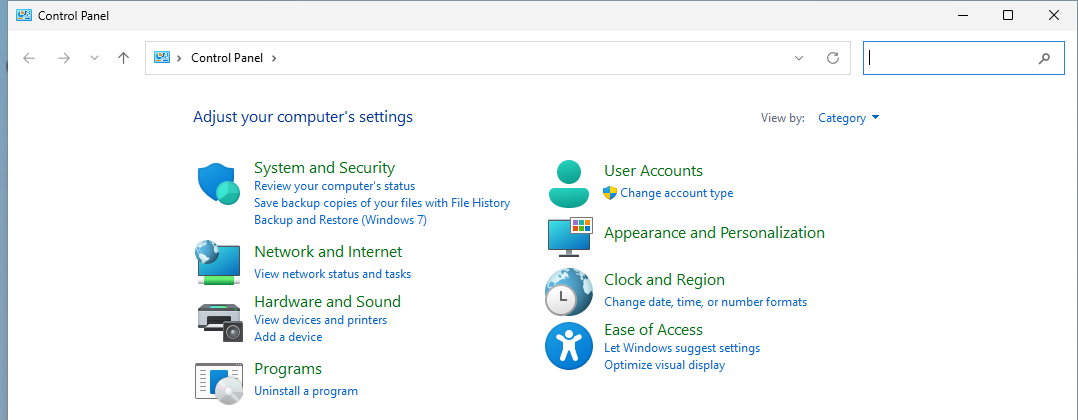
When WebView2 is installed but still throwing errors, repair it from Windows before removing anything. Windows does not show repair controls for every program. When WebView2 has no Repair or Change option, reinstall it using the standard Windows uninstall path.
3. Reinstall WebView2 cleanly
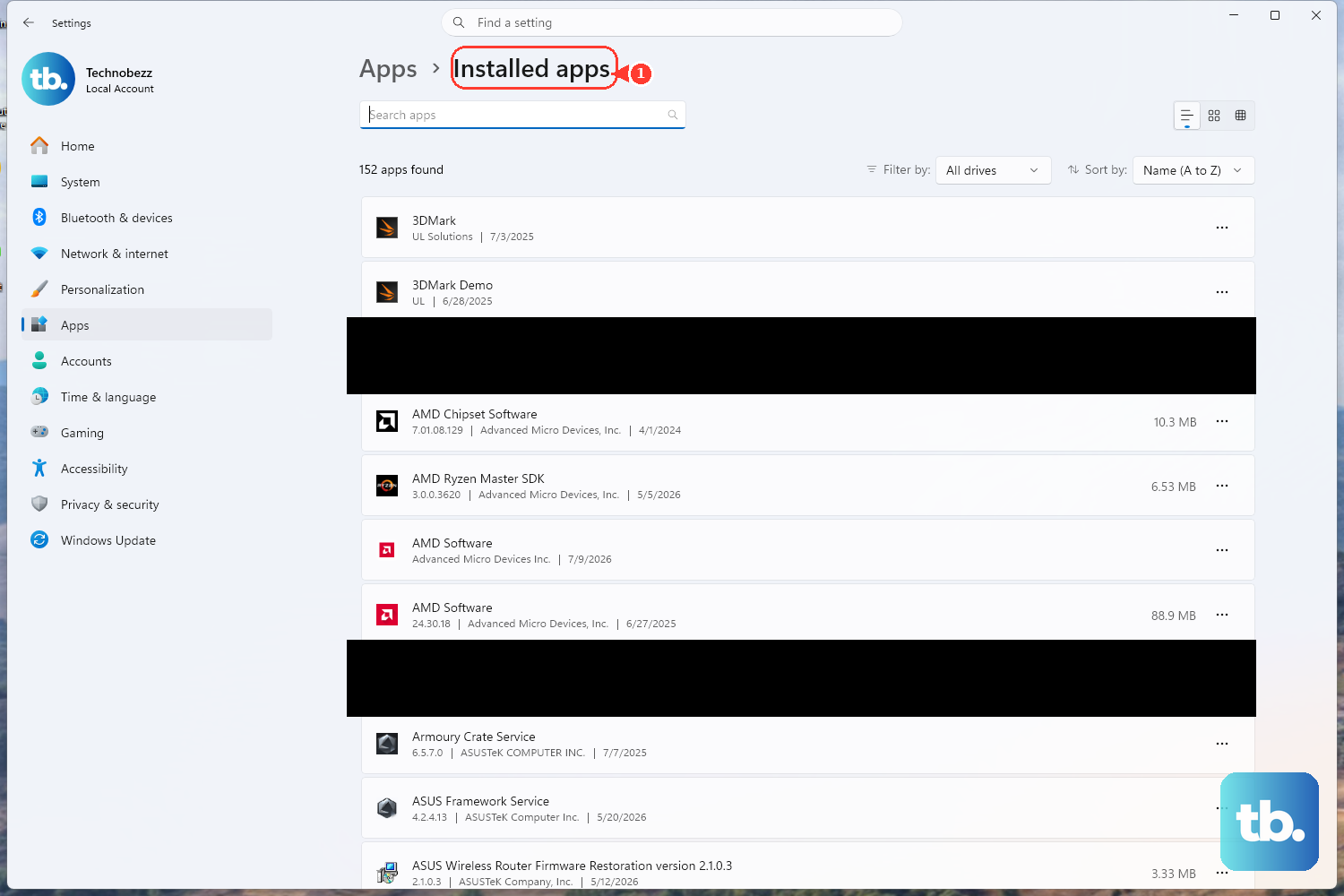
Use this step only when Microsoft Edge WebView2 Runtime appears in Windows and the uninstall option is available. Some built-in Windows components and managed installations cannot be removed from the PC.
On Windows 11: Open Start, then Settings, then Apps, then Installed apps. Find Microsoft Edge WebView2 Runtime, select More, choose Uninstall, and follow the on-screen instructions. Install WebView2 again from Microsoft’s official consumer page.
From Control Panel: Open Control Panel, then Programs, then Programs and Features. Right-click Microsoft Edge WebView2 Runtime, choose Uninstall or Uninstall/Change, then reinstall WebView2 from Microsoft.
4. Refresh Windows and Edge
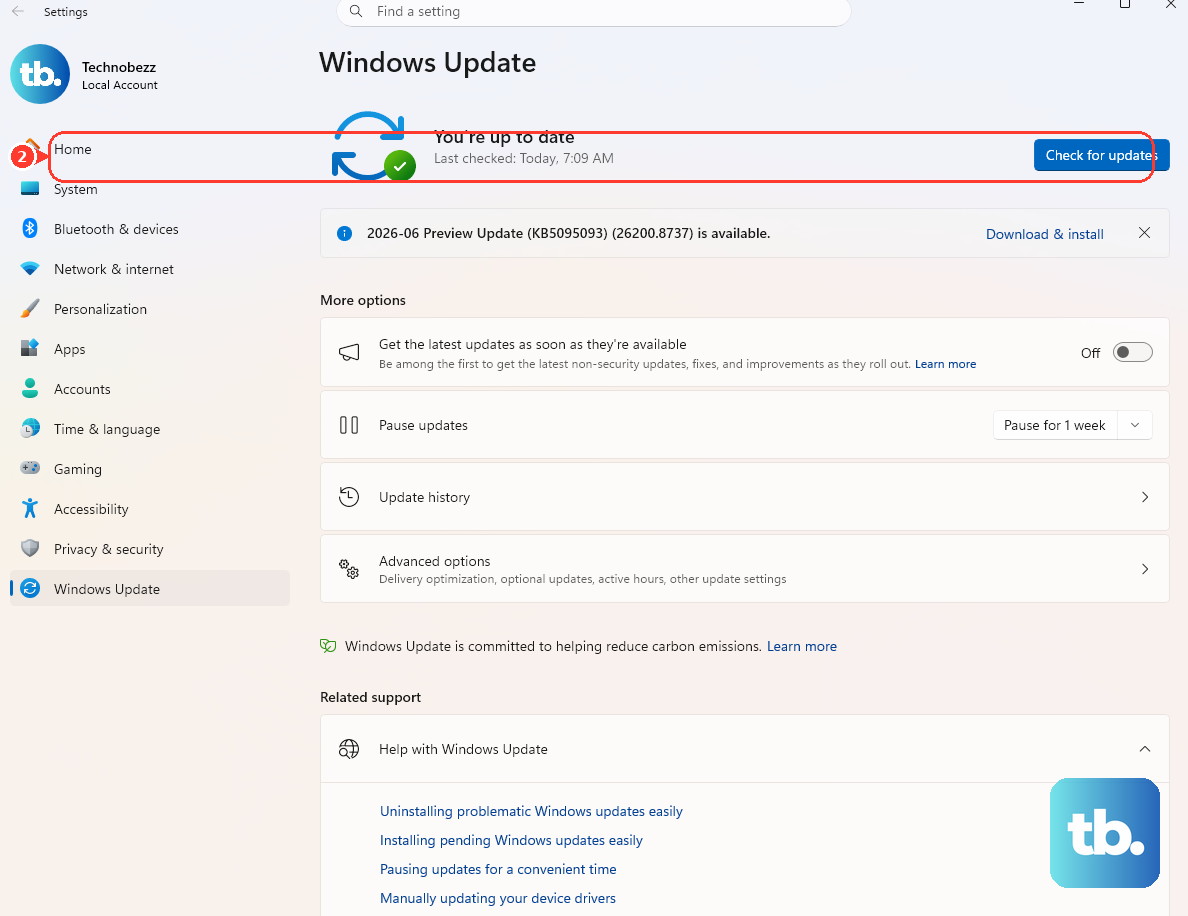
Open Start, then Settings, then Windows Update, then select Check for updates. Install available updates. Open Microsoft Edge, type edge://settings/help in the address bar, let Edge check for updates, then restart Edge. After that, open Start, then Power, then select Restart.
A pending Windows update, Edge update, or restart can block WebView2 installation, updates, or app content. If Microsoft Edge itself is damaged, open any working browser, go to Microsoft’s Edge download page, download Edge again, reinstall it, and reopen the app that showed the WebView2 error.
5. Repair the app with the blank window
When only one app has the problem, fix the host app next. A blank WebView2 panel, a looping sign-in page, or an embedded page that never loads can appear even when WebView2 itself is working, because that app’s install or app data is broken.
Open Start, select Settings, open Apps, and select Installed apps. Select More next to the affected app and open Advanced options. Select Repair. If Repair is unavailable or the problem remains, select Reset.
For Microsoft Store apps on Windows 11, open Microsoft Store, then Library, then Get updates; to reinstall, open Library, find the app, and select Install. On Windows 10, open Microsoft Store, then See more, then Downloads and updates, then Get updates; to reinstall, open See more, then My Library, select the app, and choose Install. Microsoft also includes a simple restart of the app in its Store app troubleshooting path: select Close, then open the app again.
6. Run Microsoft install troubleshooters
Open Microsoft’s support page for programs that cannot be installed or removed, then select Download troubleshooter. When prompted, select Run or Open. Follow the troubleshooter steps.
On Windows 10, use Microsoft’s downloadable Program Install and Uninstall troubleshooter when WebView2 will not install, uninstall, or update. It targets blocked installs, corrupted registry keys, and incomplete uninstall or update data. On Windows 11, Microsoft now points to built-in recovery first: restart, repair or reset the app, and uninstall from Settings, and it may recommend troubleshooters automatically when an install or removal fails.
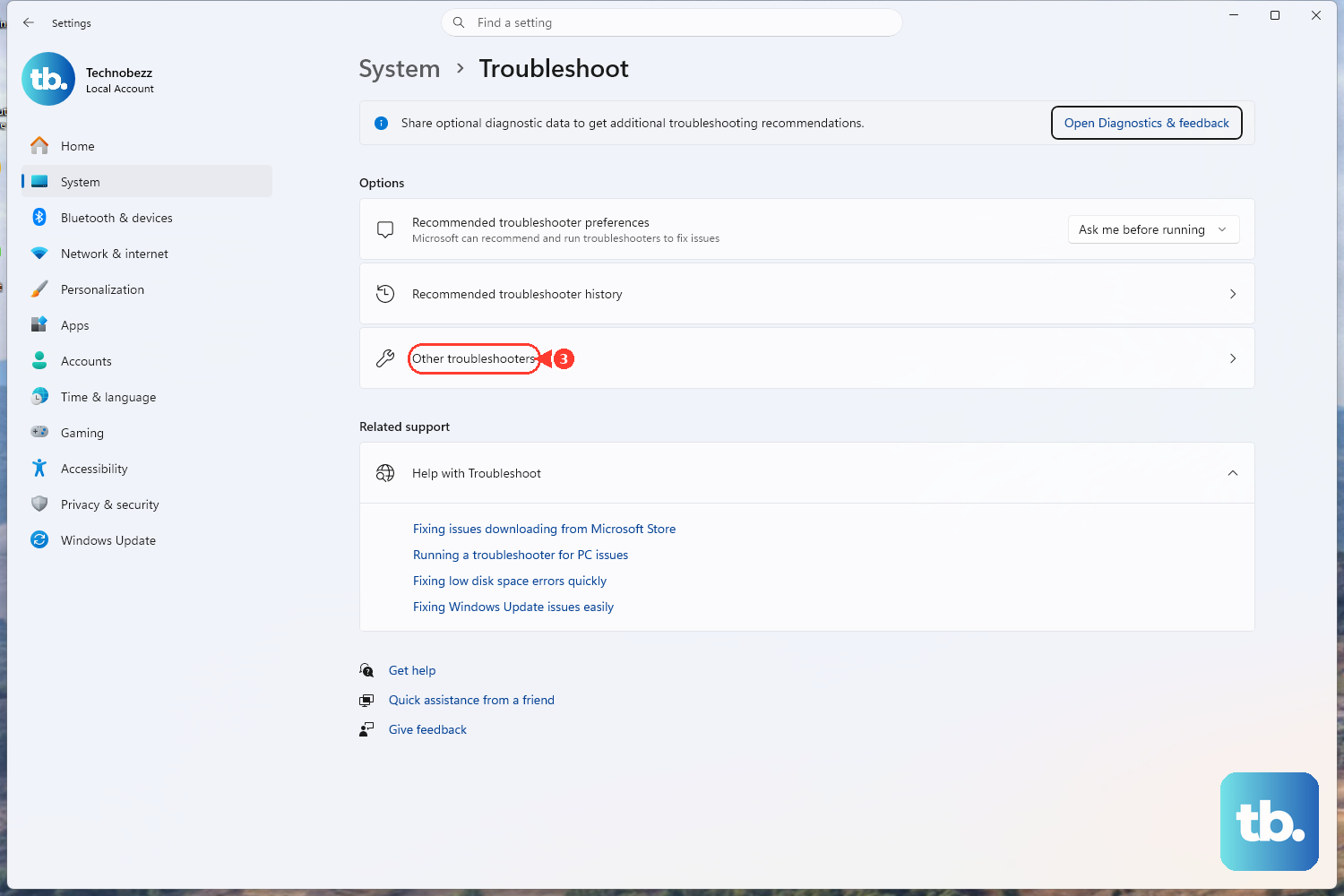
For compatibility-related install or update trouble on Windows 11, open Start, then Settings, then System, then Troubleshoot, then Other troubleshooters, then Program Compatibility Troubleshooter, then Run.
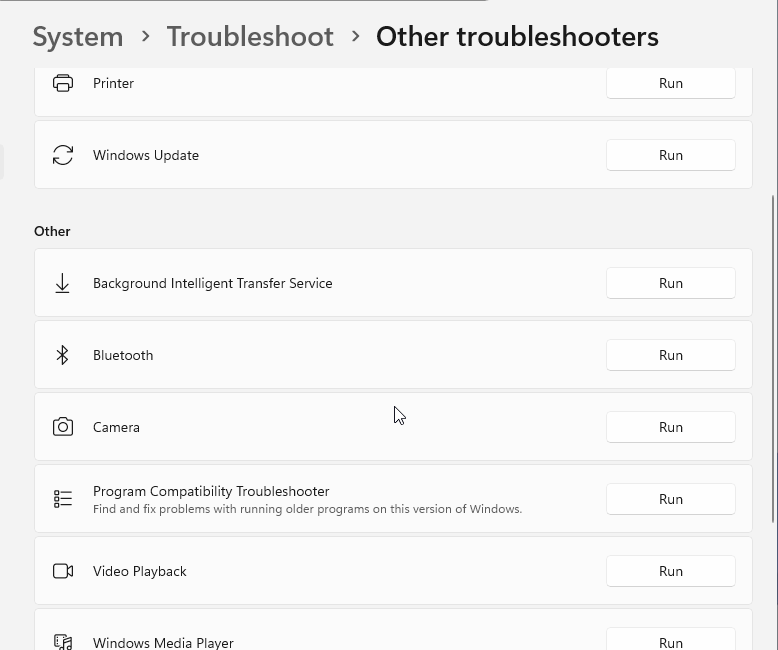
On Windows 10, open Start, then Settings, then Update & Security, then Troubleshoot, then Additional troubleshooters, then Program Compatibility Troubleshooter, then Run the troubleshooter.
7. Unblock security and network problems
Fix the specific block instead of lowering all protection. Security controls and network filtering can stop a WebView2 app from writing its data folder, loading sign-in pages, or reaching Microsoft services.
Controlled Folder Access: Open Windows Security, then Virus & threat protection, then Manage ransomware protection, then Allow an app through Controlled folder access. If Windows showed an App is blocked notification, select the message, choose Add an allowed app, and browse for the affected program.
Windows Firewall: Open Windows Security, then Firewall & network protection, then Allow an app through firewall, then Change settings. Check the affected app, or select Allow another app and enter the app path.
VPN or filtering software: Disconnect the VPN temporarily during a failed WebView2 or Edge download. Make sure required Microsoft endpoints are not blocked by proxy, VPN, or endpoint filtering rules.
Delete a WebView2 user data folder only when the app maker gives the exact folder location. Close the affected app first, wait for WebView2 browser processes to exit, and do not delete random Edge profile folders.
8. Check crashes before escalating
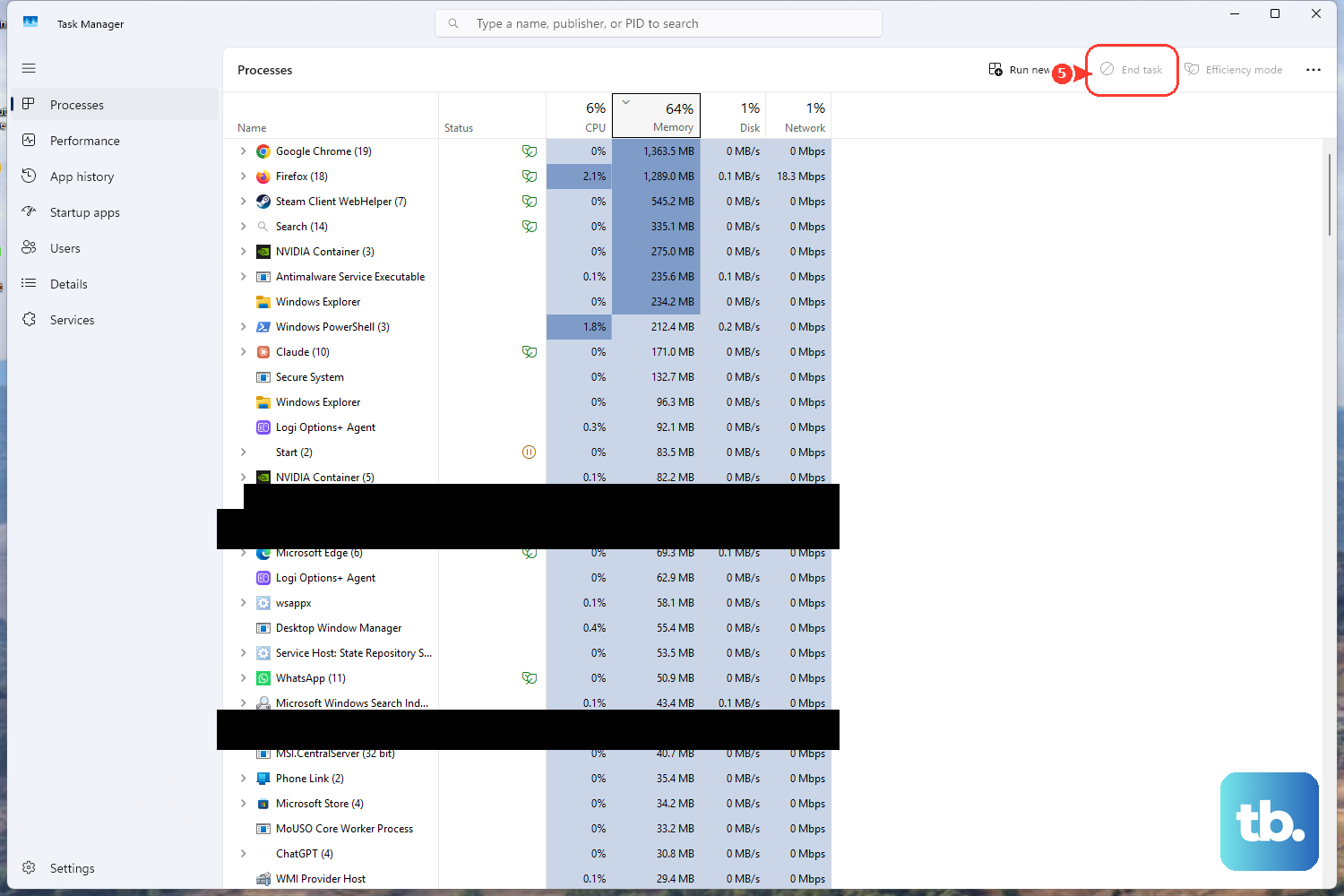
Open Task Manager and check whether Microsoft Edge WebView2 Runtime or msedgewebview2.exe appears under the host app. Open Event Viewer, then check Windows Logs, then Application and System for app or WebView2 initialization failures, WDAC or AppLocker blocks, Controlled Folder Access denials, or DLP denials. Open Reliability Monitor and look for repeated renderer, GPU, or Crashpad crashes.
If the WebView2 window stays white, freezes, crashes, or opens and closes immediately, collect the failure details before changing enterprise settings or reinstalling the app repeatedly.
On a work or school PC, send IT the app name, exact WebView2 error text, Windows version, and the crash or block details from those tools. Managed devices can use WebView2 installation, update, Microsoft 365 Apps, WSUS, Configuration Manager, and WebView2 policy controls that home users cannot change.
9. Avoid old force fixes
Use Microsoft’s current consumer repair paths and skip old force fixes. Avoid force-uninstall commands such as third-party setup.exe WebView2 removal strings. Microsoft’s current consumer paths are standard uninstall from Settings or Control Panel, the Program Install and Uninstall troubleshooter, official reinstall, Windows Update, Edge update, and host-app repair.
Skip WebView2 browser-flag fixes as a consumer repair too. Microsoft documents WebView2 browser flags for developer diagnostics and says production apps should not rely on them because flags can change, disappear, or lose long-term support.
Frequently Asked Questions
What is Microsoft Edge WebView2 Runtime used for?
It lets Windows apps show web content inside the app. When it breaks, apps can show blank panels, failed sign-ins, missing runtime messages, freezes, or launch errors.
Is WebView2 already included with Windows 11?
Microsoft says the Evergreen WebView2 Runtime is included with Windows 11 and was already installed on most eligible Windows 10 devices. If an app reports it missing or broken, install or repair the runtime from Microsoft.
Can I update WebView2 from a WebView2 settings screen?
Microsoft does not document a current consumer WebView2 settings screen. The Evergreen Runtime updates through Microsoft Edge Update, and apps use the new runtime after the app restarts or recreates WebView2.
Why does only one app have a WebView2 problem?
That app can have its own damaged install, Store update issue, security block, network block, or app-specific WebView2 data problem. Repair or update the affected app before treating WebView2 as broken system-wide.