Microsoft Edge won't open, freezes the second you click a link, or crashes back to the desktop a few times in a row. Maybe a page sits there grey and unresponsive, or the browser launches and then vanishes on its own.
The good news: almost every Edge problem traces back to a short list of causes, and most have a one-minute fix. Resource overload, a bad extension, an outdated build, a corrupted cache, and graphics-driver conflicts cover the bulk of it.
Work through these fixes in order. They run quickest and most common first, so you'll likely be back in business long before the bottom of the list. Each one names exactly what to click.
Close Extra Tabs, Apps, and Downloads
When Edge keeps freezing or crashing, it is often just out of breathing room. Too many open tabs, active extensions, downloads, and background apps drain system resources until the browser stalls.
Start lean and see if the trouble clears.
Close every tab except the one showing the error.
Close other running apps or programs.
Pause any active downloads.
Uninstall extensions you don't need.
Reload the tab that had the error.
If Edge steadies after this, an overloaded system was the culprit, and you can reopen things gradually.
Force-Close a Frozen Edge in Task Manager
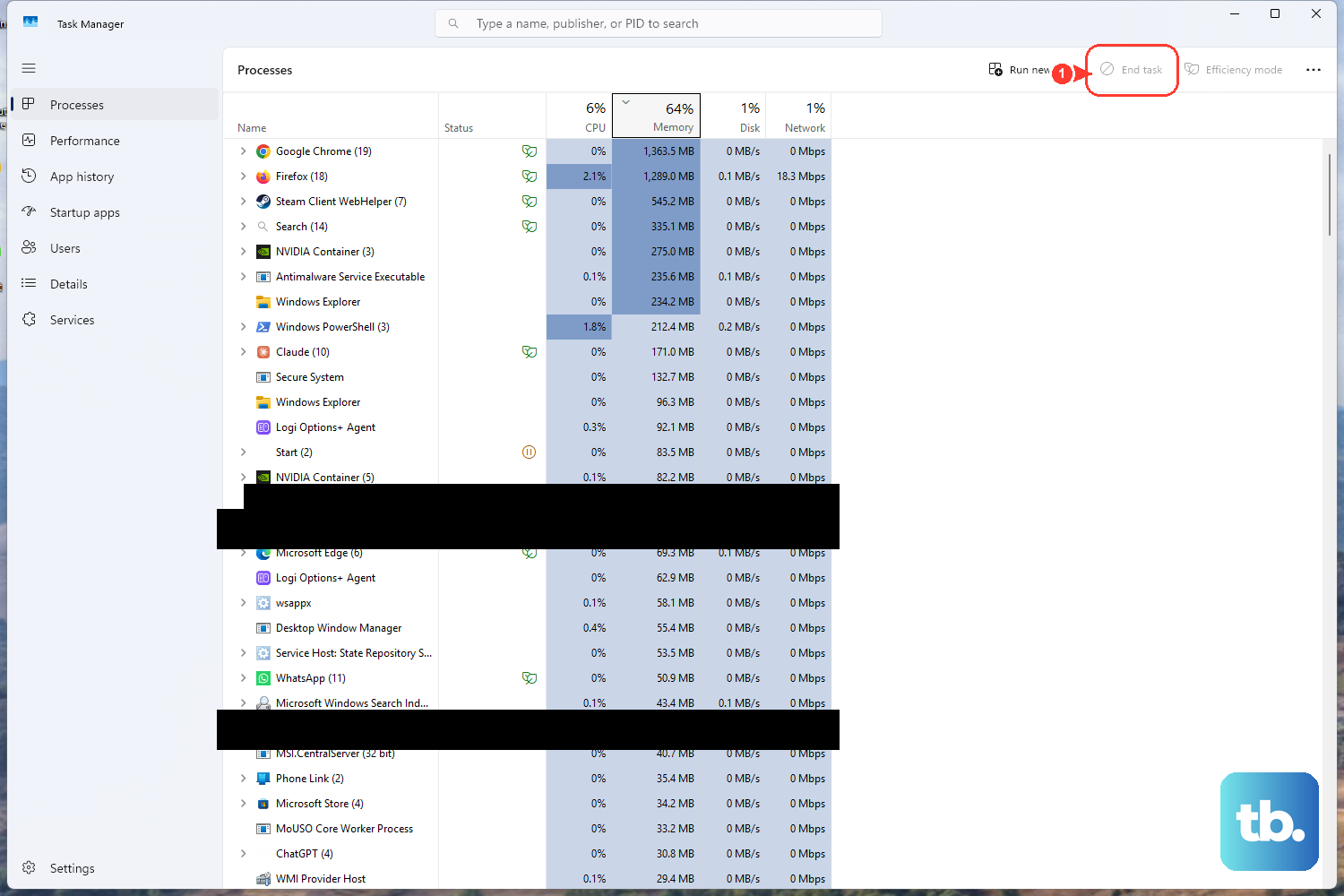
If Edge is fully hung and won't respond to clicks, end the process cleanly rather than waiting it out.
Press Ctrl+Shift+Esc to open Task Manager.
Find every msedge.exe process in Task Manager.
Right-click each one and select End task.
Relaunch Edge from the Start menu.
A fresh launch often resolves a one-off freeze on its own.
Update Microsoft Edge to the Latest Version
An outdated build is a frequent cause of crashes and odd behavior, and Microsoft fixes known crash bugs in newer releases. Checking for an update is the single most reliable permanent fix for several issues.
Select Settings and more (the three-dot menu at the top right) > Settings > About Microsoft Edge.
If an update is available, it downloads and applies right from this page.
Select Restart when prompted (the button may read "download and install," then "restart") to finish.
You can jump straight there by typing edge://settings/help in the address bar.
Restart Your Computer
A running program or process may be quietly interfering with Edge. A full restart clears it.
Select Start > Power > Restart.
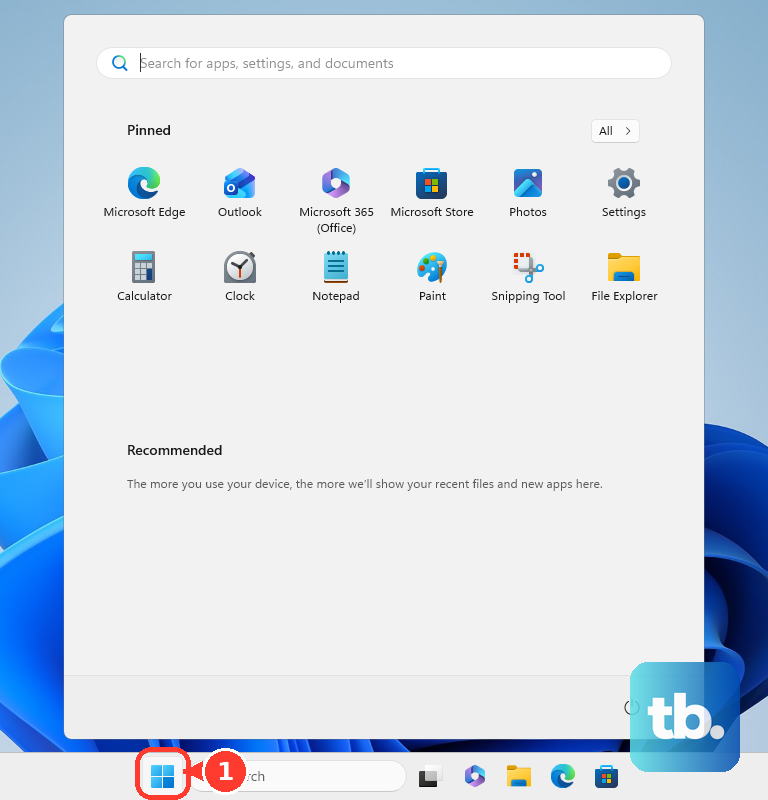
Open Edge again and retry the page.
It sounds basic, but it resolves conflicts that no in-browser setting can reach.
Turn Off Problem Extensions
An incompatible or conflicting extension is one of the most common root causes of Edge misbehaving. Edge also auto-disables extensions that try to change protected settings, so a "disabled" add-on may be intentional rather than broken.
Select Extensions (the puzzle-piece icon to the right of the address bar). If it isn't visible, use Settings and more > Extensions.
Select Manage Extensions, or type edge://extensions in the address bar.
Toggle off the switch next to an extension to disable it, and test Edge after each one to find the culprit.
To remove a bad one entirely, right-click its icon to the right of the address bar and choose Remove from Microsoft Edge > Remove. You can also use More actions next to the extension in the Extensions menu.
Clear the Browsing History and Cached Files
A corrupted cache makes pages fail to load or render wrong. Clearing it forces Edge to fetch clean copies.
Press Ctrl+Shift+Delete to open Delete browsing data directly. (Or go to Settings and more > History > Open history page > Delete browsing data.)
Under Time range, select All time.
Check Browsing history and Cached images and files.
Select Clear now.
To wipe everything, check all the boxes before selecting Clear now.
Turn Off Hardware Graphics Acceleration
If Edge crashes, freezes, or renders incorrectly, an outdated or incompatible graphics driver combined with hardware acceleration is a known trigger.
Open the three-dot menu (top right) > Settings.
Select System and performance, or go directly to edge://settings/system.
Turn off "Use graphics acceleration when available."
Restart Edge when the prompt appears so the change takes effect.
If this stops the crashes, the real fix is updating your GPU driver; once it's current, you can re-enable acceleration. To check the current state, visit edge://gpu and look for "Hardware accelerated" or "Disabled."
Scan for Malware and Check Your Security Software
Malware can interfere with Edge directly, and so can third-party antivirus tools. Run a manual scan and confirm your protection is current.
Open Start > Settings > Privacy & security > Windows Security > Virus & threat protection.
Under Current threats, select Quick scan. For deeper coverage, use Scan options to choose Full scan, Custom scan, or Microsoft Defender Antivirus (offline scan).
If you run third-party security software such as Norton or McAfee, open the app and check for updates inside it, or visit the vendor's website to confirm it's up to date. On a Mac, follow Apple's malware-protection guidance instead.
Repair Microsoft Edge
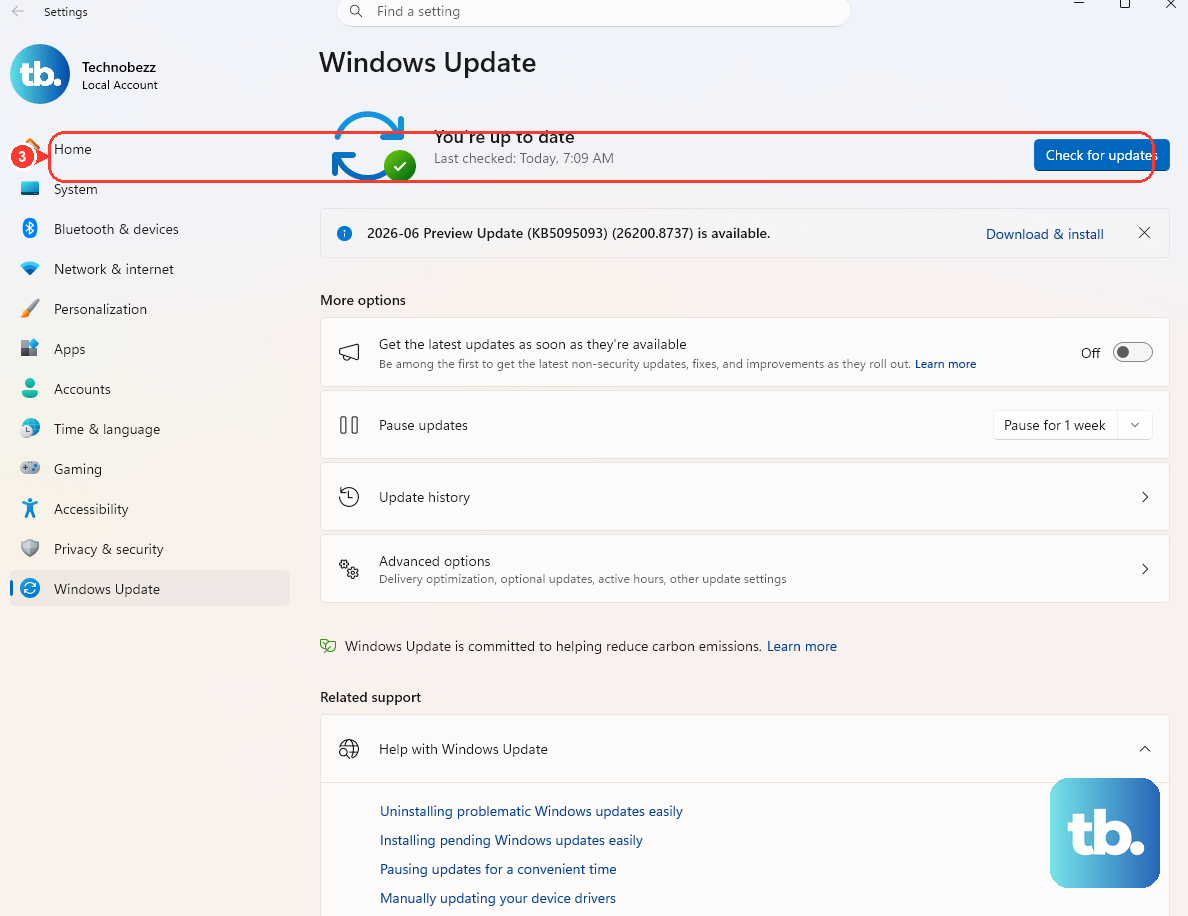
If the installed files are damaged (common after a Windows update), repairing them often fixes the browser without touching your data.
Close Edge completely for all signed-in users, and make sure you have administrative rights.
Go to Start > Settings > Apps > Installed apps.
Find Microsoft Edge and select Modify. On Windows 11 you may need the three-dot menu next to Edge; on Windows 10 use Apps & features, then Edge > Modify.
When asked "Do you want to allow this app to make changes to your device?", select Yes.
Confirm you're connected to the internet, then select Repair.
Your browser data and settings shouldn't be affected by a repair. If the Modify command is missing, your organization likely manages Edge for you, so contact your system administrator.
Reset Edge Settings, or Reinstall as a Last Resort
If problems persist, reset Edge to its defaults. This is different from a repair: it restores the startup page, new tab page, search engine, and pinned tabs, disables all extensions, and clears cookies and site data. Your favorites, history, and saved passwords are kept.
Select Settings and more > Settings, then Reset settings (or go to edge://settings/reset).
Click Restore settings to their default values.
Click Reset to confirm.
If Edge still won't run at all, reinstall it. Open another working browser, go to www.microsoft.com/edge, then download and run the installer over your existing installation. If you're signed into Windows with a Microsoft account, Edge recreates your profile and re-syncs your favorites and extensions automatically.
Frequently Asked Questions
What's the difference between Repair and Reset in Edge?
Repair (via Settings > Apps) fixes the installed app files and shouldn't affect your browser data or settings. Reset (via edge://settings/reset) restores settings to defaults, disables all extensions, and clears cookies and site data, but it keeps your favorites, history, and passwords.
Edge launches a few times, then closes by itself. Is that a known bug?
Yes. One Edge Stable build (140.0.3485.54) was known to launch one to three times, then exit unexpectedly. Microsoft fixed it in release 140.0.3485.66, so updating Edge is the permanent fix. Microsoft's interim workaround was to clear the Sync Data folder under the Local AppData Edge user data path, or to delete and recreate the user profile.
How do I tell whether the problem is Edge or my network?
Open the same page in another browser. If it fails there too, restart your modem and router. If only one website fails everywhere, the issue may be on that site's end, so contact its owner.
My Edge download or update keeps failing. What should I try?
Check your internet connection and restart your router. Temporarily pause your antivirus or firewall during install (use the built-in 10-minute or 1-hour pause, then re-enable it). You can also run Edge as administrator by typing Microsoft Edge in Start, right-clicking it, and choosing Run as administrator. Error 0x80072F8F specifically points to a wrong system clock, so enable "Set time automatically" before retrying.
Why does Edge keep disabling one of my extensions on its own?
Edge automatically turns off extensions that try to change protected settings, such as your default search engine, new tab page, or site preferences, without permission. In that case the disabled state is intentional, not a malfunction.
I can't find "Modify" for Edge in Installed apps. Why?
That usually means your organization installed and manages Edge for you. On managed or enterprise PCs, many fixes are controlled by admin policies, so you'll need to contact your system administrator to repair or change Edge.