
Facebook videos can break in a few familiar ways: a blank player, a Reel that never loads, autoplay that refuses to start, or playback that works on one device and fails on another. Start with the quick reloads, then move through the app, browser, cache, and network settings that directly control video playback.
1. Reload Facebook and reopen the video
A bad page load is the fastest Facebook video problem to clear.
- 1.Select your browser's Reload or Refresh button on facebook.com.
- 2.Close the Facebook tab or page.
- 3.Open Facebook again.
- 4.Play the same video.
- 5.If it still fails, close the browser, restart the computer, reopen the browser, and return to facebook.com.
2. Update Facebook and restart your phone
On phones and tablets, get the Facebook app and operating system current before changing deeper settings. Some older devices do not support playing Reels.
On iPhone or iPad, open the App Store, tap your account button or photo, tap App Updates, then tap Update next to Facebook.
Then install the latest iOS or iPadOS update from Settings > General > Software Update.
On Android, open the Google Play Store, tap your profile picture, choose Manage apps & device, then under Updates available tap See details, and tap Update next to Facebook.
After that, install the latest Android update available for your device.
Finish with a restart.
On iPhone X or later, press and hold a volume button and the side button, drag the power-off slider, wait 30 seconds, then hold the side button until the Apple logo appears.
On Pixel 6 and later, press Power + Volume up, then choose Restart.
On Samsung Galaxy phones and tablets, hold Volume down + Side or Power until the device turns off and back on.
3. Change Facebook media settings
Go to Menu > Settings & Privacy > Settings > Preferences > Media > Autoplay, then select On Mobile Data and Wi-Fi or On Wi-Fi Only.
Next, go to Menu > Settings & Privacy > Settings > Preferences > Media > Data saver, then turn the toggle off when videos load in low quality or stall.
For links opened inside Facebook, go to Menu > Settings & Privacy > Settings > Preferences > Browser > Cookies and cache > Clear > Clear.
These settings help when videos show in Feed but do not start on their own. A blank or crashing player still needs the cache, browser, and network checks below.
4. Clear cache and temporary data
Old temporary files can break Facebook loading. Clear the cache for the app or browser you use, then reload Facebook and play the video again.
Chrome: open More > Delete browsing data, choose All time or the needed time range, select Cached images and files and Cookies and other site data, then choose Delete data.
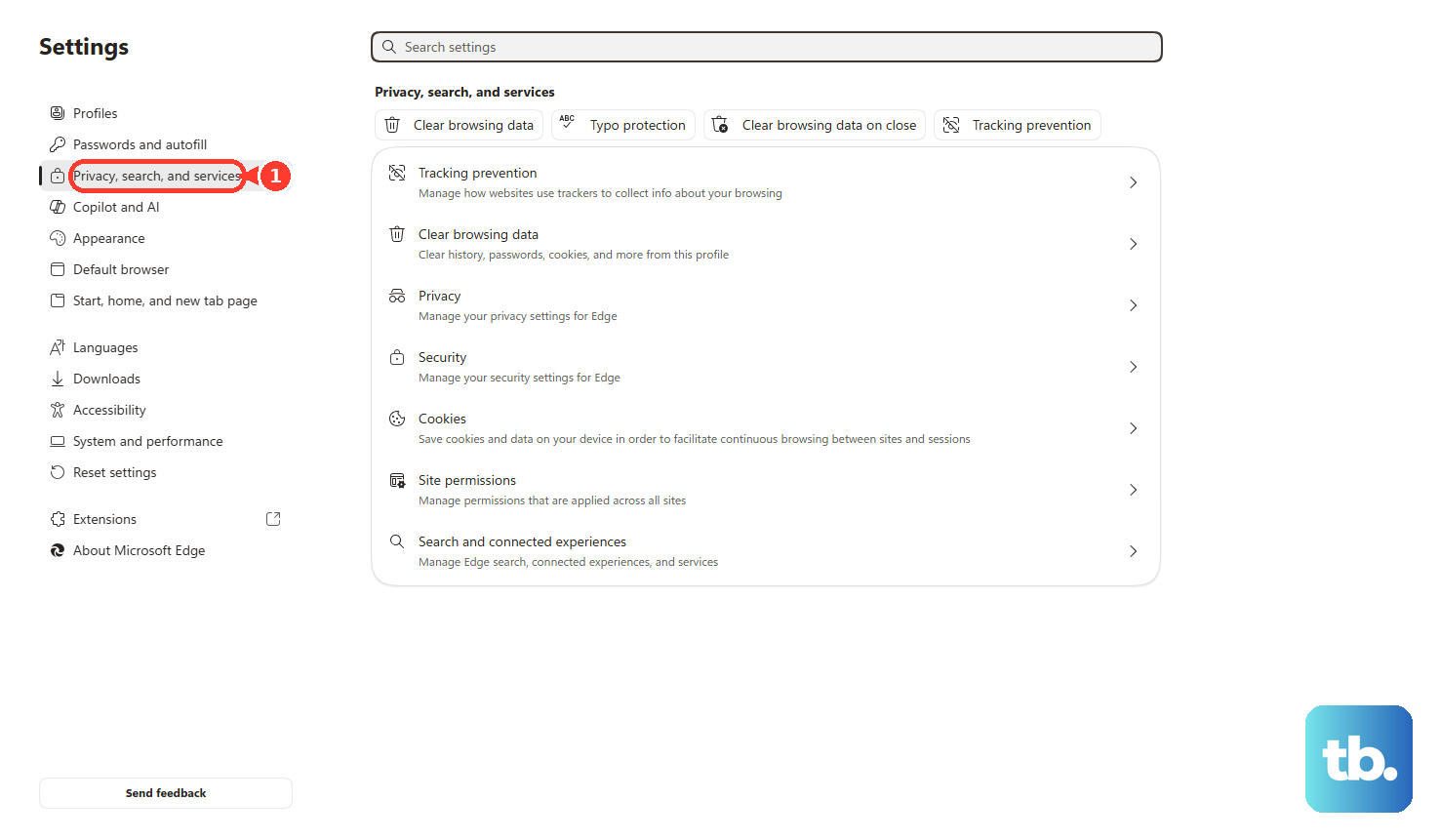
Microsoft Edge: open Settings and more > Settings > Privacy, search, and services > Clear browsing data > Choose what to clear, select Cookies and other site data and Cached images and files, then choose Clear now.
Firefox: open the menu button > History > Clear recent history, set When to Everything, select Cookies and site data and Temporary cached files and pages, then choose Clear.
Safari on Mac: open Safari > Settings > Privacy > Manage Website Data, select facebook.com or Remove All, then choose Remove or Remove All.
Safari on iPhone or iPad: open Settings > Apps > Safari > Clear History and Website Data, choose a timeframe, then tap Clear History.
Facebook app on Android: open Settings > Apps or Applications > Facebook > Storage > Clear cache.
5. Switch browsers and remove blockers
First, test Facebook in a supported browser. Facebook supports current versions of Google Chrome, Mozilla Firefox, Safari, and Microsoft Edge, so open facebook.com in one of those browsers and try the same video.
Then update the browser. In Chrome, open More > Help > About Google Chrome > Relaunch when offered.
In Edge, open Settings and more > Help and feedback > About Microsoft Edge, install the update, and restart.
In Firefox, open the menu button > Help > About Firefox, then choose Restart to update Firefox when offered.
Safari updates through macOS, iOS, and iPadOS updates.
Chrome: open More > Extensions > Manage Extensions, turn extensions off, reload Facebook, then re-enable extensions one at a time.
Microsoft Edge: open Extensions > Manage extensions, turn off the toggle next to an extension, then reload Facebook.
Firefox: open Help > Troubleshoot Mode > Restart.
If Facebook video works there, open Add-ons and themes > Extensions and disable or remove the extension or theme causing the issue.
Safari: on Mac, open Safari > Settings > Extensions and deselect the extension checkbox.
On iPhone or iPad, open Settings > Apps > Safari > Extensions, select the extension, and turn off Allow Extension.
If Facebook video works in one browser and fails in another, those extension and content blocker checks are the next place to look.
6. Fix data and network restrictions
On iPhone Wi-Fi, open Settings > Wi-Fi > the network Info button > Low Data Mode, then turn it off.
On iPhone cellular, open Settings > Cellular or Mobile Data, select the line or options, then turn Low Data Mode off.
On iPhone, open Settings > Cellular or Mobile Data, turn Cellular Data or Mobile Data on, scroll to Facebook, and turn its switch on.
On Android, open Settings > Network & Internet > Data Saver > Unrestricted data, then turn on Facebook.
To power-cycle your home network, turn off the device, unplug the modem and router, wait about one minute, plug them back in, wait for the lights to stabilize, turn the device back on, and reload the video.
Use these checks when Facebook videos work on Wi-Fi but fail on cellular, or work on one network and fail on another. As a comparison test, open a mobile browser, go to m.facebook.com, sign in, and try the same video or Reel there.
7. Reinstall Facebook when the app player stays broken
A reinstall replaces the Facebook app after updates, cache clearing, and restarts fail to restore playback.
On Android, open Settings > Apps > Facebook > Uninstall, then reinstall Facebook from Google Play.
If your device only shows Disable, leave it installed and update Facebook from Google Play.
On iPhone or iPad, touch and hold Facebook, tap Remove App > Delete App > Delete, then reinstall Facebook from the App Store.
To reinstall the app while keeping its documents and data, open Settings > General > iPhone Storage > Facebook > Offload App, then reinstall it.
8. Repair casting autoplay and locked settings
For TV casting failures, open the Facebook video player, choose Options > Cast video, and select your TV.
If the TV does not appear, connect both devices to the same Wi-Fi network, update the Facebook app, and restart the TV or casting device.
For autoplay trouble on desktop, check the browser setting that controls it.
In Edge, open Settings and more > Settings > Cookies and site permissions > Media autoplay, then choose Allow or Limit.
In Safari on Mac, open Safari > Settings > Websites > Auto-Play, select facebook.com, then choose Allow All Auto-Play or Stop Media with Sound.
Black or green frames in Edge point to graphics acceleration. Open Settings > System and performance, change Use graphics acceleration when available, then restart Edge.
On work, school, or family-managed devices, ask the device administrator to remove or relax policies that block autoplay, JavaScript, extensions, or hardware acceleration for facebook.com.
Do not install Flash Player, clear Flash storage, use Internet Explorer, or use Microsoft Edge Legacy. Adobe ended Flash support after December 31, 2020, and Facebook video playback now belongs in a supported modern browser.
If the player still fails, report it to Facebook.
On mobile, return to where the video failed, shake the phone, choose Report problem, choose Include or Don't include, describe what happened, and send the report.
On computer or iPad, open Help & Support > Report a problem and follow the prompts.
Frequently Asked Questions
Why do Facebook videos play on Wi-Fi but not cellular data?
Cellular data is off for Facebook, Low Data Mode is active, or Android Data Saver is restricting the app. Turn on cellular data for Facebook, disable Low Data Mode on iPhone, or allow Facebook under Android Unrestricted data.
Why do Facebook videos not start automatically?
Facebook autoplay or the browser autoplay setting is blocking automatic playback. In the Facebook app, use Menu > Settings & Privacy > Settings > Preferences > Media > Autoplay. In Safari or Edge, check the browser autoplay controls for facebook.com.
Does clearing the Facebook app cache delete my account?
No. Clearing the Android Facebook app cache removes temporary files only. Your Facebook account stays intact.
Should I install Flash Player to fix Facebook video playback?
No. Flash Player is deprecated and blocked in modern browsers. Use a current supported browser such as Chrome, Firefox, Safari, or Microsoft Edge.