Chrome can go silent while sound works in every other app. The fix is usually close by: a muted site, a blocked sound setting, the wrong output device, an extension, or old site data. Start with the quick Chrome checks, then move to system audio, updates, and a clean reinstall only if the sound still does not return.
1. Unmute the website in Chrome
Start with the tab. Current Chrome mutes audio by site, so the same website stays silent until you unmute it.
Open the website that should play sound.
Right-click the website tab.
Select Unmute site.
Now check the player on the page. Start the video or audio, select the player’s speaker or volume control, unmute it, and raise the volume.
2. Allow sound for Chrome sites
Chrome also has a sound permission setting. On desktop, open More, then Settings, Privacy and security, Site settings, Additional content settings, and Sound. Choose the option that allows sites to play sound.
For one silent website, open the site and select View site information or Page info. Go to Site settings, set Sound to Allow, and remove the site from Not allowed to play sound if it appears there.
On Android, open Chrome and go to More, Settings, and Site settings. On iPhone and iPad, open More, Settings, and Content Settings; Chrome for iPhone and iPad does not have a verified desktop-style Sound permission switch.
3. Send audio to the right device
Cast: In the tab playing sound, select Media control near the address bar, open Cast to a device, then choose the intended device or stop casting.
Windows 11: Select the taskbar Speakers icon, use Select a sound output, choose the correct speakers or headphones, and raise the volume slider.
Mac: Open Apple menu, System Settings, Sound, and Output. Select the intended device, drag Output volume right, and clear Mute.
Chromebook: Select the time, move the volume slider, open Audio settings next to the slider, and choose the output device.
Android: Press a volume button, tap Menu, and raise Media volume. For Bluetooth accessories, open the accessory settings and turn on Media audio.
iPhone or iPad: While Chrome media is playing, press Volume Up or raise the Control Center volume slider, then pick the intended headphones, Bluetooth device, or AirPlay route from playback controls.
4. Test Chrome in Incognito
Incognito gives you a fast test for extension or profile trouble.
Open More.
Select New Incognito window.
Open the same website and play the same audio or video.
If sound works there, open More, Extensions, and Manage extensions. Turn extensions off one at a time, then test the site again. Once you find the extension causing the problem, leave it off, or select Remove and confirm with Remove to delete it.
Use Repair only if Chrome flags the extension as corrupted and shows a Repair button, then confirm the repair.
Incognito blocks third-party cookies by default. If the site needs those cookies, return to a normal Chrome window after you finish the extension test.
5. Clear Chrome data before resetting
Old cookies, cached files, and site settings keep broken playback behavior in place. Clear browsing data first.
- 1.Open More.
- 2.Select Delete browsing data.
- 3.Choose a time range such as All time.
- 4.Select cookies, site data, and cached files.
- 5.Select Delete data.
This can sign you out of websites and remove site preferences.
If Chrome still has no sound on desktop, reset Chrome settings. Open More, Settings, Reset settings, Restore settings to their original defaults, and Reset settings. Google says this resets content settings and disables extensions while keeping bookmarks and saved passwords.
6. Update and reopen Chrome cleanly
On desktop, open More, Help, and About Google Chrome. Wait for Chrome to check for updates, then select Relaunch when it appears. If Relaunch is not shown, Chrome reports that it is up to date.
On Android, open the Google Play Store, tap your profile icon, choose Manage apps & device, and update Chrome from Updates available or Manage. On iPhone or iPad, open the App Store, tap the account button or profile photo, go to App Updates, and tap Update next to Chrome.
After the update, fully close Chrome and reopen it. On Mac, press Command-Q; if Chrome is stuck, press Option-Command-Esc, select Google Chrome, choose Force Quit, and open Chrome again. On Android, swipe up from the bottom, hold, let go, and swipe Chrome away.
7. Repair Windows or Mac audio
If Chrome settings are clean, check the operating system controls that affect browser sound.
Windows Volume mixer: Right-click or select-and-hold the taskbar Speakers icon, open Volume mixer, then unmute and raise Google Chrome when it appears.
Windows audio enhancements: Open Start, Settings, Sound, and Output. Select your audio device, open Advanced settings, and set Audio enhancements to Off.
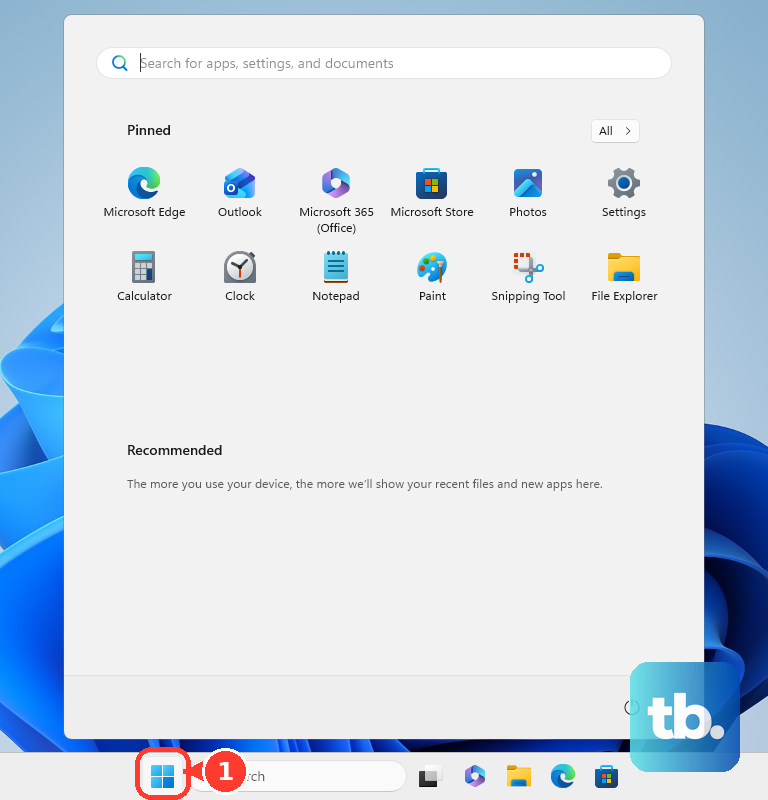
Windows troubleshooter: Open Get Help and run the automated audio troubleshooter, or go to Start, Settings, System, Troubleshoot, Other troubleshooters, Audio, and Run.
Windows audio device: Open Device Manager, expand Sound, video and game controllers, right-click the audio device, and choose Enable device if that button appears.
Windows driver: In Device Manager, right-click the sound card or audio device, select Update driver, then select Search automatically for drivers.
Mac volume controls: Use the keyboard volume keys, Control Strip, menu bar, or Control Center to raise the volume.
8. Reinstall Chrome as the final fix
Reinstall only after you check mute controls, sound permissions, output devices, extensions, Chrome data, updates, and system audio. On desktop, download Chrome from Google’s official Chrome page. On phones and tablets, reinstall Chrome from the app store for that device.
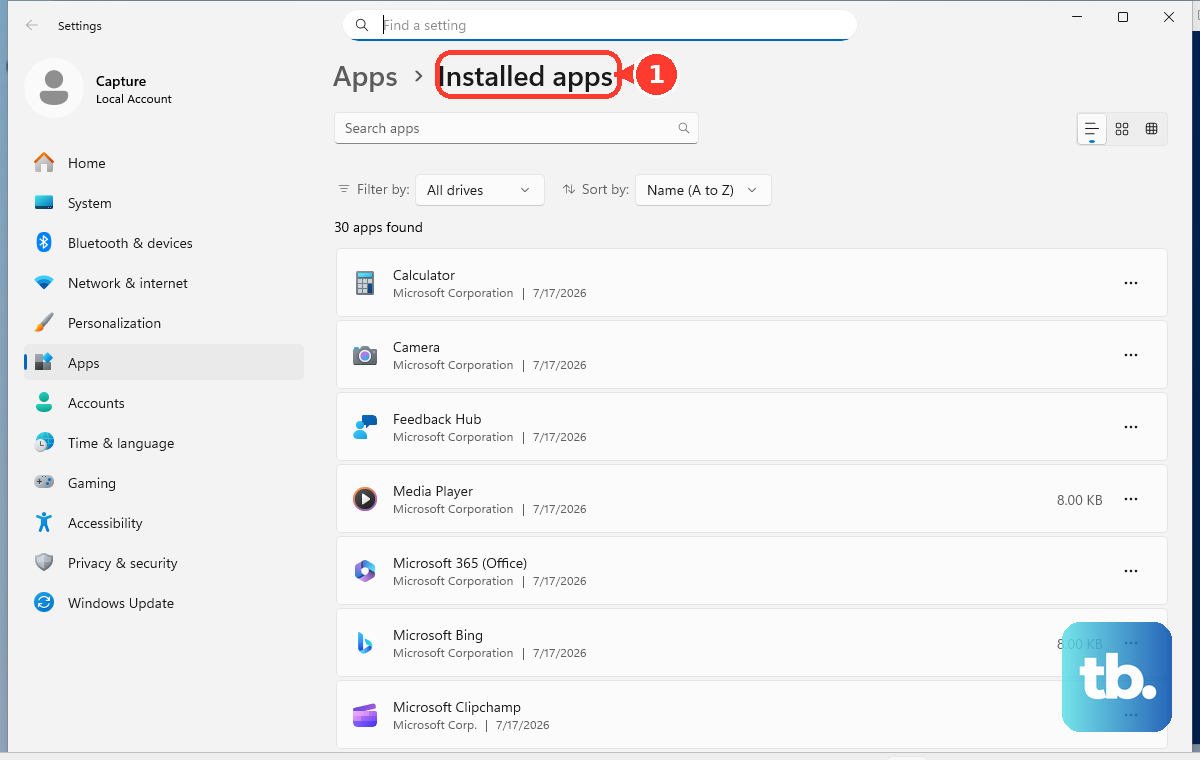
On Windows 11, close Chrome and open Start, Settings, Apps, and Installed apps. Choose More next to Google Chrome, then select Uninstall, Uninstall, and Yes. Reinstall Chrome from Google.
On Mac, quit Chrome, open Finder, go to Applications, and drag Google Chrome to Trash. To remove profile data too, open Go, Go to Folder, enter ~/Library/Application Support/Google/Chrome, select Go, and drag those folders to Trash. Reinstall Chrome from Google.
On Android, open the Google Play Store, tap your profile icon, select Manage apps & devices, open Manage, choose Chrome, and select Uninstall if your device offers it. Then search for Chrome and select Install or Update. On iPhone or iPad, touch and hold Chrome, select Remove App, Delete App, and Delete, then reinstall Chrome from the App Store.
9. Check managed Chrome policies
A work computer, school Chromebook, kiosk, or family-managed device can block Chrome audio through policy. Open chrome://policy and look for audio-related policies. If your organization controls audio output, contact the administrator who manages the device.
Skip old fixes that mention a per-tab Mute Tab flag or an autoplay-policy flag. Current Chrome uses site-level Mute site and Unmute site, sound permissions, player controls, and managed-device policies.
Frequently Asked Questions
Why does Chrome have no sound when other apps work?
Chrome can be muted at the site level, blocked by Chrome sound permissions, routed to Cast or Bluetooth, muted in Windows Volume mixer, or affected by an extension.
Why is only one website silent in Chrome?
The site is muted or blocked in its own Chrome site settings. Right-click its tab and choose Unmute site, then set that site’s Sound permission to Allow.
Does resetting Chrome delete bookmarks?
Google’s reset option keeps bookmarks and saved passwords. It resets content settings and disables extensions.
Should I use Chrome flags to fix sound?
No. The old per-tab mute flag and old autoplay-policy flag are deprecated. Use current site mute controls, sound permissions, player controls, and managed-device policies.