Apple CarPlay can stop working in a Jeep Grand Cherokee because of the cable, wireless setup, Siri, saved pairing, Screen Time, or Uconnect software. Start with the checks that bring CarPlay back fastest, then reset the phone and Jeep connection if it still will not appear. These fixes apply to factory CarPlay-capable Grand Cherokee and Grand Cherokee L models.
Start with the fast CarPlay checks
Run these quick checks before changing deeper iPhone or Uconnect settings.
- 1.Start the vehicle, unlock the iPhone, and reconnect it.
- 2.Make sure Siri is turned on before trying CarPlay again.
- 3.For wired CarPlay, plug the iPhone into the USB port marked with the CarPlay icon or smartphone icon using an Apple USB cable.
- 4.Try another USB cable and another USB port in the Jeep.
- 5.For wireless CarPlay, turn on Bluetooth and Wi-Fi on the iPhone.
- 6.If the phone is connected but CarPlay does not open, tap the CarPlay logo on the Jeep display.
Confirm your Jeep supports CarPlay
Two vendor sources describe this differently, and you need both. Apple lists the Jeep Grand Cherokee as CarPlay-compatible for model years 2018 through 2025, and the Grand Cherokee L for model years 2024 through 2025. Jeep’s own vehicle documentation covers more than that: the 2021 Grand Cherokee L Quick Start Guide and the 2022 Grand Cherokee Owner’s Manual both document Uconnect 5/5 NAV with Apple CarPlay, and the 2026 Grand Cherokee Owner Handbook documents Apple CarPlay too. Apple’s page is the shortlist of model years Apple publishes and it lags new and niche trims, so use it to confirm support, not to rule support out. What actually decides it is the Uconnect system installed in your Jeep, and Jeep says Uconnect 5 includes Apple CarPlay support.
Select Uconnect 4 systems with 7-inch, 8.4-inch, or 12-inch touchscreens include Apple CarPlay. Uconnect 4 does not offer wireless Apple CarPlay, so those systems need a wired connection.
Model year 2016 and earlier Uconnect systems do not support Apple CarPlay or Android Auto. A software update cannot add CarPlay to a non-CarPlay Uconnect system.
Set up wireless CarPlay again
This fixes wireless CarPlay that never appears, drops during setup, or stays stuck on Bluetooth only.
Press and hold the voice command button on the steering wheel.
Put the Jeep stereo in wireless or Bluetooth mode.
On iPhone, open Settings > Bluetooth and turn Bluetooth on.
Open Settings > Wi-Fi and turn Wi-Fi on.
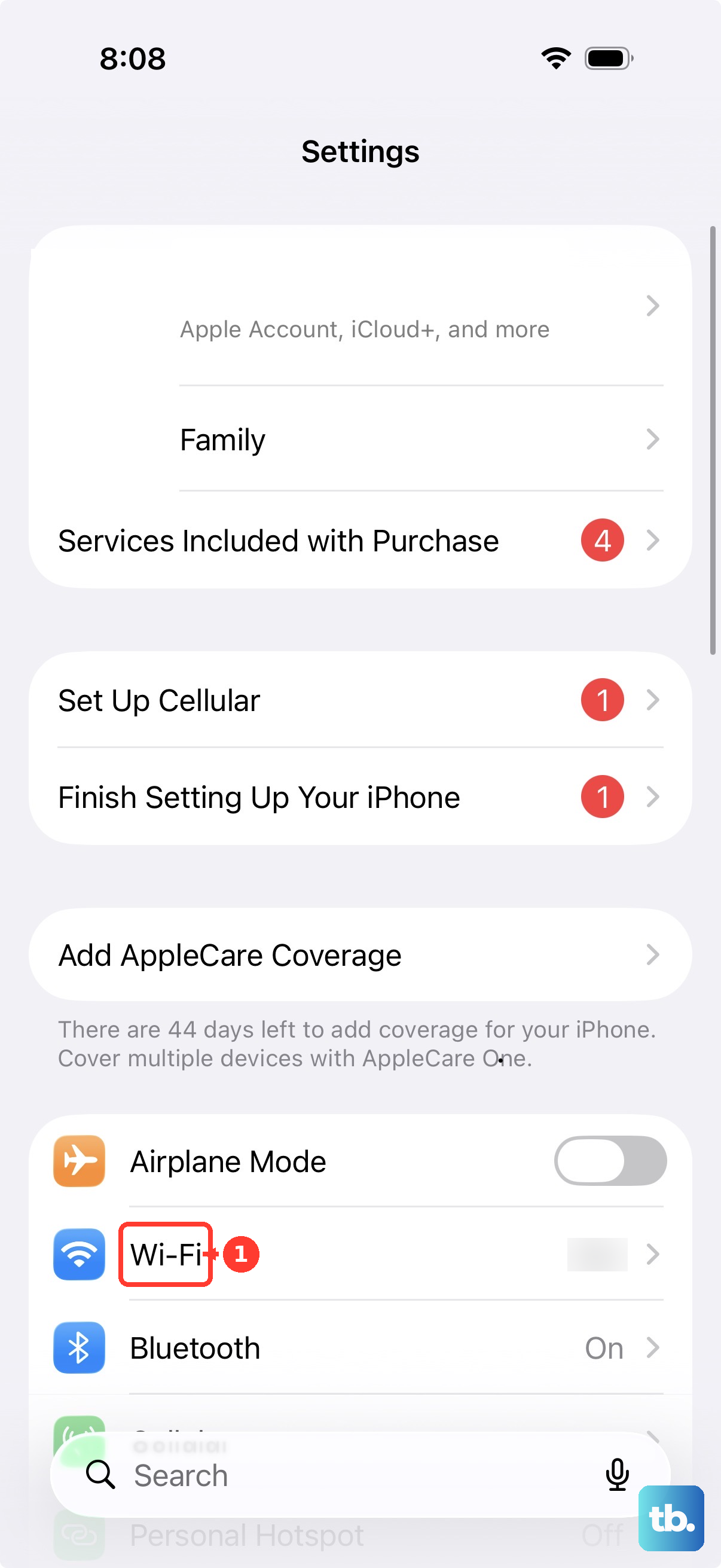
Tap the Info button for the CarPlay network and make sure Auto-Join is on.
Open Settings > General > CarPlay, then select your vehicle.
Fix wired CarPlay that will not launch
The most common wired cause is the USB connection between the iPhone and the Jeep.
Start the vehicle and connect the iPhone to the USB port labeled with the CarPlay icon or smartphone icon.
Use an Apple USB cable.
If CarPlay still does not connect, switch to a different USB cable and a different USB port.
Unlock the iPhone, disconnect the cable, then reconnect it.
If the iPhone still does not communicate while locked, open Settings > Privacy & Security > Wired Accessories and choose Automatically Allow When Unlocked or Always Allow.
Reset the phone and Uconnect pairing
Clear the saved pairing when CarPlay used to work with this Jeep and the same iPhone no longer reconnects.
On iPhone, go to Settings > General > CarPlay, select your car, then tap Forget This Car.
On Uconnect 5, which Jeep documents in the Grand Cherokee L from 2021 and the Grand Cherokee from 2022, press Phone > Device Manager, press the Settings gear icon next to the iPhone, then press Delete Device.
On Uconnect 4 or 4C with the 8.4-inch screen, first disconnect the iPhone with Pairing > Paired Phones and Audio Devices > Settings next to the iPhone > Disconnect Phone, because Mopar’s deletion steps apply to a phone or audio device other than the one currently connected.
Then press Pairing > Paired Phones and Audio Devices > Settings next to the iPhone > Delete Phone > X.
On Uconnect 4 with the 7-inch screen, disconnect the iPhone first with Phone Settings > Pair Phones or Paired Audio Devices > Settings next to the iPhone > Disconnect Device.
Then press Phone Settings > Pair Phones or Paired Audio Devices > Settings next to the iPhone > Delete Device > X.
Pair again on Uconnect 5 using Phone > Device Manager > Add Device, then follow the prompts on the touchscreen and the iPhone.
On Uconnect 4 and earlier radios, pair again using Phone > Settings > Paired Phones > Add Device or Settings > Phone/Bluetooth > Paired Phones > Add Device.
On iPhone, select the Uconnect system, confirm the passkey or enter the PIN, and allow Contacts and Messages if prompted.
Update the iPhone and Uconnect
The common software cause is an outdated iPhone or eligible Uconnect system waiting on an update.
On iPhone, open Settings > General > Software Update.
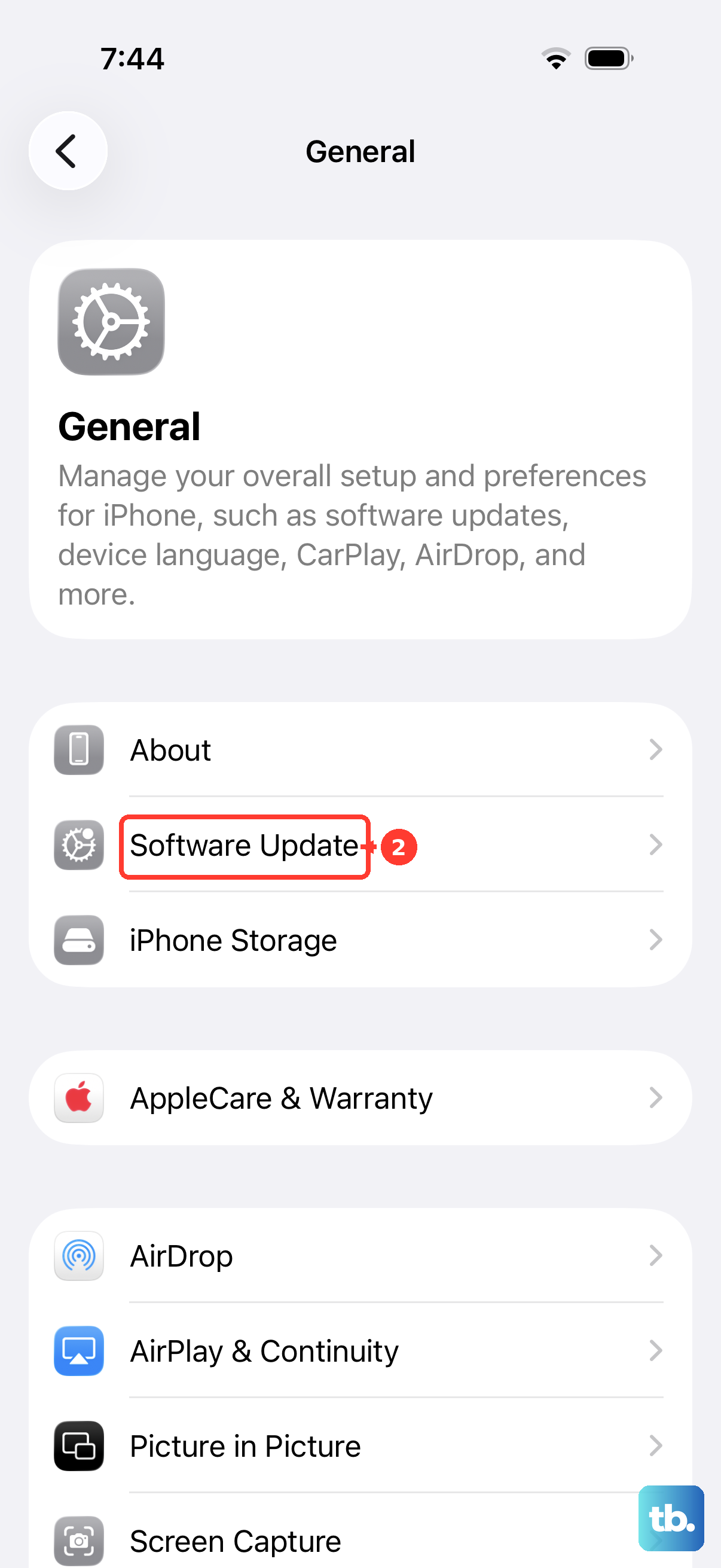
If an update is available, tap Download and Install and follow the onscreen instructions.
To update from a computer, connect the iPhone to the computer.
On Mac, select the iPhone in Finder, then choose General > Check for Update > Update.
In iTunes, select the iPhone button, then choose Summary > Check for Update > Update.
For Uconnect, use the Jeep or Uconnect support page and choose System Updates > Update Software.
Enter the 17-digit VIN when prompted; it is on the dash, driver-side doorjamb, or registration.
On Uconnect systems with Wi-Fi software downloads, press Vehicle > Settings > Software Updates > Software Downloads over Wi-Fi > On.
To connect Wi-Fi, use Settings > WI-FI, select your network, and enter the password.
When a Uconnect update pop-up appears, put the vehicle in Park, turn ignition ON, and press Update Now.
Let phase one complete, then turn the vehicle off and exit when prompted so the update can finish.
Reboot the Uconnect radio
A radio reboot can clear a stuck Uconnect screen or a CarPlay handoff that will not complete.
On systems with a physical radio faceplate button, push and hold the Power button for at least 15 seconds to reset the radio.
On systems that show the touchscreen reset menu, press Vehicle > Settings > Reset > Restart Radio.
If this method fails, contact Uconnect support or schedule dealer service because persistent software or connectivity issues may need VIN-specific update help or hardware diagnosis.
Restore missing apps and messages
App and notification problems are different from a full CarPlay connection failure. Use these fixes when CarPlay opens, but a specific app, message alert, or announcement is missing.
To restore an app to the CarPlay screen, open Settings > General > CarPlay, select your car, tap Customize, then use the Add or Delete button or drag the app to change its order.
If an app is locked or hidden on iOS 18 or later, locate it on the Home Screen, touch and hold the app icon, tap Don't Require Face ID, Don't Require Touch ID, or Don't Require Passcode, then authenticate. For hidden apps, open App Library > Hidden, authenticate, touch and hold the app, and choose the matching Don't Require option.
For message announcements, open Settings > Notifications > Announce Notifications > CarPlay and turn on Announce Messages. Then tap Back > Messages and choose Time Sensitive and Direct Messages or All Notifications.
If notifications are silenced while CarPlay is connected, open Control Center, touch and hold Focus, then tap Driving. To change automatic activation, go to Settings > Focus > Driving > While Driving and choose Automatically, When Connected to Car Bluetooth, Manually, or Activate With CarPlay.
Allow CarPlay and contact Jeep
Open Settings > Screen Time > Content & Privacy Restrictions.
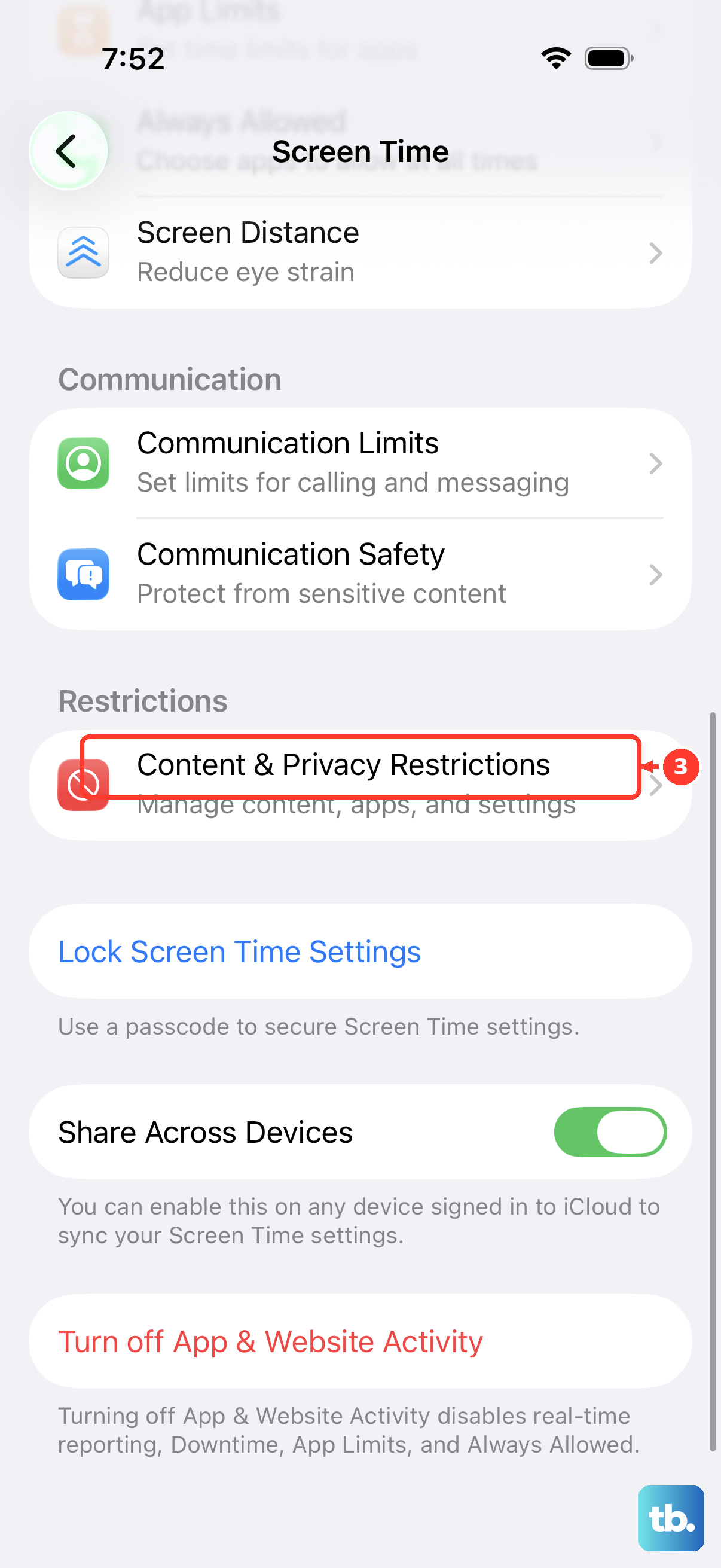
If Content & Privacy Restrictions is on, tap Allowed Apps and make sure CarPlay is enabled.
If parental controls manage Screen Time on the iPhone, the person who manages those controls needs to allow CarPlay.
For persistent issues, contact Uconnect General Support at 1-877-855-8400, use Mopar.com > Contact Us, or schedule dealer service through Mopar.com > Schedule Service or Find a Dealer.
Have the 17-digit VIN ready before asking about Uconnect software because update eligibility is VIN-specific.
Frequently Asked Questions
Does every Jeep Grand Cherokee support Apple CarPlay?
No. Apple lists Grand Cherokee support for model years 2018 through 2025 and Grand Cherokee L support for 2024 through 2025, but that published list is not the eligibility boundary. Jeep’s own documentation shows Apple CarPlay with Uconnect 5 in the 2021 Grand Cherokee L and in the 2022 and 2026 Grand Cherokee. The deciding factor is the Uconnect system installed in your vehicle: Jeep says Uconnect 5 includes CarPlay, select Uconnect 4 systems with 7-inch, 8.4-inch, or 12-inch touchscreens include it, and model year 2016 and earlier Uconnect systems do not support CarPlay or Android Auto.
Can a Uconnect software update add CarPlay to an older Jeep?
No. A Uconnect software update cannot add Apple CarPlay or Android Auto compatibility to a non-CarPlay Uconnect system. Updates can help eligible systems, but they do not turn unsupported hardware into a CarPlay system.
Why does my iPhone charge but CarPlay will not start?
Use an Apple USB cable and connect to the Jeep USB port labeled with the CarPlay or smartphone icon. If that fails, try a different cable and port, unlock the iPhone before reconnecting, and check Settings > Privacy & Security > Wired Accessories.
Why are apps or message alerts missing even though CarPlay connects?
The base connection is working, so check CarPlay app customization, app locking or hiding on iOS 18 or later, Announce Messages, and Driving Focus settings.