Apple CarPlay in a Honda CR-V can fail at the USB port, the wireless pairing step, an iPhone permission, or an old saved device profile. Start with the connection method you use every day, then move into iPhone settings and resets only after the basic link is clean. These fixes use Honda’s 2026 CR-V manual steps and Apple’s current CarPlay troubleshooting paths.
Honda renamed the phone menus for the 2026 CR-V, so check your screen first: 2025 and earlier CR-Vs put these settings under General Settings > Smartphone Connection, while the 2026 CR-V uses General Settings > Connections. Use whichever name your CR-V shows.
1. Plug into the correct CR-V USB port
For wired CarPlay, connect the iPhone to the front CR-V USB charging and connector port marked with the smartphone and USB icon, not the front charging-only USB port or rear console charging ports. Use an Apple MFi Certified Lightning cable for Lightning iPhones, and use a USB-IF certified, USB 2.0 compliant cable for the CR-V.
If the first CarPlay consent prompt was rejected before, open Home > General Settings > Connections and change the saved consent for that iPhone. On a 2025 or earlier CR-V, change it under General Settings > Smartphone Connection instead.
2. Start wireless CarPlay from the Honda screen
These steps fix wireless setup when the CR-V does not open the iPhone CarPlay prompt.
- 1.Press the CR-V Home button.
- 2.Select Apple CarPlay.
- 3.Select Connect New Device.
- 4.Pair the iPhone to the vehicle’s Bluetooth HandsFreeLink (HFL) system. On the iPhone, look for the vehicle name shown on the CR-V screen, which you can change under Connections > Options > Name.
- 5.Select Yes on the CR-V screen.
- 6.Accept the Apple CarPlay permission prompt on your iPhone.
On a 2025 or earlier CR-V, the same setup runs under the Smartphone Connection menu: press Home, select Smartphone Connection (or General Settings > Smartphone Connection > Apple CarPlay), then select + Connect New Device and pair the iPhone the same way.
3. Turn on Bluetooth, Wi-Fi, and Auto-Join
Wireless CarPlay needs Bluetooth and Wi-Fi on the iPhone. Open Settings > Bluetooth and turn Bluetooth on. Then open Settings > Wi-Fi, turn Wi-Fi on, tap the CarPlay network, and switch on Auto-Join.
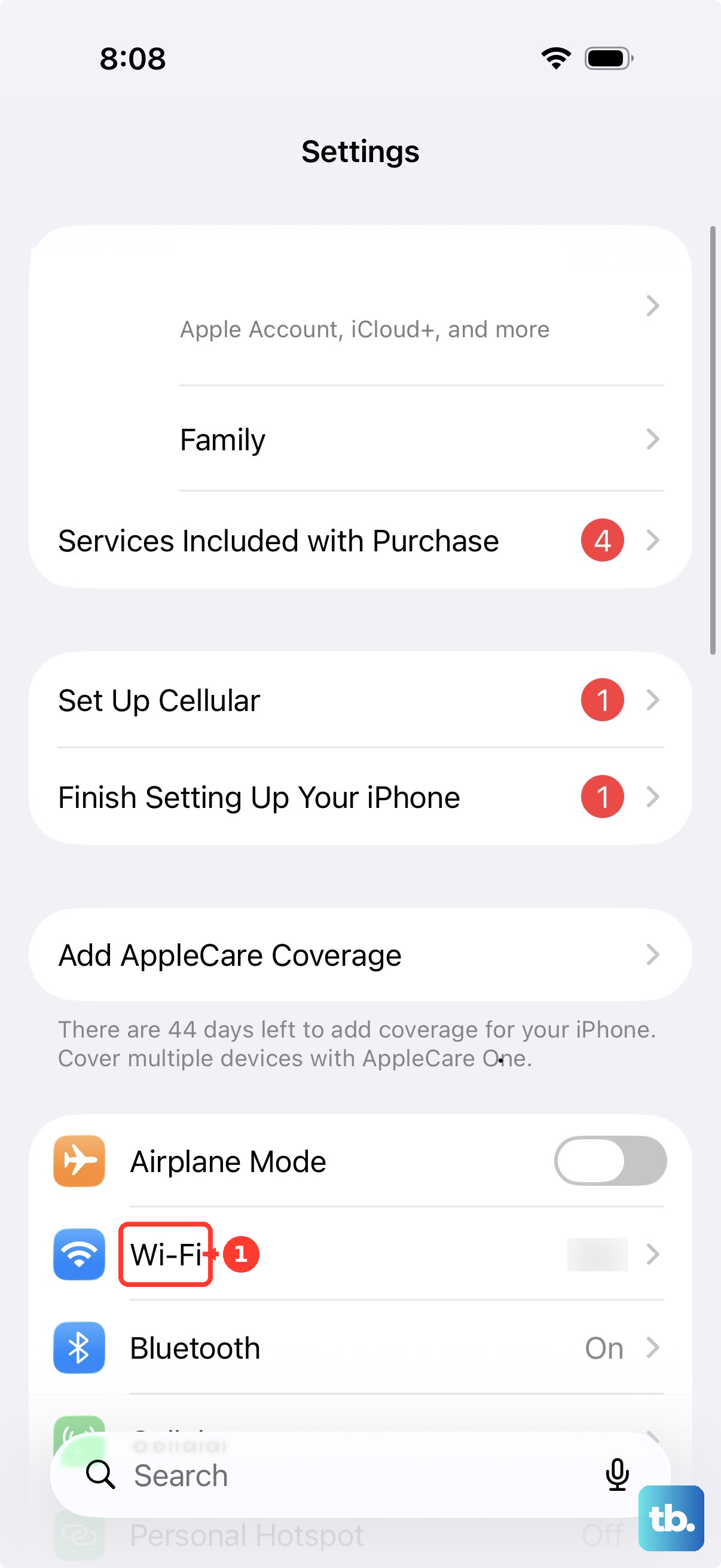
If CarPlay still stays off screen, select the Apple CarPlay logo on the CR-V display.
4. Delete the old CR-V pairing and connect again
To fix corrupted pairings, changed phones, and CR-V connections that keep choosing the wrong iPhone, stop the CR-V and set the power mode to on. Press Home, then select General Settings.
Next, select Connections. On a 2025 or earlier CR-V, select Smartphone Connection > Apple CarPlay here instead. Select your saved iPhone, then choose the available option to disconnect or delete the device.
After that, select Apple CarPlay > Connect New Device and pair the iPhone again. For more than one paired phone, open Options > Priority Device and set your preferred iPhone.
5. Forget the CR-V on your iPhone
Open Settings on your iPhone, then tap General and CarPlay. Select your Honda CR-V, then tap Forget This Car. Set up CarPlay again from Apple CarPlay > Connect New Device on the CR-V screen, or connect the iPhone to the correct front USB connector port.
6. Allow Siri, CarPlay, and Screen Time access
To fix CarPlay that is blocked by Siri settings or iPhone restrictions, open Settings on the iPhone. Tap Apple Intelligence & Siri or Siri, then open Talk & Type to Siri or Talk to Siri. Enable a Siri activation option.
Return to Settings, then tap Screen Time and Content & Privacy Restrictions.
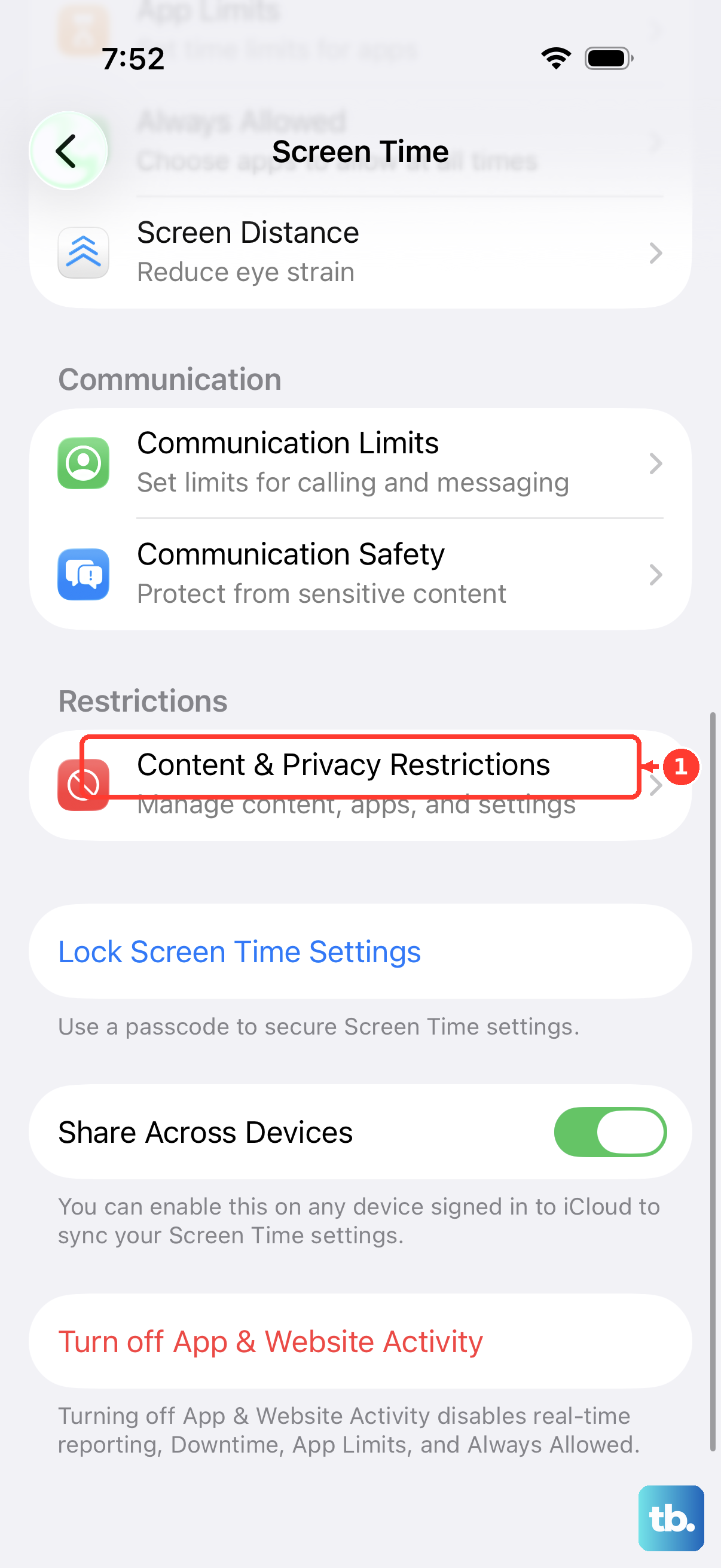
If restrictions are on, tap Allowed Apps and turn on CarPlay.
7. Restart the iPhone and the CR-V
On iPhone X or later, press and hold either volume button and the side button until the power-off slider appears. Drag the slider, wait 30 seconds, then press and hold the side button until the Apple logo appears. Turn the CR-V off and back on normally.
If the iPhone is frozen or CarPlay still will not recover, press and quickly release the Volume Up button, press and quickly release the Volume Down button, then press and hold the Side button until the Apple logo appears. Once both systems are back on, select the Apple CarPlay icon on the CR-V screen before changing more settings.
8. Update iOS and check Honda software
Apple tells drivers to keep iPhone updated for CarPlay, and Honda recommends the latest OS. On iPhone, open Settings > General > Software Update and install the available update.
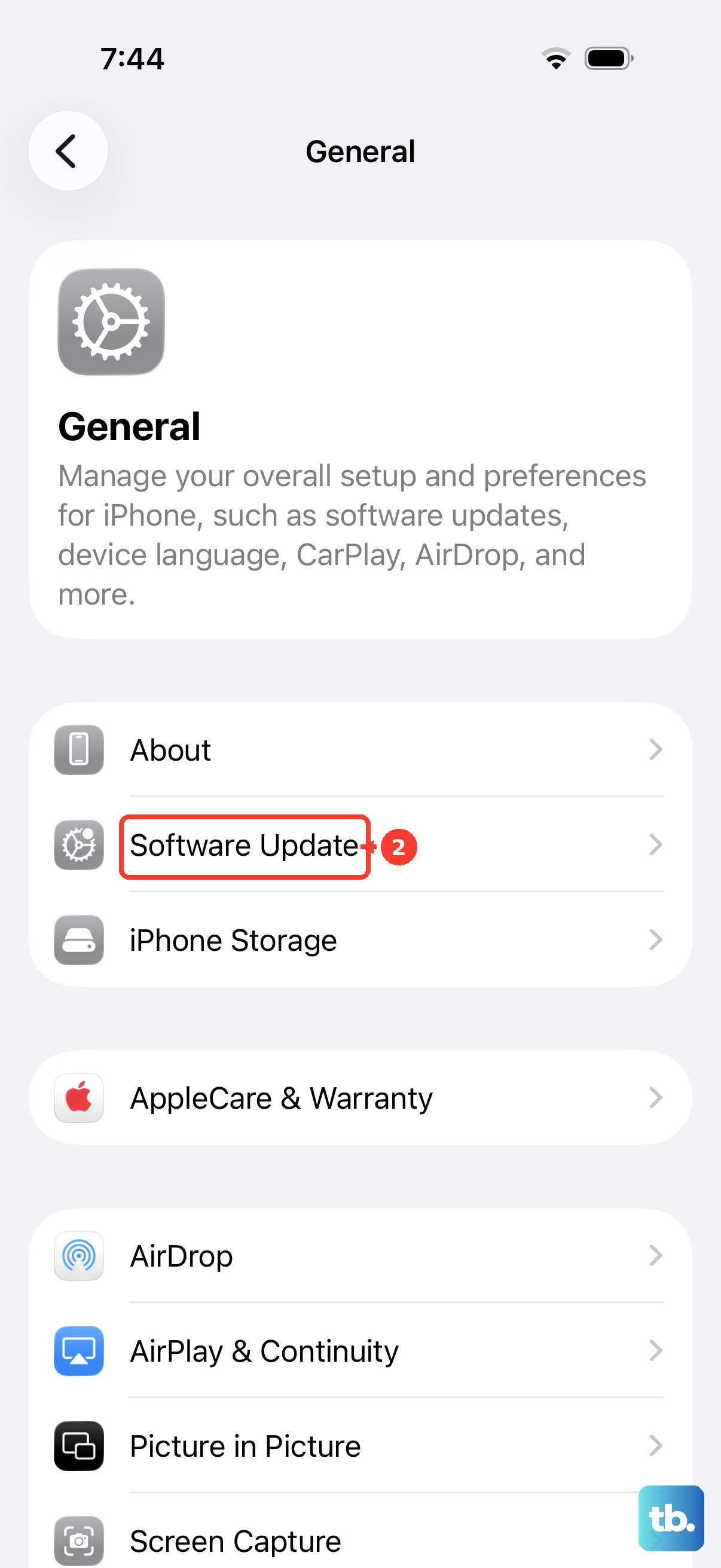
If wireless updating fails, connect the iPhone to a trusted Mac, open Finder, select the iPhone in the sidebar, and use the update flow shown for the device. For the CR-V, accept Honda over-the-air prompts when they appear or ask a Honda dealer to check infotainment software when CarPlay fails with multiple known-good iPhones.
9. Use resets only after the basics
For stubborn wireless or Bluetooth failures, open Settings > General > Transfer or Reset > Reset > Reset Network Settings on the iPhone. This removes saved Wi-Fi networks and passwords, cellular settings, and VPN or APN settings.
If deleting devices does not fix the CR-V profile, press Home > General Settings > System > Factory Data Reset, then select Continue and Continue again. Honda says the system reboots and personal data and settings are reset.
For a managed work, school, or parent-managed iPhone, ask the device administrator to allow Siri and accessory connections because management restrictions can disable Siri or require unlock before Siri responds.
If CarPlay works but one app is missing, use Settings > General > CarPlay > your vehicle > Customize and add or reorder the app. Only CarPlay-compatible apps appear.
If several iPhones and cables fail in the same CR-V, schedule Honda service and ask them to check the audio and information screen, USB port, wireless CarPlay, and available dealer or over-the-air updates.
Frequently Asked Questions
Does the Honda CR-V support Apple CarPlay?
Honda’s 2026 CR-V manual documents Apple CarPlay support. Apple’s published model list shows Honda CR-V support for 2017 through 2025 models, while Honda’s 2026 manual separately documents 2026 support. Honda says a compatible iPhone is an iPhone 6S or newer with iOS 10.0.2 or later, with the latest OS recommended.
Why does my iPhone charge in the CR-V but CarPlay does not start?
Use the front USB charging and connector port marked with the smartphone and USB icon. The front charging-only USB port and rear console USB ports are for charging, not wired CarPlay.
Why are calls or messages missing when CarPlay is connected?
Check Driving Focus on the iPhone. Go to Settings, Focus, Driving, then review automatic activation and allowed people because Focus settings can silence notifications while CarPlay still works.
What should I do when only one CarPlay app is missing?
On the iPhone, go to Settings, General, CarPlay, select your CR-V, then Customize. Add or reorder the app there. If the app was locked or hidden on the iPhone, unlock or unhide it first.