Your Nissan Rogue may charge your iPhone, play Bluetooth audio, or show nothing when Apple CarPlay should open. The fix depends on where the handoff breaks: the cable, wireless pairing, Siri, Screen Time, NissanConnect startup settings, or a managed iPhone. Start with the checks that solve the most common Rogue CarPlay failures, then move into re-pairing and system cleanup.
Confirm the Rogue and iPhone support CarPlay
This fixes model, trim, and software mismatches before you reset working settings.
Confirm the Rogue is equipped with Apple CarPlay. Apple's vehicle list names Nissan Rogue from 2018 through 2025, and Nissan's current Rogue pages show wireless Apple CarPlay integration on equipped 2026 and 2026.5 Rogue models.
Use a CarPlay-capable iPhone.
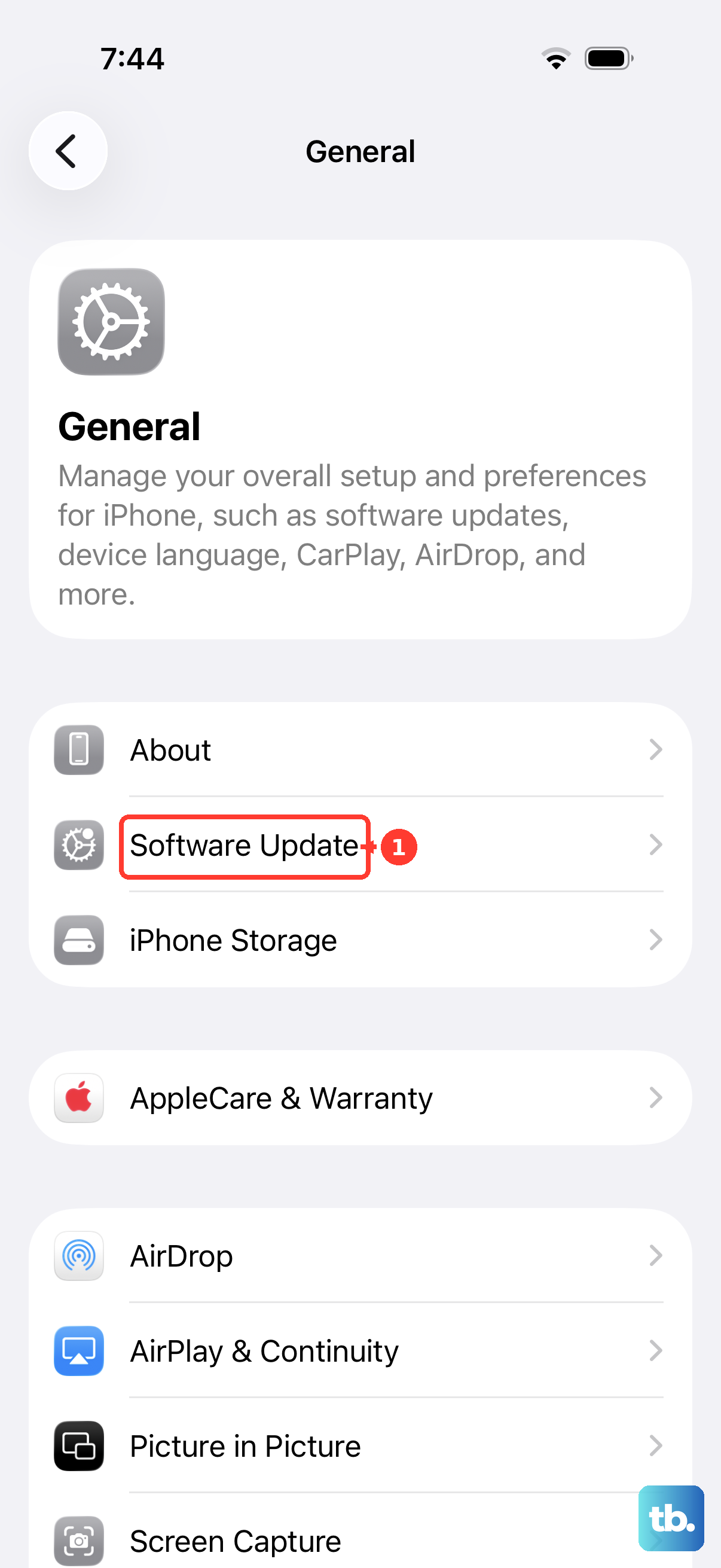
Update the iPhone at Settings > General > Software Update > Download and Install, then follow the onscreen instructions.
Fix the wired USB connection
Use a direct Apple Lightning-to-USB cable, or a direct USB-C cable for an iPhone with USB-C.
Plug the iPhone into the Rogue USB port labeled with the CarPlay icon or smartphone icon.
Watch the Rogue display and follow the Apple CarPlay setup prompts.
When the Startup Information screen appears, tap Yes to use Apple CarPlay.
If CarPlay does not start, try a different USB cable and another USB port in the Rogue.
Apple's USB-C to Lightning Adapter works with wired CarPlay in most vehicles, but some adapter, cable, and stereo combinations disrupt the connection. If yours is unreliable, connect with a direct USB cable instead.
A different direct cable quickly separates a USB problem from a CarPlay setup problem.
Set up wireless CarPlay again
Wireless CarPlay is equipment-dependent on the Rogue, so check before you follow this section. Nissan's current Rogue trim list shows plain Apple CarPlay integration on the NissanConnect 8-inch trims and Wireless Apple CarPlay integration only on the 12.3-inch display trim, and 2018 and 2019 Rogue systems connect CarPlay by USB cable only. If your Rogue is wired-only, stay with the USB steps above. On a Rogue equipped for wireless, this fixes stale wireless pairing, reconnect failures, and cases where the Rogue drops back to basic Bluetooth audio.
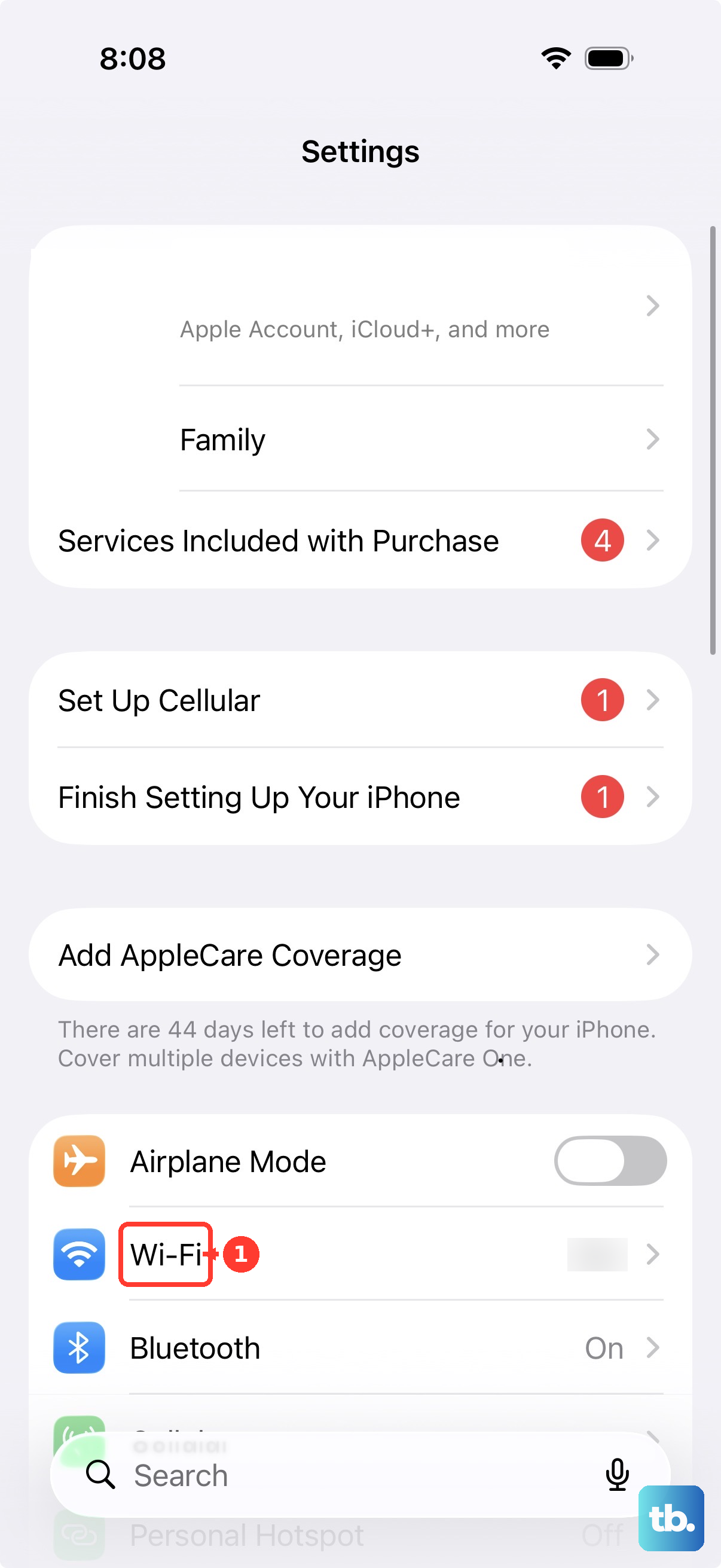
On the iPhone, turn on Bluetooth at Settings > Bluetooth.
Turn on Wi-Fi at Settings > Wi-Fi.
In NissanConnect, turn on Bluetooth at MENU > Connections > Devices > settings icon > Bluetooth.
In the Rogue, put the stereo in Bluetooth or wireless mode.
If no Bluetooth device is connected and CarPlay is not already active, press and hold the steering-wheel voice command button to bring up the Connections screen, then pair the iPhone from there.
On the iPhone, tap the CarPlay network in Wi-Fi and turn on Auto-Join.
Go to Settings > General > CarPlay, then choose your Rogue.
If the iPhone asks whether to use the wireless connection, choose to use it.
Launch CarPlay from the Rogue display
Look for the Apple CarPlay logo on the Rogue display and select it.
After exiting CarPlay, tap the CarPlay icon on the NissanConnect Launch Bar.
If the Launch Bar icon is not visible, open Smartphone Connection > Apple CarPlay.
Open MENU > Connections > Devices, then tap the Apple CarPlay icon beside the compatible iPhone to activate Apple CarPlay for that phone.
For startup behavior on a 2020 or newer Rogue, open MENU > Connections > Devices, tap the information icon beside the iPhone, then open Smartphone Projection > Start-up Options and choose Always or Ask. Some Rogue systems, including the Rogue PHEV, label those same choices Auto and Ask Every Time.
On a 2018 or 2019 Rogue the setting lives elsewhere: touch Settings on the Launch Bar, then Apps > Apple CarPlay > Enable after USB Connection, and choose Always or Ask.
Move startup behavior away from Never or Never Start when you want CarPlay to open.
When the Startup Information screen appears, choose Yes.
Restart the phone and make sure Siri is on
This fixes a stuck CarPlay session and setups that fail because Siri is disabled.
On iPhone X or later, press and hold either volume button and the side button until the power-off slider appears.
Drag the slider, wait 30 seconds, then hold the side button again until the Apple logo appears.
Turn the Rogue off and back on normally.
Open Settings > Apple Intelligence & Siri > Talk & Type to Siri, then enable Siri. On some iPhones, use Settings > Siri > Talk to Siri.
To use Siri from the Rogue, press and hold the steering-wheel voice-command button. Keep the cabin quiet and close the windows when Siri recognition is poor.
Allow CarPlay in iPhone restrictions
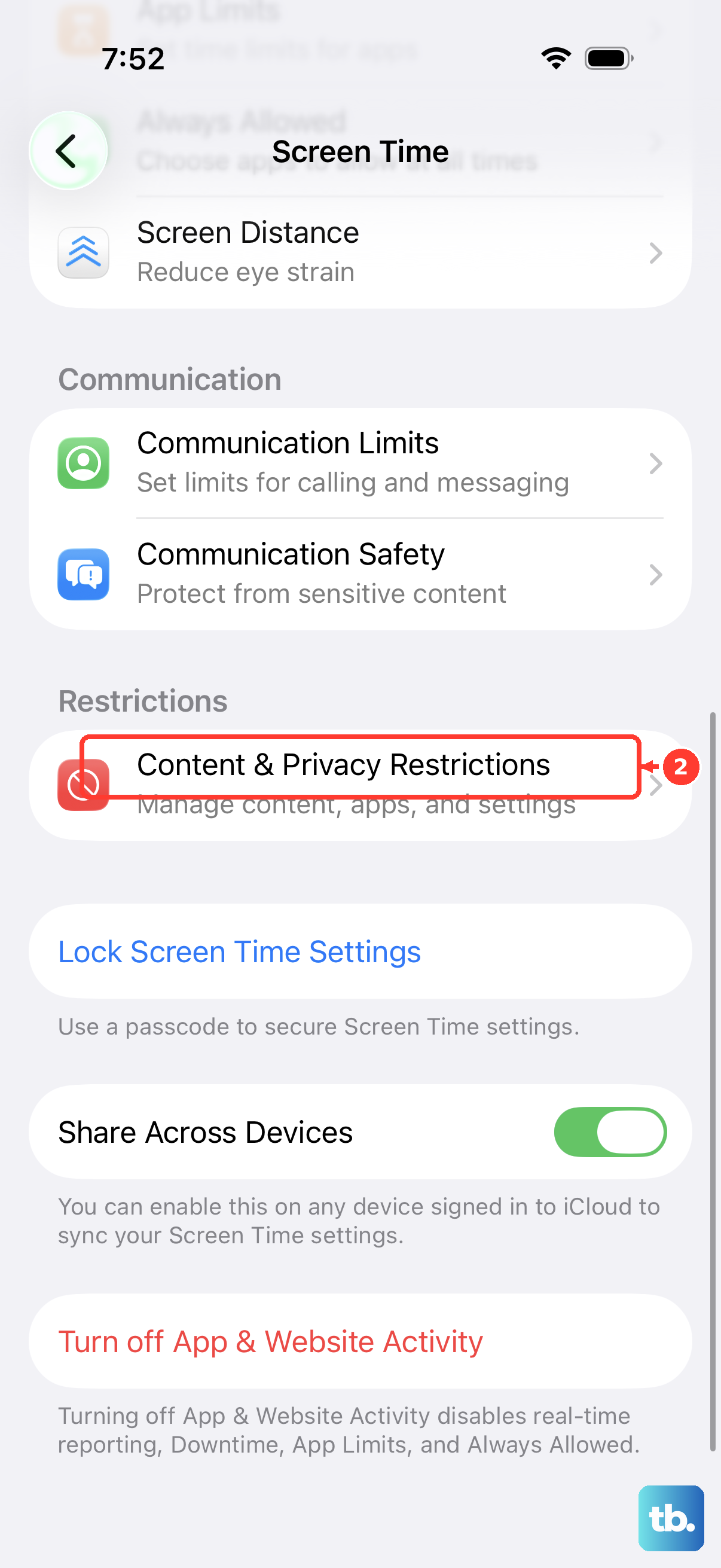
Open Settings > Screen Time > Content & Privacy Restrictions.
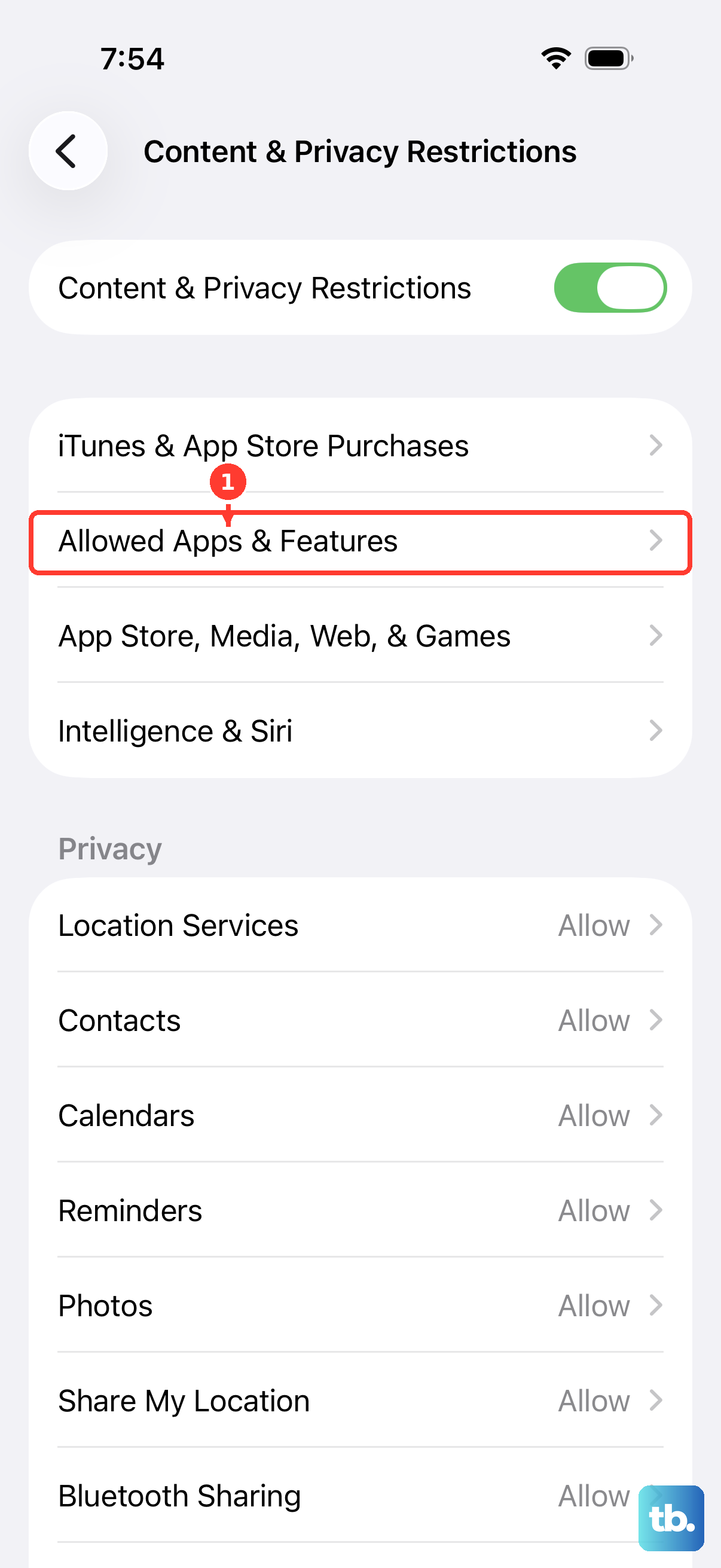
If Content & Privacy Restrictions is on, tap Allowed Apps & Features.
Turn on CarPlay.
If your iPhone shows the older label Allowed Apps, open that instead and enable CarPlay.
Check this after Screen Time changes or after setting up a child or family-managed iPhone.
Rebuild the pairing on both screens
On iPhone, open Settings > General > CarPlay, tap your Rogue, then tap Forget This Car.
In NissanConnect, push MENU > Connections > Devices, tap the information icon next to the iPhone name, then tap Delete > Yes.
If the device list is full, delete an old phone first; NissanConnect can hold up to six Bluetooth devices.
Pair the iPhone again from MENU > Connections > Devices > Add New, then follow the onscreen instructions. On a 2018 or 2019 Rogue, use Settings > Connections > Bluetooth > Add New instead, and delete an old phone from that same Bluetooth list.
If another phone is already using Apple CarPlay or Android Auto, disconnect that phone first, or deactivate Apple CarPlay or Android Auto for it under MENU > Connections > Devices.
When several phones are paired, set your iPhone as the preferred phone at MENU > Connections > Devices > settings icon > Favorite Phone.
Clean up apps and NissanConnect software
When CarPlay opens but an app is missing, go to Settings > General > CarPlay > your Rogue > Customize, then add, remove, or reorder supported CarPlay apps.
When maps, music, messaging, or another online app is slow or blank, confirm the iPhone has cellular service and an active data plan, then disconnect and reconnect the phone.
If only one third-party CarPlay app fails, update that app from the App Store and contact the app developer.
If your Rogue is equipped for over-the-air updates, open MENU > Info > System Information > Software Update > Start Software Update, then choose Check for Updates or Download, depending on which your NissanConnect generation shows. Before you accept an update, turn the engine on, park in a ventilated area, and set the parking brake, and do not drive the Rogue while the update is installing. After completion, turn the ignition off, leave the system for 20 minutes, then turn the ignition on.
If CarPlay still behaves like a bad saved setting is stuck, use Settings > Others > Return All Settings to Default, then set up the iPhone again.
Skip the repeated power or volume-button hard-reset shortcut and use Nissan-supported cleanup: re-pairing, startup options, software update, or Return All Settings to Default.
Check a work or school iPhone
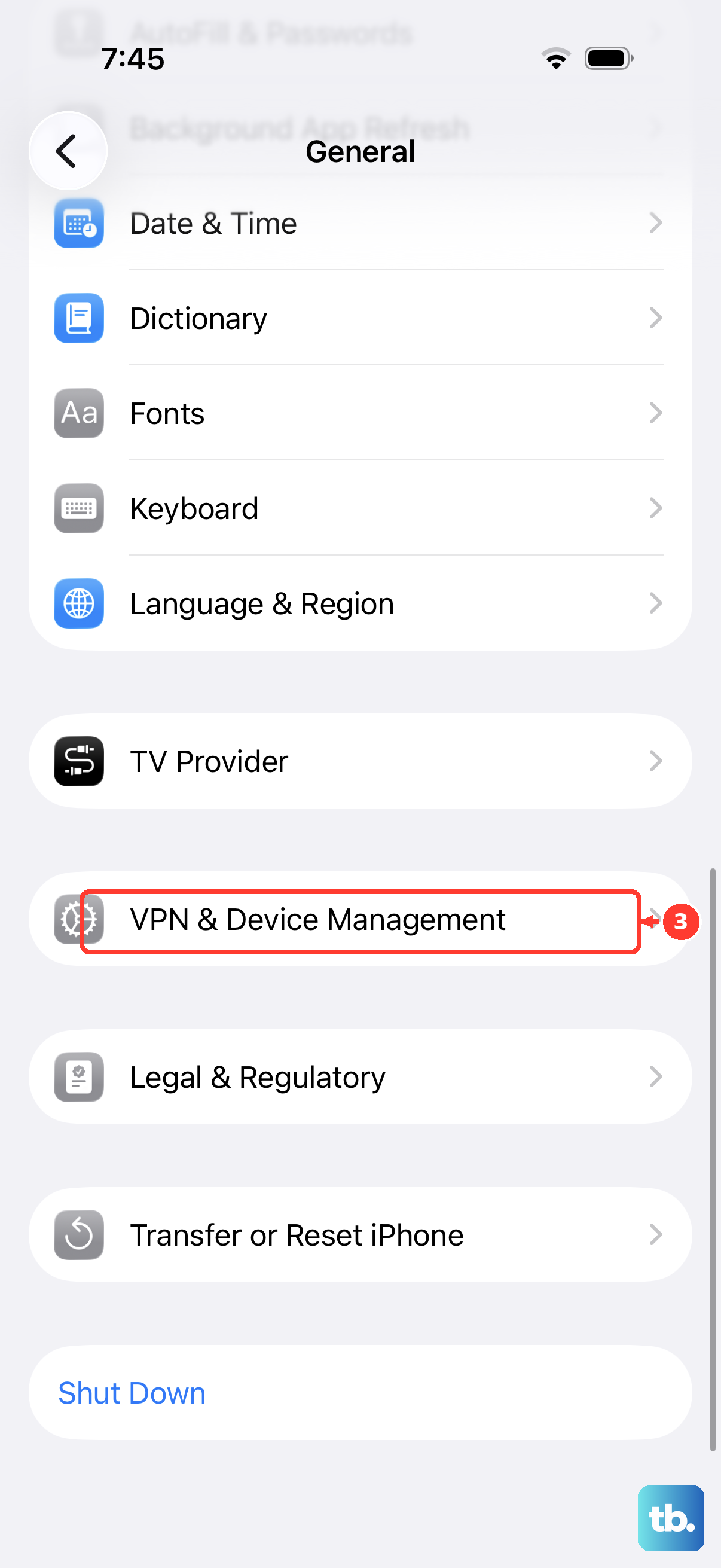
A managed iPhone can have profiles or restrictions that affect CarPlay or CarPlay notifications. On a personally owned iPhone, open Settings > General > VPN & Device Management, select the configuration profile, and use Remove Profile; Apple says removing a profile also removes settings, apps, and data tied to it. If the device is supervised by work or school, contact the administrator because you may not be allowed to remove the profile yourself.
Frequently Asked Questions
Why does my Nissan Rogue charge my iPhone but not open CarPlay?
Use a direct Apple Lightning-to-USB cable or direct USB-C cable and plug into the Rogue USB port marked with a CarPlay or smartphone icon. If it still fails, try a different cable and another USB port.
Does every Nissan Rogue have wireless Apple CarPlay?
No. Apple's CarPlay vehicle list names Rogue models from 2018 through 2025, while Nissan's current Rogue pages show wireless Apple CarPlay integration on equipped 2026 and 2026.5 models. Availability depends on trim and equipment.
Why is one CarPlay app missing in my Rogue?
Only CarPlay-supported apps appear. On iPhone, go to Settings > General > CarPlay > your Rogue > Customize, then add, remove, or reorder supported apps.
Can Screen Time stop Apple CarPlay from working?
Yes. Open Settings > Screen Time > Content & Privacy Restrictions > Allowed Apps & Features and make sure CarPlay is enabled. Older iPhone wording may show Allowed Apps instead.