Android Auto voice commands can stop responding when the microphone is blocked, Assistant or Gemini is not listening, apps are outdated, or the car connection is acting up. Start with the fastest checks, then move through permissions, updates, and the car-side fixes that Google currently supports.
1. Start Android Auto voice the right way
Android Auto listens from three supported places. Use one, wait for the tone, then speak.
Say Hey Google.
Tap the Microphone button on the Android Auto screen.
Press and hold the voice command button on your steering wheel until you hear the Android Auto tone.
Do not jab the steering-wheel button and start talking right away. A short press can exit Android Auto instead of opening voice input, so hold the button until the tone plays.
2. Reduce noise before blaming Android Auto
Wait for the tone before speaking.
Speak after the tone plays.
Lower the cabin noise around you.
If Android Auto opens voice input but misunderstands you, clean up the input first.
Aftermarket receivers add one more failure point. If you use a Pioneer, Kenwood, or similar installed receiver, check that the receiver microphone is connected and working, or ask the installer to inspect it.
3. Turn on Hey Google for Assistant or Gemini
If the screen microphone works but Hey Google does nothing, switch the hotword back on for the assistant your phone uses.
For Google Assistant, open the Google Home app, then go to Settings > Google Assistant > Voice Match. Turn on Hey Google, then follow the Voice Match setup prompts.
To retrain it, go to Google Home > Settings > Google Assistant > Voice Match > Voice model > Retrain voice model.
For Gemini, open the Gemini app, tap Menu > Profile picture or initial > Settings > Talk to Gemini hands-free, then turn on Hey Google. Gemini and Hey Google are not available for every language, device, account, or location, so if the toggle is missing, use the Microphone button or switch assistants where available. If Gemini is the problem, switch back to Assistant from Gemini > Menu > Profile picture or initial > Switch to Google Assistant > Google Assistant > Switch.
4. Restore microphone access on Android
Go to Settings > Apps.
Choose the app you want to check.
Tap Permissions > Microphone.
Select Allow or Allow only while using the app.
Android Auto voice commands cannot work if Android blocks the microphone. Check the apps involved in the command chain: Google, Android Auto, Gemini, Google Maps, your messaging app, and your media app.
On Android 12 and later, also check the global microphone switch. Swipe down twice from the top of the screen, then tap the microphone tile to turn microphone access back on. If the tile is missing, tap Edit or Add, then drag the microphone tile into Quick Settings.
The Privacy dashboard shows recent microphone access, not which apps are blocked. To find or change a blocked microphone permission, open Settings > Security and Privacy or Privacy > Permission manager > Microphone, select the app, and update its permission.
5. Update the apps behind voice commands
Update the whole stack, because Android Auto voice relies on several Google apps, not just the Android Auto surface in the car.
Open the Google Play Store.
Tap your profile icon.
Tap Manage apps & device.
Under Updates available, tap See details.
Tap Update next to Google, Android Auto, Gemini, Google Maps, and the affected messaging or media app.
You can also tap Update all. To keep one of these apps current, open the app’s details page in Google Play Store, tap More, then turn on Enable auto update.
Update Google Play services from Android settings instead of the Play Store list. Open Settings, tap your profile picture > All services, then go to Privacy & Security > System services > Google Play services and tap Update or Install.
6. Restart the phone and clear cache
Press the phone’s Power button for about 30 seconds until the phone restarts, or tap Restart when it appears.
Open Settings > Apps.
Choose Google, Android Auto, Gemini, Google Maps, or the affected app.
Tap Force stop.
Go to Storage & cache > Clear cache.
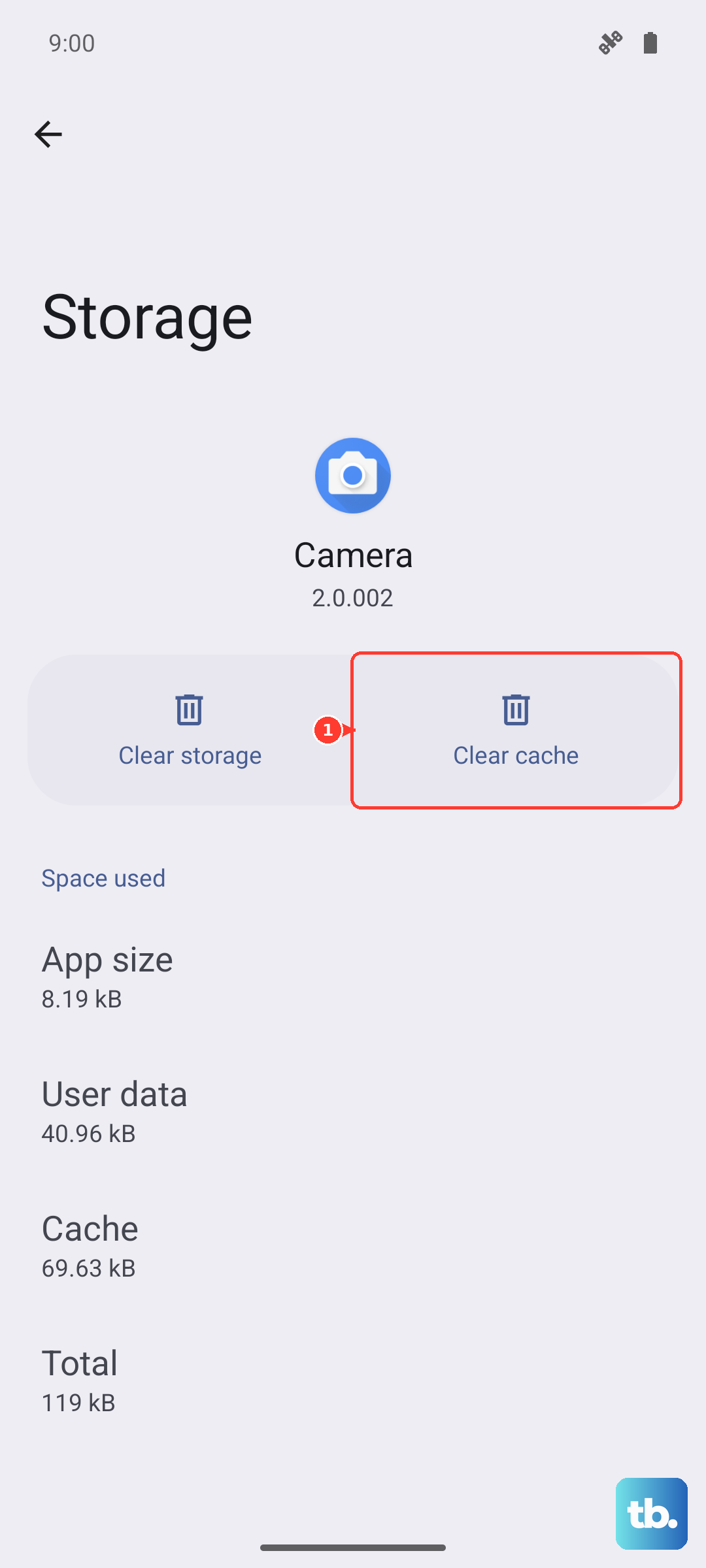
A restart clears temporary Android app problems fast. If voice still fails, force stop the app that is misbehaving, then clear its cache.
Use Clear storage or Clear data only after the other fixes, because it can erase app settings and local app data. For Google Play services, update or install it first; clear its cache or data only after other troubleshooting fails.
7. Repair the Android Auto car connection
If voice works on the phone but fails in the car, rebuild the Android Auto connection.
- 1.Unplug the phone from the car.
- 2.Open Settings > Connected devices > Connection preferences > Android Auto.
- 3.Tap Previously connected cars.
- 4.Open the top-right menu and tap Forget all cars.
- 5.Plug the phone back into the car and set up Android Auto again.
For wired Android Auto, use a high-quality USB cable under 3 feet or 1 meter. Skip USB hubs and extensions, and try the cable that came with the phone.
For wireless Android Auto, keep Bluetooth, Wi-Fi, and Location Services on during setup. Put the car in Park, keep the infotainment system on, open the phone’s Bluetooth menu, then press and hold the steering-wheel voice command button to start pairing.
8. Fix car settings and skip outdated tricks
Check the car side before you reset more phone settings. In the infotainment system, make sure Android Auto is turned on, then restart the infotainment system.
If you use an aftermarket receiver, check the manufacturer’s website for a firmware update.
Cars with Google Assistant built in have a separate assistant menu. On the car display, go to apps > Settings > Google > Google Assistant. From there, tap Update if one is available, turn on Say “Hey Google”, or choose the correct language under Languages.
For commands that need contacts, calendar entries, addresses, or personalized messages, turn on personal results. On your phone, say Hey Google, open Assistant settings, then go to Personalization > Personal results. On the display of a car with Google Assistant built in, go to apps > Settings > Google > Google Assistant, then turn on Allow personal results.
Skip the old standalone Android Auto phone-screen app fix. Google’s current Android Auto guidance says Android Auto is integrated into current phones for car display use, so the current fixes are updates, permissions, restart, cache clearing, reconnecting the car, and checking the receiver.
While voice is unavailable, use Android Auto display controls. For navigation, tap the app launcher, open Google Maps or another navigation app, then use Search, Recent, Categories, or Saved. To type a destination, put the car in Park first.
Frequently Asked Questions
Why does Android Auto only listen when I tap the microphone?
The hotword is off for Google Assistant or Gemini, or Voice Match needs setup. Turn on Hey Google for the assistant your phone uses, then retrain the voice model if Assistant still misses the wake phrase.
Why do Android Auto voice commands work on my phone but not in my car?
The Android Auto connection or car microphone path is the issue. Forget previously connected cars, reconnect Android Auto, replace the USB cable for wired setups, and restart the infotainment system.
Should I uninstall and reinstall Android Auto to fix voice commands?
No. Google says Android Auto is integrated into current phones for car display use. Use updates, microphone permissions, restart, cache clearing, and car reconnection instead.
Why can Android Auto hear me but not send messages or use contacts?
Those commands need account data. Turn on Personal results in Assistant settings, then check microphone permission for the related messaging, contacts, calendar, or navigation app.
What can I use while Android Auto voice commands are down?
Use the car display controls. Open Google Maps or another navigation app from the launcher, then use Search, Recent, Categories, or Saved. Put the car in Park before typing a destination.