Your Android accent color can stop changing the places you expect, including supported system menus, wallpaper-based colors, themed icons, and app surfaces. The usual problem is that the color control is no longer where older Android 10 guides say it is. Start with the current color settings for your phone maker, then move through wallpaper, app, update, and launcher checks until the stuck color clears.
1. Start with Wallpaper and style
Use the built-in color picker first on Android 13 and newer phones that expose Google’s current color scheme controls.
- 1.Open Settings.
- 2.Tap Wallpaper & style.
- 3.Tap Wallpaper colors and select a palette.
- 4.Or tap Basic colors and select a color.
- 5.Go back to the Home screen, open Quick Settings, and check whether the accent changed.
Google says some of these steps work only on Android 13 and up. If your phone is actually on Android 10, check your phone maker’s theme controls below instead of relying on the old Developer options method, but note that some of these controls shipped with newer software.
Samsung Color palette arrived with One UI 4 (Android 12), and current Motorola Personalize is documented on much newer Motorola releases. A phone still on Android 10 may only expose model-specific theme settings rather than the exact menus shown below.
2. Apply the Pixel color from the Home screen
Touch and hold an empty space on the Home screen, then tap Wallpaper & style. Tap Colors, choose a style, and tap Apply. For more choices, tap Other colors.
Pixel phones also let you reach the color controls without opening the full Settings app. If icons are the part that still looks wrong, open Wallpaper & style, go to Icons, tap Style, and choose Default or Minimal, then tap Apply.
For Create your own, tap Create icons, choose an offered style, then tap Download and Apply. Google notes that icons in the all apps list are not stylized.
3. Refresh the wallpaper palette
When the color you want is missing, change the wallpaper so Android can generate a fresh set of color choices. Touch and hold an empty space on the Home screen, then tap Wallpaper & style.
Tap Change wallpaper, then choose Lock screen or Home screen. Select a photo or preset wallpaper, tap Preview, and tap Apply. After that, return to Wallpaper & style, open Colors, and apply a new palette.
Tip: Pixel 4a and later can build a color-driven wallpaper through Emoji Workshop. Pixel 8 and later can use AI wallpaper, though Google says availability depends on model and account type.
4. Fix Samsung Color palette
Open Settings, then tap Wallpaper and style. Tap Color palette and turn on Color palette. Select a palette under Wallpaper colors, or tap Basic colors.
Turn on Apply palette to app icons when you want supported icons to follow the palette, then tap Apply. Samsung Galaxy phones and tablets use Color palette, and Samsung themes or icon packs can override the look you expect.
To remove a Samsung theme that is taking over your colors, touch and hold an empty area on the Home screen, tap Themes, open Menu, tap Purchased items, tap the Delete icon, select the theme, then tap Delete.
For icon packs, use Themes, Menu, Purchased items, Icons, the Delete icon, select the icon pack, then tap Delete. Samsung warns deleted purchases must be downloaded or purchased again.
5. Use Motorola Personalize
On current Motorola software, the color control lives inside Personalize. Open Settings, tap Personalize, and tap Themes. Select an existing theme.
Or tap +, name the theme, choose Wallpaper, Font, Color, and Icon shape, then tap Save. Once it is saved, select the saved theme.
You can also touch and hold a blank area on the Home screen and tap Personalize, or open the Moto app and tap Personalize. On supported Motorola devices, Style Sync and Magic Canvas create wallpapers that can change the available theme colors.
6. Match the app theme
If only one app ignores the accent color, fix that app directly. Open the app that is not following the system color, then open the app’s Settings. Look for Theme, Display, or Appearance, and choose the app’s system-matching option when it is available.
Android allows apps to use their own theme settings, and some apps use a color scheme that cannot be changed. Note that many app theme menus control light and dark mode rather than the accent color.
In Gmail, tap Menu, Settings, General settings, Theme, then System default to follow the system light or dark theme. In YouTube, tap your profile picture, then Settings, General, Appearance, and Use device theme, which follows your device’s dark theme setting.
Whether an app follows the system accent color depends on the app, and some apps do not expose a Material You or accent-color setting at all.
7. Restart and update the phone
A restart clears basic wallpaper and color glitches. On most Android phones, press the Power button for about 30 seconds or until the phone restarts. If a menu appears, tap Restart.
On Samsung devices without a dedicated Power button, swipe down with two fingers from the top of the screen, tap the Power icon, then tap Restart and Restart.
For Android updates, open Settings, System, then Software updates and follow the update status. If your phone uses a different path, open About phone or About tablet, tap Software update, and follow the on-screen steps.
For app updates, open Google Play Store, tap your profile icon, tap Manage apps & device, tap See details under Updates available, then tap Update all or update the affected app. On Samsung, update wallpaper components from Galaxy Store, Menu, Updates, then Update app.
8. Remove launcher and theme conflicts
Open Settings, tap Apps, tap See all apps, select the launcher, theme, or wallpaper app, tap Force stop, then tap OK. Open the app’s Storage & cache page and tap Clear cache. Use Clear storage only when losing that app’s saved settings is acceptable.
On Pixel, use Safe mode to test downloaded apps. Safe mode temporarily disables downloaded apps and removes some Home screen widgets, so take a screenshot of your widget layout first.
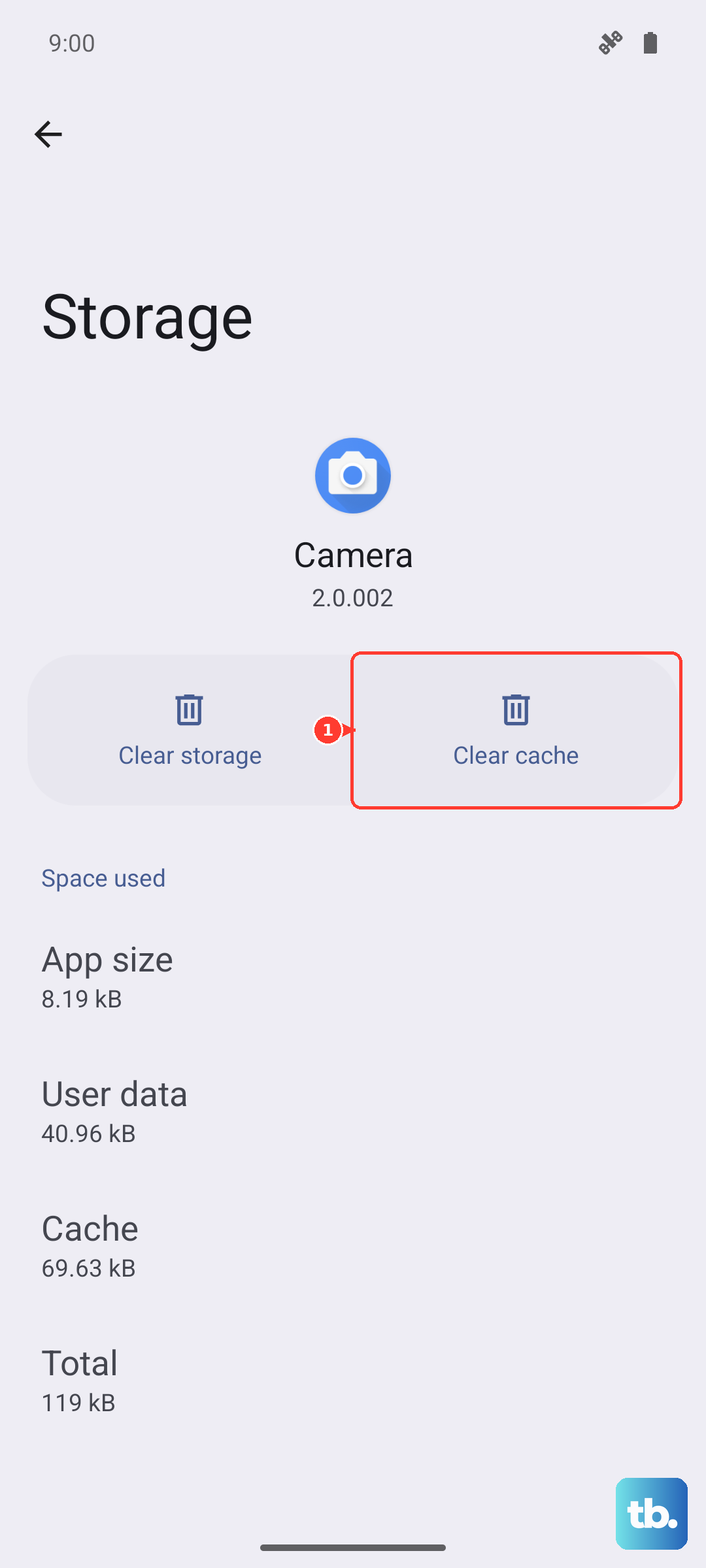
Third-party launchers, theme apps, wallpaper apps, and OEM theme components can block the color change. Work on the suspected app, not core Android settings. If Safe mode proves a downloaded app is causing the problem, restart normally, remove recently downloaded launcher, theme, or color apps one at a time, then restart and test after each removal.
9. Stop using the old Developer options fix
The Android 10 and Android 11 Developer options Accent color menu was a legacy path on devices where the phone maker exposed it. Current vendor-supported guidance points to Wallpaper & style, Pixel Colors, Samsung Color palette, Motorola Personalize, and app-level theme settings.
Root, Magisk, and custom overlay color hacks are not vendor-supported consumer fixes for current Android color controls. If the phone is modified, use supported repair steps such as updating Android, factory resetting after backup, or restoring the original manufacturer-signed Android build.
For a work or school phone, ask the administrator whether wallpaper changes or launcher customization are blocked. Managed Android devices can disable wallpaper changes or use a custom launcher, which makes personal accent-color changes ineffective.
Frequently Asked Questions
Why is my Android accent color still not changing after I pick a palette?
Change the wallpaper first, then return to Wallpaper & style or your phone maker’s color menu and apply the palette again. Wallpaper-based colors depend on the current wallpaper.
Why did the Android 10 accent color option disappear?
That Developer options menu was a legacy Android 10 and 11 path on some phones. Current supported fixes use Wallpaper & style, Pixel Colors, Samsung Color palette, or the maker’s theme controls.
Why do my app icons still look unchanged?
Icon theming depends on phone-maker and app support. Samsung has Apply palette to app icons, while Pixel has an Icons section where available; Pixel all-apps-list icons are not stylized.
Can a work profile stop Android accent colors from changing?
Yes. A managed phone, work profile, kiosk setup, or custom launcher policy can block wallpaper or launcher changes. Ask the administrator to check the device policy.