An Xbox headset mic stops working when mute, chat routing, privacy, firmware, controller audio, or Windows input settings block it. Start with the headset and party test, then move through the Xbox settings that control voice chat. By the end, you will know whether the problem is the headset, the console, the account, Windows, or the Xbox surface you are using.
1. Start with the headset controls
Do the simple hardware check first. A muted mic or loose cable gives you the exact same symptom as a broken headset.
Unplug the headset from the controller, then plug it back in firmly.
Check the headset's mute button or mute switch and set it to unmuted.
Turn up the headset volume on the headset controls.
Press the Xbox button, select the Audio & music icon, then adjust Headset volume, Headset chat mixer, and Mic monitoring.
On the Xbox Wireless Headset, press the mute button on the back end of the mic attachment at the bottom of the left earcup. The mic light is on when the mic is unmuted and off when muted.
Turn the right earcup dial up for headset volume, then move the left earcup game/chat balance dial away from either full end stop.
2. Prove the mic works in a party
Use an empty Xbox party as your mic test. It separates a real microphone problem from a game chat, Discord, privacy, or player-specific issue.
Press the Xbox button.
Open Parties & chats.
Select Start a party.
Make sure your party mic is not muted.
Speak into the headset mic and watch the ring around your gamerpic. When the mic works, that ring lights up.
When the ring lights up in a party, the headset is sending mic audio to Xbox. Move on to chat routing, privacy, and network checks.
3. Rejoin the chat and clear routing problems
Party chat and game chat get stuck. Leave the party or game chat, then join it again.
When you are in Discord voice on Xbox, press the Xbox button, open Parties & chats, select the Discord channel, then choose Disconnect.
After that, switch back to game chat or join an Xbox party.
Check the other player's profile too. Remove Mute or Block when either one is applied.
In Discord voice on Xbox, use the channel's Mute control and open Options for voice settings such as Noise suppression.
When party audio fails while the headset works elsewhere, open the console network settings and check Xbox network status, NAT, and multiplayer connectivity.
4. Allow voice chat on the account
Privacy can block voice chat even when the mic is working.
Open Profile & system > Settings > Account > Privacy & online safety > Xbox privacy > View details & customize > Communication & multiplayer.
Review the voice and text communication settings, including Others can communicate with voice, text, or invites.
For a child or managed family account, the family organizer needs to change the setting.
In the Xbox Family Settings app, select the member, open Settings, and adjust communication or privacy tiles such as Cross-network play.
On the console, the family path is Profile & system > Settings > Account > Family settings > Manage family members > select the member > Privacy & online safety > Xbox privacy > View details & customize.
5. Restart and update the console path
Restart the console before you reset anything. Press and hold the Xbox button on the controller, then choose Restart console.
For a full power cycle, hold the Xbox button on the front of the console for about 10 seconds until it shuts down, then turn it back on.
Update the console at Profile & system > Settings > System > Updates. Select Console update available when it appears.
Update the controller at Profile & system > Settings > Devices & connections > Controllers & headsets > select the controller > ... > update when available.
Controller firmware matters for 3.5 mm headsets because the mic audio path runs through the controller.
On Windows, use Xbox Accessories for controller updates; controller updates over Bluetooth are not supported.
6. Tune the Xbox Wireless Headset
For the Xbox Wireless Headset, restart the headset first.
Press the green power button on the back of the left earcup, wait a few seconds, then press it again.
Lower auto-mute at Profile & system > Settings > Devices & connections > Accessories > select the headset > Configure > set Auto-mute to Low or Off.
Restore defaults at Profile & system > Settings > Devices & connections > Accessories > select the headset > Configure > Restore to default.
Update or reinstall firmware at Profile & system > Settings > Devices & connections > Accessories > select the headset > ... > Update now.
Update now also reinstalls the current firmware when no new update is available.
Re-pair the headset by pressing the console Pair button, then holding the headset power button until pairing mode starts.
Wait for the lights to stop flashing and the connected notification to appear.
On Windows, connect the Xbox Wireless Headset with USB-C or the Xbox Wireless Adapter before using Xbox Accessories.
Xbox Accessories does not manage the headset over Bluetooth.
7. Hard reset the Wireless Headset
Use the hard reset when the Xbox Wireless Headset still refuses to pass mic audio after the restart, auto-mute, firmware, and pairing steps.
- 1.Plug the USB-C cable into the headset only.
- 2.Hold the headset power button and mute button at the same time.
- 3.While holding both buttons, quickly plug the other end of the USB-C cable into the console, PC, or USB power source.
- 4.Wait for the headset to power off.
- 5.Turn the headset back on.
8. Fix Windows Xbox mic settings
On Windows 11, check the mute state, app permission, and input device in that order.
Press Windows logo key + G, open the Xbox Party widget, then select the microphone icon to unmute yourself.
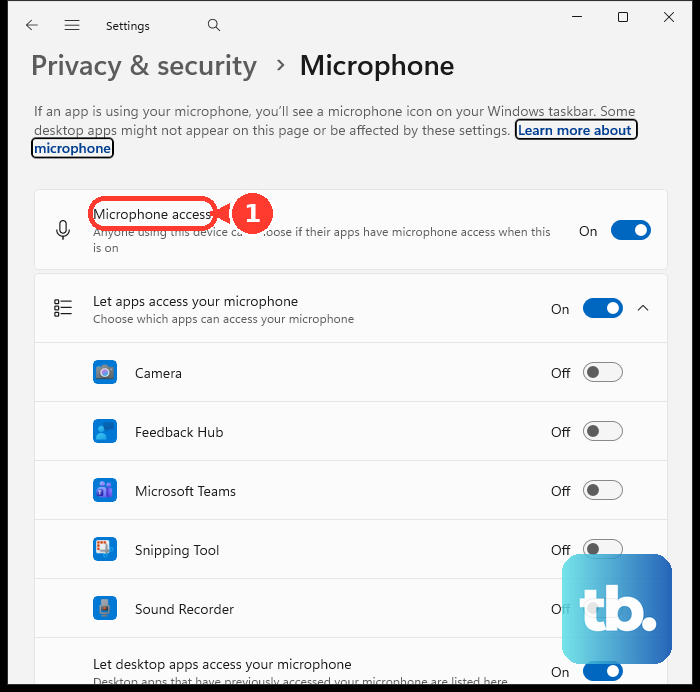
Open Start > Settings > Privacy & security > Microphone.
Turn on Microphone access, Let apps access your microphone, the needed app toggle, and Let desktop apps access your microphone.
Open Start > Settings > System > Sound > Input.
Choose the correct headset microphone, then use the input test controls on that page.
Repair Xbox or Game Bar related apps at Start > Settings > Apps > Installed apps > select More next to the app > Advanced options > Repair.
Use Reset when Repair is unavailable or does not fix it.
When a removable Xbox-related app still fails after Repair and Reset, remove it from Installed apps, then reinstall it from the official Microsoft Store or Xbox page.
On managed work or school PCs, microphone controls can be locked by an administrator.
When Microphone access or app-level microphone permissions are unavailable, use a personal device or contact the organization that manages the PC.
9. Match the fix to cloud gaming and mobile
Xbox Cloud Gaming and mobile party chat use their own permission layers. Match the surface before blaming the headset.
In browser cloud gaming, accept the microphone prompt the first time it appears.
When the prompt was missed, open the browser's privacy, security, or site permission settings and allow microphone access for the Xbox cloud gaming site.
On Android cloud gaming, make sure you are not muted and enable speaker and microphone permissions for the browser or app you are using.
In the Xbox mobile app, restart the device your mic or headphones are connected to, leave the party, and rejoin.
On Android, open Settings > Apps > select the app > Storage > Clear cache.
Use the app storage clear option after cache clear fails.
The Xbox app for smart TVs and streaming devices does not support microphone output for cloud gaming.
Use the headset for listening there, or use another supported party-chat surface such as the Xbox mobile app.
Skip Kinect chat, Xbox 360 headset switches, and old Skype desktop mic tests for current Xbox Series X|S and Windows troubleshooting. Those paths belong to older hardware or older software flows.
Frequently Asked Questions
Why can I hear people but they cannot hear me on Xbox?
Your headset speakers and microphone use different controls. The mic can be muted on the headset, muted in party chat, blocked by Xbox privacy settings, routed through Discord, blocked by Windows microphone permissions, or unavailable on the Xbox smart TV cloud gaming app.
How do I know if my Xbox headset mic is actually working?
Start an empty Xbox party and speak into the mic. The ring around your gamerpic lights up when Xbox receives microphone audio.
Why is my Xbox Wireless Headset mic too quiet or cutting out?
Unmute the hardware mic, move the game/chat balance dial away from the end stops, turn up headset volume, and set Auto-mute to Low or Off in the headset configuration.
Can I use the Xbox Wireless Headset mic over Bluetooth in Xbox Accessories?
No. Connect the headset with USB-C or the Xbox Wireless Adapter before using Xbox Accessories. Xbox Accessories does not manage the headset over Bluetooth.
Does Xbox cloud gaming on a smart TV support headset microphone output?
No. Xbox documents microphone output as unsupported in the Xbox app for smart TVs and streaming devices. Use another supported party-chat surface, such as the Xbox mobile app.