Your iPhone can freeze on Verifying Update during an iOS install and leave the lock screen unusable. Start with the least disruptive fixes first, because the update may still be running. These steps move from safe waiting to a computer update, then recovery mode only when the iPhone will not move forward.
Give the update time on power
Connect the iPhone to a power source and leave it connected. During an over-the-air update or restore, the device can stay on an update screen while the install continues.
Press any button once. If an updating message appears, keep waiting and do not force restart yet.
If the screen stays frozen on Verifying Update and the iPhone does not respond, try a force restart next.
Force restart a frozen iPhone
Use this when the lock screen is stuck on Verifying Update and touch controls do not respond. This applies to iPhone 8 or later, including iPhones with Face ID.
Press and quickly release Volume Up.
Press and quickly release Volume Down.
Press and hold the Side button until the Apple logo appears, then release it and let the iPhone start.
Different button combinations apply to iPhone 7, iPhone 7 Plus, iPhone 6s, and earlier models. Those models do not support current iOS 26, so use the modern Volume Up, Volume Down, Side button sequence for a current iPhone.
Retry the update from Settings
Once the iPhone responds again, start the update cleanly from Settings.
- 1.Open Settings.
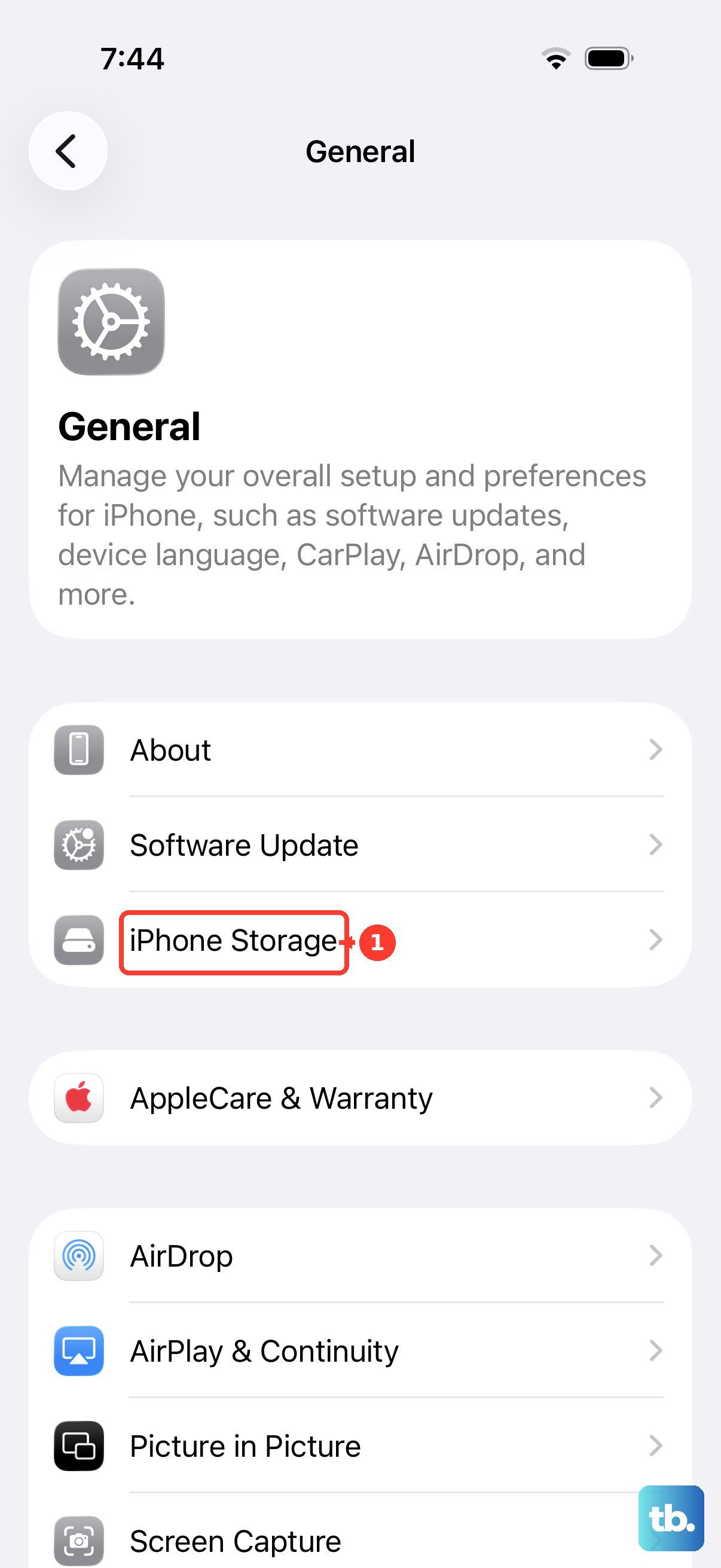
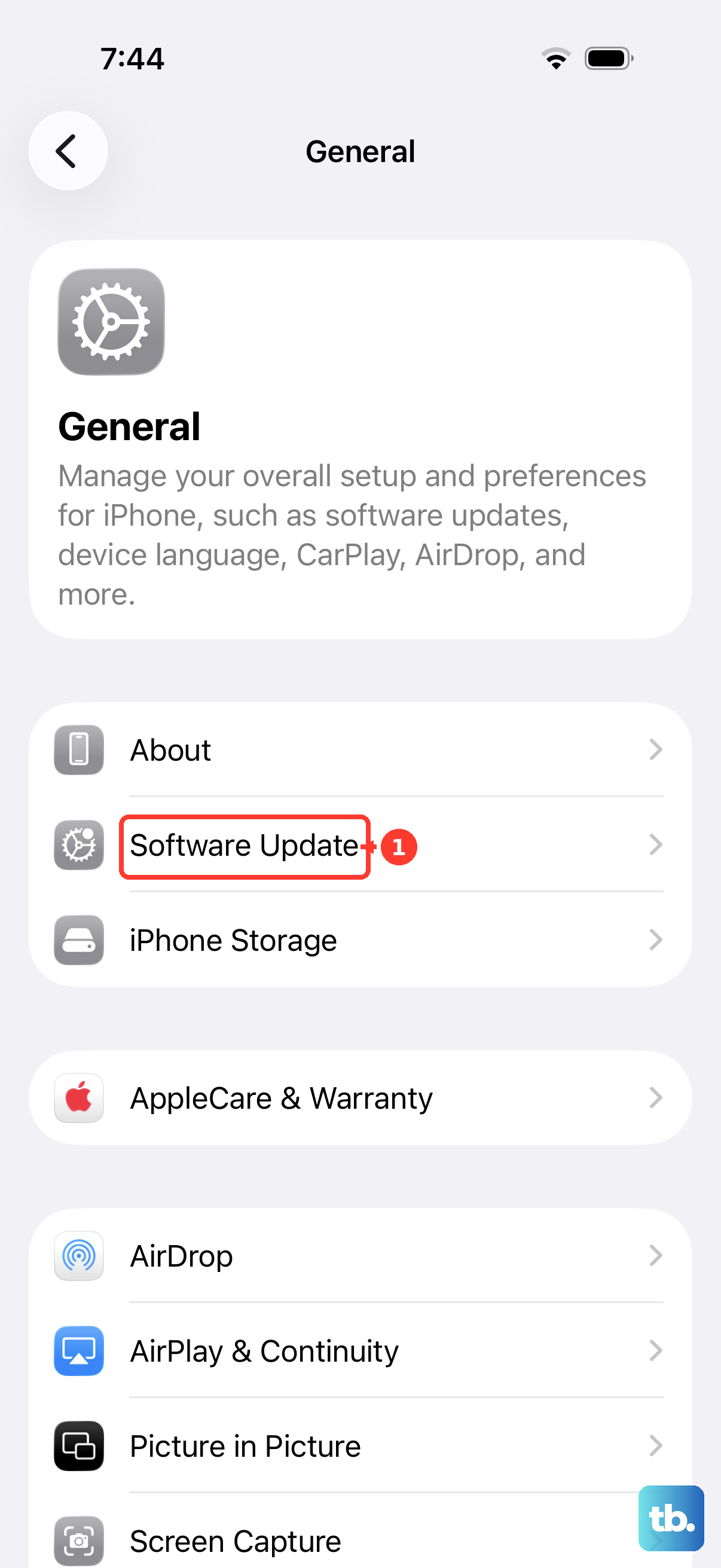
- 2.Tap General.
- 3.Tap Software Update.
- 4.If an update appears, tap Download and Install.
- 5.Follow the onscreen instructions and keep the iPhone on power.
Switch networks when verification fails
If the iPhone says it cannot reach or verify the update server, try the update again on the same network first. Verification fails when the update server or internet connection cannot be reached.
If the same message continues, connect to another Wi-Fi network and run Software Update again. Keep the iPhone connected to power while it checks and installs.
If changing networks does not get past verification, update the iPhone with a Mac or Windows PC.
Delete the downloaded update and download it again
This fixes a downloaded update package that will not install after the iPhone becomes usable again.
Open Settings.
Tap General.
Tap iPhone Storage.
Find the iOS update in the list, then tap it.
Tap Delete Update.
Return to Settings, tap General, tap Software Update, then download the latest update again.
Update with a Mac or Windows PC
Use a computer when the iPhone keeps getting stuck during the wireless update or Settings is not reliable. On a Mac with macOS Catalina or later, use Finder; on Windows, use Apple Devices.
On a Mac, open Finder and connect the iPhone to the computer. Select the iPhone in the Finder sidebar, click General, click Check for Update, then click Download and Update and follow the onscreen instructions.
On Windows, install Apple Devices from Apple’s official Windows download page if it is not already installed. Connect the iPhone, open Apple Devices, select the device in the sidebar, select General, then select Update; choose Check for Update first when that button appears.
iTunes remains documented for a Mac with macOS Mojave or earlier, or a Windows PC using iTunes, but Apple Devices is the newer Windows app for managing and updating an iPhone.
Fix computer update errors
If Finder or Apple Devices shows an error, update your Mac first. On a Windows PC, make sure you have the latest version of Apple Devices or iTunes. Connect the iPhone directly to the computer’s USB port instead of a keyboard or hub, and use a cable that is in good condition.
Unlock the iPhone when possible and tap Trust if prompted. If the update still fails, try a different Apple USB cable or another USB port.
Restart the computer, then restart the iPhone and try the update again. Security software can interfere with Apple Devices or iTunes, so update, change, or uninstall that software when it blocks the connection.
If the computer still cannot complete the update, try another computer that uses a different network.
Use recovery mode when the iPhone will not start normally
Update your Mac first, or install the latest Apple Devices app on a Windows PC.
Connect the iPhone to the computer with a USB cable.
Open Finder on the Mac, or open Apple Devices on the Windows PC.
On iPhone 8 or later, including iPhone SE 2nd generation and later, press and quickly release Volume Up, press and quickly release Volume Down, then hold the Side button until the Connect to computer screen appears.
When the computer offers Update or Restore, choose Update first if you have not already tried updating from the computer.
Choose Restore only as the last resort, because restoring erases the device and installs the latest software.
Keep the iPhone connected until the computer finishes the process.
Use a recent backup after restore so you can put your data back onto the iPhone.
Check storage, compatibility, and managed device limits
These checks help prevent the same update from sticking again.
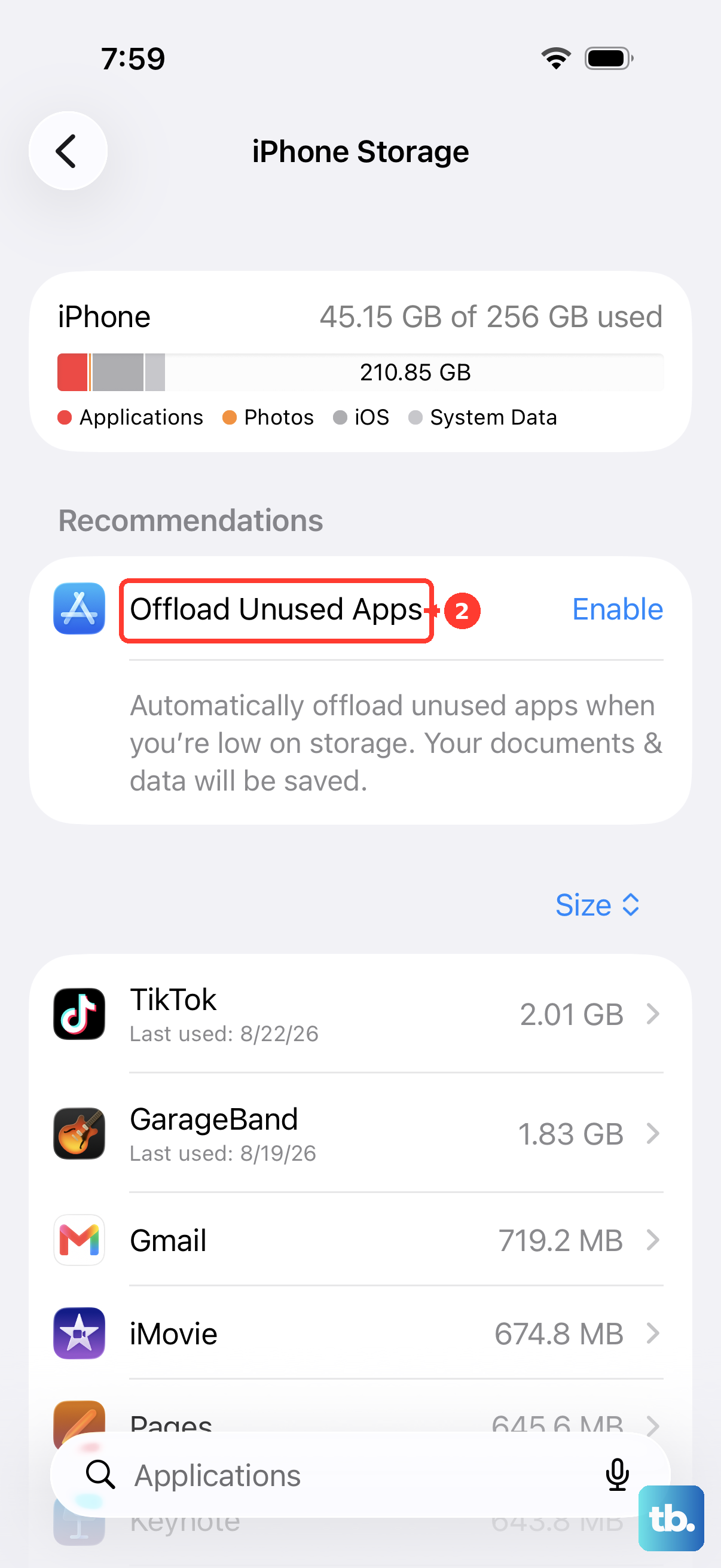
- 1.Open Settings, tap General, then tap iPhone Storage. If storage is tight, tap Enable next to Offload Unused Apps.
- 2.Confirm the iPhone supports the update before retrying. Current iOS 26-compatible models include iPhone 17 models, iPhone Air, iPhone 16 models including iPhone 16e, iPhone 15 models, iPhone 14 models, iPhone 13 models, iPhone 12 models, iPhone 11 models, and iPhone SE 2nd generation and later.
- 3.After the phone is working, open Settings, tap General, tap Software Update, tap Automatic Updates, then turn on Automatically Install.
- 4.For a school or work iPhone, contact the administrator if the update option is missing, deferred, or enforced. Managed devices can have update availability and timing controlled by the organization.
- 5.If you regained access and see an unwanted removable profile, open Settings, tap General, tap VPN & Device Management, select the profile, tap Delete Profile, then restart the iPhone.
Frequently Asked Questions
How long should I wait on Verifying Update before force restarting?
Keep the iPhone on power and press a button once. If it shows an updating message, keep waiting. If it stays frozen and does not respond, force restart it.
Will force restarting delete my iPhone data?
No. A force restart only restarts an unresponsive iPhone. The erase step is Restore, which should be saved for last because it erases the device and installs the latest software.
Why does my iPhone get stuck while verifying an update?
Verification can fail when the iPhone cannot reach the update server or the internet connection is not working reliably. A downloaded update file that will not install or low available storage can also stop the update from completing.
Should I choose Update or Restore in recovery mode?
Choose Update first if you have not already tried updating from the computer. Choose Restore only as a last resort because it erases the iPhone and installs the latest software.











