Alt+Tab is supposed to move you between open windows instantly. When it does nothing, shows the wrong items, or fills the switcher with Microsoft Edge tabs, the problem sits in one of three places: the shortcut, the keyboard, or Windows multitasking settings.
Start with the quick switcher checks below, then move into keyboard, app, driver, and Windows repair fixes until Alt+Tab behaves normally again.
1. Try the shortcut and Task View first
Use the shortcut the supported Windows way before changing settings.
- 1.Hold Alt.
- 2.Press Tab until the window you want is selected.
- 3.Release Alt to switch.
- 4.To move backward, hold Shift + Alt, then press Tab.
If you need the window right now, open Task View instead. Press Windows + Tab, or select the Task view button on the taskbar, then select the window.
2. Rule out the keyboard
Unplug the USB keyboard, wait briefly, then plug it back in. Next, try a different USB port, remove any USB hub and connect the keyboard directly to the PC, then check the cable, batteries, charge level, and dirt around the Alt and Tab keys.
For a USB wireless keyboard, unplug the wireless receiver, wait about 10 seconds, then plug it back in. Then Test the keyboard on another PC. If Alt+Tab does not open at all, these checks confirm whether Windows is receiving the Alt and Tab keys.
For a Bluetooth keyboard, open Start > Settings > Bluetooth & devices, switch Bluetooth off, then switch it on. To pair it again, go to Start > Settings > Bluetooth & devices > Devices, select More options for the keyboard, choose Remove device, select Yes, then use Add device to reconnect it.
3. Set what Alt Tab shows
When Alt+Tab opens but shows the wrong items, the Windows multitasking options control what appears.
For window-only switching, open Start > Settings > System > Multitasking > Show tabs from apps when snapping or pressing Alt+Tab. Then choose Don't show tabs. To include tabs, choose 20 most recent tabs, 5 most recent tabs, or 3 most recent tabs.
If open apps are missing from another virtual desktop, open Start > Settings > System > Multitasking, then expand Desktops. Set Show all open windows when I press Alt+Tab to On all desktops. To limit Alt+Tab to the desktop you are using, choose Only on the desktop I'm using.
For missing Snap groups, go to Start > Settings > System > Multitasking > Snap windows. Turn Snap windows on, expand it, and check Show my snapped windows when I hover over the taskbar apps, in Task View, and when I press Alt + Tab.
4. Restart the Windows shell
Press Ctrl + Shift + Esc, find Windows Explorer, right-click Windows Explorer, and select Restart. Alt+Tab belongs to the Windows shell experience, and restarting Windows Explorer refreshes that shell without rebooting the PC.
If Windows Explorer is not listed, select File > Run new task, type explorer.exe, then press Enter.
5. Disable keyboard features that change shortcuts
Sticky Keys and Filter Keys change how Windows handles modifier keys and repeated key presses. Open Start > Settings > Accessibility > Keyboard, then review the keyboard settings under Interaction.
Turn off Sticky Keys and Filter Keys when normal shortcuts are not responding cleanly. You can also press Shift five times to toggle Sticky Keys, or hold Right Shift for eight seconds to toggle Filter Keys.
6. Clear remaps and shortcut conflicts
PowerToys: Open PowerToys Settings > Keyboard Manager. Turn Keyboard Manager off, close PowerToys, or remove any Remap a key or Remap a shortcut entry that affects Alt, Tab, or Alt+Tab.
Microsoft Mouse and Keyboard Center: Open Microsoft Mouse and Keyboard Center. Select the connected supported Microsoft keyboard, then check global or app-specific assignments that affect Alt, Tab, task switching, or shortcut behavior.
Surface app: Open Surface from Start. Select the device or keyboard, then select Customize keyboard on supported Surface models. Start with Microsoft tools that directly control keyboard behavior.
For Surface Pro Flex Keyboard wireless input problems, detach the keyboard. Hold Esc for about 5 seconds until the LED on the Fn key lights up. Connect the keyboard to the Surface Pro, and leave it connected for at least 30 seconds before using it wirelessly again.
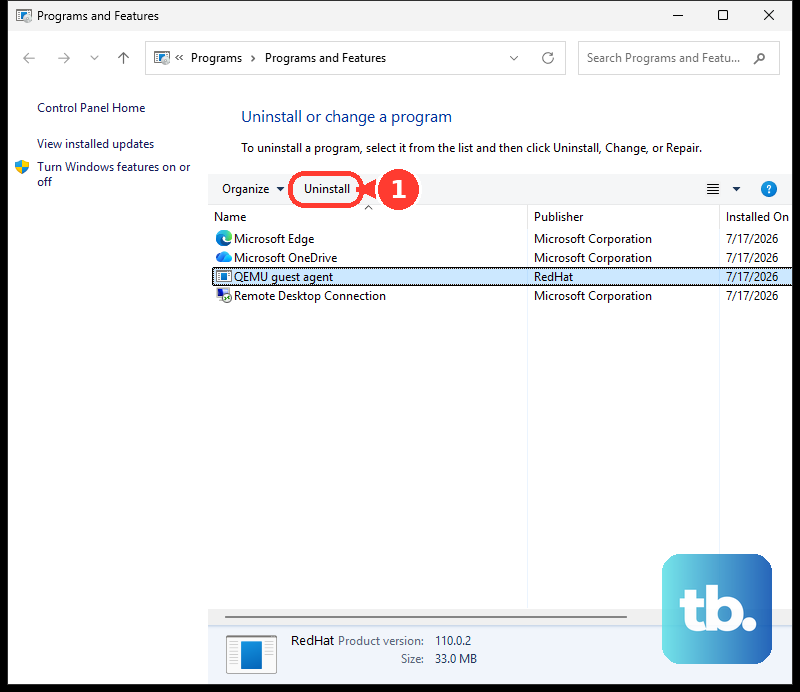
For other keyboard managers, overlay tools, remote-desktop tools, game utilities, or shortcut-hooking apps, open Start > Settings > Apps > Installed apps. Select More next to the app. If Advanced options is available, use Repair, then use Reset if repair does not fix it; not every app offers these.
If it does not, use Control Panel > Programs and Features > Repair or Change when the program provides it. To remove the app, choose More > Uninstall.
7. Refresh the keyboard driver
A damaged input driver can block reliable shortcut input. Update it first.
Right-click Start, select Device Manager, then expand Keyboards or the relevant device category. Right-click the keyboard or input device, select Update driver, and choose Search automatically for updated driver software.
To reinstall the driver, right-click the device in Device Manager, select Uninstall device, and choose Uninstall. Then right-click Start > Shut down or sign out > Restart. Windows attempts to reinstall the driver after restart.
If Alt+Tab stopped right after a driver update, open the device Properties. Go to the Driver tab, select Roll Back Driver, choose a reason, select Yes, and restart when prompted.
8. Repair Windows files and updates
Start > Settings > Windows Update is the first stop. Select Check for updates. For faster feature and fix rollout, turn on Get the latest updates as soon as they're available, then select Check for updates again.
Repair Windows system files next. Type command prompt in taskbar search, right-click Command Prompt, select Run as administrator, and choose Yes. Run DISM.exe /Online /Cleanup-image /Restorehealth, then run sfc /scannow. After verification reaches 100%, type exit and press Enter.
If Alt+Tab broke after a recent system change, use Control Panel > Recovery > Open System Restore > Next. Then choose a restore point from before the problem began. You can also press Windows + R, type rstrui.exe, and press Enter.
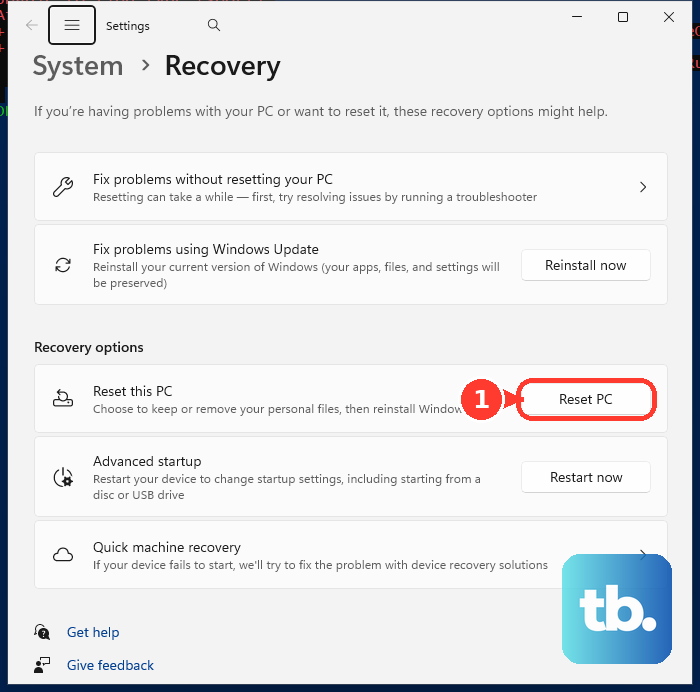
For a stronger repair, open Start > Settings > System > Recovery. Under Fix problems using Windows Update, select Reinstall now. Choose the restart option, select OK, and restart when needed.
This option needs Windows 11 with the 2022 annual update or later plus the February 2024 optional update (or a later update) installed, and it can be unavailable on work or school managed devices. Use Reset PC from the same Recovery page only as a last resort after backing up important data.
9. Skip outdated Alt Tab fixes
Old Windows 11 Alt+Tab fixes are not the right repair path if they tell you to run the retired Keyboard troubleshooter, turn on Aero Peek, or create the old AltTabSettings registry tweak. Current Windows 11 repair paths use Get Help for relevant troubleshooters, Multitasking settings for Alt+Tab behavior, Device Manager for keyboard drivers, and Recovery for Windows repair.
If a work or school PC keeps changing Alt+Tab behavior, use the normal Settings checks first. Then contact the administrator. Managed devices can control Windows Update and multitasking behavior through policy.
Frequently Asked Questions
Why does Alt+Tab show Microsoft Edge tabs instead of only windows?
Windows 11 can include app tabs in Alt+Tab. Go to Start > Settings > System > Multitasking > Show tabs from apps when snapping or pressing Alt+Tab, then choose Don't show tabs for window-only switching.
Why are some open apps missing from Alt+Tab?
Those apps are on another virtual desktop. Go to Start > Settings > System > Multitasking, expand Desktops, and set Show all open windows when I press Alt+Tab to On all desktops.
Can PowerToys break Alt+Tab?
Yes. PowerToys Keyboard Manager remaps keys and shortcuts while PowerToys is running and Keyboard Manager is enabled. Check PowerToys Settings > Keyboard Manager and remove remaps affecting Alt, Tab, or Alt+Tab.
What is the fastest workaround when Alt+Tab fails?
Use Task View. Press Windows + Tab or select the Task view button on the taskbar, then choose the window you want.