
Factory resetting your iPhone 14 is the most thorough way to wipe it clean, whether you're passing it on to someone else or trying to fix a stubborn software glitch. It returns the phone to exactly how it was when you first took it out of the box in 2022. I'd always start by making absolutely sure you have a recent backup, because once you confirm the reset, there's no going back.
Create a Backup Before Anything Else
Your first stop should be in your settings to back everything up to iCloud. Open Settings > [Your Name] > iCloud > iCloud Backup and tap Back Up Now. Make sure you're connected to Wi-Fi and give it a few minutes to finish. For a more complete local backup, connect your iPhone 14 to a computer using its Lightning cable.
On a Mac with macOS Catalina or later, open Finder, select your iPhone from the sidebar, and click Back Up Now. On a Windows PC or older Mac, you'll use iTunes. This computer backup can sometimes be more reliable, especially if you've had issues after an iOS update.
Sign Out of Find My and Your Apple ID
This step is non-negotiable if you're giving the phone away. If you forget, Activation Lock will remain on, making the iPhone 14 a useless brick for the next person. To prevent this, go to Settings > [Your Name] and scroll all the way down.
Tap Sign Out. You'll be asked to enter your Apple ID password to turn off Find My iPhone. Confirm you want to keep a copy of your keychain and any relevant data on the device, then proceed. Once you're signed out, you're ready for the main reset.
Erase Directly from Your iPhone 14 Settings
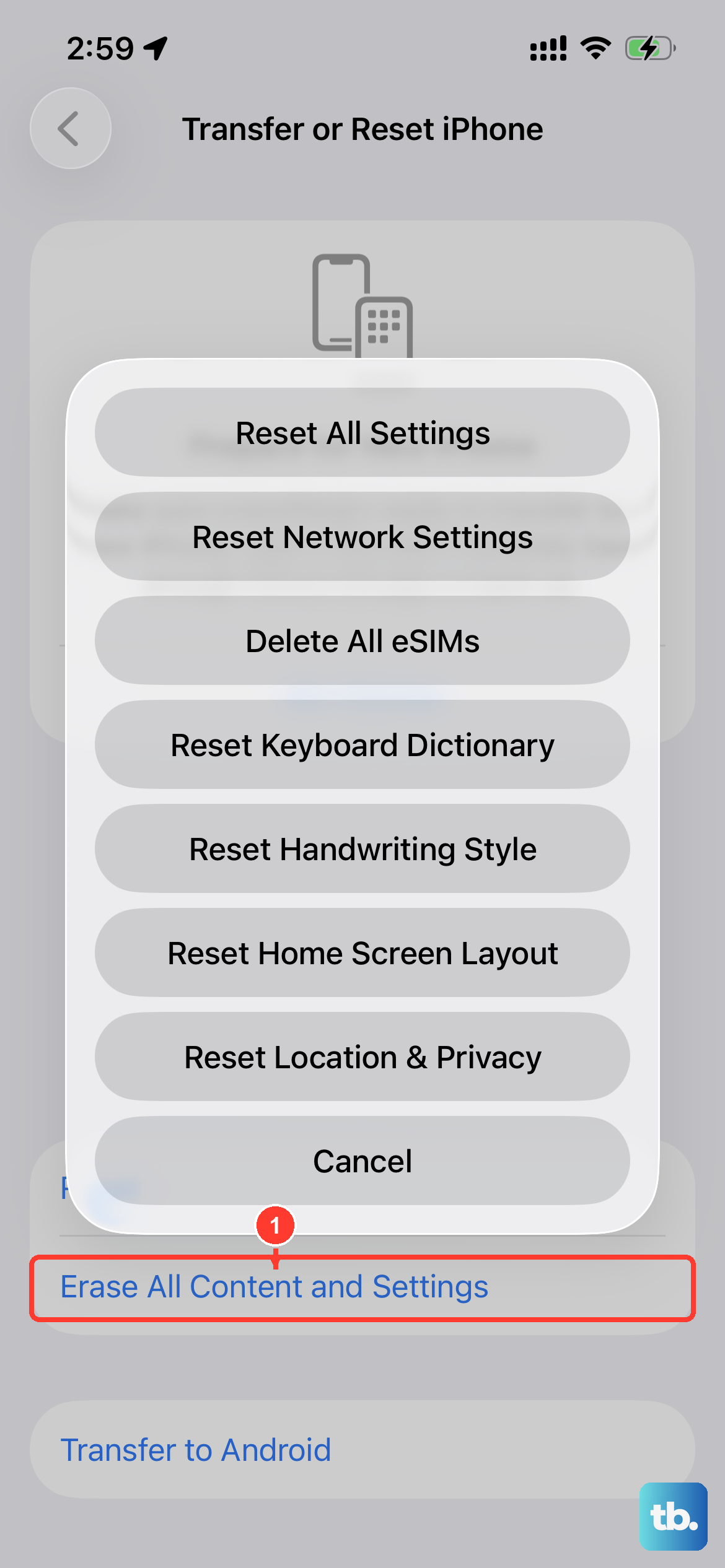
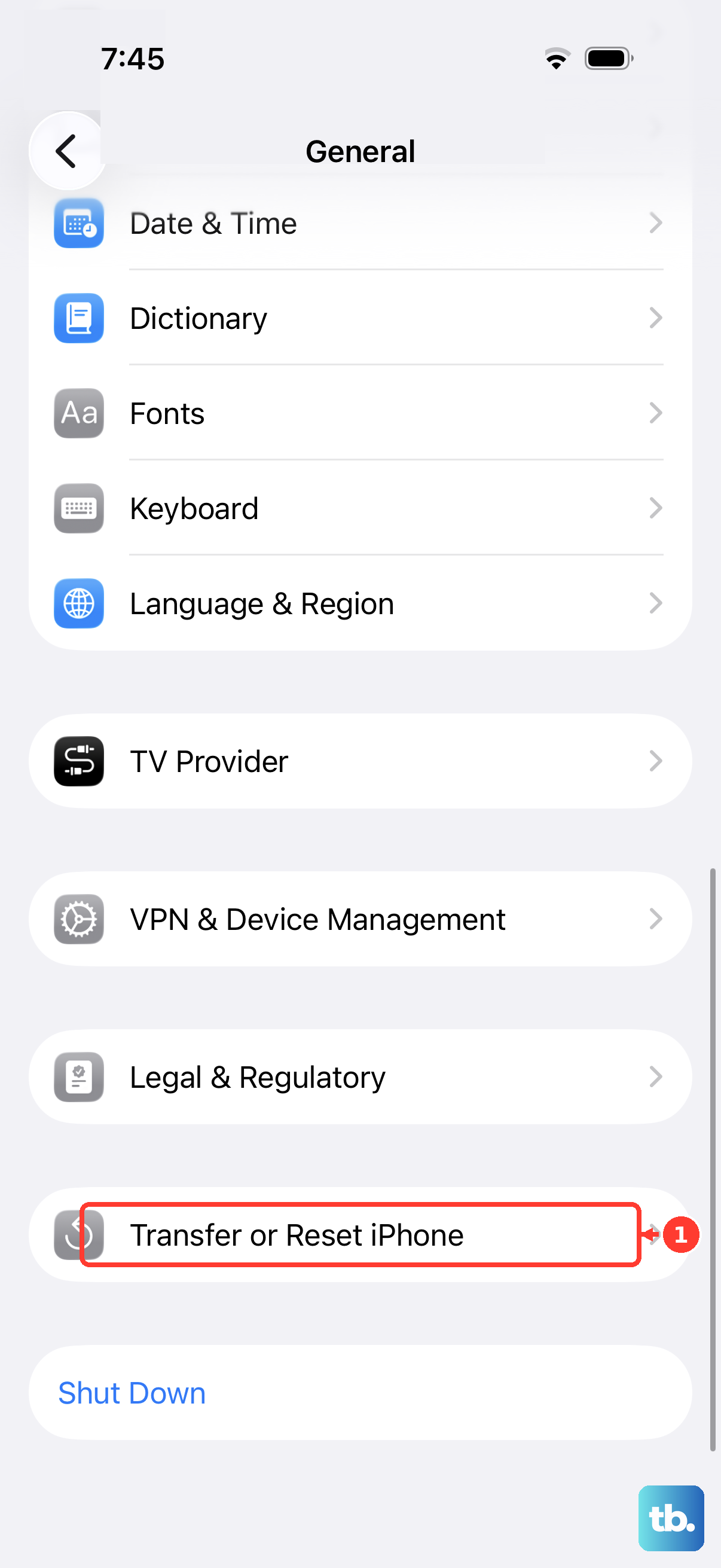
The standard method is straightforward. On your iPhone 14, navigate to Settings > General > Transfer or Reset iPhone. At the very top, tap Erase All Content and Settings. Your phone will ask for your passcode and then your Apple ID password one final time to confirm.
After you confirm, the erasure process begins. Your iPhone 14 screen will go black and show the Apple logo with a progress bar. This usually takes just a few minutes. When it's done, you'll be greeted by the familiar "Hello" setup screen in your chosen language.
Reset Your iPhone 14 Using a Computer
Use this method if your phone is unresponsive, you're locked out, or the Settings method fails. It's also a good option if you're troubleshooting persistent issues that cropped up after an update, like some users reported with iOS 18. Grab your Lightning cable and connect your iPhone to a Mac or PC.
Open Finder (on Mac) or iTunes (on Windows), select your device, and look for the Restore iPhone button. This will download the latest version of iOS and install it fresh, completely wiping the device in the process. It's a deeper clean than the Settings method.
If your computer doesn't recognize the phone, you'll need to put the iPhone 14 into recovery mode first. Quickly press and release the Volume Up button, then do the same with the Volume Down button. Finally, press and hold the Side button. Keep holding it until you see the recovery mode screen (a cable pointing to a computer icon).
Try a Targeted Reset First
If you're not ready for a full factory reset, iOS offers several smaller, focused resets that can solve common problems. Go back to Settings > General > Transfer or Reset iPhone > Reset. Here you'll find options to reset just your network settings, keyboard dictionary, home screen layout, or location and privacy settings.
For example, if your Wi-Fi or Bluetooth is acting up, resetting network settings often clears the issue. This removes all saved networks and paired devices, but it leaves all your personal data and apps untouched. It's a great first step before committing to the full erase.
Restoring Your Data After the Reset
Once the factory reset is complete and you're at the setup screen, follow the prompts. Choose your language, connect to a Wi-Fi network, and sign back into your Apple ID. When you reach the Apps & Data screen, select Restore from iCloud Backup.
Sign into iCloud again and choose the most recent backup from the list. The phone will begin restoring your settings, app data, and photos. Stay connected to power and Wi-Fi, as this process can take a while depending on how much data you have.











