
Factory resetting your iPad Air (2026) completely erases all your apps, data, and settings, returning it to the state it was in when you first took it out of the box. It's a powerful step, but it's often the best solution for clearing out stubborn software glitches, preparing the device for a new owner, or just getting a completely fresh start. The key is doing it the right way so you don't lose anything important or run into Activation Lock issues later.
Back Up Your iPad Air to iCloud or a Computer
Before you even think about the reset button, make sure everything on your iPad is safely backed up. The easiest way is through iCloud. Go to Settings > [Your Name] > iCloud > iCloud Backup and tap Back Up Now. Keep your iPad connected to Wi-Fi and plugged into power until the backup finishes.
For a more complete local backup, connect your iPad to a Mac or PC using a USB-C cable. On a Mac with macOS Catalina or later, open Finder, select your iPad from the sidebar, and click Back Up Now. On a Windows PC or older Mac, you'll use iTunes to do the same thing. This computer backup saves more app data and is a good safety net.
Sign Out of Your Apple ID and iCloud
This step is absolutely crucial if you're selling or giving away your iPad. If you skip it, the Activation Lock will remain active, making the iPad unusable for the next person. To sign out, open Settings and tap your name at the top.
Scroll all the way to the bottom and tap Sign Out. You'll be asked to enter your Apple ID password to turn off Find My iPad and confirm you want to sign out of iCloud on this device. Once you're signed out, the iPad is ready to be wiped clean and set up by someone else.
Perform the Factory Reset from iPadOS Settings
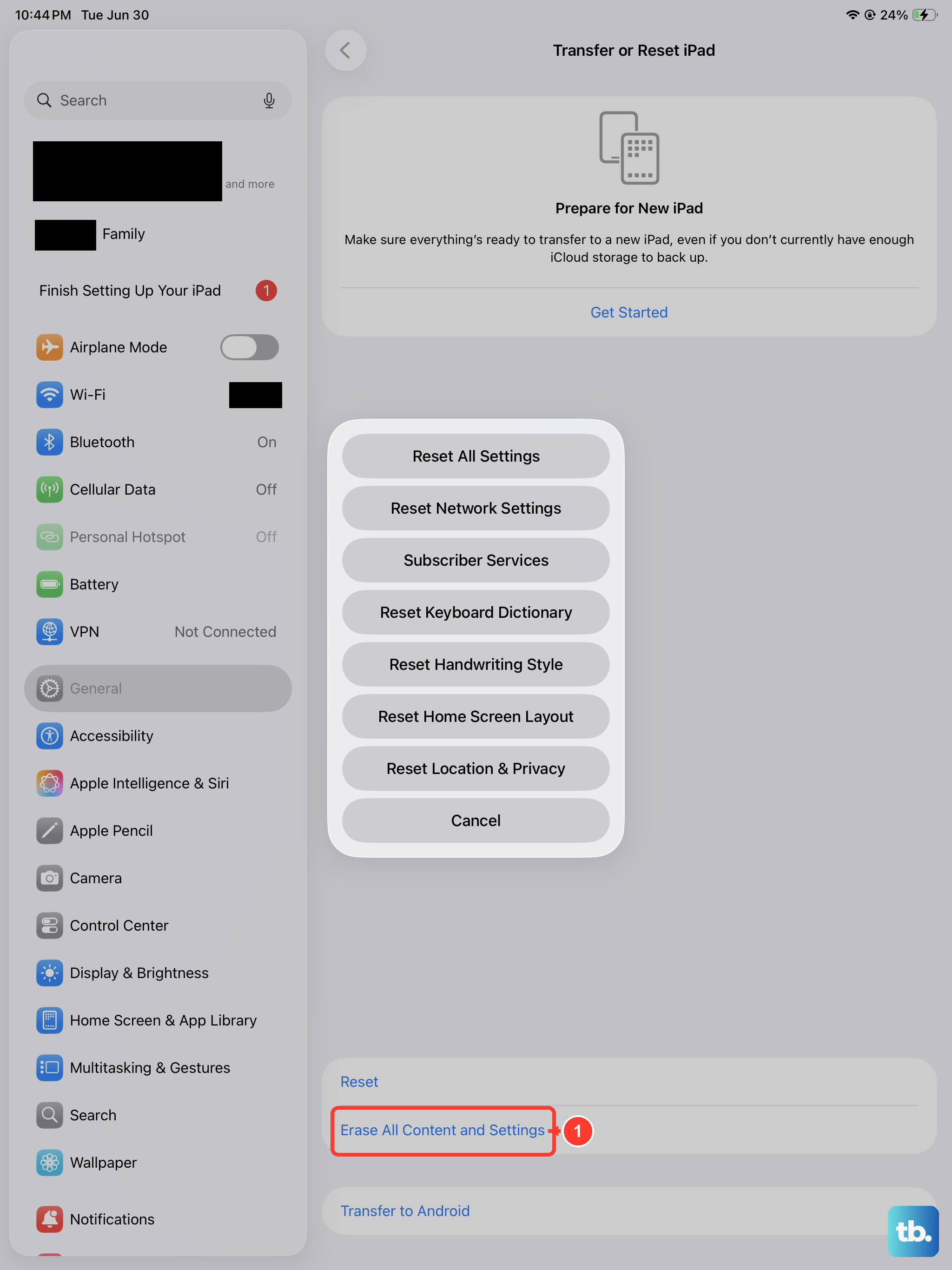
This is the standard method when your iPad is working and you can access the settings menu. Open the Settings app, then navigate to General > Transfer or Reset iPad. At the bottom, tap Erase All Content and Settings.
Your iPad will ask for your passcode and then your Apple ID password one last time to confirm. After you enter them, it will present a final warning screen showing exactly what will be deleted. Tap Erase Now to begin. The process takes several minutes, and your iPad will restart, showing the familiar "Hello" setup screen when it's done.
Reset Your iPad Using a Computer (Recovery Mode)
If your iPad Air (2026) is frozen, unresponsive, or you've forgotten the passcode, you'll need to use a computer. This method, often called a restore, completely wipes the device and installs a fresh copy of iPadOS. First, connect your iPad to your computer with a USB-C cable and open Finder (on Mac) or iTunes (on Windows).
If your iPad doesn't appear, you need to put it into Recovery Mode. On the iPad Air (2026), which has no Home button, quickly press and release the Volume Up button, then quickly press and release the Volume Down button. Immediately press and hold the Top button. Keep holding it until you see the recovery mode screen (a cable pointing to a computer icon).
In Finder or iTunes, you'll see an option to Restore your iPad. Click it. The software will download the latest version of iPadOS and install it, erasing everything on the device in the process. Do not disconnect the cable until the process is complete.
Use Targeted Reset Options for Smaller Issues
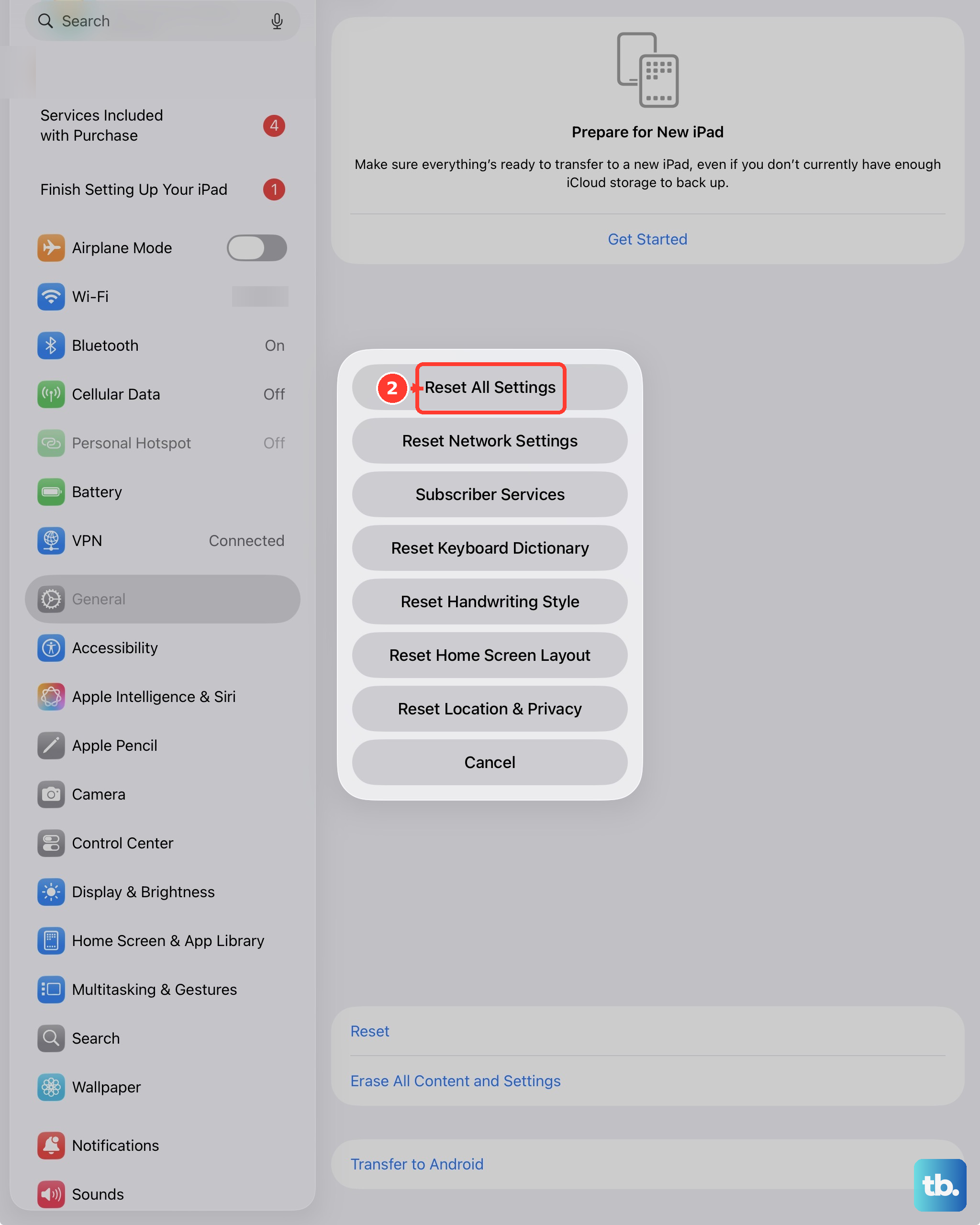
You don't always need a full nuclear reset. If you're dealing with a specific problem like Wi-Fi not connecting, Bluetooth being flaky, or general system lag, try a targeted reset first. Go to Settings > General > Transfer or Reset iPad > Reset.
Here, you'll find options to reset just your network settings, keyboard dictionary, home screen layout, or location and privacy preferences. I'd start with "Reset All Settings" if you have widespread minor issues. This returns all system settings to default without touching your personal data, photos, or apps, and it can solve a lot of problems.
Restore Your Data After the Reset
Once the factory reset is finished and you're looking at the "Hello" screen, you can choose to set up your iPad as new or restore your data. Follow the on-screen prompts to choose your language, connect to Wi-Fi, and sign back into your Apple ID.
When you reach the Apps & Data screen, select Restore from iCloud Backup or Restore from Mac or PC. Choose the most recent backup you created before the reset. Your iPad will download and reinstall everything, bringing back your apps, photos, settings, and documents over the next little while, depending on your internet speed and backup size.
When a Factory Reset Makes Sense for Your iPad
A full erase is your best bet when you're experiencing persistent, unexplainable problems that other fixes haven't solved. This includes severe battery drain, apps that crash constantly, the iPad freezing or restarting on its own, or general sluggishness that a simple restart doesn't fix.
It's also the only responsible step to take before selling, trading in, or donating your iPad Air (2026). For less serious issues, always try restarting your iPad first. You can do this by holding the Top button and either volume button until the power slider appears, then sliding to power off. After it's off, press the Top button again to turn it back on. This simple step clears the device's memory and fixes a huge number of temporary glitches.











